
What makes a generated password or passphrase strong?
A password doesn't have to look complicated to be hard to guess. What matters is choosing every character or word at random—and choosing enough of them.
Why random choices make passwords hard to guess
Picture a combination lock: each password character is a dial, and each passphrase word is a dial too. A random generator turns every dial separately, giving each available option an equal chance.
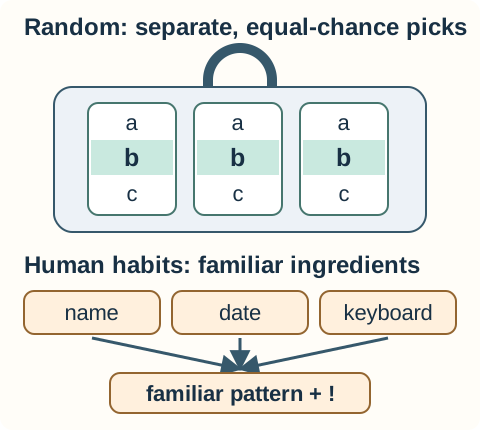
Random dials versus familiar patterns
That's the difference between an unpredictable secret and one that looks complicated. People often reach for names, dates, familiar phrases or keyboard patterns. Guessers can try those habits first, including familiar substitutions and an added symbol at the end.
A phrase you invent has the same problem: words that sound natural together aren't independent picks. FluffyBench's Secure random generator chooses characters or words with the browser's cryptographic random source. It doesn't choose a sentence and dress it up. That makes it possible to count the choices that went into the result.
How password length and word count add strength
Here are real outputs from FluffyBench's starting settings: a 20-character password drawn from 85 possible characters, and 6 words drawn from EFF's list of 7,776. Each box is one random pick.
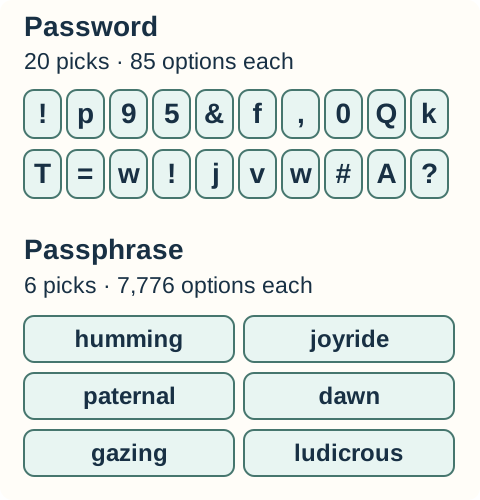
One recorded password and one recorded passphrase
Every existing password can end in any of 85 extra characters with all character groups selected. Every existing passphrase can take any of 7,776 extra words: adding a random pick multiplies the possibilities.
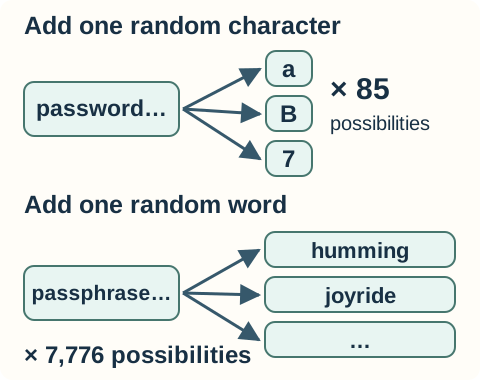
One more pick multiplies the possibilities
Bits are a compact way to count possible results: each extra bit doubles the set. FluffyBench's starting settings give these calculated selection spaces.
The character password gives a blind guesser far more possibilities at these settings. The word phrase can grow too: more independently chosen words mean more possibilities. A separator such as a hyphen makes words easier to read, but it isn't another random pick.
Should you use a password or a passphrase?
Choose by how you'll use the secret. A password manager can handle a jumble of characters; randomly chosen words are easier to remember when you need to type a secret yourself.
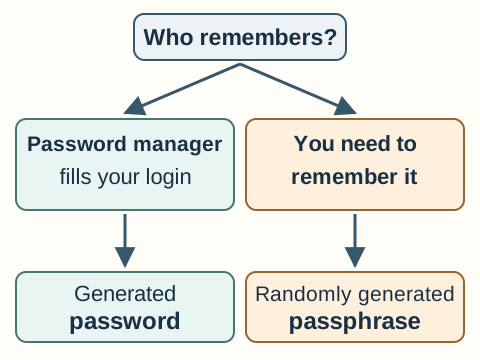
Choose by how you'll use the secret
A longer-looking phrase isn't automatically stronger than a shorter character password. What matters is the number of independent picks and the options each pick had. You don't need to invent something clever to get that benefit.
Give each account its own secret. Random selection doesn't prevent reuse or phishing, so pay attention to where you enter it and use a phishing-resistant sign-in option when the site offers one.
Doing it in FluffyBench
FluffyBench's Secure random generator makes passwords and passphrases locally in your browser. Check the receiving website's length and character rules before choosing your settings; a long phrase still has to fit its password field.
For a password you can save in a password manager, use Password. Characters adds the checked groups to one pool; it doesn't require every group to appear, so check the result against any required mix.
-
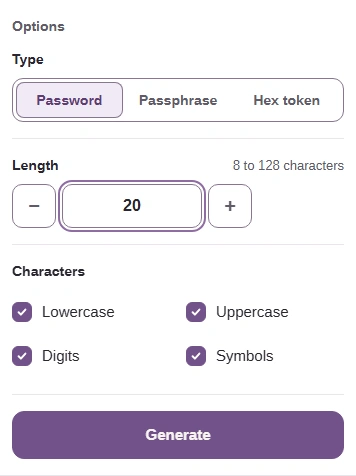
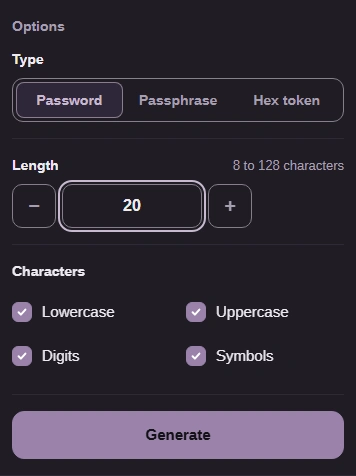
Step 1. Choose Password and set the options before generating. - Choose Password under Type.
- Length sets the character count; use 20 here.
- Tick the character groups the website allows.
-
-


Step 2. Press Generate to make a fresh password. - Generate uses the settings you've chosen.
-
-
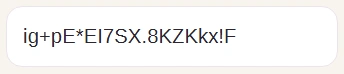
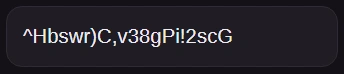
Step 3. Check the generated password against the website's character rules. - Check the generated characters against any required mix.
-
-


Step 4. Check the count underneath the password. - Check the character count beside the bit estimate.
-
-
Step 5. Press Copy, then paste your new password into your password manager. - Copy puts the result on your clipboard.
-
For words you need to remember, use Passphrase. Words changes the number of random picks; Between words changes how they're joined.
-
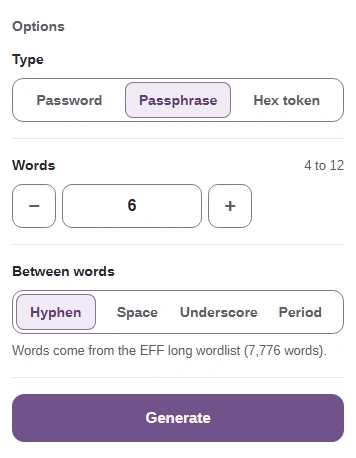
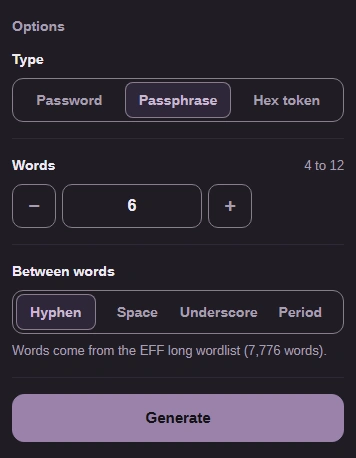
Step 1. Choose Passphrase and set the word count and separator. - Choose Passphrase under Type.
- Set Words to 6 here.
- Choose Hyphen under Between words.
-
-


Step 2. Press Generate to pick fresh words. - Generate draws words from the EFF long list.
-
-
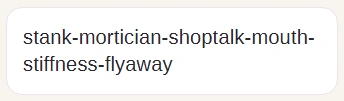
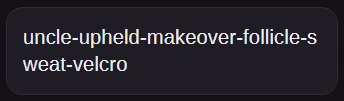
Step 3. Your passphrase appears in Result; the Copy control works as shown in the password walkthrough. - The generated words are joined with hyphens.
-
FluffyBench doesn't save your result or check it against known breaches.