
Will my animation keep its frames after conversion or resizing?
Usually, yes. Save it in a format that can animate and every frame comes along, even when you make it smaller.
Save it as a JPG, though, and you'll get one frozen moment.
Why can an animation turn into one still picture?
An animation is a flipbook. It's a stack of pictures, called frames, and each one shows for a moment before the next takes its place. Flip through them in order and you get movement.
Here's a real flipbook: Eadweard Muybridge's 1887 photographs of a mule kicking, played as an 8-frame GIF.
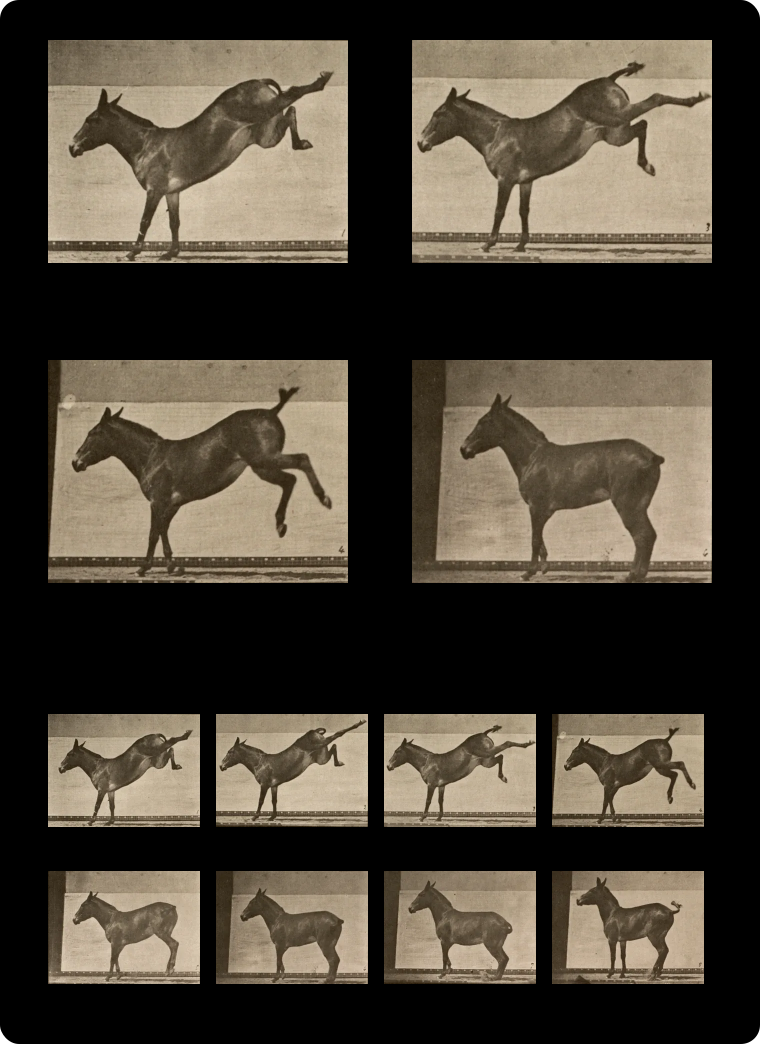

Some formats can hold the whole flipbook: GIF, WebP, AVIF, APNG (the animated kind of PNG) and JPEG XL. Others, like JPG and ordinary PNG, hold exactly one picture. Convert an animation to one of those and only the first page survives.
Which formats kept the animation's frames?
To see it happen, we ran that mule GIF through FluffyBench's converters once each, to WebP, GIF, AVIF and JPG, with the default settings.
Here are the same four moments pulled back out of each saved file, under the original.
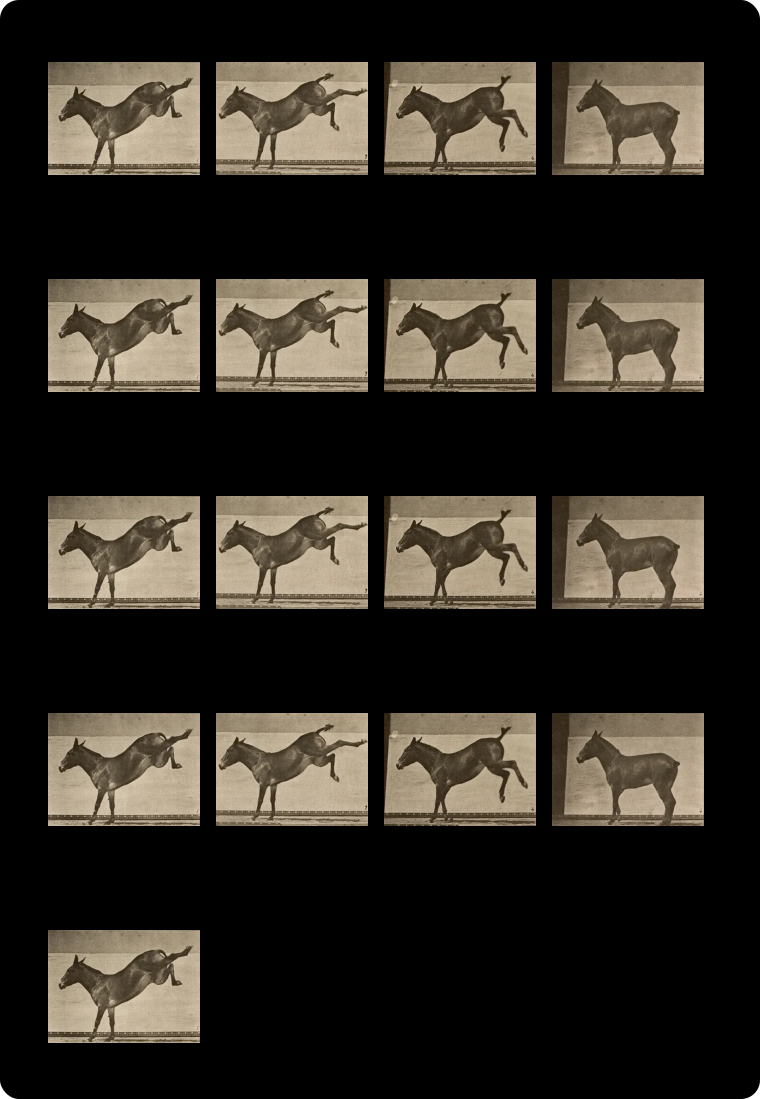
The JPG didn't drop the rest quietly. The conversion warned: "Only frame 1 of 8 is kept." One still picture has its uses, like a thumbnail or a preview, but it won't move. PNG works the same way: FluffyBench's PNG output saves frame 1, while APNG keeps every frame.
Need to count the frames in an animation?
What happens to the frames when you resize?
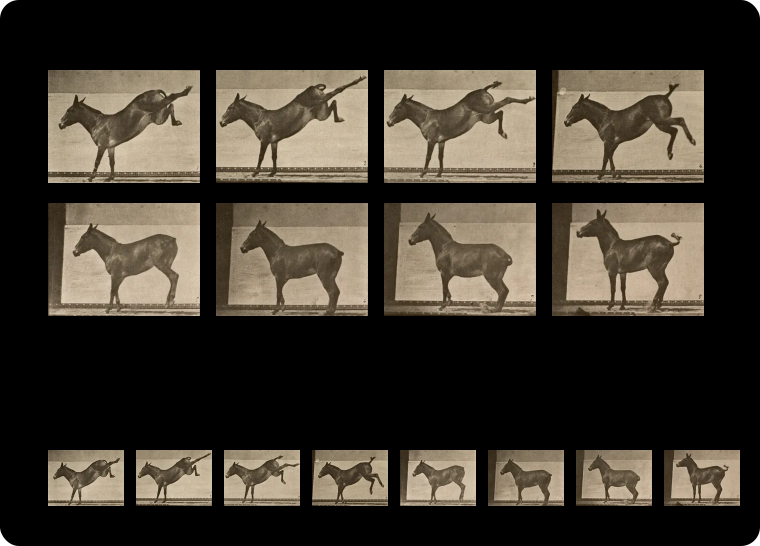
Resizing works on every page of the flipbook at once. Each frame gets the new width and height, and none of them are dropped, as long as you save to a format that can animate.
Here's the idea, drawn with the mule's own frames.
Do the frames play at the same speed and repeat the same way?
Two more things travel with the pictures: how long each frame stays up, which sets the pace, and what happens after the last frame.
Here's what those two settings mean.
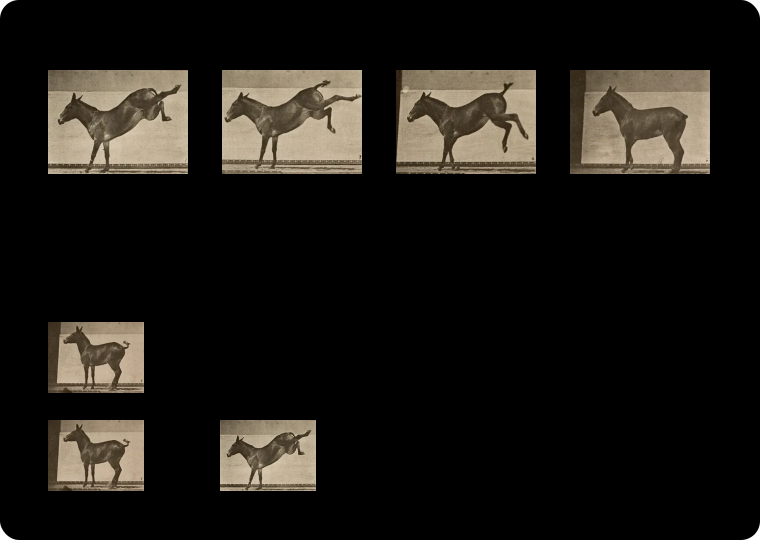
FluffyBench reads the repeat setting from GIF, WebP, APNG, AVIF and JPEG XL files and writes it into the new copy. An animation that repeats forever still does, and one that plays once still stops.
The waits come along too, with one wrinkle in GIF: it stores each wait in hundredths of a second, so a GIF copy rounds every wait to the nearest 10 ms. A very fast animation can shift its pace a little. GIF also has its own limits on colors and see-through edges; the GIF, WebP and APNG guide covers those.
Doing it in FluffyBench: convert and keep the motion
FluffyBench's image converters keep the motion whenever the format under To can animate. Animated images is the setting that decides it, and it starts on Keep the animation.
Here's the whole job in FluffyBench's WebP converter, from the GIF to a saved animated WebP.
-
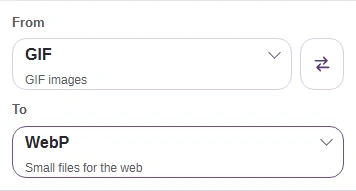
Step 1. Pick an output that can animate. Here, From is GIF and To is WebP. - Choose WebP, GIF, AVIF or APNG under To.
-
-
Step 2. Choose the animation from your device. - Choose images opens your files.
-
-


Step 3. The gear opens Settings, and the same gear closes it. - Open Settings here.
-
-
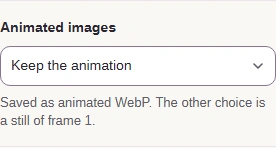
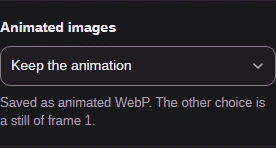
Step 4. Animated images decides whether the motion stays. Keep the animation saves every frame; Still of frame 1 saves one picture. - Leave Keep the animation selected.
-
-
Step 5. Close Settings with the gear, then convert. - Convert 1 to WebP makes the copy.
-
-
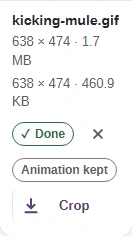
Step 6. Look for Animation kept on the result before you save it. - The new file's dimensions and size.
- Animation kept: every frame is in the copy.
- Download saves the WebP.
-
Before you use the copy, open it in FluffyBench Image Viewer. It plays the animation and counts its frames, so you can compare both with the original.
-
Step 1. Open the saved copy in FluffyBench Image Viewer. - Choose images opens the saved file.
-
-
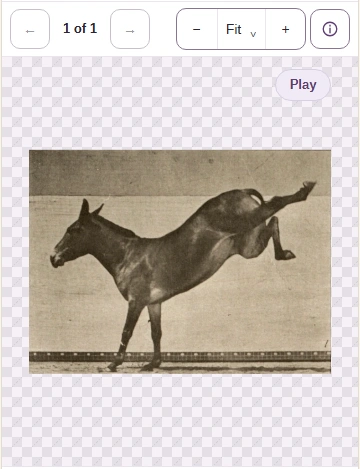
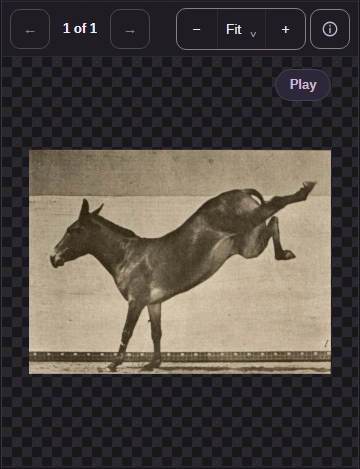
Step 2. Press Play and watch the whole movement, start to finish. - Play runs the animation.
-
-
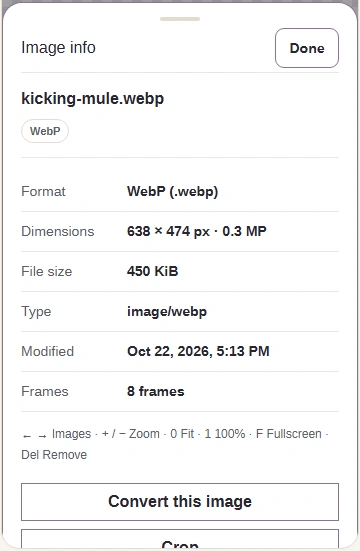
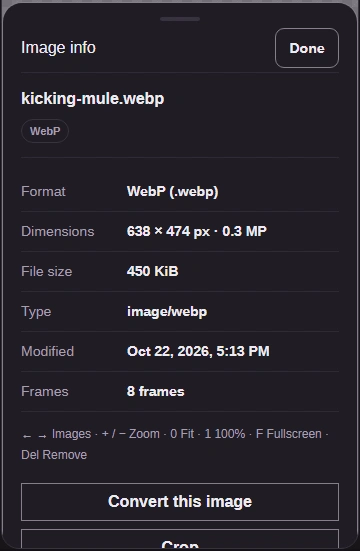
Step 3. Image info lists the frame count. Done closes it. - Check the frame count matches the original.
- Done returns to the picture.
-
Image Viewer always loops what it plays, so check the ending (stop or repeat) in the app where the animation will live. Keep the original until the copy plays the way you want there.
Resizing an animation in FluffyBench Image Space Saver
FluffyBench Image Space Saver makes pictures smaller, one or a whole batch at a time, and keeps each animation unless you ask for a still.
Here's the mule GIF shrunk to 320 pixels wide as an animated WebP.
-
Step 1. Choose the animation you want to make smaller. - Choose images opens your files.
-
-


Step 2. The gear opens Settings, and the same gear closes it. - Open Settings here.
-
-
Step 3. Pick Profile: Custom to see every setting. - Custom shows the Animated images setting.
-
-
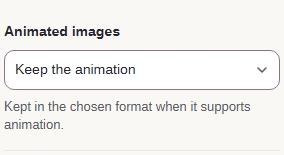
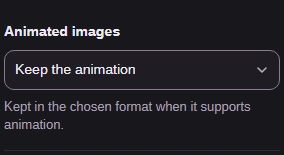
Step 4. Keep the animation shrinks every frame and keeps them all. - Leave Keep the animation selected.
-
-
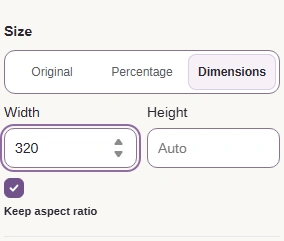
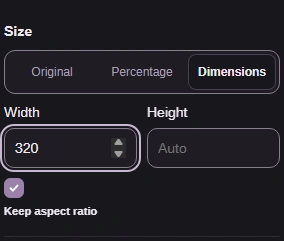
Step 5. Set the new size. With Keep aspect ratio on, a width is enough. - Choose Dimensions.
- Type the width you need, here 320.
- Keep aspect ratio stops stretching.
-
-
Step 6. Close Settings with the gear, then process the animation. - Process 1 image makes the smaller copy.
-
-
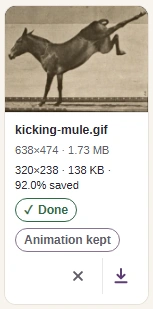
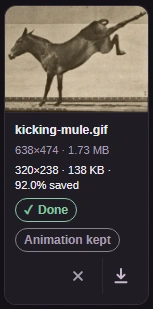
Step 7. The smaller copy says Animation kept: every frame is there, each one smaller. - The new dimensions and size.
- Animation kept: every frame is still there.
- Download saves the copy.
-
What if FluffyBench won't keep the animation?
Two limits can stop an animated copy. One is length: FluffyBench keeps up to 500 frames, and up to 64,000,000 pixels across all frames added together. A longer or bigger animation is refused, and Still of frame 1 can save one picture of it instead.
Here's the warning for an overlong GIF in the WebP converter. It appears as soon as you add the file.
-
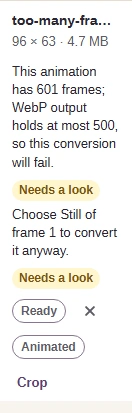
Step 1. Too many frames: FluffyBench warns before you convert. - The warning names the frame limit.
-
The other is a file-size cap. The converters can't aim for a size and keep the animation at once. Image Space Saver does try, but a kept animation that comes out over the cap isn't saved.
Here's the converter's size cap, and what happens if it's on when you press Convert.
-
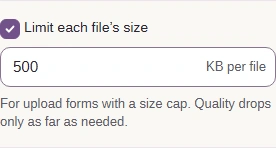
Step 2. A size cap and Keep the animation don't mix in the converter. - Leave this off to keep the animation.
-
-
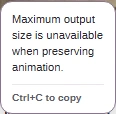
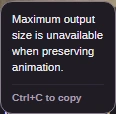
Step 3. With the cap on, Convert stops straight away and says why. - The message names the size limit.
-
In both tools, shrinking the frames with Size is the way to a smaller animation.