Image viewer

Open photos and files your browser can't show on its own, like HEIC, camera RAW, PSD, TIFF pages, icons and game textures.

FluffyShield Protected workspace
FluffyShield

Isolated workspace: other page scripts can't read your files. How FluffyShield works

Open an unfamiliar image and see what you've got

Open it in FluffyBench Image Viewer to see the picture, check its format and size, and look closely before you decide whether it needs an edit.

How it works
  1. Open images from your device
  2. Read the file's properties
  3. Inspect the picture; your source file stays unchanged

Find a picture

The image explorer holds your collection beside the selected picture.

See small details

Zoom makes edges and fine detail easier to examine.

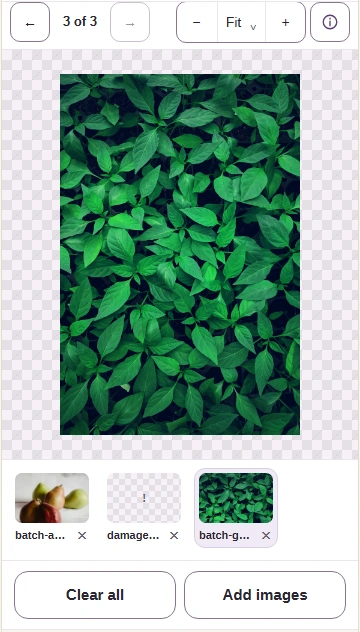
See transparent edges

A different preview background can reveal a fringe around a cutout.

Limits Images are opened on your device without uploading them.

Opening images in FluffyBench Image Viewer

Think of FluffyBench Image Viewer as a light table for digital pictures: the picture tells you what you've got, and the information panel tells you what kind of file it is. You don't need an editor just to identify a scan, check a photo's dimensions, or see whether an image moves.

Here's the job on a phone, from Choose images to the picture and its Image info sheet. Use the visible file properties to check your destination's format, dimensions and file-size requirements.
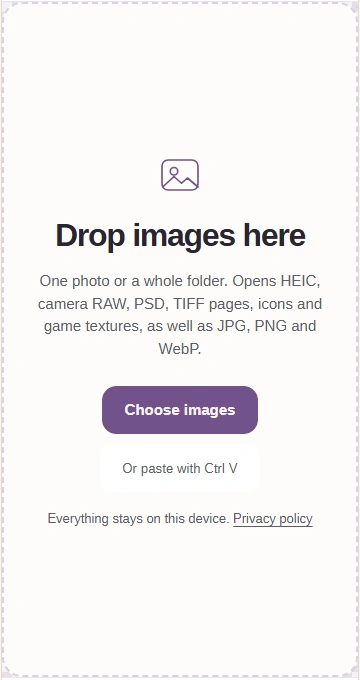
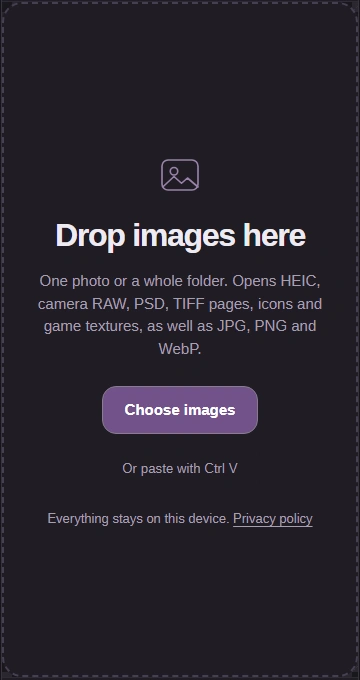
  1. Choose images opens your file picker. Dropping images here or pasting with Ctrl V are alternatives.
    Choose images opens your file picker. Dropping images here or pasting with Ctrl V are alternatives.
    Step 1. Choose images opens your file picker. Dropping images here or pasting with Ctrl V are alternatives.
    1. Choose images from your device.
    2. Drop images here is another way to open them.
    3. Ctrl V pastes an image from your clipboard.
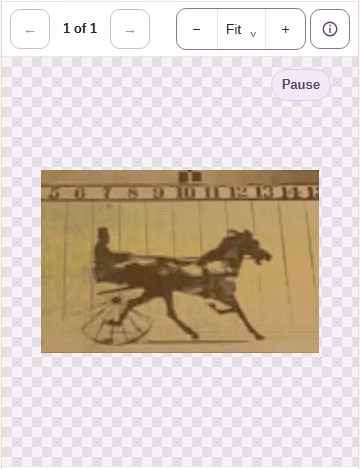
  2. Use Play to watch the GIF, or Pause to hold a moment. Image info opens the phone’s file details.
    Use Play to watch the GIF, or Pause to hold a moment. Image info opens the phone’s file details.
    Step 2. Use Play to watch the GIF, or Pause to hold a moment. Image info opens the phone’s file details.
    1. Pause holds the animation.
    2. Image info opens the file details.
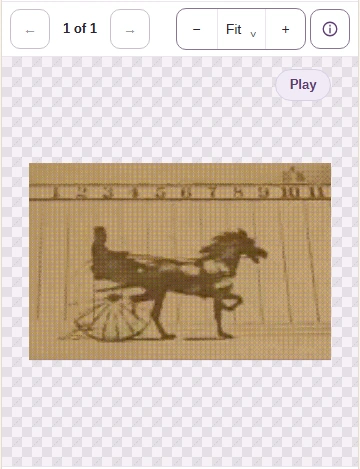
  3. The paused GIF stays still; Play resumes it.
    The paused GIF stays still; Play resumes it.
    Step 3. The paused GIF stays still; Play resumes it.
    1. Play resumes the animation.
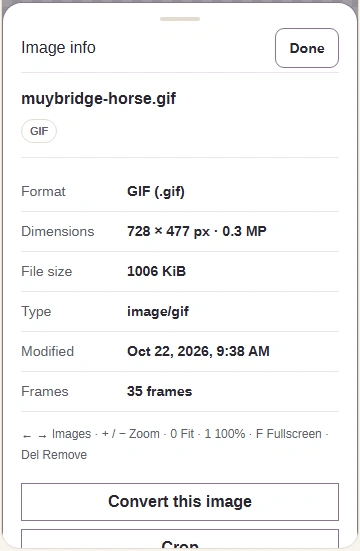
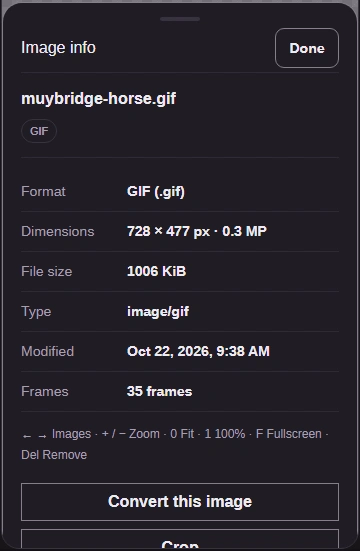
  4. On a phone, Image info shows the file properties. Done closes the sheet.
    On a phone, Image info shows the file properties. Done closes the sheet.
    Step 4. On a phone, Image info shows the file properties. Done closes the sheet.
    1. Read the format, dimensions, file size and frames.
    2. Done returns to the picture.

Format is how the file stores the picture. Dimensions give its width and height in pixels, the tiny squares that make up a digital image. File size is the storage space it takes up. Frames tells you how many pictures make up an animation; it isn't the number of files you've opened.

FluffyBench can also open formats such as TIFF and JPEG XL that a browser's own image preview may not display. See why a browser-based viewer can open more formats.

Find an image in a collection

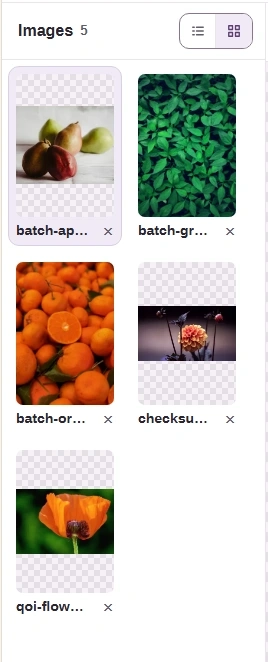
Details view and Grid view change the image explorer on wide screens. They don't change the selected picture's viewing area.
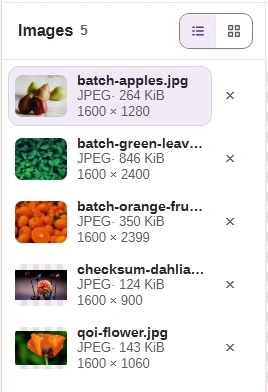
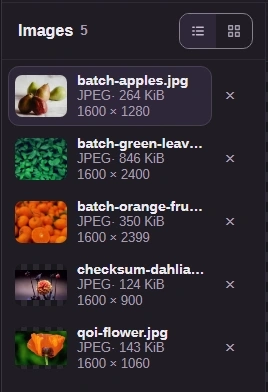
  1. On a wide screen, Details view lists filenames and file details in the image explorer.
    On a wide screen, Details view lists filenames and file details in the image explorer.
    Step 1. On a wide screen, Details view lists filenames and file details in the image explorer.
    1. Details view lists the collection.
    2. The highlighted row is the selected image.
  2. Grid view uses thumbnail tiles in the same explorer. The selected picture keeps its viewing area.
    Grid view uses thumbnail tiles in the same explorer. The selected picture keeps its viewing area.
    Step 2. Grid view uses thumbnail tiles in the same explorer. The selected picture keeps its viewing area.
    1. Grid view changes the explorer layout.
    2. Choose a thumbnail to display that image.
  3. Previous image and Next image move between files in either layout. Phones show a thumbnail strip below the picture.
    Previous image and Next image move between files in either layout. Phones show a thumbnail strip below the picture.
    Step 3. Previous image and Next image move between files in either layout. Phones show a thumbnail strip below the picture.
    1. Previous image opens the preceding file.
    2. The position tells you which file is selected.
    3. Next image opens the following file.

On a phone, the collection is a thumbnail strip below the picture. Here's how to move between files, including a file that won't open.
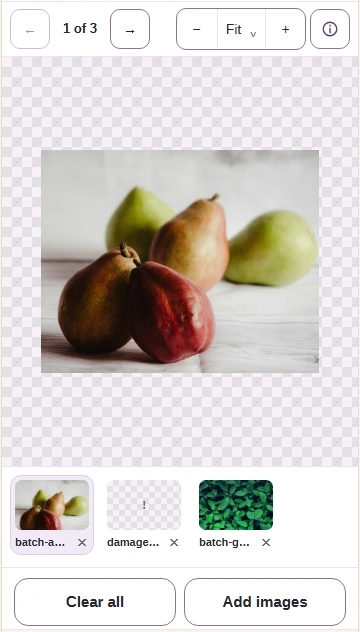
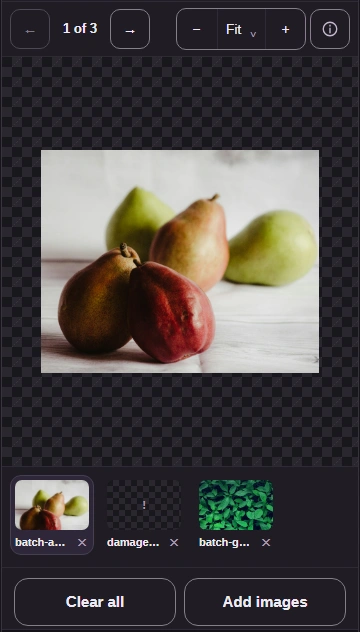
  1. The phone thumbnail strip stays below the picture. Tap a thumbnail or use Next image to move through the collection.
    The phone thumbnail strip stays below the picture. Tap a thumbnail or use Next image to move through the collection.
    Step 1. The phone thumbnail strip stays below the picture. Tap a thumbnail or use Next image to move through the collection.
    1. The highlighted thumbnail selects this picture.
    2. Previous image is unavailable at the first file.
    3. Next image opens the following file.
  2. This damaged sample can’t be opened. Next image skips it; Remove it removes the failed item from the collection.
    This damaged sample can’t be opened. Next image skips it; Remove it removes the failed item from the collection.
    Step 2. This damaged sample can’t be opened. Next image skips it; Remove it removes the failed item from the collection.
    1. Read the opening error here.
    2. Next image skips the failed file.
    3. Remove it removes the failed item.
  3. After Next image, the following photo appears and its thumbnail is highlighted.
    After Next image, the following photo appears and its thumbnail is highlighted.
    Step 3. After Next image, the following photo appears and its thumbnail is highlighted.
    1. The highlight marks the photo now on screen.
    2. Previous image returns to the preceding file.

Inspect image details at different zoom levels

Fit answers ‘is this the right picture?’ A closer zoom answers ‘are the edges and small details clear?’
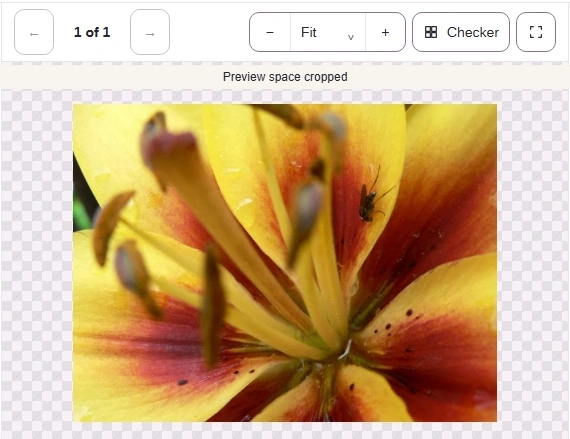
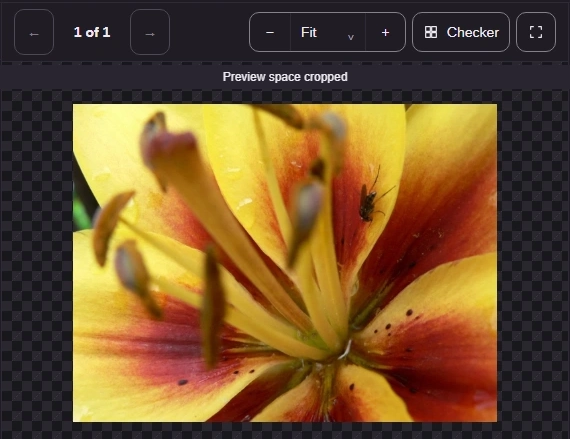
  1. Fit shows the whole picture within the preview.
    Fit shows the whole picture within the preview.
    Step 1. Fit shows the whole picture within the preview.
    1. Fit keeps the whole picture visible.
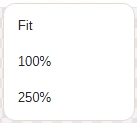
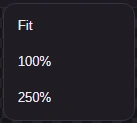
  2. Open Zoom level to choose Fit, 100% or 250%.
    Open Zoom level to choose Fit, 100% or 250%.
    Step 2. Open Zoom level to choose Fit, 100% or 250%.
    1. Fit returns to the whole picture.
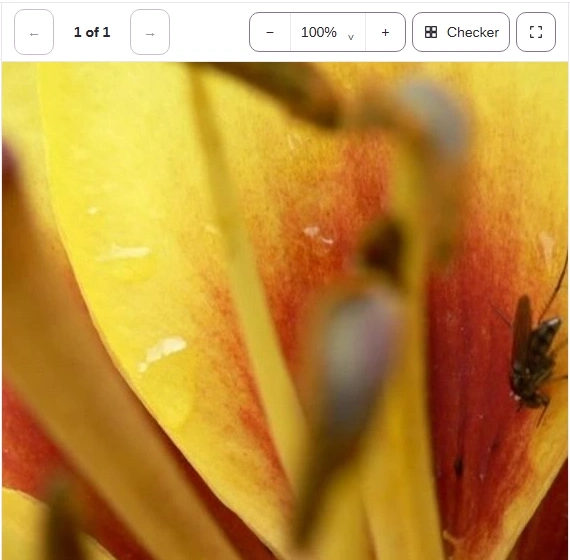
    2. 100% shows the picture at its pixel size.
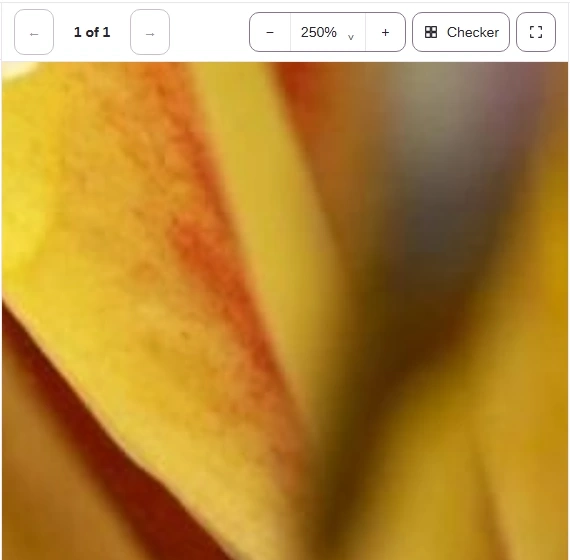
    3. 250% enlarges a smaller part of the picture.
  3. At 100%, look for soft edges or missing detail. The minus and plus buttons work on touch screens too.
    At 100%, look for soft edges or missing detail. The minus and plus buttons work on touch screens too.
    Step 3. At 100%, look for soft edges or missing detail. The minus and plus buttons work on touch screens too.
    1. Zoom out shows more of the picture.
    2. Zoom in makes details larger.
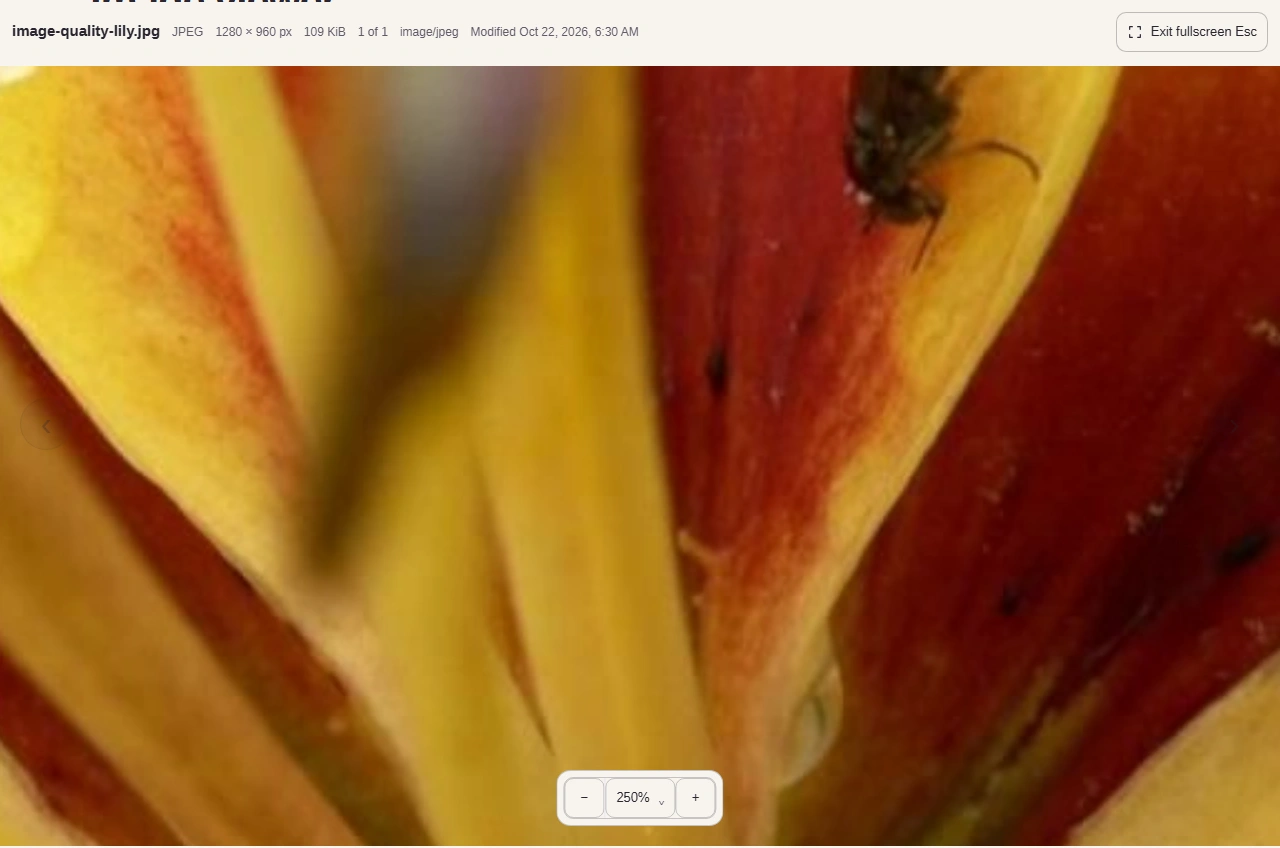
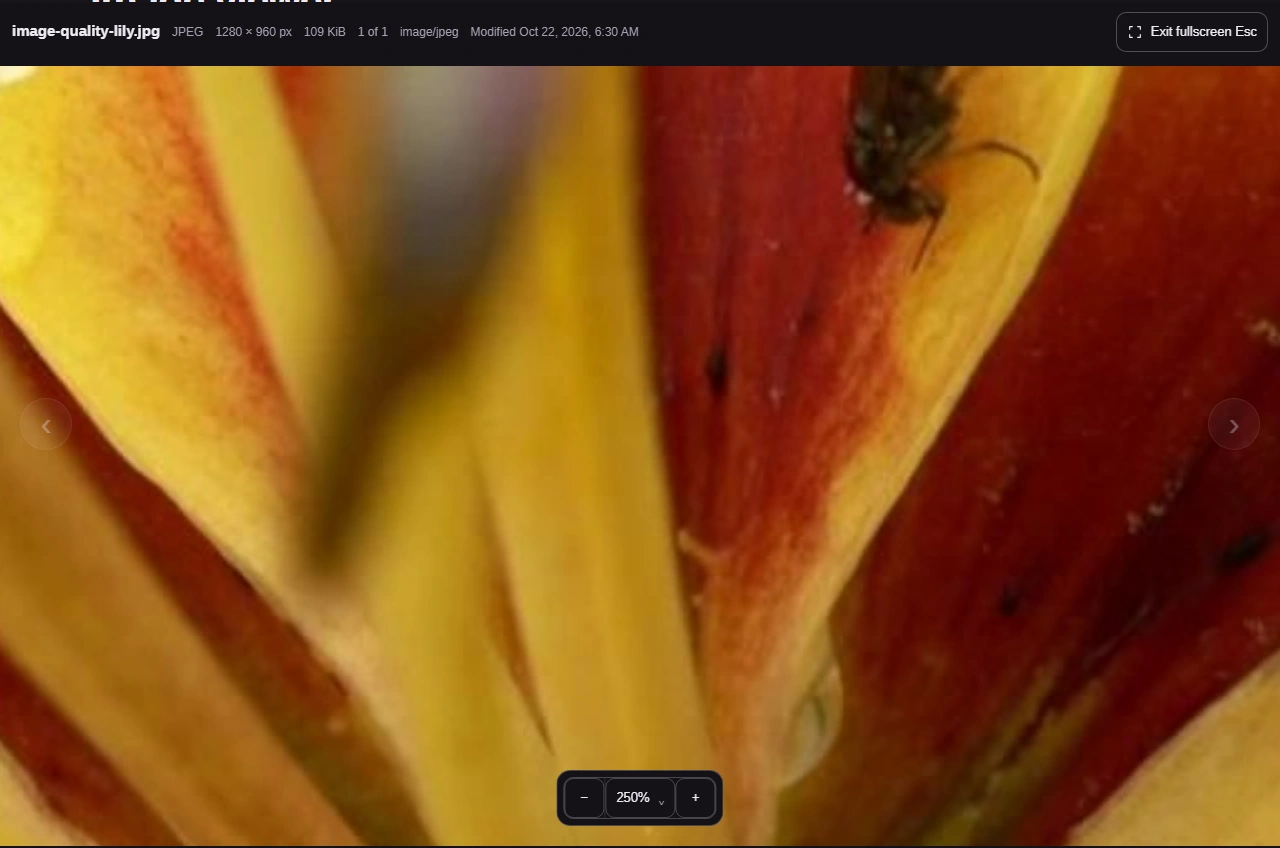
  4. At 250%, enlarged edges are easier to inspect.
    At 250%, enlarged edges are easier to inspect.
    Step 4. At 250%, enlarged edges are easier to inspect.
    1. 250% enlarges the preview.
    2. Open fullscreen gives the picture more room.
  5. Fullscreen gives the picture the available screen. Exit fullscreen returns to the workspace.
    Fullscreen gives the picture the available screen. Exit fullscreen returns to the workspace.
    Step 5. Fullscreen gives the picture the available screen. Exit fullscreen returns to the workspace.
    1. Exit fullscreen returns to the workspace.

Enlarging a preview doesn't add detail to the image. For HDR photos, which can store extra-bright highlights, the preview may adjust brightness to fit the display; don't use that preview to judge all the brightness information in the file.

Check a transparent image's edges

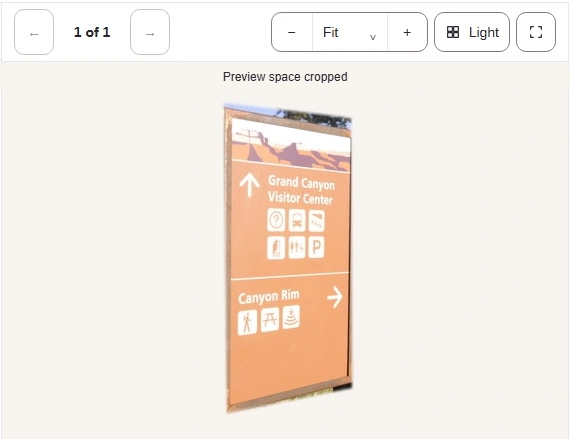
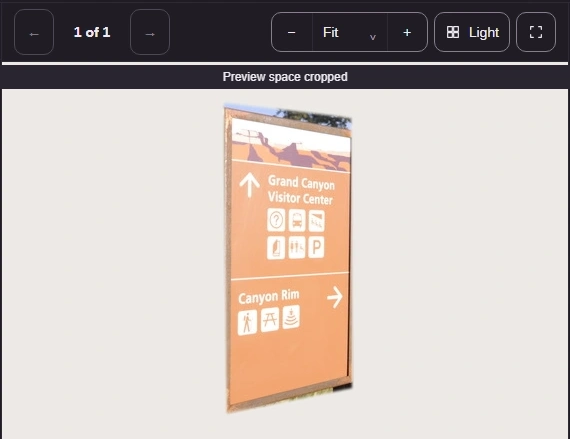
A checkerboard means the background is showing through. Compare the same sign cutout on checkerboard and white, including the matching edge close-ups.
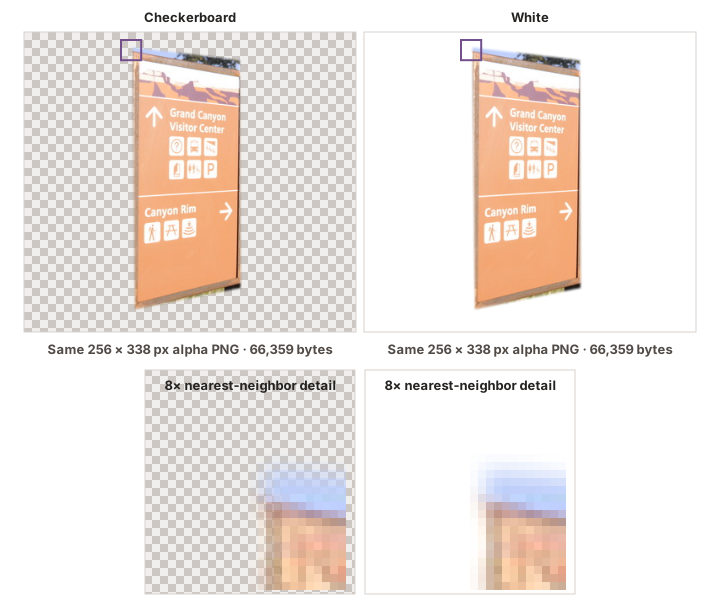
A transparent brown sign cutout is shown on checkerboard and white backgrounds, with matching close-ups of a partly see-through edge.

The same brown sign photo cutout on checkerboard and white, with close-ups of a partly transparent edge

  1. Transparent background

    The checker pattern shows through the transparent margin around the brown sign cutout.

  2. White background

    The same transparent surround reveals the white page behind the cutout.

  3. Soft, partly transparent edge

    The same edge can blend into one background and stand out against another.

The same cutout looks different on white and checkerboard, and the close-up shows where the background comes through. How we reviewed · Photo: NPS Photo, Public domain, via National Park Service.

Preview background changes what you see behind transparent areas. The menu calls its pale background Light; the comparison above uses a white backdrop.
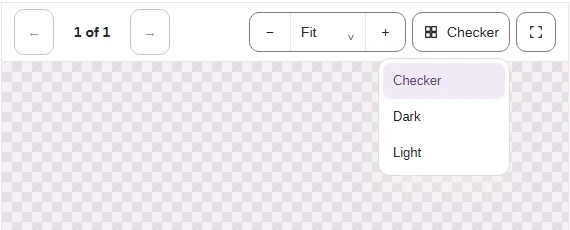
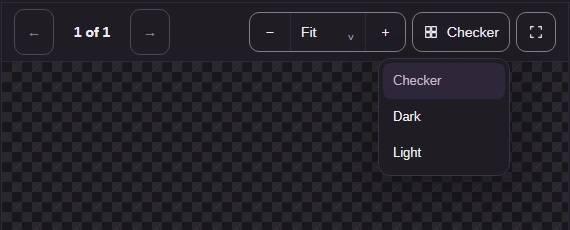
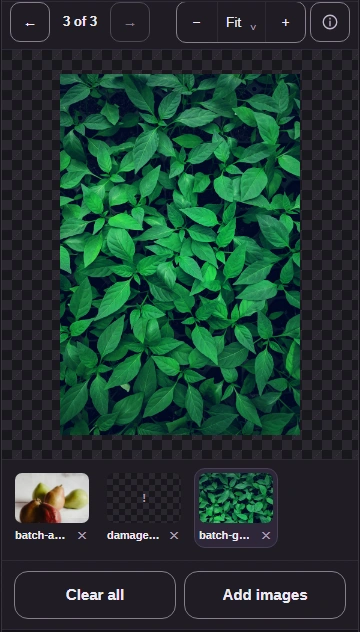
  1. Preview background offers Checker, Dark and Light for transparent images.
    Preview background offers Checker, Dark and Light for transparent images.
    Step 1. Preview background offers Checker, Dark and Light for transparent images.
    1. Choose a preview background.
    2. Checker, Dark and Light change the backdrop.
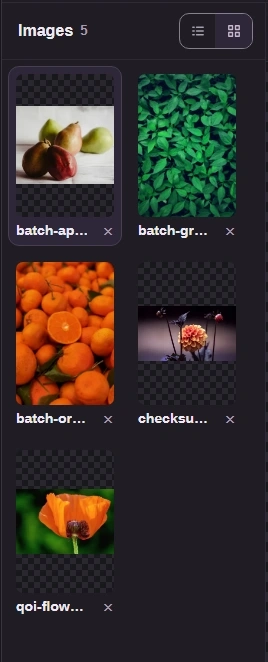
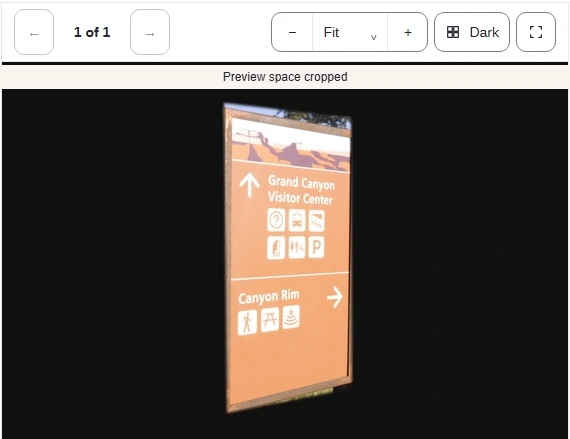
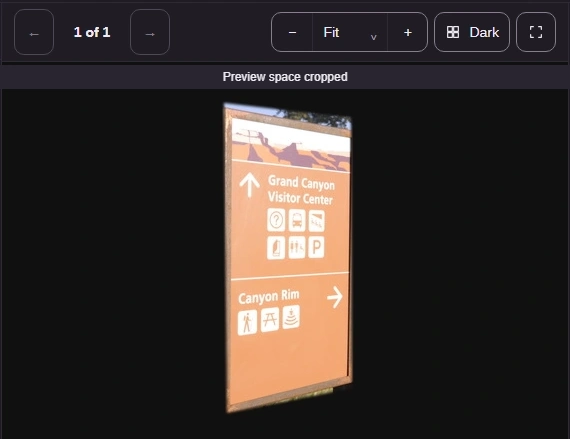
  2. Dark makes pale fringes around a transparent edge easier to spot.
    Dark makes pale fringes around a transparent edge easier to spot.
    Step 2. Dark makes pale fringes around a transparent edge easier to spot.
    1. Dark is the selected preview background.
  3. Light makes dark fringes easier to spot. These backgrounds are viewing choices.
    Light makes dark fringes easier to spot. These backgrounds are viewing choices.
    Step 3. Light makes dark fringes easier to spot. These backgrounds are viewing choices.
    1. Light is the selected preview background.

Browse pages inside a TIFF

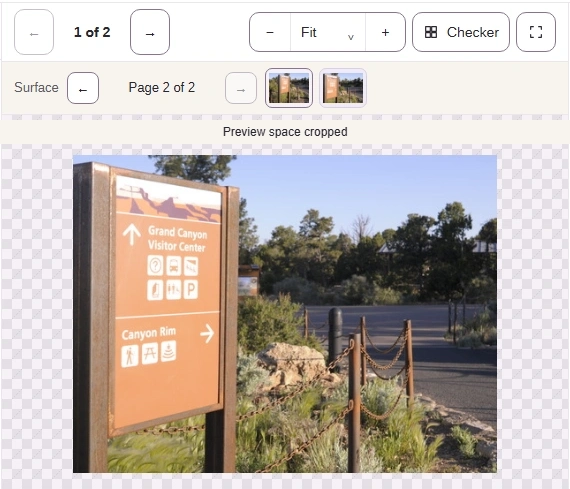
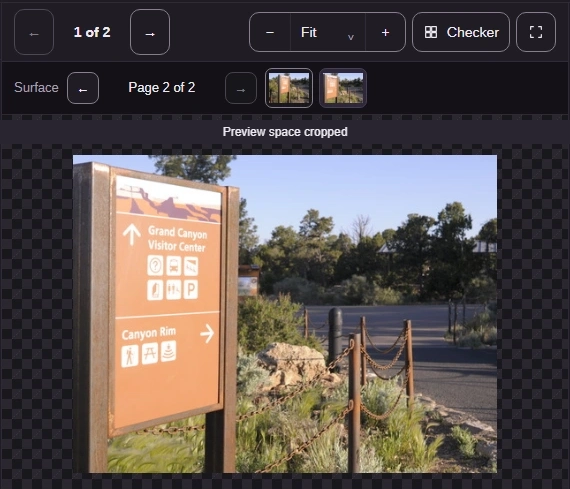
A TIFF can hold several pages inside one file. Page thumbnails move within that TIFF; Next image moves to another file in your collection.
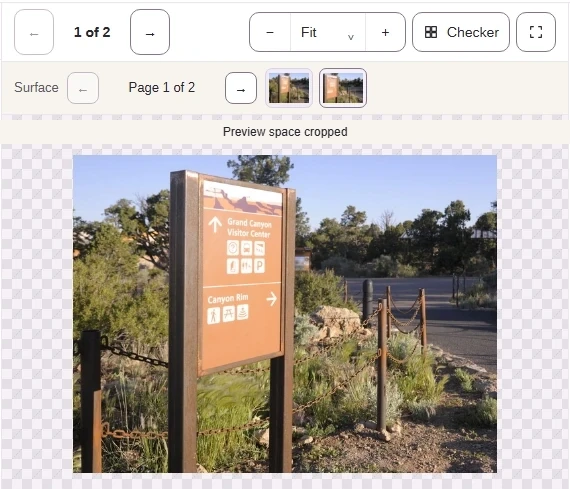
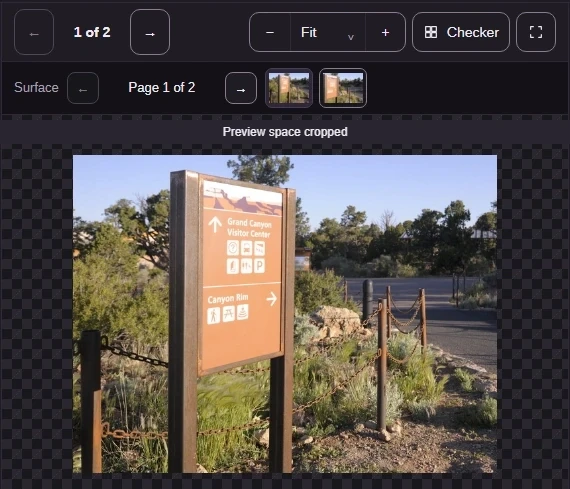
  1. The TIFF opens at Page 1 of 2. Its page thumbnails sit above the picture.
    The TIFF opens at Page 1 of 2. Its page thumbnails sit above the picture.
    Step 1. The TIFF opens at Page 1 of 2. Its page thumbnails sit above the picture.
    1. Page 1 of 2 is the position inside this TIFF.
    2. Page 2 opens the second page of this file.
  2. Page 2 shows a different view from the same TIFF.
    Page 2 shows a different view from the same TIFF.
    Step 2. Page 2 shows a different view from the same TIFF.
    1. Page 2 of 2 confirms the page changed.
    2. Page 1 returns to the first page.
  3. Image navigation changes files, while the page thumbnails stay inside a TIFF.
    Image navigation changes files, while the page thumbnails stay inside a TIFF.
    Step 3. Image navigation changes files, while the page thumbnails stay inside a TIFF.
    1. Next image leaves the TIFF for the next file.

A preview shows the parts FluffyBench can read; a layered image isn't always a complete set of separate editable layers here. The guide to pages, layers and image surfaces explains the difference.

Other FluffyBench tools

There's no converted file to download from Image Viewer. When the picture needs a change, choose the FluffyBench tool that makes that change.

You need separate TIFF pages, icon sizes or texture surfaces

FluffyBench Image Extractor

Saves image parts it can read as separate files, with labels for texture surfaces.

You need a different format, pixel size or file size

FluffyBench Image Space Saver

Creates a new image for a destination that needs a different kind or size of file.

Before sharing a JPG, PNG or WebP, FluffyBench Remove Image Metadata can remove camera or location tags. The viewer's basic file information isn't a full metadata review.

Need to remove image metadata?

Search FluffyBench