
Should you use GIF, WebP, or APNG for an animation?
A moving logo needs more than motion: its colors and soft edges matter, too. Here's how to choose GIF, animated WebP, or APNG for the place you're sharing it.
Which animation format should you choose?
Start with the app or site that will show the animation. If it only takes GIF, the choice is made. If it also opens animated WebP or APNG, pick by what the artwork needs.

Which format fits
GIF is the one nearly every app and site can show. Animated WebP and APNG are newer: they keep more color and softer edges, and the next sections show what that looks like.
What is an animation format, anyway?
Think of an animation as a flipbook: a stack of pictures, plus instructions for how long to show each one and when to start over. GIF, animated WebP and APNG all pack that stack into one image file.

Pictures plus timing, in one file
That's handy for a moving logo or a short loop you want to share without sending a video. All three formats can store motion; they differ in how they store color, see-through edges, and how big the file gets.
How do GIF, WebP, and APNG change color?
GIF picks each pixel's color from a short list of up to 256 palette entries. A logo with a few flat colors fits easily. A photo's smooth shading has to share those few colors, so it can break into blotchy steps.
Here's the same patch of cloud and coastline from the first picture of an eight-picture Earth animation, before and after FluffyBench converted it with its starting settings.
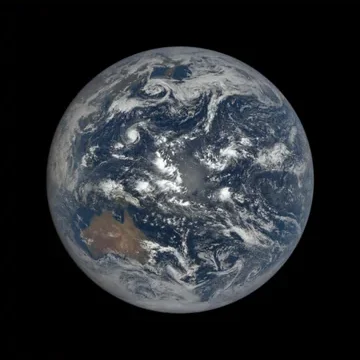
Source APNG

6.5 MB
GIF

2.6 MB
Animated WebP (lossy)

927.1 KB
APNG copy

9.2 MB
Animated WebP has two ways to save. Lossy, the converter's starting setting and the one used here, changes some colors a little to make the file smaller. Lossless keeps every pixel. Here's how WebP's lossless and lossy modes compare.
APNG is PNG with motion. It keeps every pixel exactly, which suits diagrams, pixel art and screenshots.
Which formats keep soft see-through edges?
A logo often sits on a page you don't control, so its edges matter. A soft shadow needs pixels that are partly see-through, and GIF doesn't have those: each GIF pixel is either solid or fully clear. Animated WebP and APNG can keep pixels partly see-through.
Here's one purple badge with a soft shadow, stored both ways and placed on a light page and a dark page.
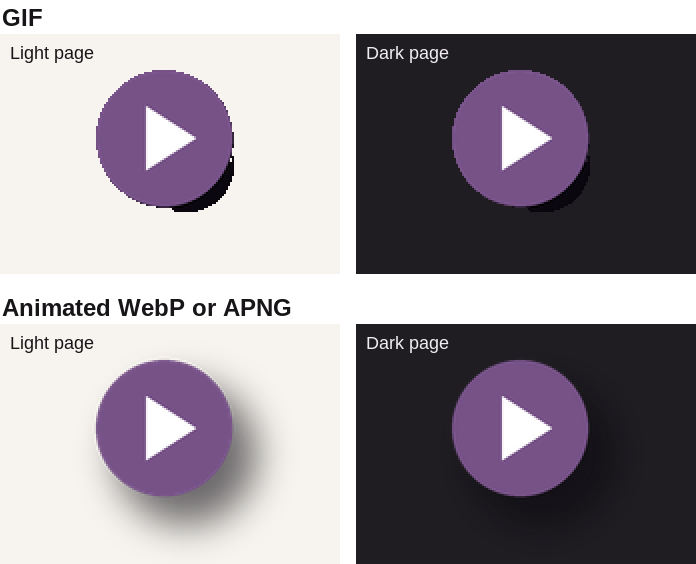
The same badge as a GIF and with soft edges
- Hard shadow rim
As a GIF, the faint part of the shadow vanished and the darker part turned solid.
- Stepped outline
The circle's smooth edge became a staircase of solid pixels.
- Soft shadow
Partly see-through pixels let the shadow fade into either page.
Will changing the format make the file smaller?
Here are the complete files from that Earth animation: the 6.5 MB APNG it started as, and the three copies FluffyBench made with its starting settings and no resizing.
The lossy WebP came out at about a seventh of the source, and the GIF at about two-fifths. The APNG copy grew by about 40%, even though it kept the exact colors in the patch above. Lossless keeps the pictures exact; it doesn't promise a smaller file, because two programs can pack the same pixels with different effort. Here's why an image can get bigger after conversion.
Doing it in FluffyBench: convert, then check the loop
FluffyBench converts on your device, so nothing is uploaded. Use the WebP converter for animated WebP and the GIF converter for GIF. For APNG, open the GIF converter set to APNG and pick your animation's format under From.
Here's FluffyBench's WebP converter set up for an animation, on a phone. Compression and Quality are WebP settings; the GIF and APNG choices show their own.
-
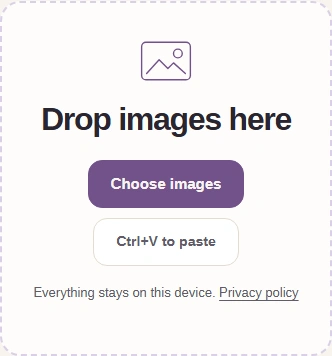
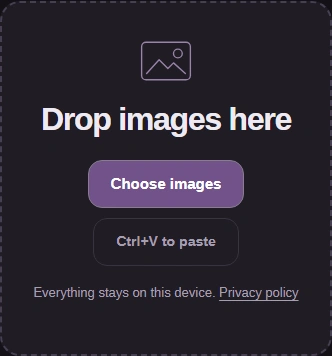
Step 1. On FluffyBench's WebP converter, choose your animation: a GIF, APNG or animated WebP. - Choose images opens your files.
-
-


Step 2. Open Settings with the gear marked WebP. - Tap the gear to open Settings.
-
-
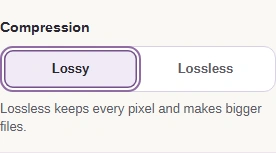
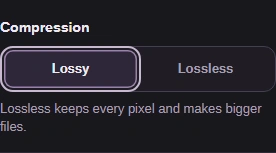
Step 3. Pick how WebP stores the pictures. - Lossy: a smaller file; some colors shift a little.
- Lossless: every pixel kept; a bigger file.
-
-
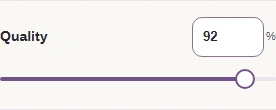
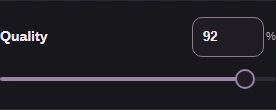
Step 4. With Lossy, Quality sets how much the pictures may change. - Quality starts at 92; lower numbers make smaller files that change more.
-
-
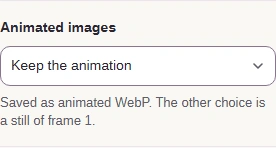
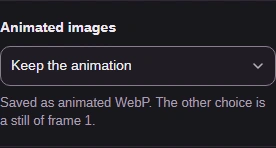
Step 5. Leave Animated images on Keep the animation. - Keep the animation saves every frame as an animated WebP.
-
Then close Settings, convert, and save the copy.
-


Step 1. Close Settings with the same gear. It now sums up your choice. - Tap the gear again to close Settings.
-
-
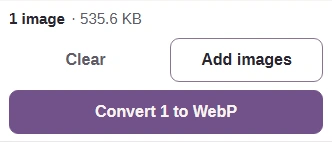
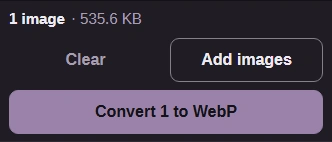
Step 2. Press Convert. Everything happens on your device. - Convert makes the animated WebP.
-
-
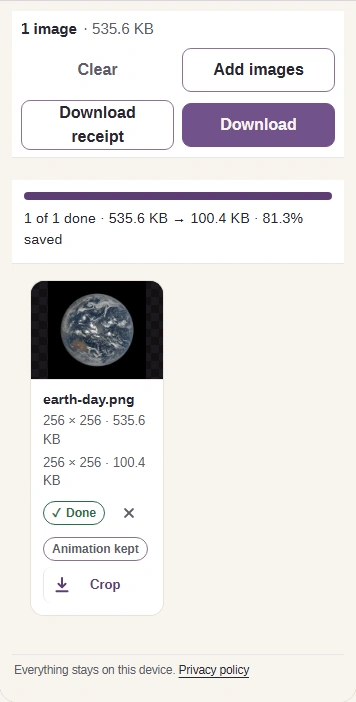
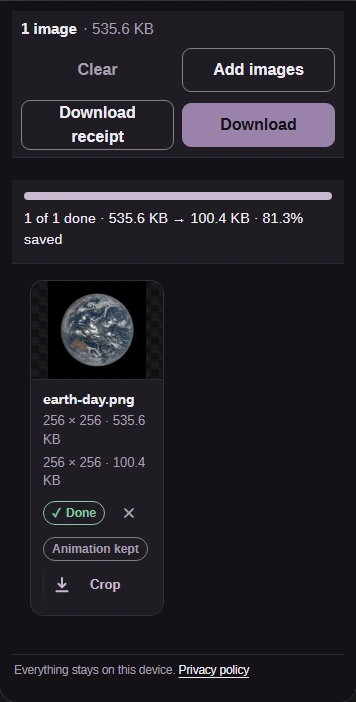
Step 3. Check the size and the Animation kept label, then download the copy. - The original's size, then the copy's.
- Animation kept: the copy still moves.
- Download saves the WebP to your device.
-
A preview shows one picture at a time, so check the copy in the place it's going before you share it.

Three checks before you share