
Why am I getting “unable to get local issuer certificate”?
Your app can reach the website, but it can’t connect its certificate to an issuer it trusts. Here’s how to tell whether the website’s certificate bundle or your app’s trusted certificates need attention.
Why does a website need a certificate chain?
Think of a certificate chain as endorsements on a letter: each signer is vouched for by the next, until you reach someone you already trust. Your app needs that path from the website’s certificate to a trusted root certificate.
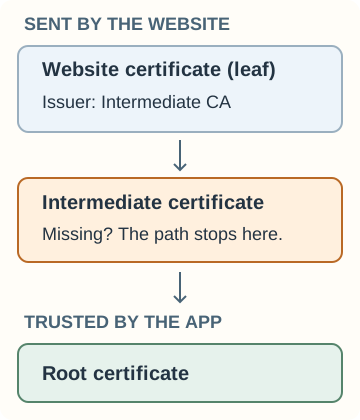
Certificate path
- Website certificate
Also called the leaf, it names the issuer that vouched for the website. The server sends it first.
- Intermediate certificate
This is an issuer between the website and the root. Here, “local issuer” means an issuer certificate the checker needs to find among the certificates available to it.
- Trusted root
The app’s trusted list anchors the path. A root that’s already trusted doesn’t need to be sent by the website.
What happens when the middle certificate is missing?
In our locally generated example, the same website certificate fails without its intermediate and passes when the intermediate is supplied. The website certificate and trusted root stay the same.
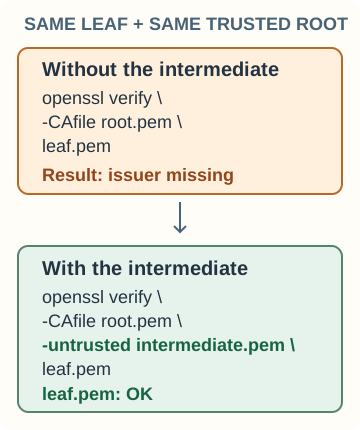
OpenSSL local-file comparison
- Without the issuer
openssl verify -CAfile root.pem leaf.pemreports “error 20 at 0 depth lookup: unable to get local issuer certificate”. - Supply the intermediate
openssl verify -CAfile root.pem -untrusted intermediate.pem leaf.pem. -untrusted supplies an issuer certificate without trusting it as a root; -CAfile names the trusted root. - The leaf passes
The result is “leaf.pem: OK”.
Is a certificate missing, or does your app lack the trusted root?
The error points to an incomplete path; the place to repair it depends on what the website sends and what the failing app trusts. Start with the certificates from the connection that failed.
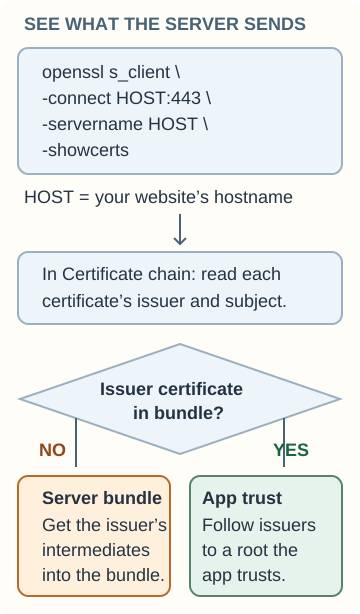
Server bundle or app trust?
- See what the server sends
With OpenSSL installed, run
openssl s_client -connect HOST:443 -servername HOST -showcerts. Replace both HOST values with the website’s hostname. The Certificate chain output lists what that server sent; ask its administrator for this output if you don’t have terminal access. - Compare issuer and subject
The website certificate’s Issuer should lead to the Subject of an issuer certificate. If that intermediate is absent, the website administrator needs to supply it.
- Follow the path to app trust
If intermediates are present, follow their issuers to the intended root and check the trusted certificates used by the app that failed. A different app’s success doesn’t settle that check.
Doing it in FluffyBench: inspect a certificate bundle
FluffyBench’s Certificate and public key inspector helps you compare issuer names in public certificate bundles on your device. It matches names; it doesn’t validate a connection or fetch missing certificates.
-


Step 1. In FluffyBench's Certificate and public key inspector, choose Certificate chain. - Choose Certificate chain.
-
-
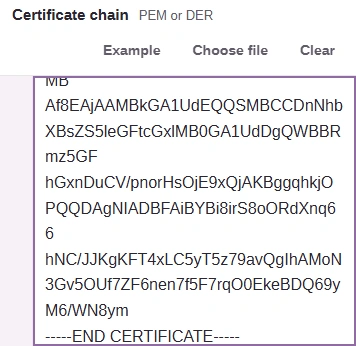
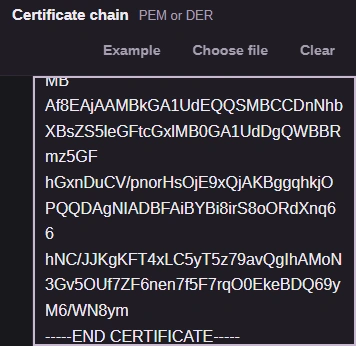
Step 2. Paste your public CERTIFICATE blocks, or use Choose file to open the bundle. The public sample shown here contains one website certificate. Leave private keys out. - Choose file opens a public certificate bundle.
- Paste CERTIFICATE PEM blocks here.
-
-


Step 3. Read Issuer relationship. The public sample shown here leaves out its issuer. - Read the missing issuer-name message.
-
-


Step 4. Your report appears in What's inside as you paste. Copy all copies the inspection report. - Copy all copies the inspection report.
-
Use FluffyBench’s Certificate and public key inspector to compare issuer names in your bundle.
How do you repair a website’s certificate bundle?
For a missing intermediate, configure the server’s bundle with the website certificate first and its issuer certificates afterward. The first certificate must match the server’s private key.
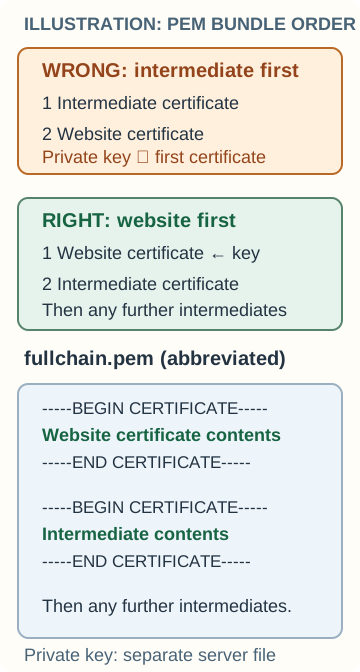
PEM bundle order
- Wrong first certificate
In nginx, putting the intermediate first can produce “key values mismatch”.
- Use the issuer’s chain
Get the intermediate certificates from the certificate issuer. If you don’t manage the website, send the missing-issuer details to its administrator.
- Save the complete PEM blocks
The fullchain.pem illustration abbreviates the certificate contents. Keep each complete BEGIN CERTIFICATE through END CERTIFICATE block; the private key stays in its separate server file.
How do you fix a root your app doesn’t trust?
When the website supplies its intermediates, check the root certificates used by the app that failed. If your organization uses a private root, its administrator can arrange trust in that app.
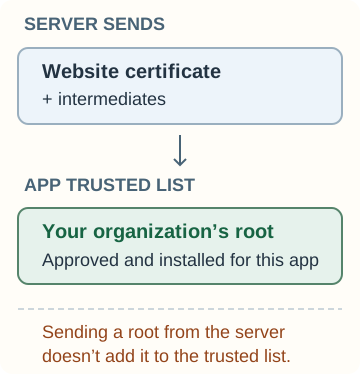
Where app trust belongs
- Server-supplied certificates
A complete server bundle supplies the path toward a root; it doesn’t decide which roots your app trusts.
- Use the failing app’s trust settings
Ask your organization’s administrator to install its approved private root in the trusted list used by that app. A different app’s trusted list may differ.
- Sending isn’t trusting
Adding a root to the server’s bundle doesn’t make the app trust it.
How do you check that the certificate repair worked?
After applying the repair, repeat the original request from the app that failed.
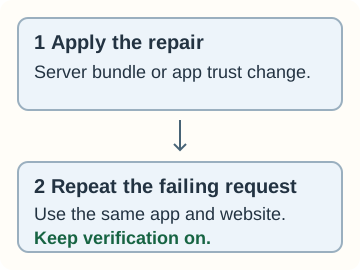
Repair checks
- Apply the repair
Deploy the corrected server bundle, or apply the approved app trust change, using the relevant configuration process.
- Repeat the original request
Use the same app and website that gave you the error.
- Keep verification on
Turning it off hides the error without repairing the path; Node.js warns against setting NODE_TLS_REJECT_UNAUTHORIZED to zero.