
JSON formatter and validator for YAML, TOML, XML, INI and .properties
Format, validate, minify, and inspect JSON, YAML, TOML, XML, INI and .properties locally in your browser.
FluffyShield Protected workspace
Format, validate, minify, and inspect JSON, YAML, TOML, XML, INI and .properties locally in your browser.
Syntax problems appear beside your input.
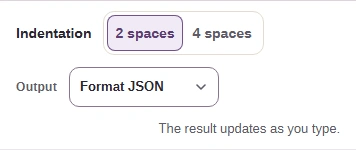
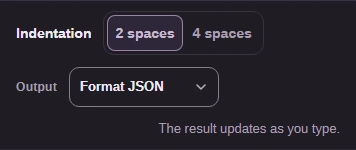
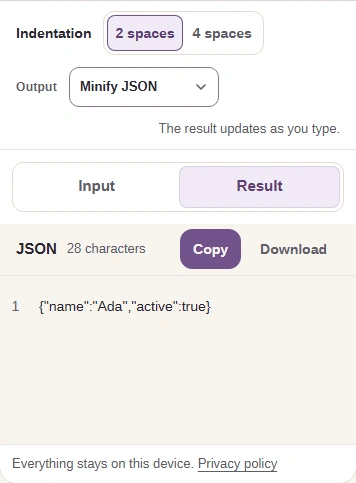
Format JSON adds indentation; Minify JSON puts the result on one line.
FluffyBench processes your JSON content in your browser.
Limits The steps below use JSON. The Language menu also offers YAML, TOML, XML, INI, and Properties.
A wall of JSON is hard to check. FluffyBench adds readable spacing while keeping your values as written—or puts the JSON back on one line when you need a compact result.
JSON is text that programs use to exchange information. Names identify fields, and lists group values in order; indentation helps you see which values belong together.
Spacing is like the gaps between folder labels: it helps you find things without changing what's inside. Here are the same list values with each JSON layout.
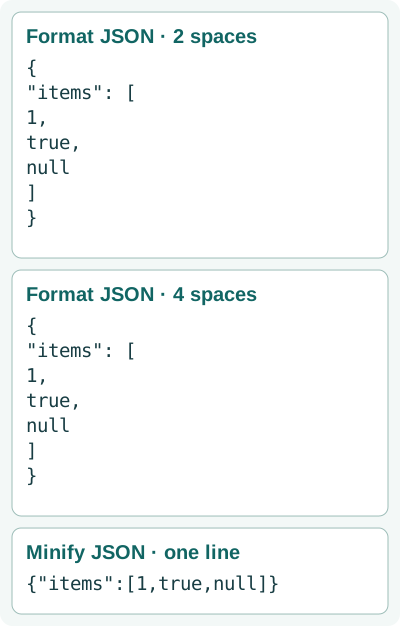
One list, three layouts
A compact indent for reading and reviewing JSON.
A wider indent makes each nested level stand out.
One line for a destination that asks for compact JSON.
Indentation doesn't affect the minified result. Spaces inside a quoted string are part of its value, so FluffyBench keeps them.
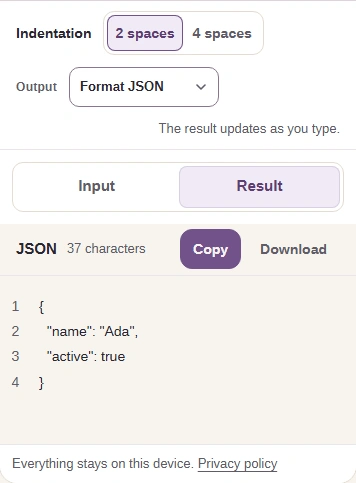
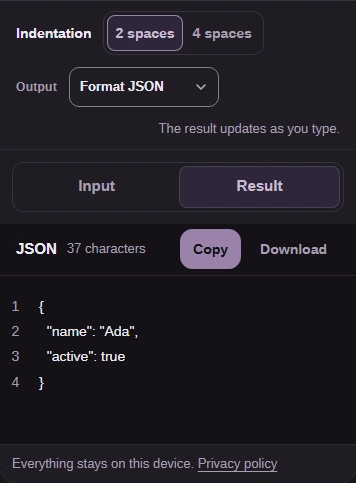
On a phone, Input and Result share the same space. The marked tabs take you between your source and the live result.
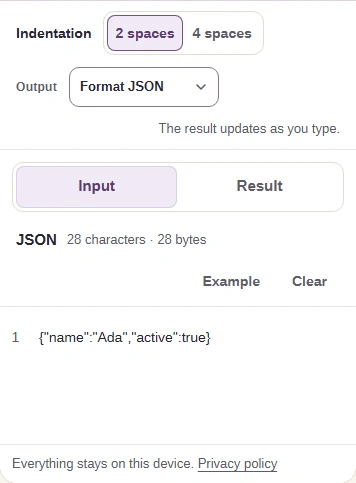
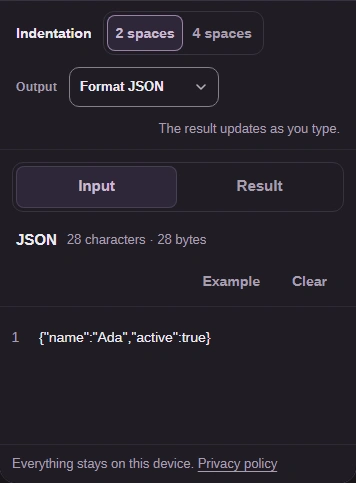
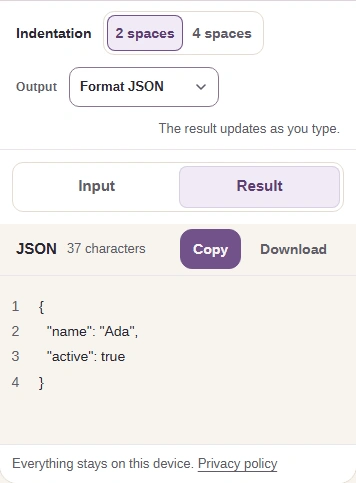
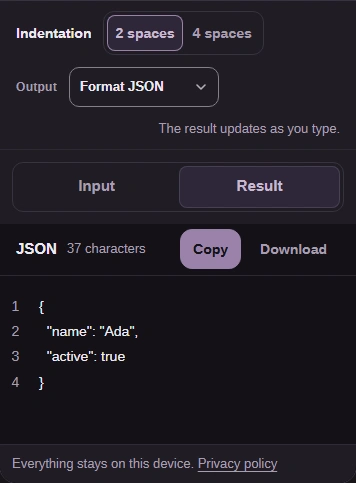
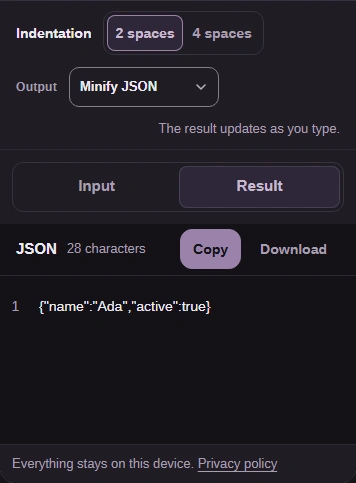
Before you use the JSON, match its names and values to your source. Here's the complete source beside FluffyBench's formatted result.
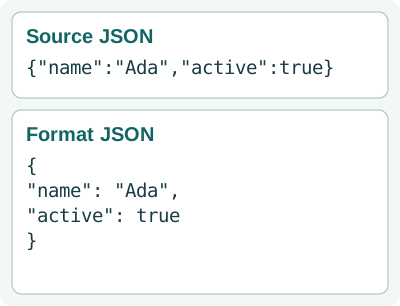
Complete source and formatted result
The name is Ada and active is true.
Both values match the source.
The closing brace is present.
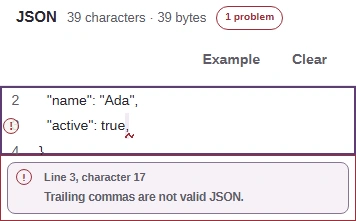
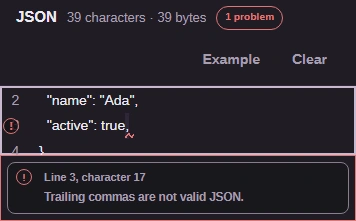
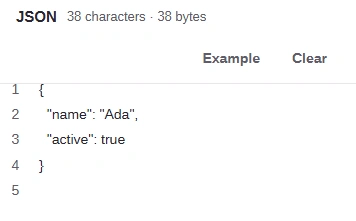
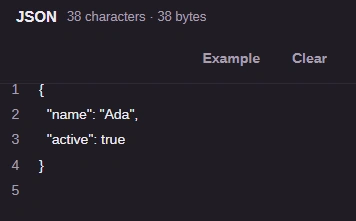
FluffyBench formats strict JSON: comments, trailing commas, and single-quoted strings need correcting in your input. Here's a trailing comma and the problem entry that takes you to it.
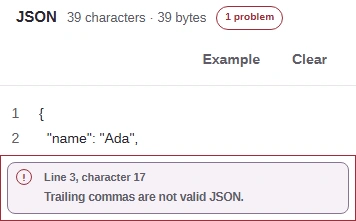
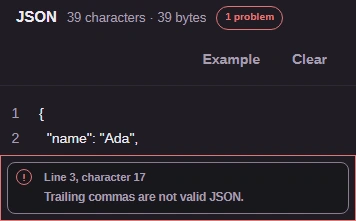
For help with a specific message, see common JSON syntax errors and their fixes.
Compare the source ID with two formatting paths, then check the source keys beside FluffyBench's result.
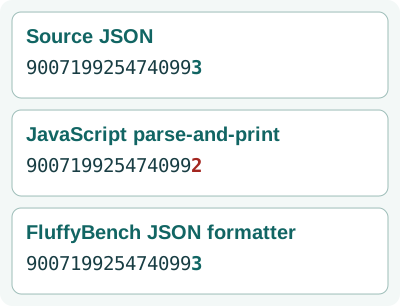
One ID through two formatting paths
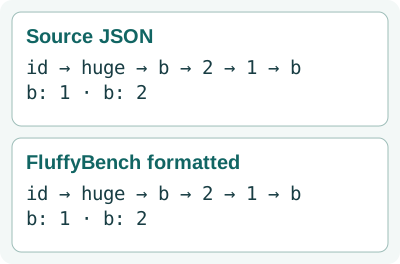
Source and formatted keys
The original ID ends in 3.
Reading into JavaScript data and writing it back changes the final digit to 2.
The ID still ends in 3.
The name b appears twice in the source.
The order and both b values match.
Language chooses your input format; Do offers the jobs shown here. Format tidies layout, Validate checks syntax, and Convert changes the representation.
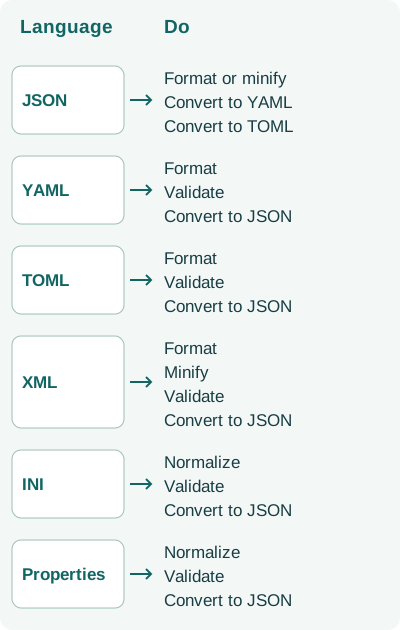
Language to Do action map
Format or minify opens the JSON layout controls.
XML includes a separate Minify action.
Normalize produces consistent key=value text.
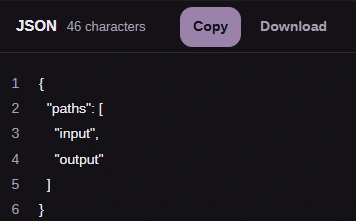
Here's YAML converted to JSON in the same workspace, with the input and output labelled at each step.
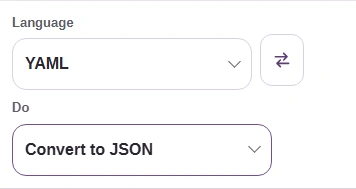
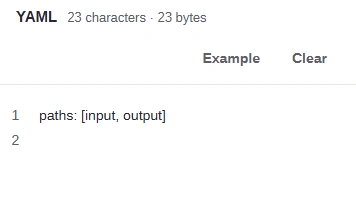
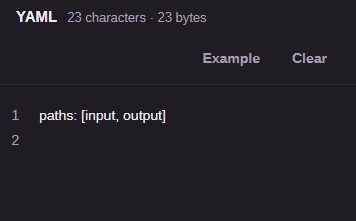
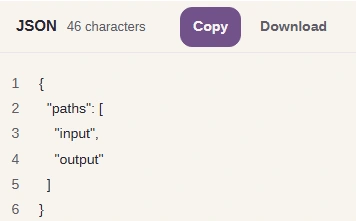
Other configuration jobs can change more than spacing. Here's an INI conversion and a TOML formatting result from FluffyBench.
![INI input [app] with name=FluffyBench becomes JSON with an ordered sections list and an entries list. TOML input with the comment # App name formats to name = "FluffyBench" without the comment.](/images/standard/json-formatter/config-output-differences.svg)
INI conversion and TOML formatting
The app section contains one name entry.
Sections and entries become ordered lists; the unnamed section is included too. Properties conversions use the same list structure.
The name stays; the comment is removed. INI and Properties normalization also remove comments.
The whitespace-preservation promise belongs to Format JSON and Minify JSON. Each conversion message explains refusals, such as values that can't be represented in the destination format.
Need to compare these formats? Read JSON vs. YAML, TOML, XML, and INI.