Text diff

Compare two blocks of text line by line and see additions and removals.

FluffyShield Protected workspace
FluffyShield

Isolated workspace: other page scripts can't read your files. How FluffyShield works

What changed between two versions of your text?

Spot what changed between two versions without rereading every line. FluffyBench's Text diff compares your pasted text in your browser and keeps the surrounding lines in view.

How it works
  1. Paste the older version under Before
  2. Paste the newer version under After
  3. Read the marked rows in Changes
  4. Copy the comparison to share it

Stays in your browser

Both versions are compared on your device and never uploaded.

Any text you can paste

Settings, drafts, logs, lists or messages.

Updates as you type

Edit either box and Changes redraws. Very long text gets a Compare button instead.

Limits Text diff compares pasted text. It doesn't read a file's details, binary contents or change history.

Comparing two versions in FluffyBench's Text diff

Here's a small settings change from start to finish, as it looks on a phone: the owner changes from ops to platform, a summary line arrives, and the archive line goes. On a wider screen, Before and After sit side by side.
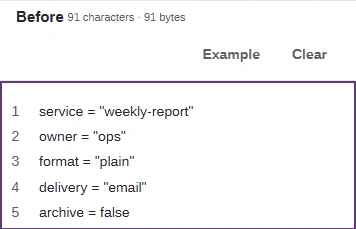
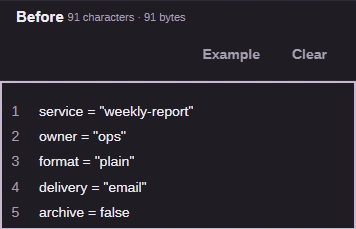
  1. The Before box in FluffyBench Text diff holding five settings lines, with owner = "ops" and archive = false, beside its Example and Clear buttons.
    The Before box in FluffyBench Text diff holding five settings lines, with owner = "ops" and archive = false, beside its Example and Clear buttons.
    Step 1. Paste the older version under Before. If you just want to try the tool, Example fills both boxes with a short sample.
    1. Paste the older version here.
    2. Example loads a short sample into both boxes.
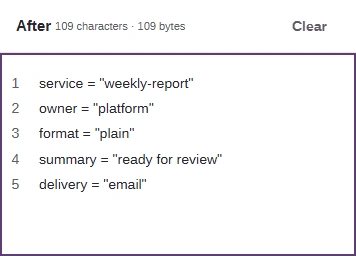
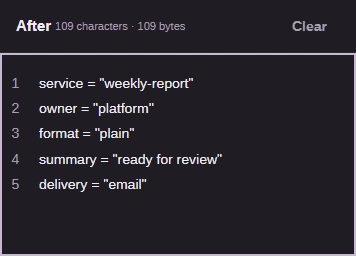
  2. The After box holding the newer settings, with owner = "platform" and a new summary line.
    The After box holding the newer settings, with owner = "platform" and a new summary line.
    Step 2. Paste the newer version under After. Short text is compared as you type, so there's no button to press.
    1. Paste the newer version here.
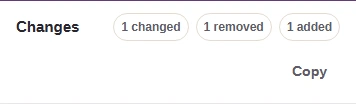
  3. The Changes bar in FluffyBench Text diff reading 1 changed, 1 removed and 1 added, with a Copy button below the counts.
    The Changes bar in FluffyBench Text diff reading 1 changed, 1 removed and 1 added, with a Copy button below the counts.
    Step 3. Changes fills in below the two boxes. Read the marked rows there, then copy the comparison if someone else needs it.
    1. Counts of changed, removed and added rows.
    2. Copy puts the whole comparison on your clipboard as plain text.

How to read changes between two text versions

Think of the unchanged lines as landmarks. They stay put on both sides, so you can see exactly where each edit sits without rereading the whole thing.

Here's the Changes panel for that settings edit. Before is on the left and After on the right, and each row holds the matching line from each version.
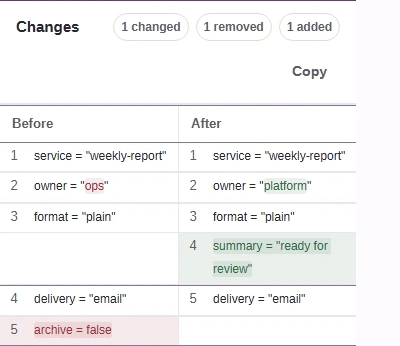
Changes for the settings edit: 1 changed, 1 removed, 1 added. The service, format and delivery lines match on both sides. The owner row pairs ops with platform. The summary line appears only on the After side, and archive = false only on the Before side.
  1. Row counts

    1 changed, 1 removed, 1 added: one for each marked row below.

  2. Unchanged line

    Plain rows match on both sides. They're your landmarks.

  3. Changed line

    The line is in both versions, with an edit. Only the word that differs is marked.

  4. Added line

    Green on the After side, with nothing beside it on the Before side: this line is new.

  5. Removed line

    Red on the Before side, with nothing beside it on the After side: this line is gone.

Color isn't the only clue: an added line leaves the Before side empty, and a removed line leaves the After side empty. How we measured

A removed line next to an added one could be a replacement, a line that moved, or two unrelated edits. Text diff shows where the text differs; the lines around it tell you which.

What the highlights and copied text show

When a line was edited instead of deleted, Text diff puts the old and new versions on one row and marks only the words that differ.
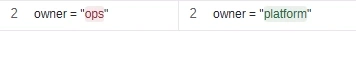
The owner row: owner = "ops" on the Before side with ops marked in red, and owner = "platform" on the After side with platform marked in green.
  1. Same on both sides

    The owner = part stays plain because it didn't change.

  2. Old word

    ops is marked on the Before side.

  3. New word

    platform is marked on the After side.

Marks cover whole words, so ops and platform are each marked in full, even though they share the letter p.

The counts and the copied text describe the same edit in two ways. On screen, a changed line is one row. In the text Copy gives you, it becomes two lines: the old one with a minus sign and the new one with a plus sign.
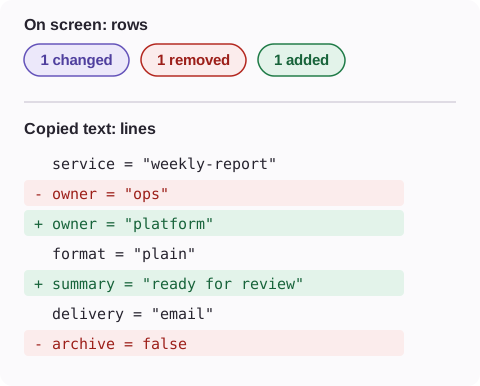
On screen: 1 changed, 1 removed, 1 added. The copied text has 7 lines:   service = "weekly-report" / - owner = "ops" / + owner = "platform" /   format = "plain" / + summary = "ready for review" /   delivery = "email" / - archive = false.
  1. Changed line

    One row on screen; a minus line and a plus line in the copy.

  2. Added line

    A plus sign marks a line only the newer version has.

  3. Removed line

    A minus sign marks a line only the older version has.

Unchanged lines start with two spaces, so the copy reads top to bottom with its context. That's why it holds 2 minus lines and 2 plus lines while the screen counts 1 changed, 1 removed and 1 added.

Check the lines around each change before you share it

In a longer text, Text diff keeps up to three unchanged lines beside each change and folds the rest behind a button. Here, only retries changed in a ten-line settings file.
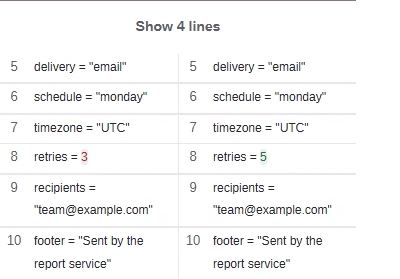
Changes for a ten-line settings file where only retries changed from 3 to 5. A Show 4 lines button stands in for the first four unchanged lines, followed by delivery, schedule and timezone, the retries row, then recipients and footer.
  1. Folded lines

    Show 4 lines brings back the unchanged lines above.

  2. Nearby lines

    Up to three unchanged lines stay in view on each side of a change.

  3. The change

    retries went from 3 to 5.

Open folded lines when a change depends on something further up, such as the section a setting belongs to. Very long stretches open 100 lines at a time.

If you paste the copied text into a message or a ticket, the minus and plus signs carry the meaning, so it still reads correctly without any color.

When the result isn't what you expected

It says No differences. The two versions match line for line. Check that the newer version went under After.

A line looks the same but is marked. Lines are compared character by character, so a space at the end or a tab in place of spaces counts as a change. Windows and Unix line endings don't: Text diff treats both as the same line break. Our guide to LF and CRLF line endings explains why those two exist.

A Compare button appeared. Once the two boxes hold more than 100,000 characters together, Text diff stops comparing as you type. Press Compare when both versions are in place; Cancel stops a long comparison.

Lines that only moved are marked. Text diff compares lines in order, so a line that moved shows up as removed in one place and added in another. If order doesn't matter, sort both versions in FluffyBench's Text cleaner first, which can also remove duplicate lines, then compare again.

Need to reorder or deduplicate lines?

Search FluffyBench