Text cleaner, line sorter, deduplicator and slug generator
Trim and collapse whitespace, change case, choose LF or CRLF line endings, sort, deduplicate or reverse lines, and create Unicode slugs or ASCII identifiers.
FluffyShieldProtected workspace
From
To
How it works
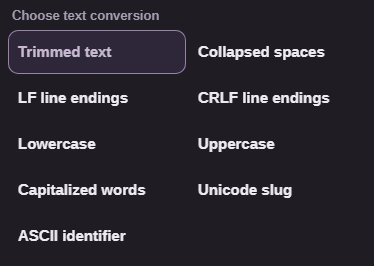
Choose From and To
→Paste text into Input
→Compare the Result with your original
→Copy or download the result
Spacing
Trim the edges of a passage, or shrink every gap between words to one space.
Lists
Sort lines, drop exact repeats, or do both at once.
Case and labels
Change capitalization, or turn a title into a web-address slug or a name for code.
Limits One change at a time; your original stays in Input.
Extra gaps, repeated lines, or a title that needs to be a web address?
FluffyBench's Text cleaner gives each of those its own choice under To. Paste your text, and the cleaned copy appears next to your original.
Each choice changes one kind of thing, so you can see exactly what it did before you copy the result.
FluffyBench · 6 min read · Measured with this tool
Which spacing fix does your text need?
Picture your pasted text as a page with a margin. Trimmed text cuts the margin: spaces, tabs and empty lines at the very start and very end of the whole passage go, and nothing inside it moves. Collapsed spaces works between the words instead: every run of spaces or tabs becomes one space, everywhere, and every line break stays.
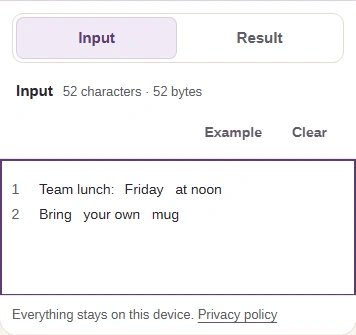
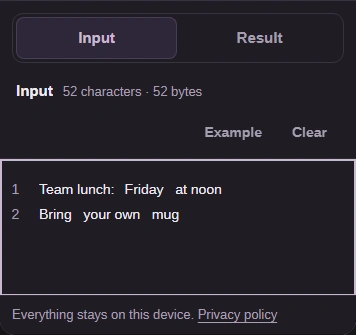
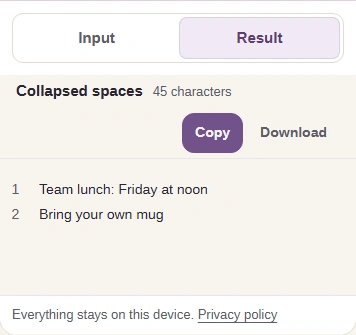
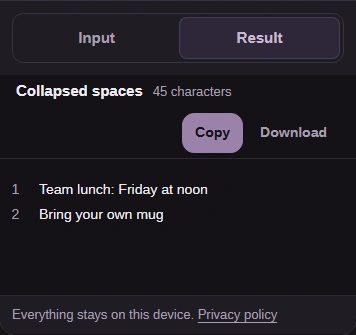
Here's one pasted note cleaned both ways, with every blank made visible.
Trim only touches the outside of the whole passage, so the indent before “Bring” survives. Collapse fixes every gap but keeps every line break, even the empty first line. How we measured
Cleaning up spacing in FluffyBench
Here's the whole job on a phone, from picking Collapsed spaces to copying the result. Every other choice under To works the same way.
1
1
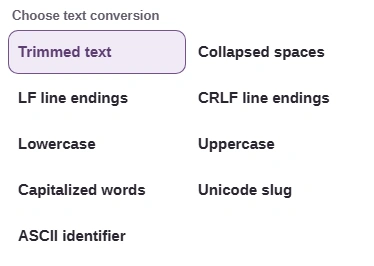
Step 1. Tap To and pick the job. Each choice changes one thing, so pick the one that matches what's wrong.
1
Choose Collapsed spaces.
12
12
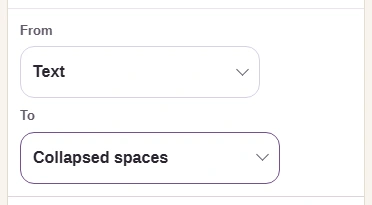
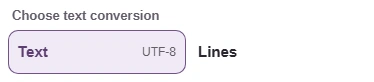
Step 2. From stays on Text for spacing, case and labels. Switch it to Lines only when you're tidying a list.
1
From: Text.
2
To: Collapsed spaces.
12
12
Step 3. Paste your text into Input. The result is ready as soon as you paste; there's no button to press.
1
Input tab: your original.
2
Paste the text here.
123
123
Step 4. Open Result and compare it with your original. If the wrong thing changed, pick another To; your text stays in Input.
1
Open Result.
2
The count drops as gaps shrink.
3
One space per gap; both lines stay.
12
12
Step 5. Copy puts the cleaned text on your clipboard; Download saves it as a text file.
1
Copy the cleaned text.
2
Or download it as a file.
How do you sort a list or remove repeated lines?
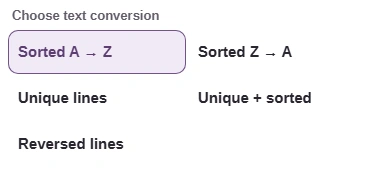
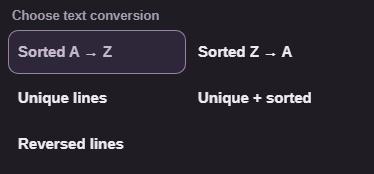
Switch From to Lines, and the tool treats each line as one item. Unique lines drops later copies of a line and keeps your order. Sorted A → Z and Sorted Z → A reorder the whole list and keep repeats. Unique + sorted does both, and Reversed lines flips the order without sorting.
Here's one short list under the three main choices, plus a list of near-repeats that all survive.
Unique lines keeps the first copy and your order; sorting can scramble a list whose order matters, like recipe steps. Sorting uses your browser's text order and doesn't trim lines first.
Here's the same job in the tool, with a guest list that has one name twice.
1
1
Step 1. Tap From and choose Lines, so each line counts as one item.
1
Choose Lines.
123
123
Step 2. Then tap To and pick what should happen to the list.
1
Unique lines: repeats go, order stays.
2
Sorted A → Z: repeats stay.
3
Choose Unique + sorted for both.
12
12
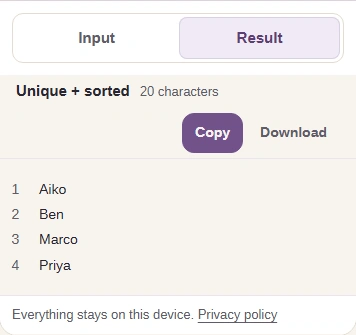
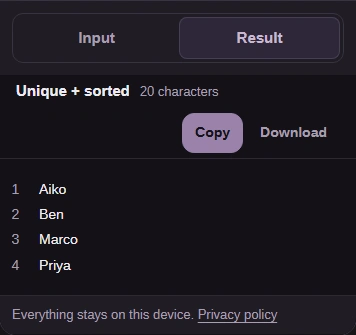
Step 3. Paste the list into Input, then open Result. The second Marco is gone and the names are in A-to-Z order.
1
Open Result.
2
Four names, one Marco, A to Z.
How do you change capitalization?
Lowercase and Uppercase change every letter. Capitalized words lowers everything first, then gives each run of letters a capital, so it can't tell an apostrophe or a name like McDonald from any other word.
Here's one phrase under all three case choices.
Check names and words with apostrophes before you copy a Capitalized words result.
How do you turn a title into a web-address slug?
A slug is the short lowercase label at the end of a web address, like text-cleaner in this page's own address. Unicode slug keeps accented letters and other scripts and joins the words with hyphens. ASCII identifier makes a name for code out of plain letters, digits and underscores.
Here's the tool's own Example under both label choices.
Both drop the punctuation and the spaces at the ends. Only the ASCII identifier strips the accent and leaves out the Chinese characters.
What if some spaces or line breaks won't go away?
Some characters only look like spaces. Collapsed spaces matches ordinary spaces and tabs, so a no-break space or a zero-width space, which can come along when you copy from a web page or a document, gets through untouched.
Here's a pasted line with both kinds hiding in it, before and after Collapsed spaces.
Only the purple-shaded blanks change; the two lookalikes come through exactly as they were.
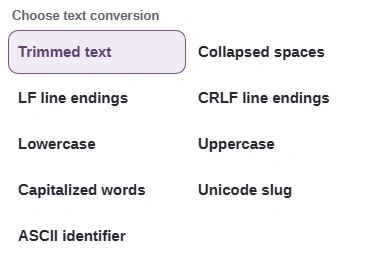
Line breaks follow their own rules. Trimmed text removes empty lines and breaks at the very start and end of the passage, but never the breaks between your lines, and Collapsed spaces keeps every break. Neither one changes the kind of break: LF, the single character Mac and Linux use, or CRLF, the two-character pair from Windows. That's what the two line-ending choices are for.
Here's where the two line-ending choices live, and how to bring in a file without losing its endings.
12
12
Step 1. Line endings have their own two choices under To.
1
LF line endings: one character per break.
2
CRLF line endings: the Windows pair.
12
12
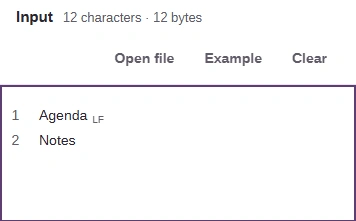
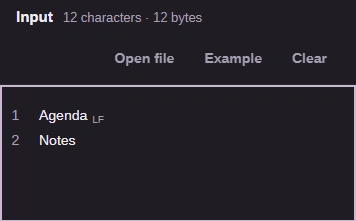
Step 2. Typed or pasted breaks always arrive as LF. To keep a file's own endings, use Open file instead of pasting.
1
Open file keeps the file's own endings.
2
Each break is marked LF.
Not sure which kind a program wants? Our LF and CRLF guide explains when the difference matters.
Counting or comparing text instead?
The Text cleaner changes your text. If you only want to know how long something is, FluffyBench's Text counter counts words, characters and lines without touching it. To see exactly what changed between two versions, like your original and the cleaned copy, paste both into FluffyBench's Text diff.