
What icon sizes does a website need?
Your website's logo turns up in three places: browser tabs, phone Home Screens and installed web apps. Each one wants its own square icon, and the smallest is only 16 px across.
Here's which sizes go where, and how to make a set that still reads at tab size.
Which icon sizes go with each place?
Think of the same logo printed on a business card and on a storefront sign. It's one design, but each copy is made for the space it gets. Website icons work the same way: a browser tab gives your logo a speck of room, while a Home Screen tile or an installed web app shows it much larger.
Here's the set FluffyBench's favicon and app icon generator made from one logo, sorted by where each file goes.

Where each website icon goes
Here's the same part of a 512 px app icon made from a small logo and from a full-size logo, both shown at 100%.

From a 128 px logo

From a 512 px logo
Which files belong in a browser tab?
A browser tab has the least room of all, so it gets the smallest files: PNGs at 16 px, 32 px and 48 px. With several sizes on offer, the browser can choose the one that fits the screen best.
Detail is the first thing to go at tab size. Here's the source logo beside its tab icons, at real size and enlarged so you can see each pixel.

Tab icons up close
Many sites also keep a favicon.ico at their root, for pages without an explicit icon link. One ICO file can hold several sizes; the generator's holds the same three. Our guide to image containers explains how one file holds several sizes.
Only need a favicon.ico?
It turns an image you already have into one ICO file with several sizes inside.
Which Apple touch icon sizes should you use?
When someone saves your site to an iPhone or iPad Home Screen, the tile shows the Apple touch icon. Apple's archived web guidance gives 180 px for its iPhone example and 152 px and 167 px for iPad examples. Treat those as examples, not a list you must fill: FluffyBench's generator makes one 180 px file.
Give the touch icon its own solid background and square corners, and let iOS do the rounding.

The Apple touch icon file and its Home Screen tile
Which icons go in a web app manifest?
Some sites can be installed like an app, from the browser's menu. The installed app reads its icons from a web app manifest: a small text file that lists the icons along with details such as the app's name and start page. FluffyBench's generator lists two icons in its manifest, at 192 px and 512 px.
Each entry in the manifest names one image file and its size.

The manifest's icon list and its files
Icons alone don't make a site installable: the manifest needs those other details too, and the site has to be served correctly. The generator's manifest holds only the icon list, so add your app's name and start page, or copy the list into the manifest you already have.
What is a maskable icon?
Some platforms crop app icons into a circle or a rounded square, like a cookie cutter pressed over the artwork. An icon marked maskable in the manifest is one that's allowed to be cropped that way. FluffyBench's generator doesn't mark its icons maskable, so a maskable icon is an extra file you'd prepare yourself.
If you do make one, keep everything important inside the centered safe circle, whose radius is 40% of the icon's width.

The maskable icon safe zone
What if your logo isn't square?
Every one of these icons is square, but plenty of logos are wide wordmarks. FluffyBench's favicon and app icon generator never stretches or crops: it fits the whole picture inside the square, centers it and leaves transparent space around it.
Here's one wide logo fitted into a square three ways, each also shown at tab size.

One wide logo, three ways
If the space around a centered logo is transparent, check how it looks against the surface where the icon will sit; our guide to transparent image edges explains what can change.
Making your icon set in FluffyBench
FluffyBench's favicon and app icon generator makes all nine files from one image, on your device: favicon.ico, three tab PNGs, the Apple touch icon, two web app icons, the manifest and the tags for your page.
Here's the whole job in five steps, from choosing your logo to copying the tags for your page.
-
Step 1. Choose a square logo at least 512 px across so the largest app icon isn't an enlargement. The nine files are made on your device as soon as it's added. - Choose image opens your file picker.
-
-
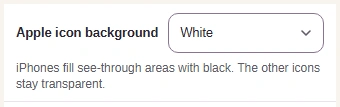
Step 2. Apple icon background fills see-through areas of the Apple touch icon with White, its one choice. The other icons keep their transparency. - Leave Apple icon background on White.
-
-
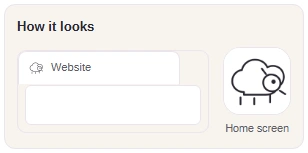
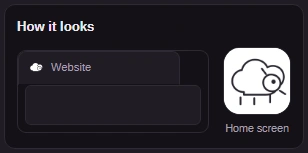
Step 3. Check How it looks. If the tab icon is hard to recognize, start again from a simpler mark. - Can you still recognize the tab icon?
- Does the Home Screen icon look right?
-
-
Step 4. Download all 9 (ZIP) saves every icon, the manifest and the tags in one file. - Download the whole set as a ZIP.
-
-
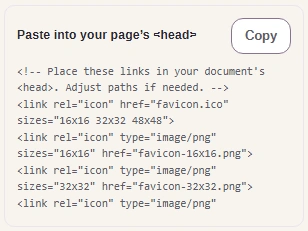
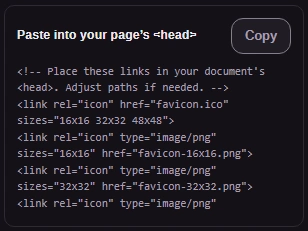
Step 5. Copy takes the link tags, not the pictures. They go in your page's <head>, as the next section shows. - Copy the tags for your page.
- Each tag names one file from the set.
-
Ready to make your own icon set?
Open the generator to make the files and tags shown above from your own logo.
How do you connect the icons to your website?
Your page points to each file with a link tag in its <head>, the part of the page visitors don't see. Think of each tag as an address on an envelope: if the file isn't where the address says, the browser can't find it.
Here's where each copied tag points, and the three steps to put the set online.

How a page's tags reach the icon files