
Why can one image file hold more than one picture?
That image preview might show just one part of your file. Some files hold a whole set of pictures, or the layers behind one finished picture.
One file can hold a set of pictures
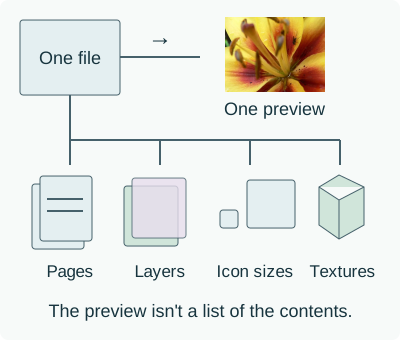
Some image files work like folders with one label: what's inside can be a set of complete pictures, or pieces that combine into one picture. A preview gives you one view of that folder. It doesn't tell you everything that's inside.
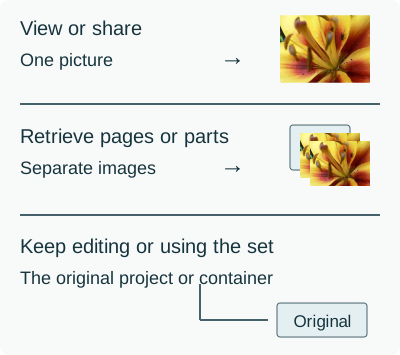
Think about what you need next: a picture to share, separate parts to retrieve, or a project to keep editing.

Scanned pages are separate pictures
A multi-page TIFF is like a packet of scanned pages: each page is a separate picture. Here's one TIFF containing two different views of a flower.
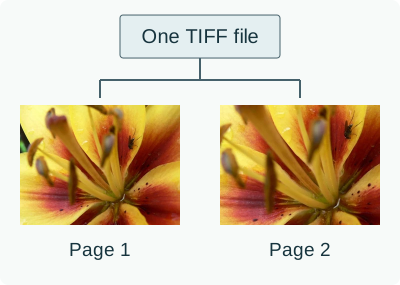
The same packet idea helps with an older DCX scan or an MPO photo file. DCX holds pages; MPO holds complete JPEG pictures, including a primary picture. If you're looking for a later page or another photo, you'll need access to the contents.
Layers combine into one finished picture
A layered drawing works like clear sheets laid on top of each other. This OpenRaster (.ora) file keeps a full photograph and a smaller detail layer, plus a merged preview of how they look together.
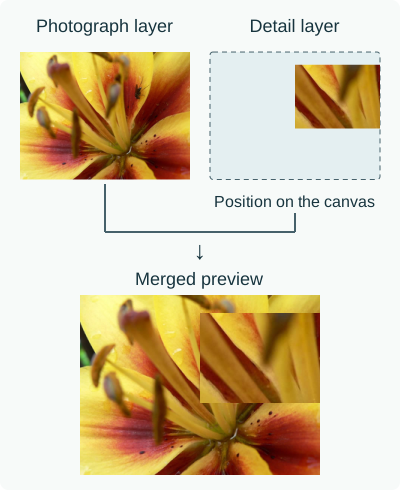
A flat export is handy when you want someone to see the finished drawing. It won't give them those separate sheets to move or edit. Extracting the layers retrieves their pictures; it isn't the same as preserving the whole drawing project.
Icons keep several sizes of one symbol
An app needs an icon that fits the space where it'll appear. An ICO file can carry several sizes together, so the app can choose a suitable picture.
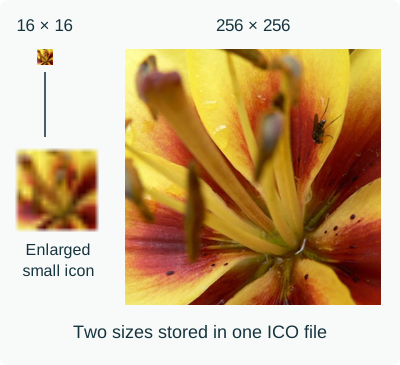
Mac icons (ICNS) and Windows cursors (CUR) can also package several sizes, giving an app a choice of pictures for different spaces.
Textures keep pictures for different viewing needs
Games and 3D apps use textures like wrapping paper on an object. Files such as DDS, KTX and KTX2 can organize their pictures by size, direction or position in a stack.
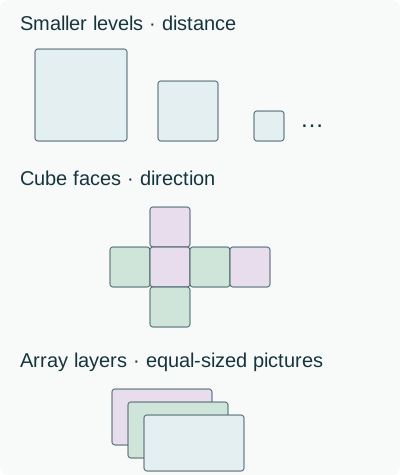
The smaller copies are called mip images. A stored texture picture is often called a surface. One surface exported as PNG is useful to inspect, but it doesn't contain the other pictures or the texture's settings for the 3D app.
Do you need one picture or the contents?
Choose by what you'll do with the result. Sharing a finished view, retrieving separate pictures and continuing to edit are different jobs.
Doing it in FluffyBench
FluffyBench's Image Extractor opens the contents so you can save the picture you need. It saves PNG images, except for MPO pictures, which come out as unchanged JPGs. Processing stays in your browser.
Here's how to retrieve both pages from the flower TIFF and save either page or the set. For other formats, One image per file takes the primary MPO picture, the largest readable icon, the merged OpenRaster preview or the base texture.
-


Step 1. Choose a file from your device. - Choose files opens the file picker.
-
-
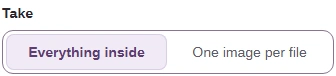

Step 2. Choose how much to extract. - Everything inside returns all readable images.
- One image per file takes the first TIFF page; it doesn't pick a later page.
-
-


Step 3. Press Extract to create separate images. - Extract starts processing on your device.
-
-
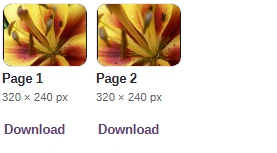
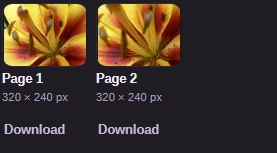
Step 4. Check the page label, pixel size and preview before saving a page. - Check Page 2's pixel size, then use its Download.
-
-


Step 5. Use Download all (ZIP) when you want every result together. - Download all (ZIP) bundles the extracted images.
-
Need a flat PNG instead? FluffyBench's PNG converter changes a single picture's format. For a multi-page TIFF, use Image Extractor to retrieve the page you want first.