
How do I keep transparency when converting an image?
Your cutout can look perfect on white and still carry a white box onto a dark slide.
PNG and WebP can keep the background clear; JPG bakes a solid background in.
Which image formats keep transparency?
PNG, WebP, and AVIF can keep a see-through background; JPG can’t. Think of a cutout as a window cut into a poster: wherever the window is, you see whatever sits behind it. In a picture file, every tiny square, called a pixel, has a color. A transparent image gives each pixel one more number, called alpha, that says how much of the background should show through: none, all of it, or a little at a soft edge.
Here’s a flower cutout over a checkerboard, which is how apps show clear areas, beside its alpha drawn in grayscale: black is clear, white is solid, and gray is in between.
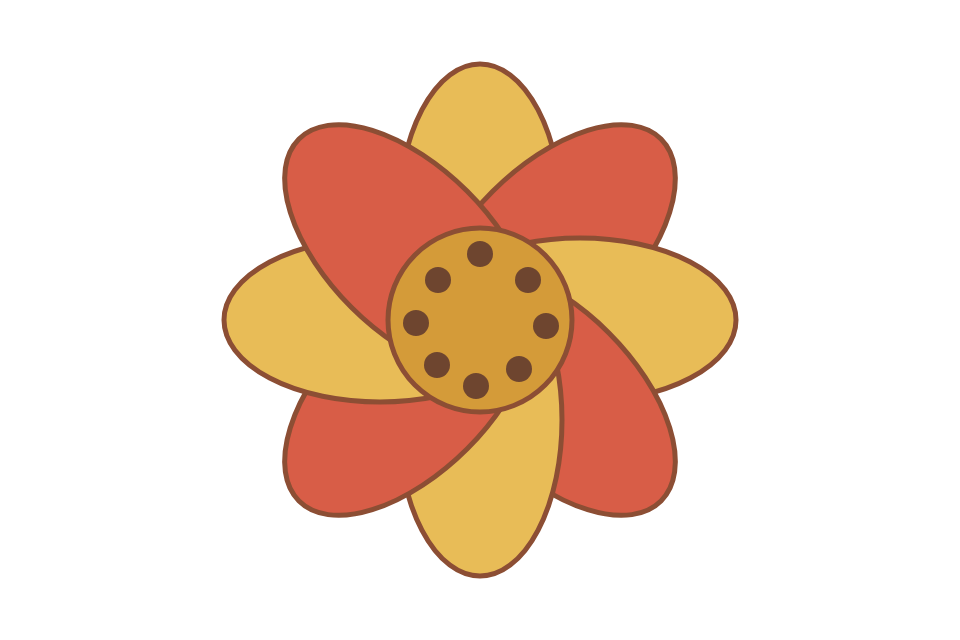
Flower PNG over a checkerboard

Transparency shown in grayscale
- Partly clear petal edge
This edge pixel has alpha 117 of 255, so a little of the background shows through and softens the edge.
- Clear background pixel
This pixel has alpha 0 of 255, so the background shows through completely.
- Solid petal pixels
The flower’s solid middle, white in this view, has alpha 255 of 255; it covers the background.

Flower edge · 12 times
A magnified run of pixels across the flower edge; alpha values from top to bottom are 0, 0, 117, 255, 255.

Same edge · grayscale view
The grayscale view of the same edge pixels; alpha values from top to bottom are 0, 0, 117, 255, 255.
Those in-between pixels make a curved petal look smooth, but they only survive in a format with room for alpha. We saved the flower as a WebP and as a JPG with a white fill; look at the corners outside the petals.
Transparent PNG source

WebP copy
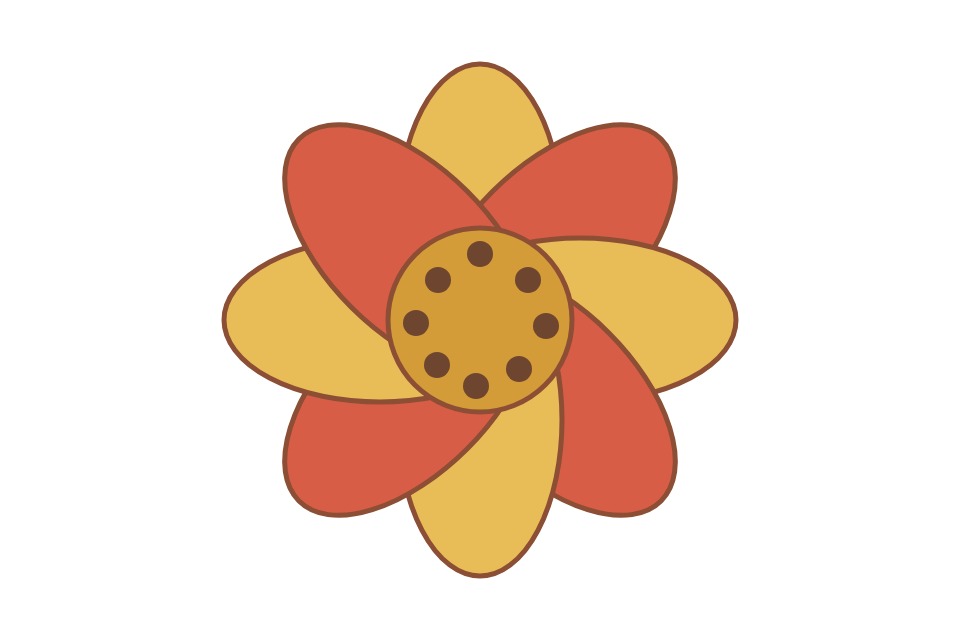
JPG with white fill
- PNG keeps the clear area
The checkerboard shows through the space around the flower.
- WebP keeps it too
The same corner is still see-through in the WebP copy.
- JPG saves a white background
The white fill is now part of the picture and covers the checkerboard.
Why does a JPG get a solid background?
JPG has no room for alpha, so every pixel has to be solid. When you turn a transparent image into a JPG, the converter paints the clear areas with one color first. That color is called the fill, or matte.
Here’s the same petal edge from the PNG and from the white-fill JPG, first on a white page, then on a dark one.

On white · PNG left, JPG right

On dark · PNG left, JPG right
- Same look on white
On a white page, the white fill blends in and both edges look alike.
- PNG takes on the dark
Its clear corner and soft edge show the dark page behind them.
- White fill shows
The JPG brings its white square and a pale rim onto the dark page.
So pick by where the image will go. If it’ll always sit on one color, a JPG filled with that color works. If it might land on different backgrounds, like a light slide and a dark one, keep it as PNG or WebP.
Can converting a JPG to PNG restore transparency?
No. Once the fill is saved in a JPG, nothing in the file remembers where the clear areas were. Converting it to PNG or WebP changes the format, but the white is just white pixels now.
Here’s the white-fill JPG next to the PNG and WebP copies we made from it.
JPG with white fill (source)
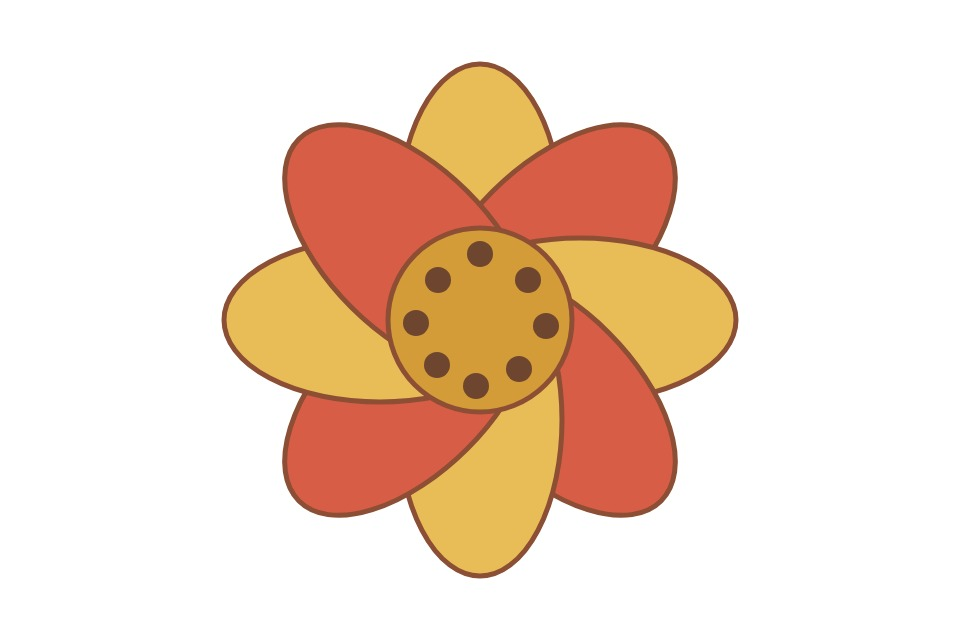
PNG copy · still solid
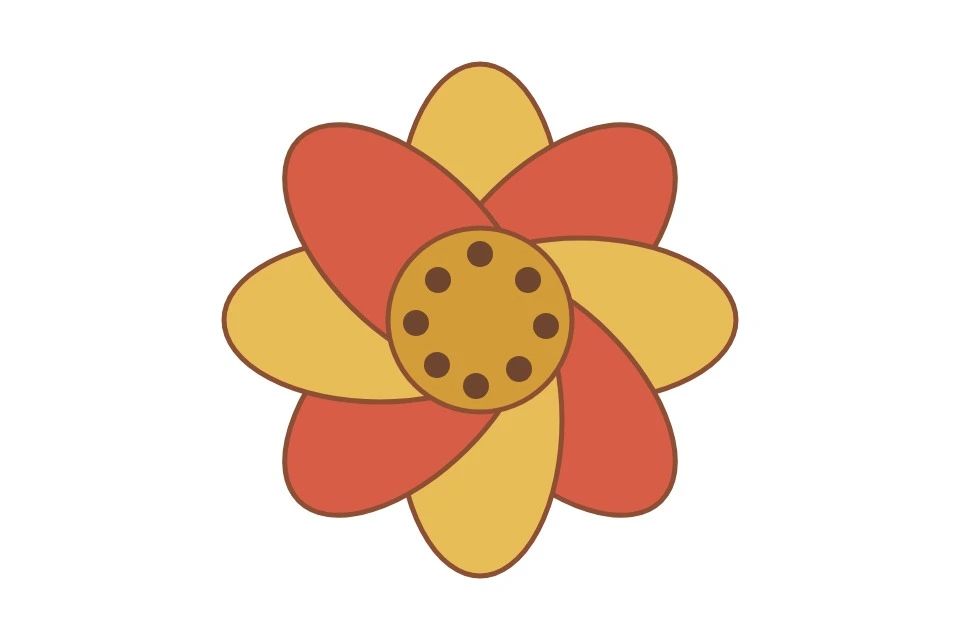
WebP copy · still solid
- Fill already saved
The JPG holds white pixels where the clear corner used to be.
- PNG keeps the white
Saving that JPG as PNG doesn’t make the corner clear again.
- So does WebP
The WebP copy gets the same solid white corner.
To get the cutout back, you’ll need the transparent original, or an image editor to cut the background out again.
Doing it in FluffyBench
To keep the clear background, make a PNG with FluffyBench’s PNG converter. Its starting settings already keep transparency, so the only thing to watch is one color setting.
Here’s the whole job, turning the WebP flower into a PNG that keeps its clear background.
-


Step 1. Choose the image with the clear background. Here it's the flower, saved as a WebP. - Choose images opens your file picker.
-
-


Step 2. Settings is optional: the starting settings already keep transparency. - The gear opens Settings and closes it again.
-
-
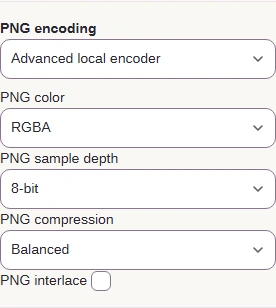
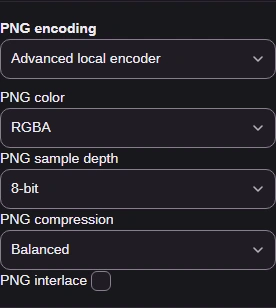
Step 3. Under More options, PNG color is the one setting that can drop transparency. Leave it on RGBA. - Advanced local encoder shows the PNG color choice.
- Keep RGBA. The two "no alpha" choices drop transparency.
-
-


Step 4. Close Settings with the gear and press Convert. - Convert makes the PNG copy.
-
-
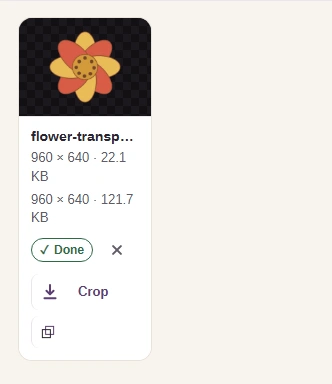
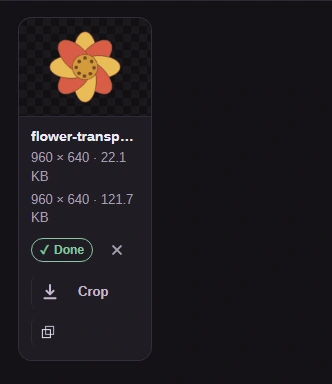
Step 5. Check the result: the checkerboard around the flower means the background is still clear. - Checkerboard around the flower: transparency kept.
-
-


Step 6. Download saves the PNG copy to your device. - Download saves the PNG copy.
-
The WebP converter keeps transparency at its starting settings too, as the flower’s WebP copy shows. When the destination needs a JPG, the fill color is the setting that matters.
FluffyBench’s JPG converter asks which color to fill the clear areas with. Here it’s set to white, for a white page.
-
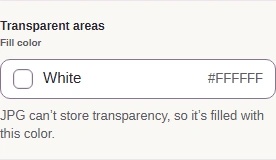
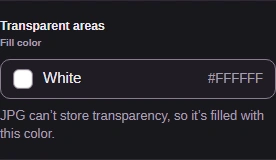
Step 1. Choose the flower PNG, open Settings with the gear, and find Transparent areas. - This button opens the fill colors.
-
-
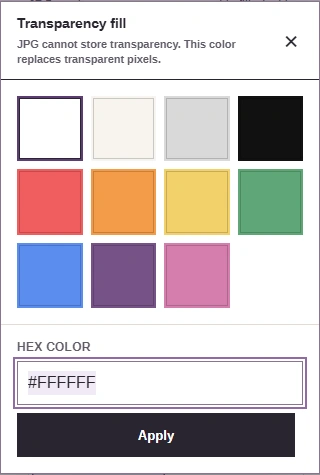
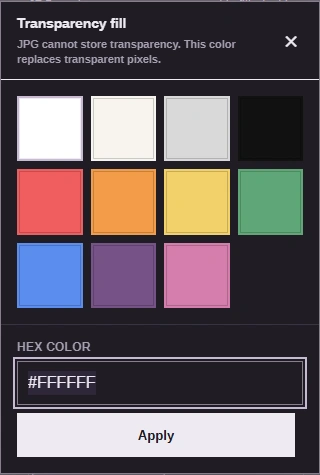
Step 2. Pick the color of the page or slide the JPG will sit on. - A swatch fills the clear areas with that color.
- Or type a Hex color, then press Apply.
-
-


Step 3. Close Settings with the gear and press Convert. - Convert makes the JPG with that fill.
-
-
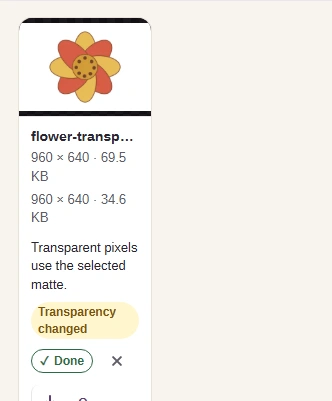
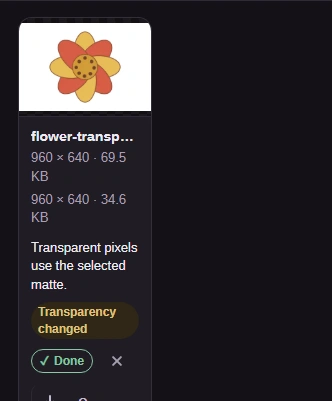
Step 4. The result shows the fill, and FluffyBench flags that the clear areas changed. Download it as a separate copy and keep your transparent original. - White now fills the clear areas.
- Transparency changed marks the fill.
-
Starting from an SVG logo? FluffyBench’s SVG converter turns it into a PNG that keeps the clear background; that’s how this flower began. Hang on to the SVG for later edits, and the SVG export guide helps you choose the PNG’s pixel size.
Need a copy that keeps the clear background?
Want a WebP copy that keeps the clear background?
Need a JPG with a background color you choose?
How do I check transparency before sharing an image?
A white box or a pale rim is easy to miss on a checkerboard. Before you send the copy, look at it on a dark background and a light one.
FluffyBench’s Image Viewer can swap what sits behind an image without touching the file. Here’s the flower PNG checked that way.
-
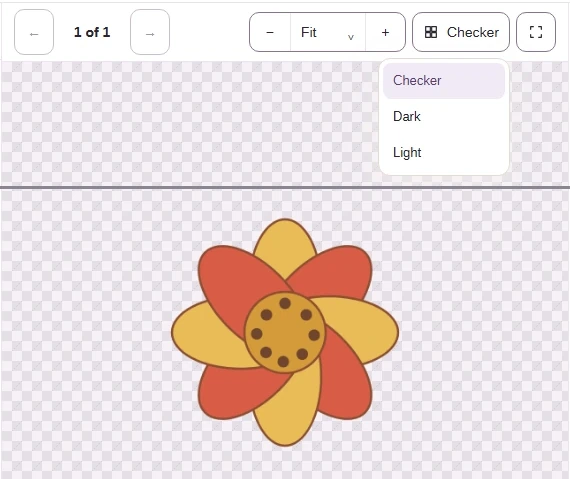
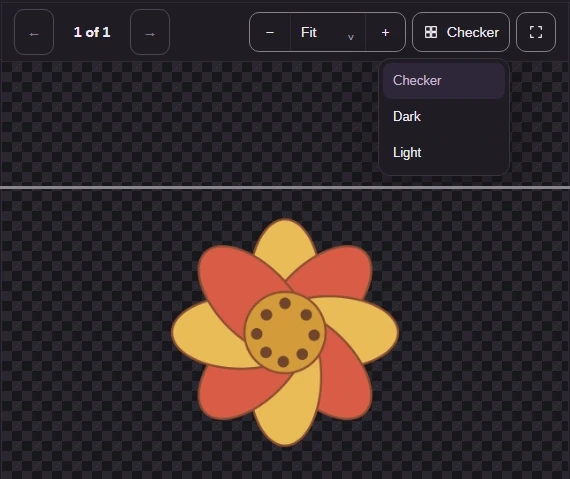
Step 1. On a computer, open the saved copy in FluffyBench's Image Viewer and open the Background menu. - Background changes what sits behind the image.
- Choose Dark, then Light.
-
-
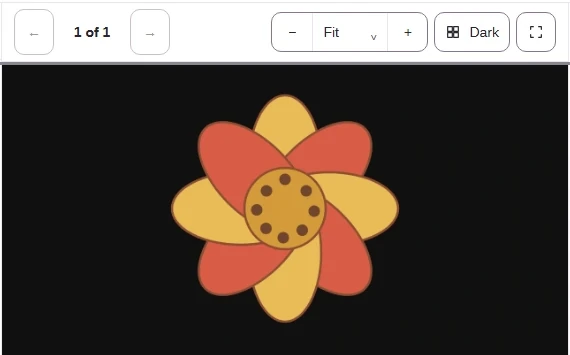
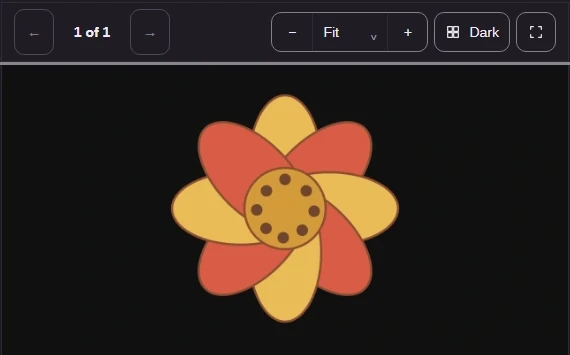
Step 2. On Dark, a clear background disappears. A white box or a pale fringe would show up here. - Dark is the background now.
-
-
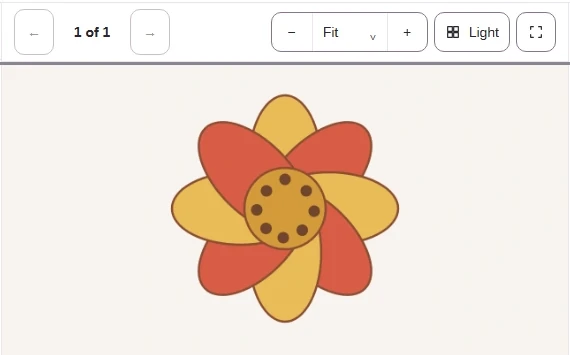
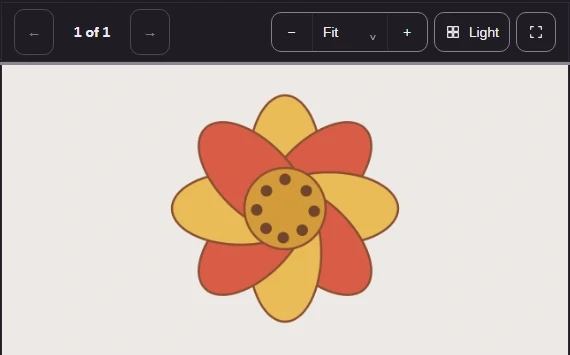
Step 3. On Light, look for dark fringes. These backgrounds are only for viewing; the file doesn't change. - Light is the background now.
-
Last, open the copy where it’s going, like a slide or a web page, and look once more.