
What can image metadata reveal about your photo?
A photo file can quietly carry the camera that took it, the minute it was taken, and sometimes the exact place.
Some of those hidden notes are private, and a couple keep your photo the right way up and in the right colors. Here's how to tell them apart, and how to take out the private ones before you share.
What is image metadata?
Think of a digital photo as a picture with a small label tucked inside its file. You never see the label when you look at the photo, but it travels with the file wherever you send it. Those notes are image metadata, and they come in two kinds: notes about the photo, and instructions for showing it.
Here's one photo file pulled apart: the picture on one side, its hidden label on the other.

One file: the picture and its hidden label
That's why you can't treat every note as private, or every note as safe to delete.
What can photo metadata reveal?
The best-known set of camera notes is called Exif. It can list the camera and lens, the date and time, the exposure settings, who took the photo, and a GPS location (the CIPA standards listing has the full specification). Location is optional: a camera or phone can leave it out.
Here's a real file: a National Park Service photo of Stanton Mountain. It names the camera, a Nikon D3200, and the minute it was taken, January 20, 2014, at 4:16 p.m., but no location.

What one real photo file records

Several of the other notes belong to a second set, XMP, which holds things like a title, keywords, copyright and editing history (see the Adobe XMP specifications). XMP can live inside the photo or in a separate .xmp file saved beside it.
Which image metadata helps your photo display correctly?
Two notes are instructions instead of descriptions. An orientation note tells apps which way is up, so a photo taken with the phone turned sideways still shows upright. A color profile is like a small recipe for the photo's colors; without it, an app has to guess. Our guide to image color profiles explains when colors shift.
These two instructions change what you see on screen, so they belong with the picture.

Two notes that change how a photo looks
What changes when you remove metadata?
Careful cleanup takes out the descriptive notes and keeps the instructions. FluffyBench Remove Image Metadata removes the camera, date, location and comment notes it recognizes in JPG, PNG and WebP files. It keeps the format, the color profile, an orientation note the picture needs, and the animation in animated PNG and WebP files.
Here's the Stanton Mountain photo before and after FluffyBench took its notes out.

The same photo before and after cleanup
The picture itself isn't saved again. When we cleaned the Stanton Mountain photo, its camera notes disappeared and all 2.4 million pixels came out exactly the same.
Removing image metadata in FluffyBench
Remove Image Metadata runs in your browser, so your photos never leave your device. You can add one photo or several at once.
Here's the whole job in FluffyBench Remove Image Metadata, using the Stanton Mountain photo.
-
Step 1. Add the photo you want to share. JPG, PNG and WebP files work. - Choose images opens your file picker.
-
-
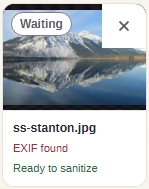
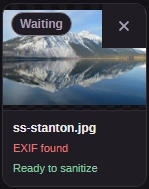
Step 2. The photo gets its own tile. Read what FluffyBench found before you clean it. - EXIF found: this photo carries camera notes.
- Ready to sanitize: nothing has changed yet.
-
-
Step 3. One press cleans every photo in the list. - Press Sanitize all to take the notes out.
-
-
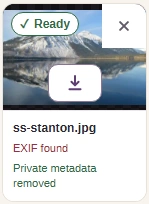
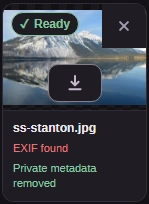
Step 4. Save the cleaned copy. Your original file stays as it was. - Private metadata removed: the camera notes are gone.
- Download saves ss-stanton-sanitized.jpg.
-
Want to take the camera notes out of your own photo?
Does converting an image remove its metadata?
Often, but that's a side effect, not the point. Converting unpacks the picture and saves it again as a new file. FluffyBench's converters generally don't copy the old notes across, so Exif and XMP usually disappear too.
Here's how the two jobs compare.

Removing metadata versus converting
If all you want is to drop the notes, use Remove Image Metadata. If you need a different format anyway, our guide to image quality during conversion explains what can change.
What should you check before sharing a cleaned photo?
Removing metadata only touches the notes inside the file. A street sign, a house number, a face or a well-known landmark in the picture still shows where and who. A file name like "our-new-house.jpg" can say just as much, and a separate .xmp file saved beside the photo isn't touched, so leave it out when you share.
FluffyBench Image Viewer shows you the cleaned copy the way someone else will see it.
-
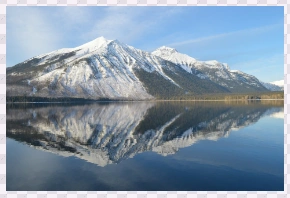
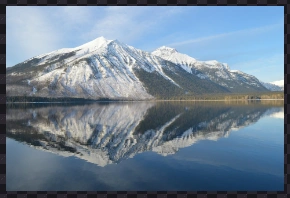
Step 1. Open the cleaned copy and look at the picture itself, the way the person you send it to will see it. - Look for places, signs and faces a stranger could recognize.
-
-


Step 2. Then open the file's details. - Image info opens the file details.
-
-
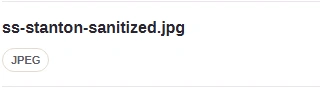
Step 3. The cleaned copy keeps your file name, with “sanitized” added at the end. - Check that the name gives nothing away, such as a street or a person.
-
-
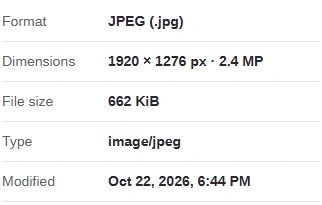
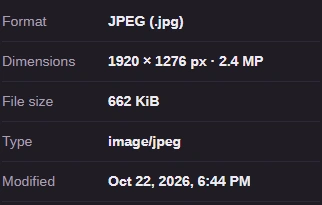
Step 4. Image info shows the basics. It doesn't list camera notes or GPS. - Same dimensions as the original photo.
-
Image Viewer shows the picture and the file basics, not the notes. If one detail really matters, such as a location, open the cleaned copy in an app that lists Exif and GPS fields before you send it.