
Why can the same RGB values look different?
RGB numbers need a color-space label. Remove a picture's label and another app may read the same numbers as a different color; converting the colors translates those numbers instead.
Why do RGB numbers need a color space?
Think of RGB numbers as directions on a map. A color space supplies the map: without it, the numbers don't tell an app which color you mean. sRGB is the usual web map; Display P3 reaches farther toward vivid reds and greens. Neither is an image-quality setting.
P3 moves the red and green corners outward while sharing sRGB's blue corner. The outlines mark the range of colors each space can describe.

Two color maps
How does an image's color profile prevent color shifts?
An embedded color profile is the map label tucked inside an image. It tells an app how to read the stored red, green, and blue numbers. If you remove a P3 profile, those numbers can stay unchanged while another app reads them as sRGB. That's like following the same directions on a different city's map.
The red potato keeps its color when FluffyBench's PNG converter translates the tagged P3 photo into sRGB. Removing the profile leaves a duller-looking potato.
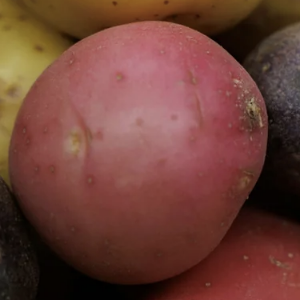
Tagged P3 source
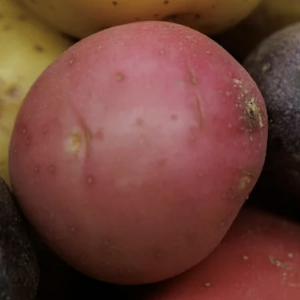
Profile removed
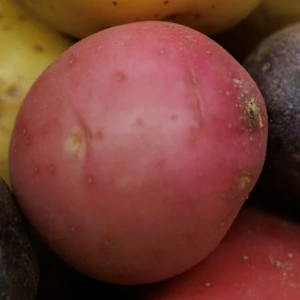
Converted to sRGB
- Label present
The app reads the channels as Display P3.
- Label gone
The unchanged channels are now read as sRGB.
- Colors translated
New sRGB channels preserve the appearance.
Why is converting P3 to sRGB different from removing its profile?
Conversion translates the RGB numbers to keep the color's appearance. Teal and orange keep their appearance with new sRGB numbers; stripping their profiles keeps the numbers and changes the colors.

Color and channel numbers together
When should you keep P3 or save an sRGB copy?
If the receiving app expects sRGB, it needs a translated copy. Your archive and your destination don't have to use the same file.
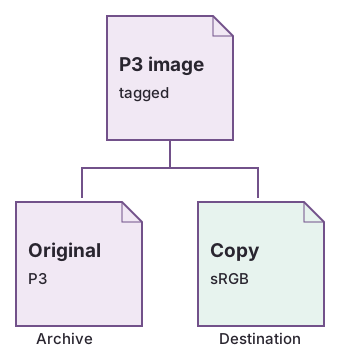
One source, two jobs
Doing it in FluffyBench
FluffyBench's PNG converter makes an sRGB copy of an ordinary tagged P3 image. You don't need to find a color-space switch: the default conversion reads the profile and translates the colors.
Here's the job with the tagged potato photo, from choosing the source to saving a separate PNG.
-


Step 1. Keep your tagged original. Choose images to select the P3 photo you'll make a copy from. - Choose images opens your file picker.
-
-

Step 2. Press Convert 1 to PNG with the default settings to make an sRGB copy. - Convert 1 to PNG starts the conversion.
-
-
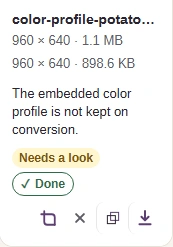
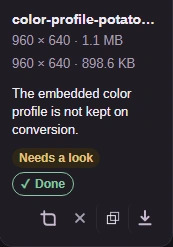
Step 3. Check the lower size readout against the destination's file limit. The profile notice means the copy doesn't carry the original P3 label. - The upper readout is your source image.
- The lower readout is the new PNG's size.
-
-


Step 4. Download saves the copy. Open it in the app where you'll use it and check that the colors look right. - Download saves the new PNG to your device.
-
For HDR and PFM inputs, PNG conversion can use a separate precision path to 16-bit P3. That requires eligible inputs and settings, including the 16-megapixel precision limit; ineligible inputs or settings use 8-bit sRGB.