
What does an image quality number actually mean?
That Quality slider can shrink a photo without changing its dimensions. Here's what the number controls and how to decide whether the smaller copy still looks right.
What does the image Quality slider control?
Think of Quality as a dial for how closely a saved picture follows its source. Turn it down and the software can simplify more detail to save space. Turn it up and you're asking it to keep a closer match. The number isn't a percentage of the picture that survives.
Quality describes one save in one format. Matching JPG and WebP numbers aren't the same promise about detail or file size.
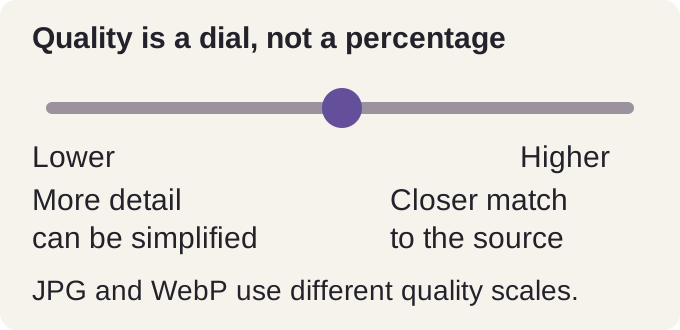
JPG uses lossy compression: it stores an approximation of your picture to reduce the file size. That trade can be useful when you're sending a photo or putting it on a website. The question is how much simplification your picture can take before you mind the difference.
How did one photo change at JPG quality 50?
Saving a lily photo that was already a JPG at quality 50 made it about 53% smaller, with the same pixel dimensions. The marked petal patch lets you compare texture in the source and saved copy.
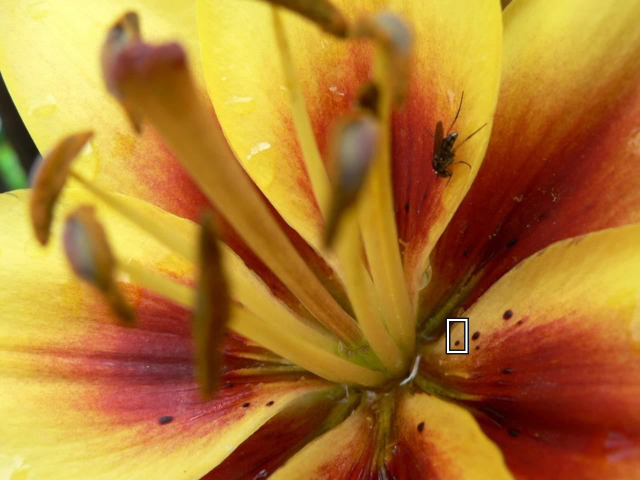
Original JPG
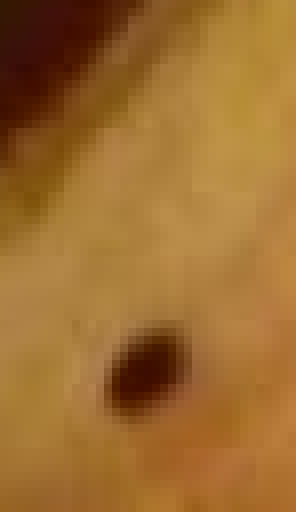
112.0 KB
Quality 50
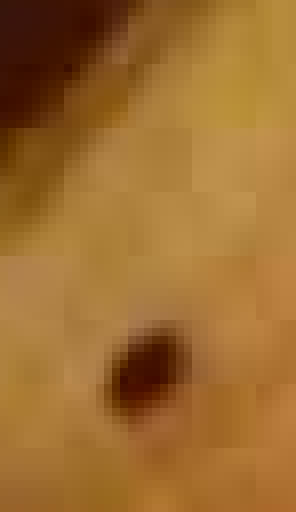
53.0 KB

Need to rotate or flip an image before reencoding?
FluffyBench's image crop tool handles a rotation or flip when the photo's orientation also needs changing.
How do you decide whether a saved JPG looks right?
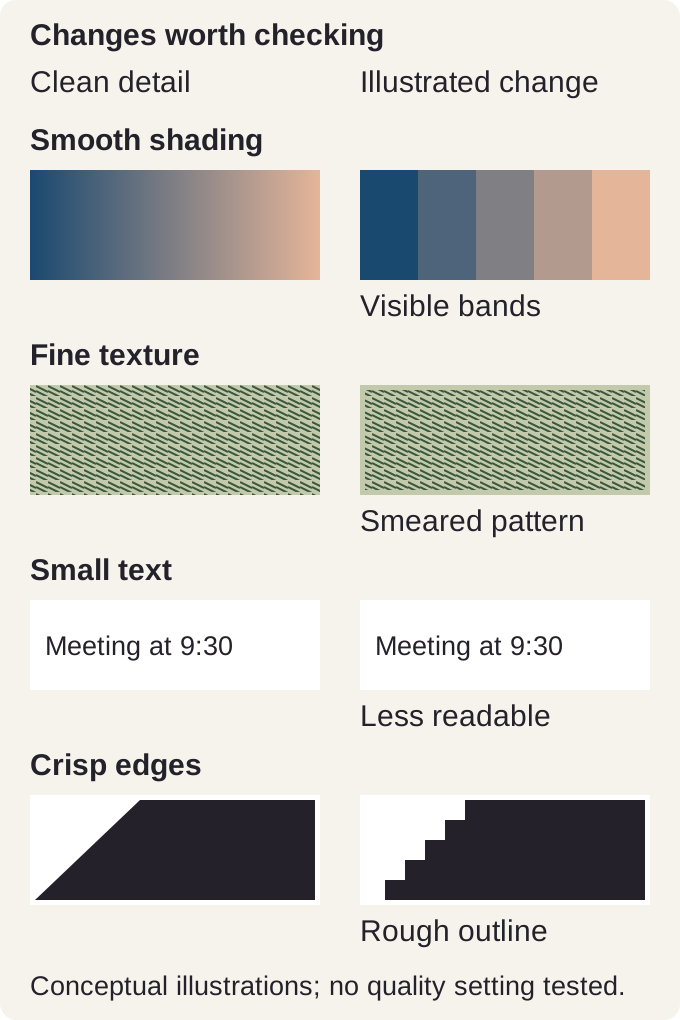
The detail that matters depends on your image. These clean and affected illustrations show changes worth looking for in your source and downloaded copy.
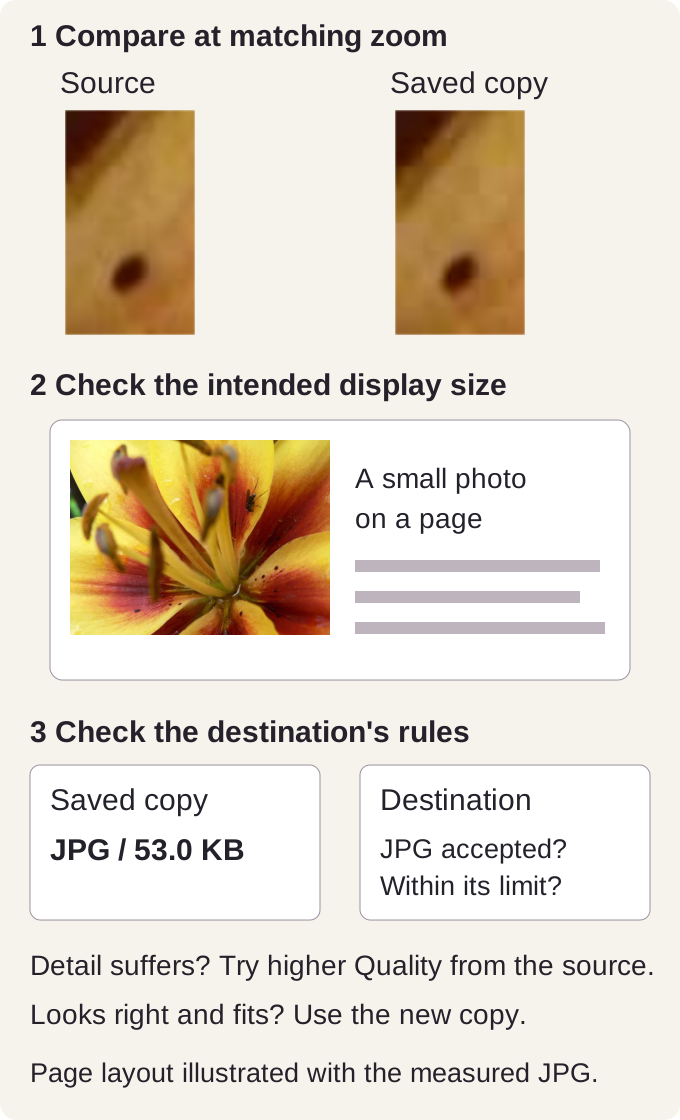
Review the downloaded JPG outside FluffyBench's JPG converter. These pictured checks use the measured lily pair and an illustrated page layout.
Why can't another JPG save restore lost detail?
The next save starts with the copy you have now. It's like making a photocopy of a photocopy: the new pass works with the detail left in its input.

Choosing JPG quality in FluffyBench
FluffyBench's JPG converter lets you make a candidate with a chosen Quality setting. Here's the job from source photo to downloaded copy; the lily's setting is an example, not a recommended number for every image.
Keep the format, encoder and pixel dimensions fixed while you try a quality setting. That makes the comparison about Quality.
-
Step 1. Choose images: start from your best source, and keep the original. - Choose images opens the file picker.
-
-


Step 2. Open Settings with the toolbar gear. - The gear is at the top right of the workspace.
-
-
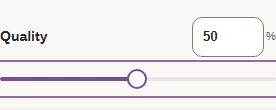
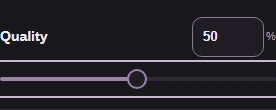
Step 3. Choose Quality 50 for a candidate copy. - Quality trades picture detail for file size.
-
-
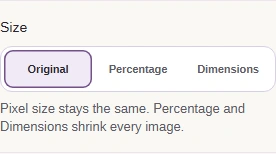
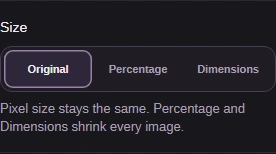
Step 4. Keep Size at Original so resizing does not change the comparison. - Original keeps the pixel dimensions.
-
-
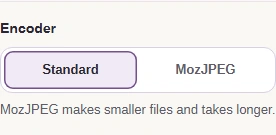
Step 5. Keep Encoder at Standard to match the browser-encoder example. - Standard uses the browser JPG encoder.
-
With the settings chosen, return to the photo to make and download your candidate.
-


Step 1. Close Settings with the same toolbar gear. - Your chosen settings stay in place.
-
-
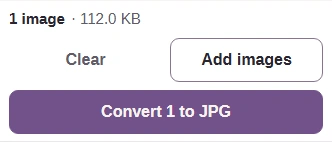
Step 2. Press Convert to make the JPG with these settings. - This candidate uses JPG quality 50.
-
-
Step 3. Check the completed size summary. - The finished batch shows input and JPG file sizes.
-
-
Step 4. Download the JPG as a separate copy for comparison with your source. - Download saves the JPG to your device.
-
Need exact pixels for a graphic? FluffyBench's WebP converter offers Lossless compression. Our lossy and lossless WebP comparison shows that choice in practice.
How we reviewed image quality
We measured this JPG save on October 15, 2026, at the source dimensions with resizing off. The color map records changes in the same petal patch; a changed color value isn't a measure of visible damage.
Source JPG

x=896 px, y=640 px; same 37 × 64 pixel region.
37 × 64 px; 8× magnification.
Original JPG input; the crop is enlarged without resizing it first.
112.0 KB111,968 bytes
JPG quality 50

x=896 px, y=640 px; same 37 × 64 pixel region.
37 × 64 px; 8× magnification.
Browser JPG encoder at quality 50; the crop is enlarged without resizing it first.
53.0 KB52,950 bytes
Color changes

37 × 64 px; 8× magnification.
A color map showing how much the red, green, or blue value changed at each pixel in the same lily crop, from zero to 26 channel levels.
Decoded-pixel difference: 1,190,376 of 1,228,800 pixel positions (96.9%) across the full 1280 × 960 px image.