
What's the difference between decoding and verifying a JWT?
Decoding lets you read a JWT's claims. Verification checks whether they match what a trusted key signed—even a convincing-looking token can have been changed.
What does decoding show, and what does verification check?
A JWT (JSON Web Token) carries claims: statements such as who a token is for or what access it requests. This guide covers signed JWTs, which you can picture as postcards with tamper seals. Decoding reads the postcard; signature verification checks its seal with a key the application trusts. Reading a convincing note isn't the same as checking who sealed it.
JWTs can also be encrypted or unsecured. The readable postcard analogy applies to the signed form we're using here.
In the signed compact form, 3 parts separated by dots hold the header, payload, and signature. Decoding opens the first two without a key; checking their signature needs an app-trusted key.
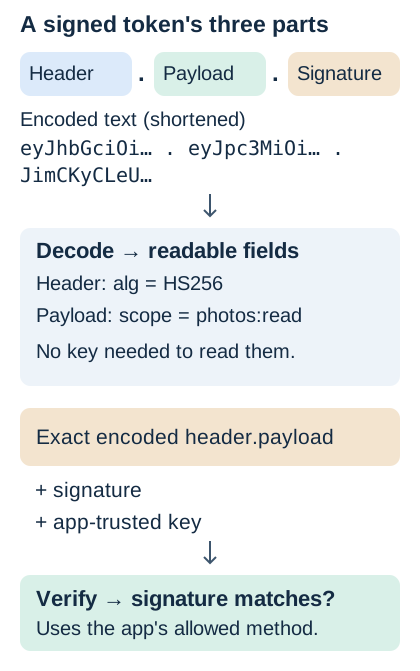
Reading a signed JWT versus checking its seal
For verification, the application chooses its allowed signing methods and trusted keys. The token's header doesn't get to decide what the app trusts. A matching signature ties the exact encoded header and payload to that key; a failed check means the signature doesn't match that text under that key.
Those scrambled-looking fields aren't secret. Base64url changes how the text is written without hiding it; the Base64 guide explains encoding. A signature protects against undetected edits, not against someone reading the claims.
What happens when a JWT's claims are changed?
We changed one character in a disposable token's scope, from photos:read to photos:reod, and kept its signature. Both versions decode; the original passes the signature check and the edit fails.
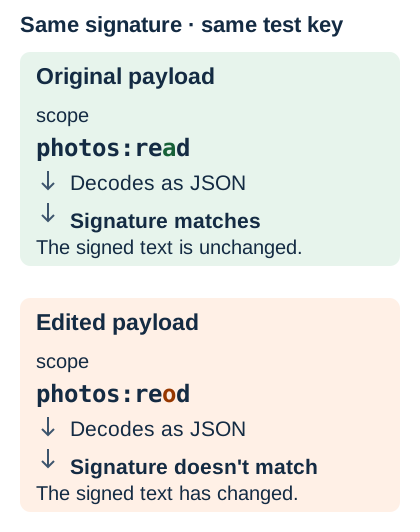
One edited claim, two different signature results
Why isn't a matching JWT signature enough?
A sealed postcard can still be addressed to someone else. A token with a matching signature might be meant for a different app, have expired, or serve a different purpose. The application needs its own rules for accepting a token and granting access.
These checks belong in the application that accepts the token. A signature match is the first gate, not permission to proceed.
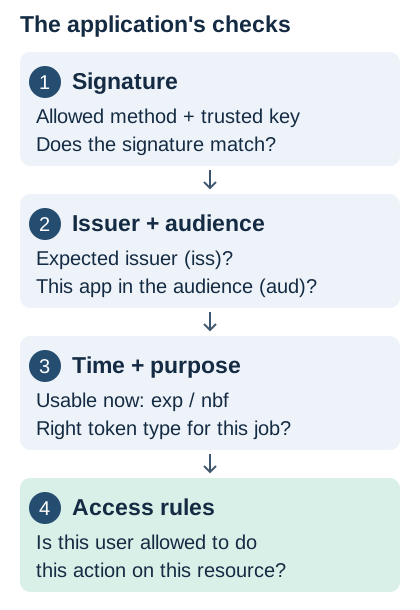
From signature check to an access decision
For the time check, JWT dates use seconds since 1970-01-01T00:00:00Z. That's seconds, not milliseconds. If you need to read a date claim, the Unix timestamp guide explains the clock.
Doing it in FluffyBench: inspect a sample JWT
A live bearer token can act like a password: someone who gets it may be able to use it. Keep live tokens out of chat, tickets, screenshots, and URLs. Use a disposable token while learning, like the one shown here.
FluffyBench's JWT Decoder makes a token's header and payload readable in your browser tab, from Input to a copied report. It doesn't send the token to a decoding server, fetch a key, or verify signatures or claims.
-
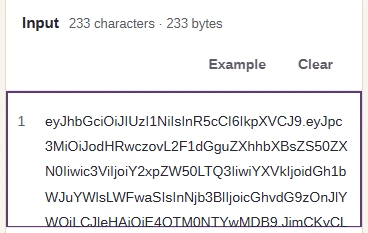
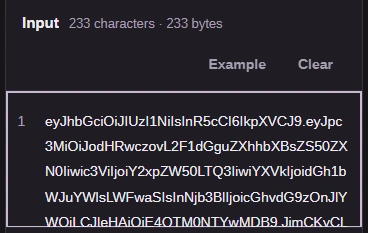
Step 1. Paste the disposable token into Input, without a Bearer prefix. - Input holds the complete token, including its dots.
-
-

Step 2. Choose Decode JWT to read the token's fields. - Decode JWT reads Input; it doesn't check a signature.
-
-
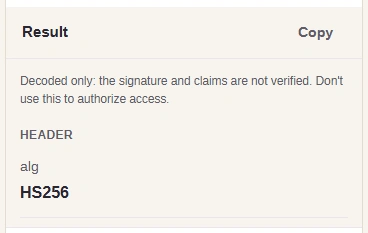
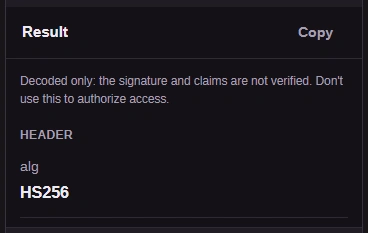
Step 3. Read Result's unverified notice and Header. - The notice says the signature and claims aren't verified.
- Header contains the declared signing method.
-
-
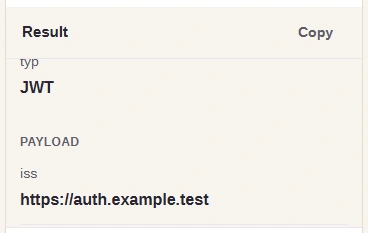
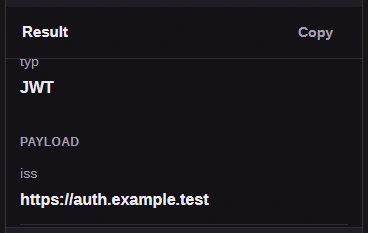
Step 4. Scroll inside Result to reach Payload. - Payload lists the token's claims.
-
-
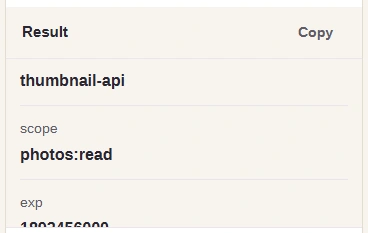
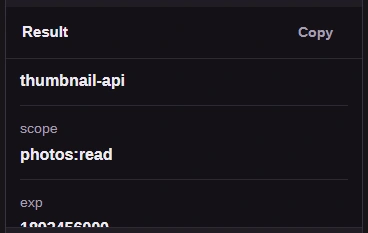
Step 5. Find scope in Payload. Copy puts the notice, Header and Payload on your clipboard. - scope reads photos:read in this disposable token.
- Copy copies the decoded report, including its warning.
-