
How do you get a photo under an upload size limit?
An upload limit doesn't always mean you need a smaller picture. Here's how to reduce the file size, keep the dimensions you need, and check the photo before you send it.
What must your photo upload satisfy?
Think of file size as your photo's packed weight, and pixel dimensions as the picture's width and height. An upload can check both, plus the file type.
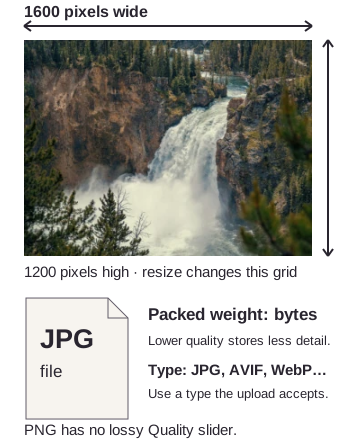
Three separate upload requirements
Follow the destination's stated cap, dimensions and accepted types. If it asks for JPG, a smaller AVIF won't meet that rule. Lower quality stores less detail without reducing the pixel grid; resizing changes the grid itself.
Can you reduce file size without shrinking the photo?
Yes. Saving a JPG as a more compressed JPG can keep its width and height.

Original and smaller JPG, side by side
Doing it in FluffyBench
FluffyBench's JPG converter can lower quality to meet a per-file cap while keeping Size on Original. The walkthrough uses a JPG destination; the To menu also offers AVIF and WebP when your upload accepts them.
The Limit each file's size control sets a ceiling, not an exact byte count for the saved copy. A result below the number you entered still meets that byte rule, and the cap applies separately to every photo if you add several at once.
Here's the job from choosing a photo to saving a copy. The 100 KB setting is an example; use your upload's cap.
-
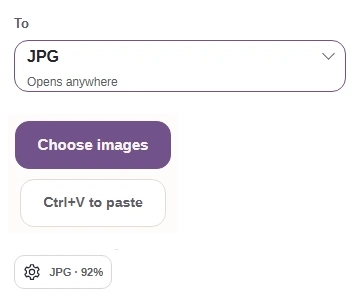
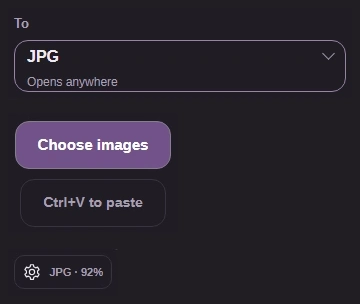
Step 1. Choose a type the upload accepts in To, add your photo with Choose images, and open Settings. - Keep JPG if the upload requires JPG.
- Choose images adds your photo.
- Settings opens the controls.
-
-
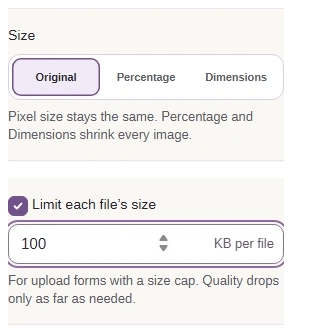
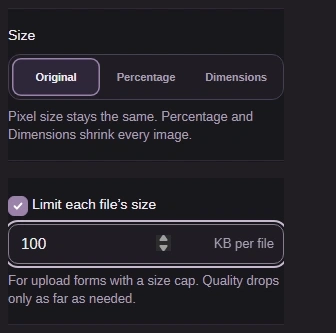
Step 2. Keep Size on Original. Enable Limit each file’s size and enter your cap in KB per file. - Original keeps width and height.
- Enable the file-size limit.
- 100 means a 100 KB cap here.
-
-
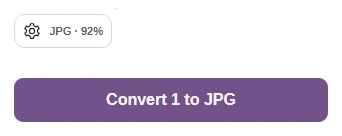
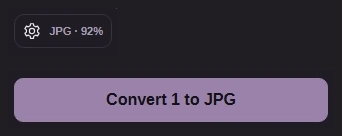
Step 3. Click Settings again to close the phone panel, then press Convert. Wider screens keep Settings alongside the workspace. - Click the gear again to close Settings.
- Convert uses your selected settings.
-
-
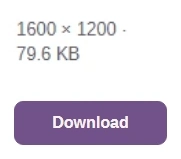
Step 4. Read the completed file’s dimensions and size, then choose Download to save your copy. - Read the output dimensions and size.
- Download saves the finished JPG.
-
Need one photo under a file-size cap?
Use Limit each file's size to make a copy with an accepted output type.
Is your smaller photo ready to upload?
Use these three checks on your downloaded copy before you send it.
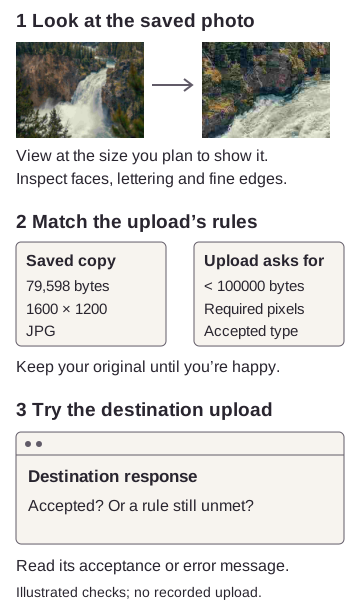
Check the downloaded photo
What if a full-size photo still won't fit?
The quality setting has a lower end. If FluffyBench's JPG converter can't meet your cap there, an accepted format change or fewer pixels gives it another way to reduce the file size.
At 10 KB, full-size JPG and WebP stayed over the cap. An AVIF at 1,600 × 1,200 px and a JPG resized to 800 × 600 px fit.

Original, full-size AVIF, and resized JPG
If your upload permits fewer pixels, the extra Dimensions and file-size settings below use the same JPG workflow you've already seen.
-
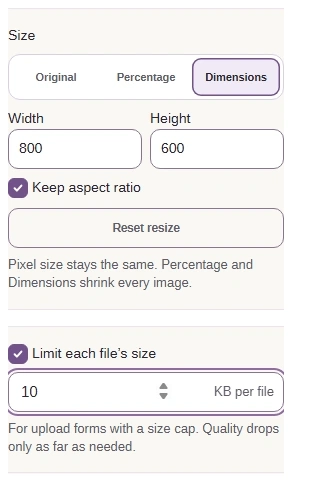
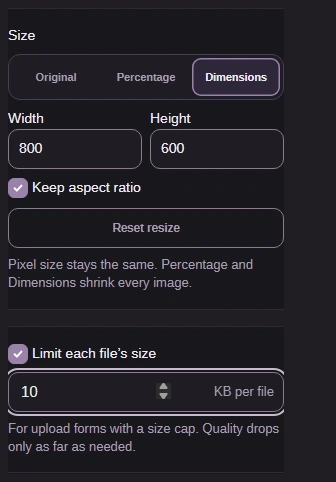
Step 1. Choose Dimensions and the width and height the upload allows. Keep aspect ratio avoids stretching; the file-size cap stays enabled. - Dimensions enables Width and Height.
- Set Width 800 and Height 600; keep aspect ratio checked.
- Enable Limit each file's size and enter 10 KB per file.
-
-
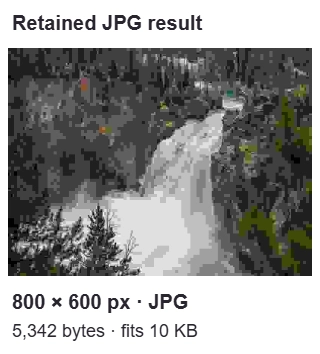
Step 2. Retained JPG result: the smaller grid fits the cap, with coarser detail. - The retained JPG meets this cap at the smaller dimensions.
-
If the upload requires the original dimensions and JPG, neither of those alternatives meets its rules. You'll need a less detailed source photo or a different limit from the destination.
Need one resize rule for a batch?
Apply the same dimensions and output type to several photos.