
Should I resize, compress, or convert my image?
An image can be too big in pixels, too heavy to send, or saved in a format a website won't accept. Resize for dimensions, compress for file size, and convert for the required format.
Resize, compress, convert: what changes?
Think of a picture as a mosaic of tiny colored squares. Resizing changes how many squares it has. Compression changes how the picture is stored, sometimes leaving out fine detail to save space. Conversion puts the picture in a different file format, such as JPG or WebP. These choices can work together, though they solve different problems.
Here's the mountain photo we'll use. Each change starts from the original JPG, so you can compare how resizing, compression and conversion affect its file size.
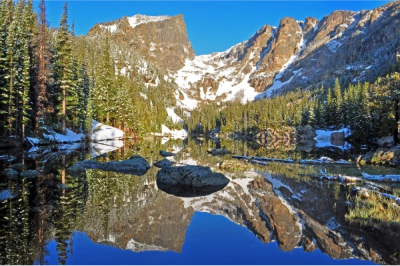
.jpg)
Is your image larger than it needs to appear?
Resize when your destination needs fewer pixels. Both copies can fill the same space on a page; the smaller copy has fewer pixels available for a later enlargement or close crop.

Our 1920-pixel-wide mountain photo, shrunk to 1200 pixels wide, used about 50% fewer bytes. That helps when a website asks for smaller dimensions, and it can also help with a file-size limit.
Know your target width and need a matching height? FluffyBench's Aspect ratio calculator works out dimensions that keep the picture's proportions.
Image dimensions fit, but the file is still too large?
Compress when the pixel dimensions fit and you need fewer bytes. Saving the full-size photo as JPG at quality 40 cut its size by about 59%, while leaving its width and height unchanged.

A smaller file doesn't tell you how the picture will look. Lower JPG quality can smooth texture and roughen edges, which may matter more in lettering or a close crop than in a small photo. The right stopping point is a copy that meets your limit and still looks right where you'll use it.
Does the website or app require another file type?
Convert when the receiving website or app asks for a different format. Changing the file type can keep the same pixel dimensions while changing how the picture is stored.

The output format also decides what the picture can keep: JPG makes transparent areas opaque, and a still JPG keeps one pose from an animation.


If you need clear edges or movement, the transparency guide and animation guide explain which format choices keep them.
Does your image need more than one change?
Use your destination's requirements to choose the changes you need. You can skip any change that doesn't solve a problem.

Doing it in FluffyBench
Use FluffyBench's Image Space Saver for fewer pixels or fewer bytes. These walkthroughs use the mountain JPG from the comparisons above.
-
Step 1. Choose images to add the photo you want to prepare. - Choose images opens your file picker.
-
-


Step 2. Tap the gear button showing Auto Balanced · Universal. - The gear button opens Settings.
-
-
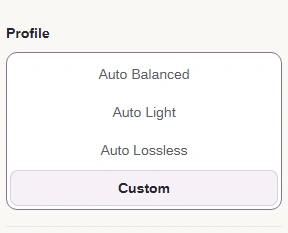
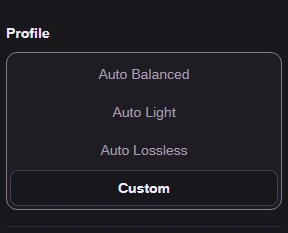
Step 3. Choose Profile → Custom to make the format and quality choices yourself. - Custom reveals Format and Maximum quality.
-
The first two frames show resizing within your destination's bounds. The next three show compression without resizing; use one job or combine them.
-


Step 1. For resizing, choose Size → Dimensions. - Dimensions uses pixel bounds.
-
-
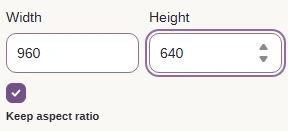
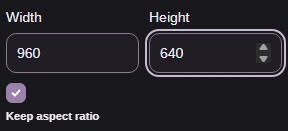
Step 2. Set the pixel bounds for resizing; 960 × 640 is an example. - Width sets the maximum width.
- Height sets the maximum height.
- Keep aspect ratio avoids stretching.
-
-


Step 3. For compression without resizing, choose Size → Original. - Original keeps the pixel dimensions.
-
-
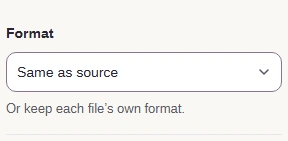
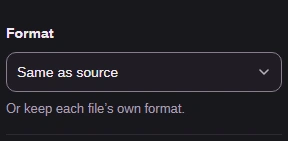
Step 4. Choose Format → Same as source to keep JPG. - Same as source keeps this JPG as JPG.
-
-
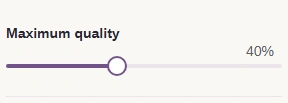
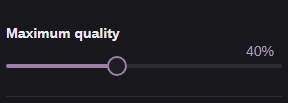
Step 5. Set Maximum quality to 40 for the compression example. - Maximum quality sets the ceiling for JPG quality.
-
Image Space Saver uses the same processing and Download controls for resizing and compression. The result's size and dimensions tell you whether it meets the destination's limits. FluffyBench's Image Viewer lets you zoom into the saved copy to check fine detail.
-
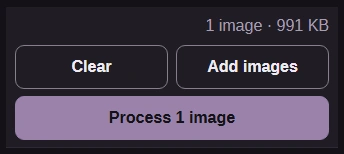
Step 1. Press Process 1 image to apply your settings. - Process 1 image creates your result.
-
-
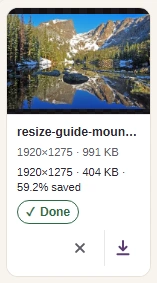
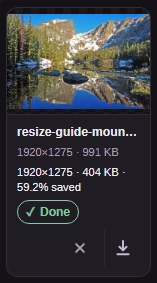
Step 2. Choose Download when the result meets your destination's limits. - The output readout gives size and dimensions.
- Download saves this result to your device.
-
Need WebP to meet a website's file-type rule? FluffyBench's WebP converter makes that file type. This short walkthrough uses its starting settings.
-
Step 1. Choose images to add the JPG you need as WebP. - Choose images opens your file picker.
-
-
Step 2. Press Convert 1 to WebP to use the starting settings. - Convert 1 to WebP makes the requested file type.
-
-
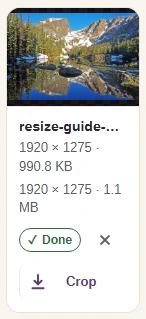
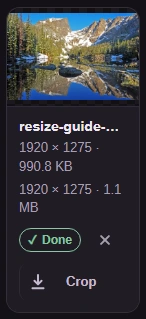
Step 3. Choose Download to save the WebP copy. - Read the WebP copy's dimensions and size.
- Download saves the .webp copy.
-