
Which PNG settings should you change?
Want a smaller PNG that looks exactly the same? In FluffyBench, changing how the picture is packed can save more space than turning compression up.
What does a PNG setting change?
A PNG stores a picture as colored pixels. Think of a completed jigsaw: you can pack the same pieces into a smaller box, or replace them with a simpler picture. PNG compression does the packing; color choices can change the pieces. Start by changing how it’s packed before you simplify its colors.
Repacking keeps the colors you already have. A shorter palette gives the picture fewer shades to choose from.
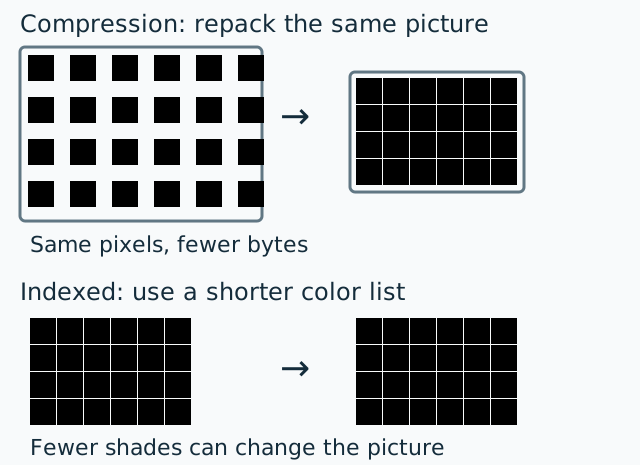
Here, ‘unchanged’ means the saved picture comes back with the same pixels.
Start with FluffyBench’s advanced PNG encoder
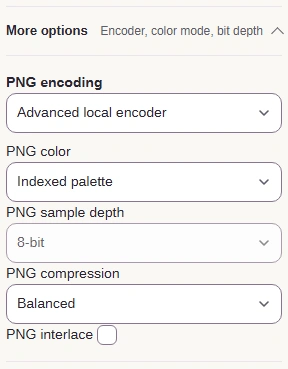
In FluffyBench’s PNG converter, the PNG choices live in Settings, under More options. Advanced local encoder makes the color, depth, compression and interlace controls available.
PNG settings
- PNG encoding
Advanced local encoder exposes the choices below.
- PNG color
Choose which colors and transparency to keep.
- PNG sample depth
Choose the precision of each saved color value.
- PNG compression
Choose how tightly to pack the pixels.
- PNG interlace
Choose a rough-to-complete loading order.
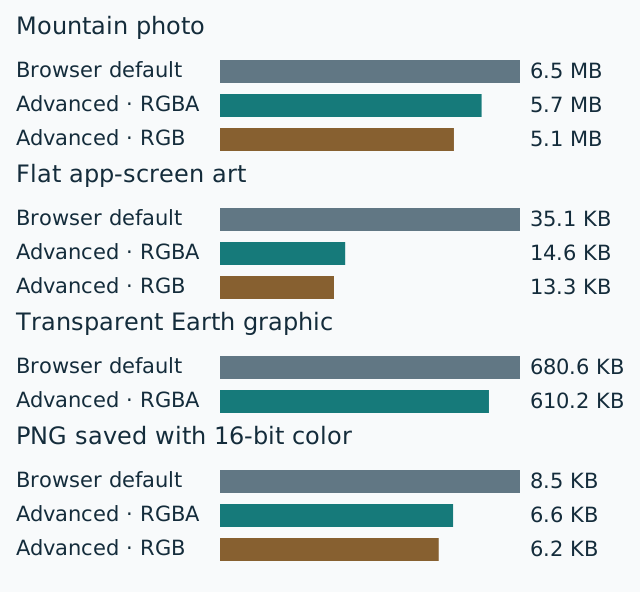
Advanced local encoder made every picture we tried 10.3% to 58.3% smaller than Browser default, with unchanged pixels. We used a mountain photo, flat app-screen art, a transparent Earth graphic and a PNG saved with 16-bit color.
Which color choice fits your picture?
RGBA keeps red, green, blue and transparency. Indexed palette stores a short color list, and each pixel points to a color on that list. That can be a great fit for flat artwork whose colors already fit the list.
A flat app-screen graphic, like artwork you’d export for an interface, came back unchanged with Indexed palette in a smaller file than RGBA. The edges and colors still match the source.

A mountain photo has more shades than the short palette can keep unchanged: Indexed approximates them, while Grayscale removes the color. RGBA keeps the source picture’s pixels.

.jpg)
The mountain source is already a JPG; why image files get larger explains why its PNG copy grows.
On a see-through Earth graphic, RGB (no alpha) and Grayscale (no alpha) fill transparent areas with white; Grayscale also removes color. Keep RGBA when see-through areas matter.


For pictures without transparency, RGB is the small extra saving in the encoder chart above. It doesn’t reduce the color palette.
Does stronger compression save much?
Compression repacks the picture without changing its pixels. Maximum made these files 2.3% to 7.5% smaller than Fast—a modest saving beside the color choices.
For the separate question of waiting time, see PNG compression: file size and timing.
Do bit depth and interlacing help?
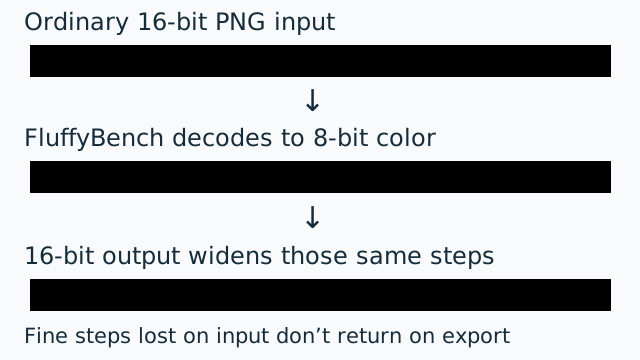
Leave PNG sample depth at 8-bit for ordinary PNG input in FluffyBench. Even a PNG saved with 16-bit color is decoded to 8-bit first, so 16-bit output can't restore the finer color steps lost on input.
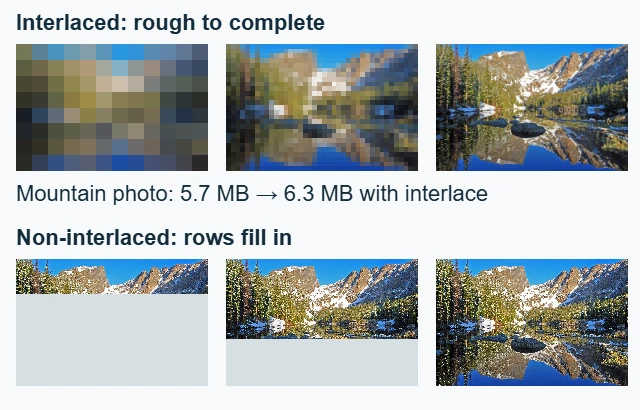
PNG interlace arranges the picture in rough-to-complete passes. Leave it off unless you need that kind of preview while a picture is arriving.
Doing it in FluffyBench
This walkthrough uses flat art and Indexed palette; choose RGBA instead when you need the picture’s colors and transparency kept.
-
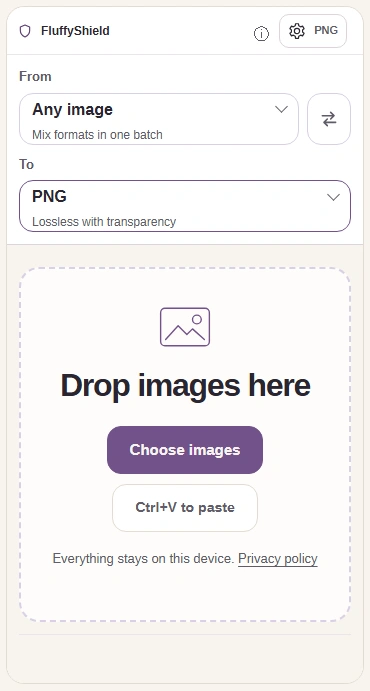
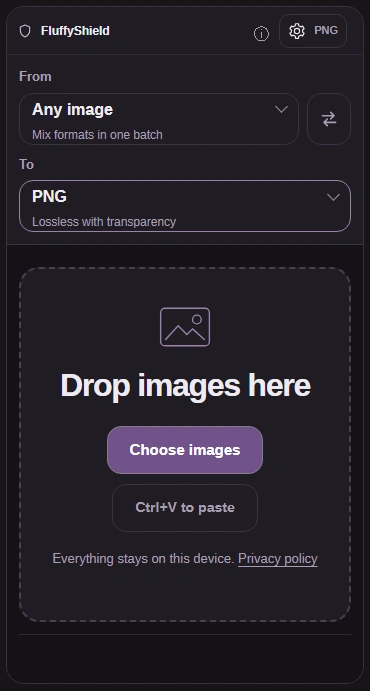
Step 1. Choose images, leave To on PNG, then open Settings. - Choose images opens your device’s file picker.
- PNG is already selected as the output.
- Open Settings to reach the PNG choices.
-
-
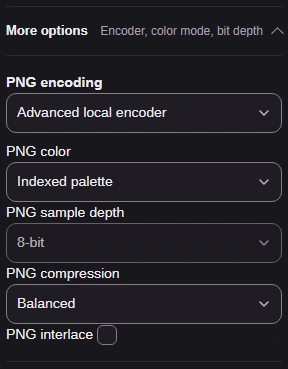
Step 2. Open More options and choose Advanced local encoder. Use Indexed palette for this flat graphic and leave the other PNG choices as shown. - More options reveals the PNG settings.
- Choose Advanced local encoder for these controls.
- Choose Indexed palette; leave 8-bit, Balanced and interlace off.
-
-
Step 3. Keep Size on Original to compare settings at the same dimensions. - Original keeps the picture’s pixel dimensions.
-
-


Step 4. Use the gear button again to close Settings. - Press the gear button again to close Settings.
-
With the settings chosen, you're ready to convert and save your PNG.
-
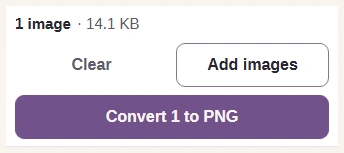
Step 1. Press Convert 1 to PNG to create the copy. - Convert makes a PNG with your chosen settings.
-
-
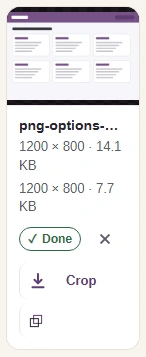
Step 2. Compare the output size and dimensions with the input. Use the picture comparisons above to decide whether the color choice fits. - The input’s dimensions and file size.
- The new PNG’s dimensions and file size.
-
-
Step 3. Download saves the completed PNG to your device. - Download saves the completed PNG to your device.
-
Need fewer pixels as well as fewer bytes? Resizing, compression and conversion explains which job to choose.
Try these choices on your own picture with FluffyBench’s PNG converter.
How we reviewed PNG settings
We compared 4 inputs at their original dimensions. These counts show pixels changed by each color choice at 8-bit and Balanced compression, with interlace off.
| Color type | Photograph | Flat interface graphic | Picture with transparent areas | 16-bit PNG | Identical to the source |
|---|---|---|---|---|---|
| RGBA | 0 of 2,448,000 | 0 of 960,000 | 0 of 311,920 | 0 of 6,144 | 48 of 48 outputs identical |
| RGB | 0 of 2,448,000 | 0 of 960,000 | 97,176 of 311,920 | 0 of 6,144 | 36 of 48 outputs identical |
| Grayscale | 2,420,875 of 2,448,000 | 631,476 of 960,000 | 310,499 of 311,920 | 6,137 of 6,144 | 0 of 48 outputs identical |
| Indexed | 2,446,615 of 2,448,000 | 0 of 960,000 | 231,211 of 311,920 | 6,099 of 6,144 | 6 of 24 outputs identical |
RGBA stayed unchanged in all 48 outputs. Indexed did so in 6 of 24, all for the flat interface graphic. Grayscale changed every sample. The 6 16-bit Indexed combinations were skipped because that choice isn't offered.