
Why did my image get larger after conversion?
Conversion saves the picture in a new way, so a bigger file doesn't always mean a sharper image. A JPEG saved as PNG can keep the same flaws while taking up much more room.
A conversion starts with the picture, not the old file size
Think of an image file as a set of instructions for rebuilding a picture. Conversion reads those instructions, then writes a fresh set for the same picture.

The picture survives; the way it's stored changes.

The encoder is the part that writes the new file. It packs the picture according to the format and settings you've chosen; it doesn't aim to match the old byte count. That's why changing a file's format can make it larger even when its width and height stay the same.
Why can a PNG be much larger than a JPEG?
JPEG often saves space by smoothing or discarding tiny details. A lossless PNG keeps the pixels it's given, including any softened edges or blocky marks left by JPEG. It can't bring back detail that was removed earlier.
We saved this mountain-and-lake JPEG with FluffyBench's PNG converter, using Advanced local encoder with RGBA color. The PNG came out 5.4 times as large, with unchanged dimensions and no sharper detail in the compared patch.
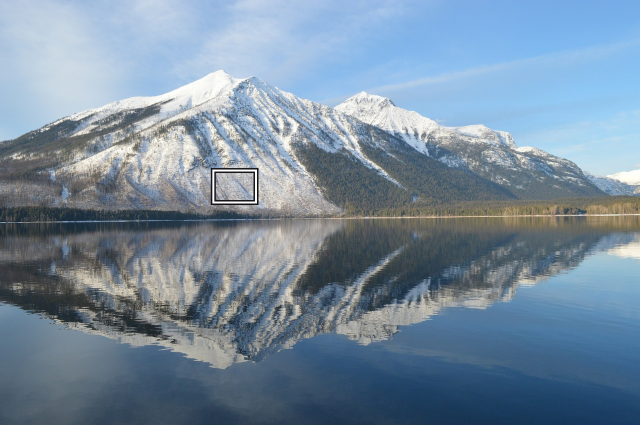
The marked patch is enlarged below.
Look at the matching tree and rock edges: the PNG carries the JPEG's existing marks into the new copy.
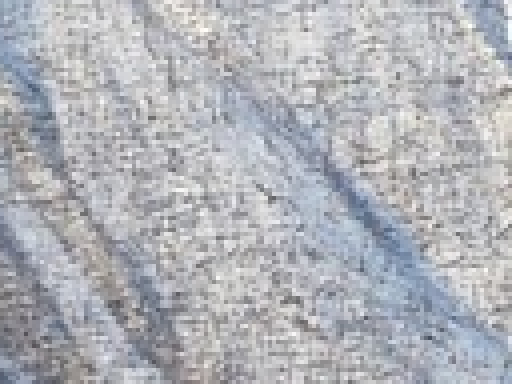
Source JPEG: 678,202 bytes
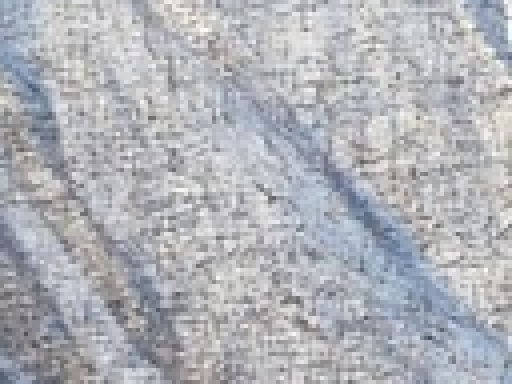
PNG copy: 3,640,163 bytes
Why can two PNGs of the same photo differ in size?
PNG encoders can pack the same pixels in different ways. They can also store an alpha channel: an extra instruction for each pixel that says how see-through it is. RGB stores color; RGBA stores color plus that transparency instruction, even in an entirely opaque photo.
The flower's see-through surroundings need alpha. JPEG can't store alpha, so a JPG copy fills those areas with a solid color.
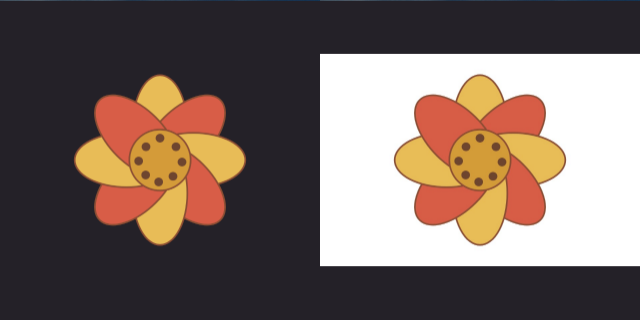
Transparency needs alpha; white fill doesn't.
For the opaque mountain photo, keeping an alpha channel added about 300 KB with Advanced local encoder. Keeping RGBA and switching to Browser default also changed the size.
So a size increase doesn't automatically mean you chose a higher-quality picture. It may mean you've asked for exact pixels, an extra channel, or a different way of packing the same information.
Smaller JPG, bigger PNG: which one should you keep?
Choose a format for the job you're doing. A photo for sharing, a transparent graphic and artwork that needs exact pixels have different needs.

Start with what your picture needs.
A smaller file earns its place when the picture still looks right. Here are the source and a Quality 80 JPG copy, each with the same patch enlarged below.
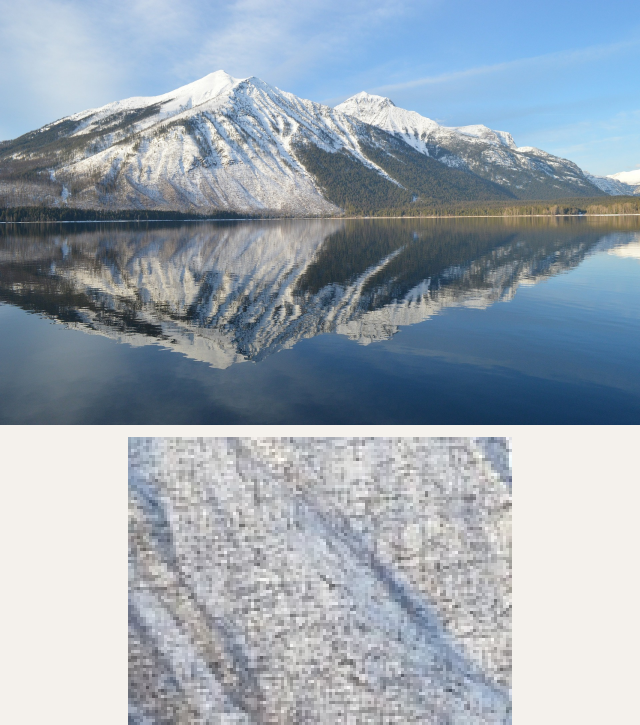
Source: 678,202 bytes
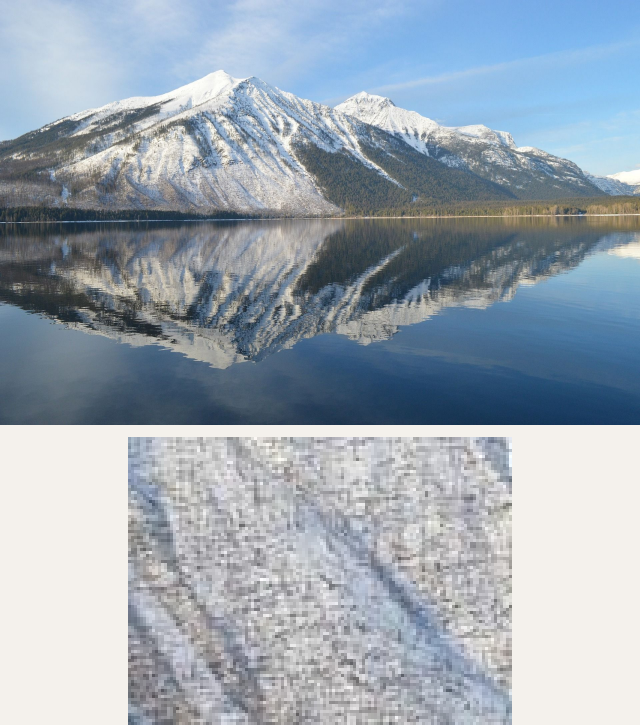
JPG at Quality 80: 365,885 bytes
For a lossy copy that can keep transparency, FluffyBench's WebP converter offers both when your destination accepts WebP.
Doing it in FluffyBench: make a smaller JPG copy
For an opaque photo, FluffyBench's JPG converter gives you a quality slider for making a smaller delivery copy.
Here's how to make one JPG alternative without changing the picture's dimensions.
-
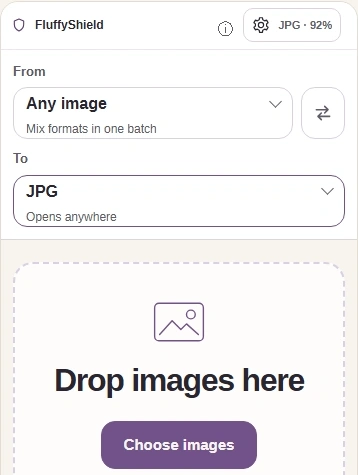
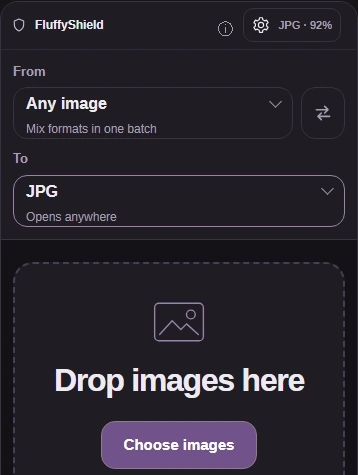
Step 1. Keep your original. In FluffyBench's JPG converter, choose images; TO is already JPG. - Choose images opens your file picker.
- TO shows JPG, the copy you'll make.
- The gear button (JPG · 92%) opens Settings.
-
-
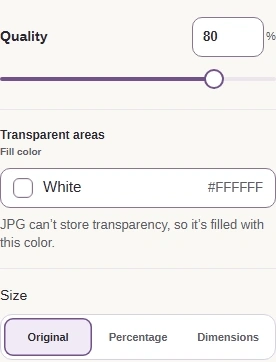
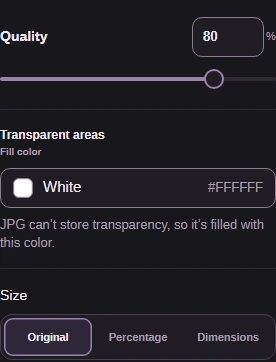
Step 2. Choose Quality 80 as a starting point and leave Size at Original. - Quality changes how much detail JPG keeps.
- Original keeps the pixel dimensions.
-
-


Step 3. On a phone, close Settings with the gear button, then press Convert. - Convert uses the settings you chose.
-
-
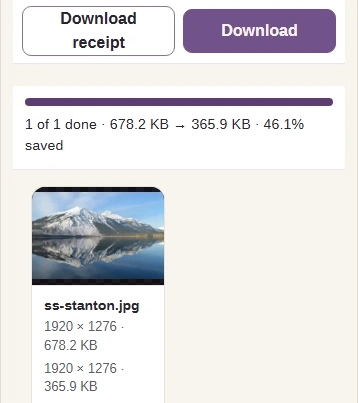
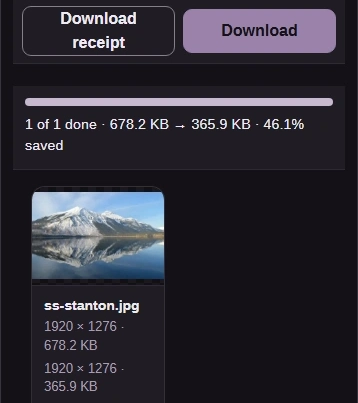
Step 4. Compare the source and output sizes, then Download the copy. - The lower readout is the JPG copy's size.
- Download saves the finished JPG.
-
Doing it in FluffyBench: a leaner PNG
If you have to keep PNG, FluffyBench's PNG converter gives you control over how a lossless copy is stored.
Here's the RGB path from choosing an opaque picture to seeing the PNG's finished size. For a picture with see-through areas, leave PNG color on RGBA.
-
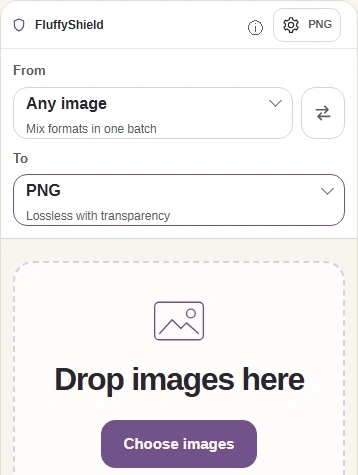
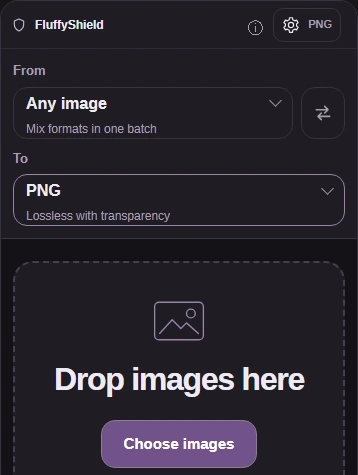
Step 1. Choose an opaque picture; TO is already PNG. Open Settings with the gear button. - Choose images opens your file picker.
- TO shows PNG, the copy you’ll make.
- The gear button (PNG) opens Settings.
-
-
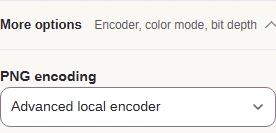
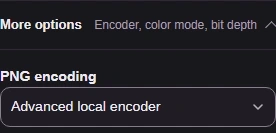
Step 2. More options reveals PNG encoding. Advanced local encoder lets you choose the color channels. - Open More options.
- Choose Advanced local encoder.
-
-
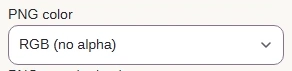
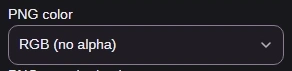
Step 3. For an opaque picture, choose RGB (no alpha) to leave out the transparency channel. - Choose RGB (no alpha).
-
-


Step 4. On a phone, close Settings with the gear button, then press Convert 1 to PNG. - Convert makes the RGB PNG.
-
-
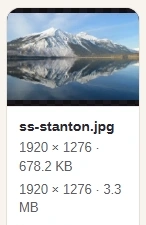
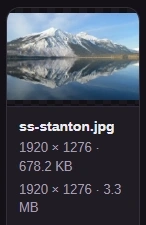
Step 5. The RGB PNG is ready. Compare its lower size readout with the source above it. - The upper readout is the source JPEG’s size.
- The lower readout is the RGB PNG’s size.
-