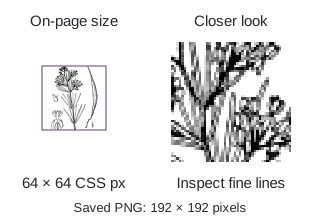
What pixel size should an SVG export use?
Your SVG looks sharp. Your PNG should too. Multiply its on-page width and height by the screen's pixel ratio to choose an export size that keeps edges crisp.
Why does a PNG look soft when the SVG stays sharp?
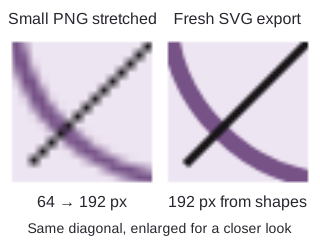
An SVG is like a set of drawing instructions: it describes shapes that can be drawn at different sizes. A PNG is a snapshot of one drawing, with a fixed grid of pixels. Enlarging that snapshot spreads the same pixels over more space; drawing again from the SVG gives the new size its own edges.
Here's the difference along one diagonal: a 64-pixel PNG stretched to 192 pixels beside a fresh 192-pixel export from the SVG.
How many pixels should you export for a screen?
Multiply both on-page dimensions by the highest screen pixel ratio you want to cover. The page's layout units are called CSS pixels; the pixel ratio tells you how many screen pixels fit across each one.
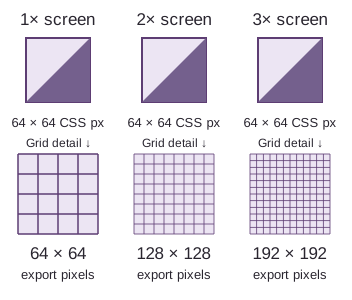
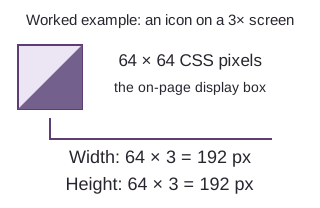
For a 64 × 64 icon on a 3× screen, the calculation gives you a 192 × 192 PNG.
Doing it in FluffyBench: export an SVG at a chosen PNG size
In FluffyBench's SVG to PNG converter, you can choose exact pixel dimensions or multiply the SVG's starting size. Here's the job from opening the drawing to saving the PNG.
-
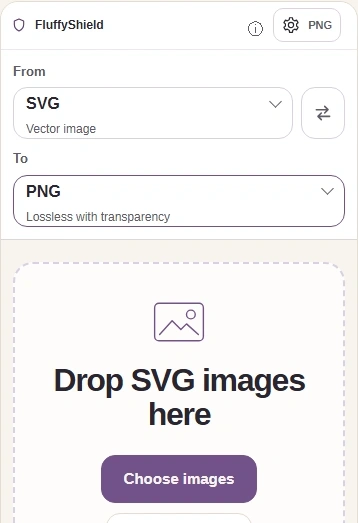
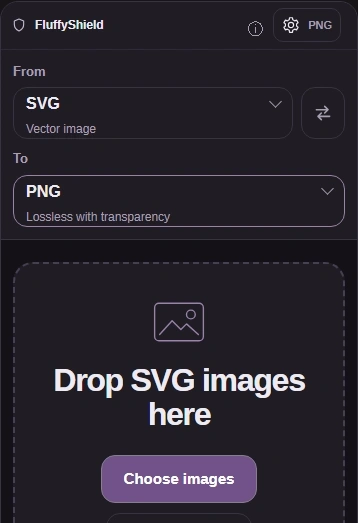
Step 1. Load your SVG and keep it for future exports. This walkthrough uses a square botanical drawing with a 64 × 64 size. - Choose images opens your SVG.
- Leave To set to PNG.
- Settings opens the size controls.
-
-
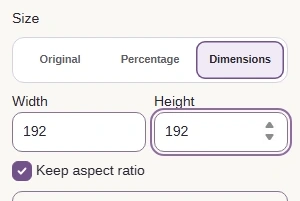
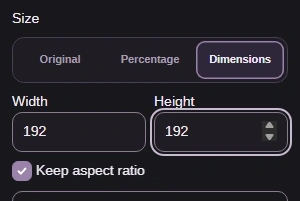
Step 2. Dimensions sets a pixel box; Keep aspect ratio fits the drawing inside it without stretching its shape. - Choose Size → Dimensions for an explicit pixel size.
- Set Width 192 and Height 192; leave Keep aspect ratio checked.
- Original uses the SVG size; browser defaults can differ when its dimensions are missing.
-
-
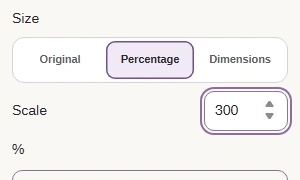
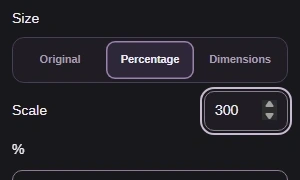
Step 3. Percentage is an alternative to Dimensions. For this 64 × 64 SVG, Scale 300% also draws a 192 × 192 PNG; it isn't a universal export size. - Percentage multiplies the SVG's starting dimensions.
- Scale 300% makes each dimension three times as large.
-
-
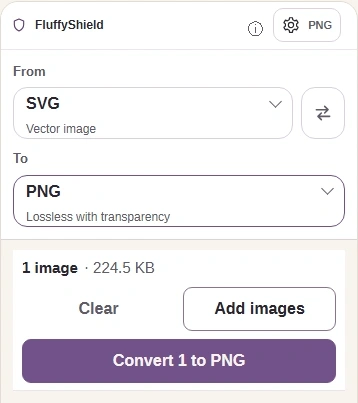
Step 4. Close Settings and convert from the SVG, so FluffyBench can draw fresh edges at the new size. - Press Settings again to close the panel.
- Convert creates your PNG.
-
-
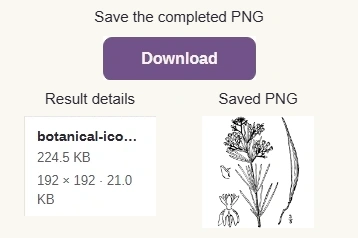
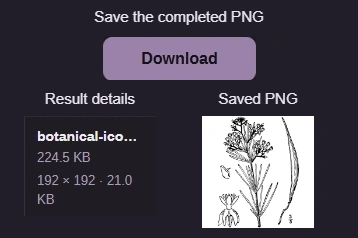
Step 5. Check the PNG dimensions and file size against your destination's requirements, then save it. - The completed row shows the output dimensions and bytes.
- Download saves the PNG to your device.
-
Ready to export your drawing?
Draw a PNG at the pixel dimensions you've calculated.
Does the PNG look right where you'll use it?
The completed row gives you dimensions and bytes. The final check is visual: your saved PNG should have clear lines at the size it'll appear in your page or app.