Convert SVG images to PNG; transparency is preserved.
FluffyShieldProtected workspace
From
To
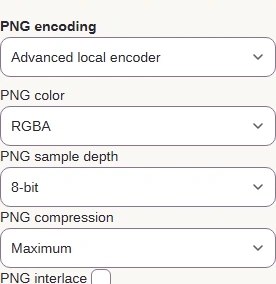
PNG options here: browser or advanced encoder; RGBA, RGB, grayscale or indexed color; 8- or 16-bit; Fast, Balanced or Maximum compression; interlacing. Which PNG settings are worth changing?
Need a PNG, JPG or WebP from your SVG?
FluffyBench turns your SVG’s drawing recipe into a PNG, JPG or WebP an upload, document or app can use. Choose the pixel size your destination needs; the conversion stays in your browser.
FluffyBench · 7 min read · Reviewed
Which SVG output should you choose: PNG, JPG or WebP?
An SVG is a recipe for drawing lines and shapes; a PNG, JPG or WebP is a finished mosaic of pixels. Choose a format your destination accepts.
PNG suits drawings with clear areas, JPG fills those areas, and WebP can keep them too.
Rendered for illustration: checkerboards mark clear areas. How we reviewed · Photo: Britton, N.L., and A. Brown, Public domain, U.S. work published before January 1, 1931; Public Domain Mark 1.0, via Wikimedia Commons.
Why does SVG conversion need a pixel size?
Redrawing an SVG at a larger size gives the edge new pixels, while enlarging a saved PNG stretches the ones it has.
The marked flower is the source of both close-ups; rendered for illustration. · Photo: Britton, N.L., and A. Brown, Public domain, U.S. work published before January 1, 1931; Public Domain Mark 1.0, via Wikimedia Commons.
A smaller PNG export has fewer pixels for the same fine lines.
Rendered for illustration: the flower edge marked above, exported at two sizes and shown at the same display size. · Photo: Britton, N.L., and A. Brown, Public domain, U.S. work published before January 1, 1931; Public Domain Mark 1.0, via Wikimedia Commons.
If you’re unsure how many pixels you need, the SVG export-size guide connects the output size to where your drawing will appear.
Doing it in FluffyBench: convert and save your SVG
Keep the editable SVG as your working original. This FluffyBench walkthrough saves a PNG; the JPG and WebP settings below use the same conversion and download controls.
123
123
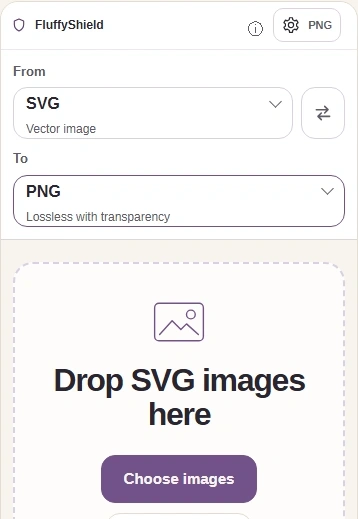
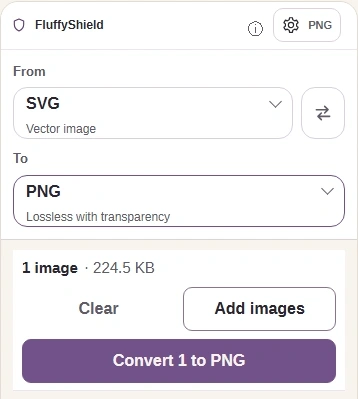
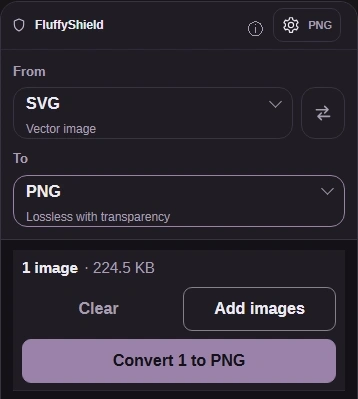
Step 1. Choose images opens your drawing. To picks the output; Settings opens its controls.
1
Choose images opens a local file.
2
To opens the output-format picker.
3
The gear button opens or closes Settings.
123
123
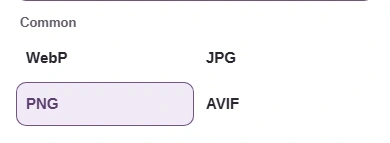
Step 2. Choose the format your destination accepts. This walkthrough uses PNG.
1
PNG keeps clear areas.
2
JPG replaces clear areas with a fill.
3
WebP can keep clear areas too.
12
12
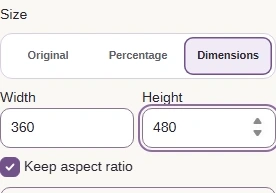
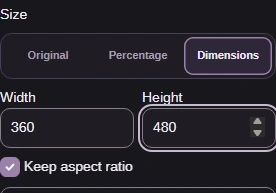
Step 3. Size → Dimensions sets a pixel box; Keep aspect ratio fits the drawing inside it. Original keeps the SVG’s dimensions; Percentage scales them.
1
Dimensions lets you enter a pixel size.
2
Set Width 360 and Height 480; leave Keep aspect ratio on.
12
12
Step 4. Press Settings again to return to the drawing, then Convert.
1
Settings closes the settings panel.
2
Convert makes the PNG copy.
12
12
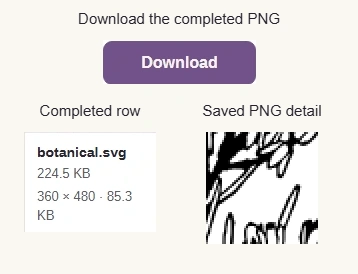
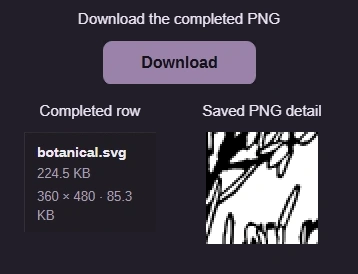
Step 5. Match dimensions and bytes to your destination’s rules. Download the PNG, then inspect its thin lines at the size you’ll use; the saved flower detail is shown beside the readout.
1
Match these dimensions and output bytes to your destination’s rules.
2
Download saves the finished PNG.
Saving JPG in FluffyBench
Need JPG for an upload or document? These are FluffyBench’s JPG settings.
12
12
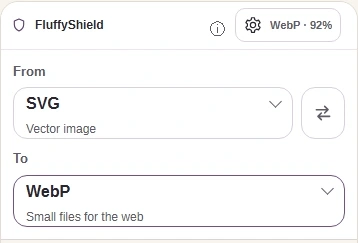
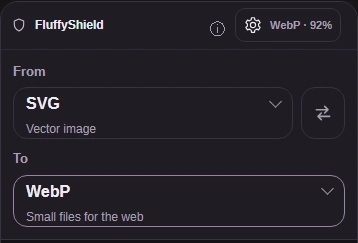
Step 1. With your SVG loaded, choose JPG in To.
1
To now reads JPG.
2
Settings opens JPG options.
12
12
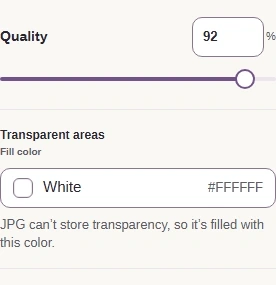
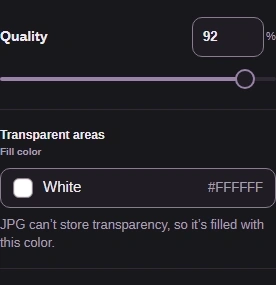
Step 2. Quality trades detail for file size. Transparent areas shows the fill used for JPG.
1
Quality controls detail and file size.
2
Transparent areas uses this fill color; the default is white.
Lower JPG Quality can roughen thin edges as it reduces file size.
Rendered for illustration with FluffyBench’s JPG settings; compare the dark outlines and the pale marks around them. · Photo: Britton, N.L., and A. Brown, Public domain, U.S. work published before January 1, 1931; Public Domain Mark 1.0, via Wikimedia Commons.
Saving WebP in FluffyBench
Need WebP? These are FluffyBench’s WebP compression choices.
12
12
Step 1. With your SVG loaded, choose WebP in To.
1
To now reads WebP.
2
Settings opens WebP options.
12
12
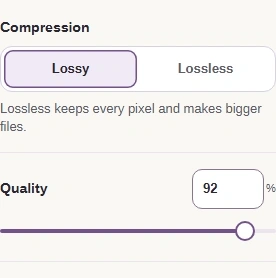
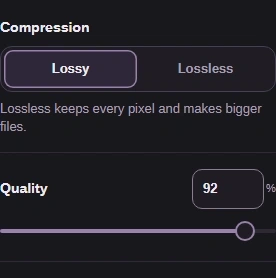
Step 2. Lossy uses Quality to trade detail for size. Lossless keeps the rendered pixels.
1
Compression offers Lossy and Lossless.
2
Quality applies to Lossy WebP.
Need a smaller PNG from FluffyBench?
Turning drawing instructions into a grid can add bytes. Our measured SVG grew as a PNG; Maximum compression reduced the PNG’s size compared with Browser default.
SVG source
379 B
Browser default PNG
12.3 KB
Maximum PNG compression
9.5 KB
Same drawing, 360 × 220 pixels; sizes are for the complete files.
If your PNG needs fewer bytes, FluffyBench’s advanced PNG settings offer stronger compression.
1
1
Step 1. Open Settings for PNG options.
1
Settings opens the output controls.
12
12
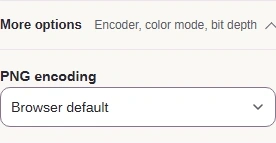
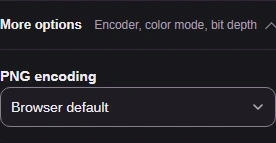
Step 2. More options contains PNG encoding. Browser default is the starting choice.
1
More options reveals PNG encoding.
2
PNG encoding starts at Browser default.
123
123
Step 3. Choose Advanced local encoder and PNG compression → Maximum. RGBA keeps clear areas.
1
Choose Advanced local encoder.
2
RGBA keeps the clear areas.
3
Choose Maximum for the strongest PNG compression.
What if an SVG moves, or FluffyBench refuses it?
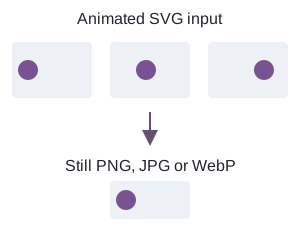
FluffyBench keeps an animated SVG input at its initial state. This is a still-image export, so choose it when you don’t need the drawing to move.
Explanatory diagram: the output keeps the initial position, not the later motion.
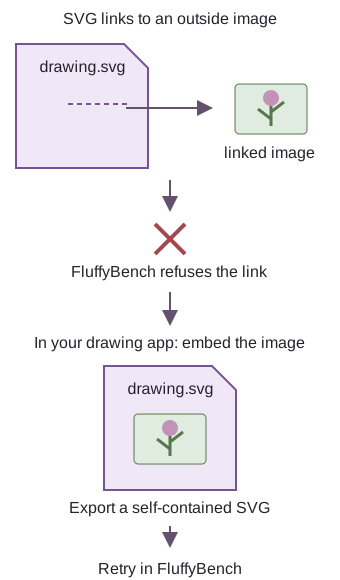
A refusal about external references means the SVG depends on another file. A self-contained export from your drawing app can put the needed content inside the SVG.
Recovery happens in your source drawing app; FluffyBench doesn’t fetch the linked file.
How we reviewed SVG conversion
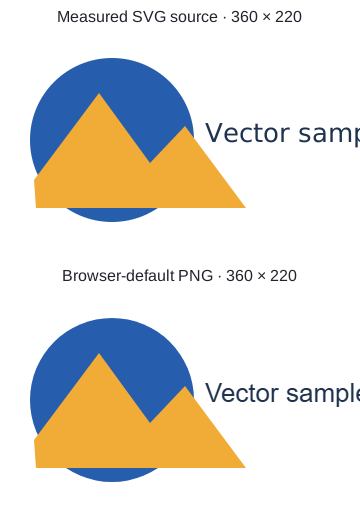
FluffyBench draws the SVG into pixels before saving it.
Our measured SVG and its browser-default PNG at the same dimensions; matching lettering details follow.
Fine lettering edges can change when SVG drawing instructions become pixels.
SVG source
The ‘Vec’ lettering edge
37 × 32 px; 8× magnification.
Reference drawing from the SVG.
379 B379 bytes
Browser-default PNG
The same ‘Vec’ lettering edge
37 × 32 px; 8× magnification.
PNG at the source dimensions.
12.3 KB12,334 bytes
Changed positions
37 × 32 px; 8× magnification.
The same lettering detail with changed positions marked in red.
268 of 12,288 positions (2%) changed in the full 128 × 96 px comparison crop, which is larger than the close-up shown.
Matching lettering crops; red marks locate changed positions, not how visible they are.
The measured PNG settings changed bytes and conversion time; the changed-position count stayed the same.
Setting
Conversion time
Changed positions
Browser default PNG
0.38 s
1,047 positions
Maximum PNG compression
0.88 s
1,047 positions
Both settings used the same SVG and output dimensions.