
How do pixel dimensions, PPI, and DPI affect image size?
Changing a photo's PPI can make its print smaller without removing a single pixel. Here's which number to change for paper, a web page, or an upload.
What do pixel dimensions change when you resize?
Think of an image as a mosaic. Pixel dimensions count the colored squares across and down. Resizing redraws that mosaic on a different grid: fewer squares leave less room for fine detail. The name for calculating those new pixels is resampling.
Halving the mountain photo's width and height gives it one-quarter as many output positions. Displaying the smaller copy larger doesn't bring the lost detail back.

How does PPI change print size without changing pixels?
PPI means pixels per inch: how tightly you pack the mosaic onto paper. Changing the print mapping leaves the pixel grid alone; a higher PPI fits the same picture into a smaller print.

That distinction matters when you're asked for a higher-resolution print. Changing a PPI label doesn't create more scene detail. At a fixed print width, more pixels across the image give you a higher effective PPI—the number of image pixels available for each inch of paper.
How are printer DPI and image PPI different?
DPI means dots per inch: the tiny ink or toner dots a printer puts on paper. A printer can use several dots to reproduce a pixel's color, so its DPI and your image's PPI count different things.

If a print shop asks you for a ‘DPI image,’ ask what print dimensions and image PPI it needs. Those requirements tell you how many pixels to supply; the printer's dot rate doesn't tell you that on its own.
What controls image size on a web page?
A web layout sets an image's display width in CSS pixels, the page's layout units. You can display the same file at different widths without changing its pixel dimensions; its print PPI tag doesn't set that width.

The screen maps CSS pixels onto its physical device pixels. A high-density screen may use several device pixels for one CSS pixel, so a wide placement can need more source detail than its CSS width suggests. Stretching a small file across that space won't add detail.
Which number should you change for your destination?
Start with where the picture is going. A print size, a web placement and an upload limit ask for different measurements.

Doing it in FluffyBench Image Space Saver
FluffyBench's Image Space Saver changes pixel dimensions through its Size controls. It doesn't edit a print PPI tag. Here's how to make the mountain photo half as wide while keeping its shape.
The completed tile shows both source and output dimensions, so you can check that the resized copy has the grid you wanted.
-
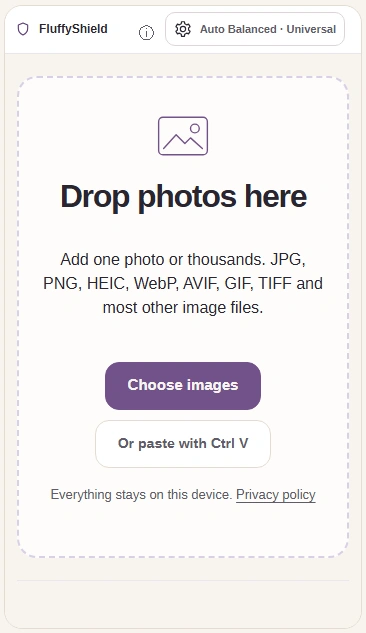
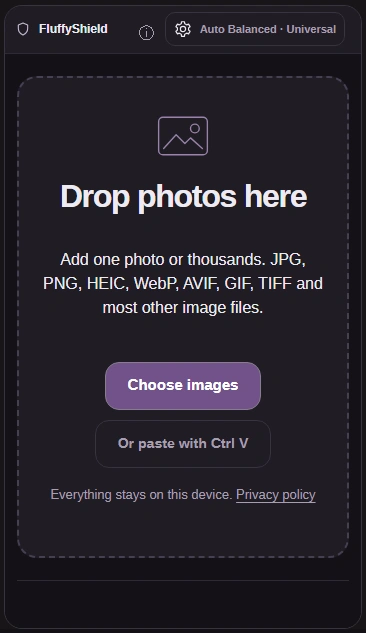
Step 1. Choose the mountain photo, then open Settings. - Choose images opens your file picker.
- Settings opens the Size controls.
-
-
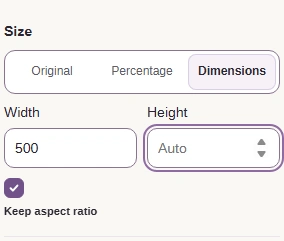
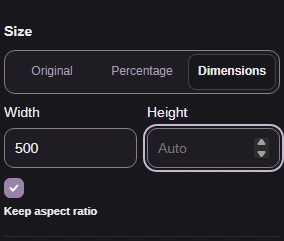
Step 2. Set the width to 500 pixels and let the height follow. - Dimensions enables pixel dimensions.
- Width: 500. Height: Auto. Keep aspect ratio: checked.
-
-


Step 3. Close Settings with the same gear button. - Press the gear button again to close Settings.
-
-


Step 4. Process the image with your chosen size. - Process 1 image creates the resized result.
-
-
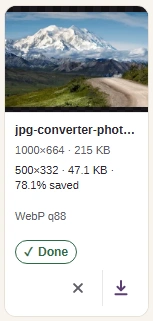
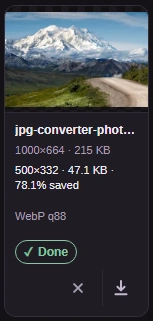
Step 5. Check the result's dimensions and file size, then download it. - The source readout shows 1,000 × 664 pixels.
- The result readout shows 500 × 332 pixels and its file size.
- Download saves the result to your device.
-