Base encoder and decoder

Convert between Base16, RFC 4648 Base32, Bitcoin Base58, Base64, Adobe Ascii85 and UTF-8 text.

FluffyShield Protected workspace
From
To

Choose text conversion

FluffyShield

Isolated workspace: other page scripts can't read your files. How FluffyShield works

How do I encode or decode text with a base encoder?

Need readable words from an encoded value, or encoded text for another app? FluffyBench's Base encoder changes how your data is written while keeping the underlying bytes.

The job at a glance
  1. Choose From and To
  2. Paste a short input for automatic output
  3. Check the result and copy it

Limits Encoding isn't encryption: anyone with the encoded value can decode it.

Same data, a different spelling

Some apps need data written with a particular alphabet, such as Base64. Think of your data as a parcel and the encoding as its label: changing the label doesn't change what's inside. The pieces of data inside are called bytes.

FluffyBench's Base encoder writes Man as TWFu in Base64. Decoding brings you back to the same word.
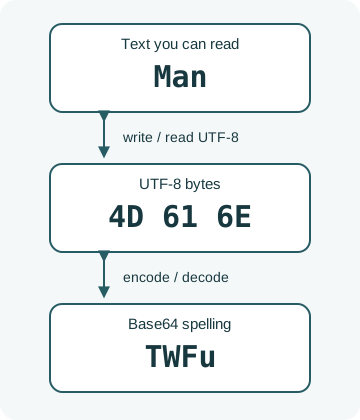
Man becomes UTF-8 bytes 4D 61 6E; Base64 writes those bytes as TWFu. Arrows work in both directions.

The same message as text, bytes and Base64

  1. Text

    Start with words you can read.

  2. Bytes

    UTF-8 turns the letters into byte values.

  3. Base64

    A different alphabet writes the same bytes.

The bytes are the parcel; text and Base64 are ways to write it down. How we reviewed

Doing it in FluffyBench: encode text

Here's how to turn words into Base64 with FluffyBench's Base encoder, from choosing formats to taking the result to another app.
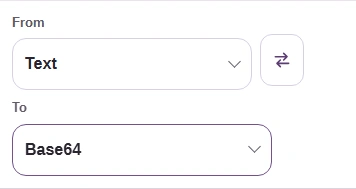
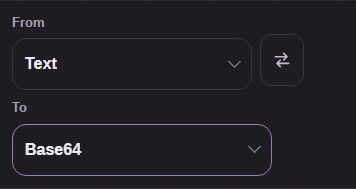
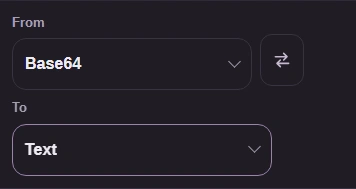
  1. FluffyBench From and To controls set to Text and Base64.
    FluffyBench From and To controls set to Text and Base64.
    Step 1. Choose From: Text and To: Base64.
    1. From matches what you have: Text.
    2. To matches what you need: Base64.
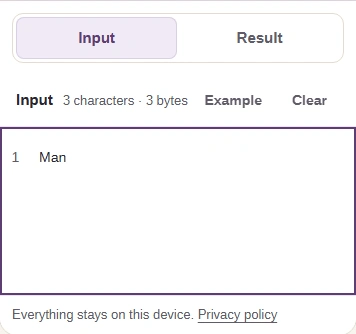
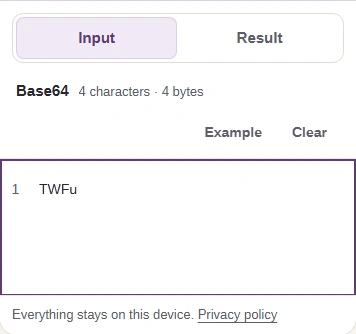
  2. Phone Input view with Man and the Input and Result tabs.
    Phone Input view with Man and the Input and Result tabs.
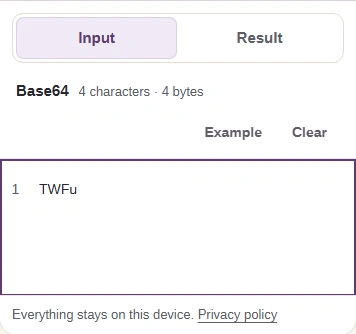
    Step 2. Paste Man; the short input updates automatically.
    1. Paste Man here.
    2. Open Result on a phone.
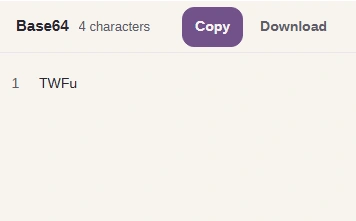
  3. FluffyBench result TWFu, Base64 label, character count, Copy and Download.
    FluffyBench result TWFu, Base64 label, character count, Copy and Download.
    Step 3. Check TWFu and the destination's requested format.
    1. Check Base64 and the character count.
    2. Check the result: TWFu.
  4. FluffyBench Copy and Download buttons, shown close up.
    FluffyBench Copy and Download buttons, shown close up.
    Step 4. Take the result to another app with Copy, or save it with Download.
    1. Copy puts the result on your clipboard.
    2. Download saves a text file.

Doing it in FluffyBench: decode Base64

Need readable words from Base64? Reverse the From and To choices in FluffyBench's Base encoder.
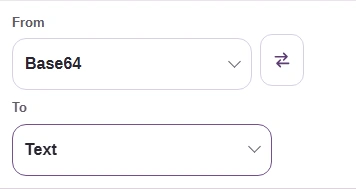
  1. FluffyBench From and To controls set to Base64 and Text.
    FluffyBench From and To controls set to Base64 and Text.
    Step 1. Choose From: Base64 and To: Text.
    1. From matches what you have: Base64.
    2. To matches what you need: Text.
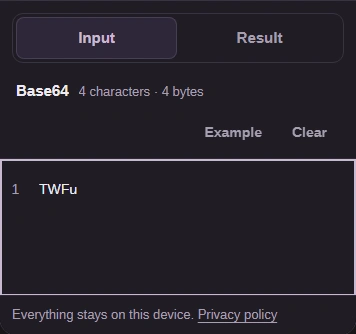
  2. Phone Input view with TWFu and the Input and Result tabs.
    Phone Input view with TWFu and the Input and Result tabs.
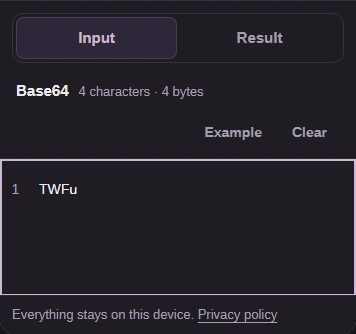
    Step 2. Paste TWFu; the short input updates automatically.
    1. Paste TWFu here.
    2. Open Result on a phone.
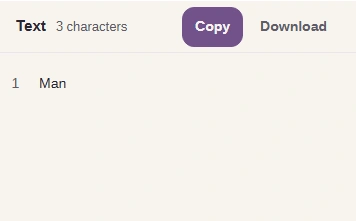
  3. FluffyBench result Man, Text label, character count, Copy and Download.
    FluffyBench result Man, Text label, character count, Copy and Download.
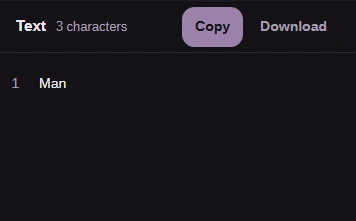
    Step 3. Check Man and the destination's requested format.
    1. Check Text and the character count.
    2. Check the result: Man.

Change one encoding into another

If another app asks for Base16 instead of Base64, FluffyBench's Base encoder can change the spelling directly.
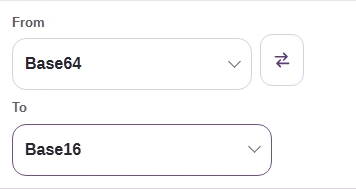
  1. FluffyBench From and To controls set to Base64 and Base16.
    FluffyBench From and To controls set to Base64 and Base16.
    Step 1. Choose From: Base64 and To: Base16.
    1. From matches what you have: Base64.
    2. To matches what you need: Base16.
  2. Phone Input view with TWFu and the Input and Result tabs.
    Phone Input view with TWFu and the Input and Result tabs.
    Step 2. Paste TWFu; the short input updates automatically.
    1. Paste TWFu here.
    2. Open Result on a phone.
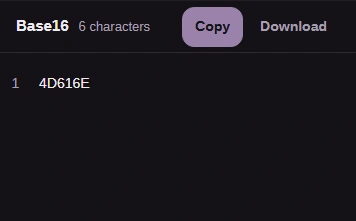
  3. FluffyBench result 4D616E, Base16 label, character count, Copy and Download.
    FluffyBench result 4D616E, Base16 label, character count, Copy and Download.
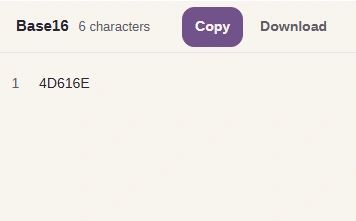
    Step 3. Check 4D616E: the same bytes as Base64 TWFu, written in Base16. There's no Text stage.
    1. Check Base16 and the character count.
    2. Check the result: 4D616E.

Why won't an encoded value decode?

When you don't know the source format, check the label or instructions that came with the value. A readable result doesn't prove you've chosen the right alphabet.

An alphabet error: FluffyBench's Base encoder flags the exclamation mark in TWF! because it isn't a Base64 character.
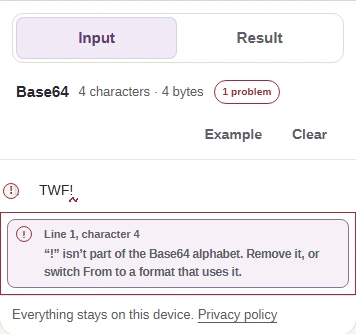
Invalid Base64 input TWF! with the actual diagnostic.

Base64 input → Text output

The message identifies the character to remove, or the From choice to correct.

A text error: /w== is Base64, but its decoded byte isn't valid UTF-8, the byte format FluffyBench reads as Text.
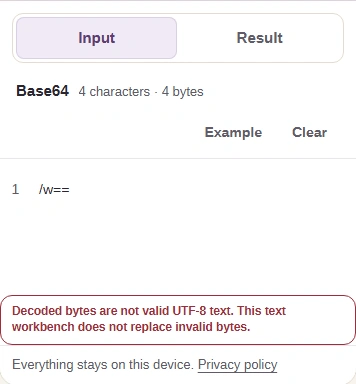
Base64 /w== rejected as invalid UTF-8 with the actual status message.

Base64 input → Text output

For binary data, choose the encoding your destination needs instead of Text.

FluffyBench's Number base converter for integers

An integer's value is different from the text bytes used to write it.

Need to convert an integer between bases?

Search FluffyBench