CSS generator: gradients, box and text shadows, clip paths and easing curves

Build gradients, shadows, clip paths and easing curves, see the result as you change it, and copy the CSS.

FluffyShield Protected workspace
FluffyShield

Isolated workspace: other page scripts can't read your files. How FluffyShield works

Build a color blend and copy its CSS

Make a background blend for your page and copy the CSS while you preview it. FluffyBench CSS Generator also has separate controls for box shadows, text shadows, clipped shapes and animation timing.

How do color stops shape a gradient?

A gradient is like a ribbon with colored pins: each stop fixes a color at a position, and the browser blends between the pins.

A left-to-right gradient ribbon connects a purple first stop to a teal last stop, with the direction shown beneath it.

A linear gradient from its first stop to its last

  1. First color stop

    The left card names the color and position where the linear gradient begins.

  2. Last color stop

    The right card marks the final color and position; the ribbon blends between these stops.

  3. Direction

    The arrow and label show the direction used by this linear gradient example.

Two stops and an arrow show where the blend begins and ends. How we reviewed

Stop positions decide how much room colors have to blend. Put both stops at the same position and they meet at a sharp edge.
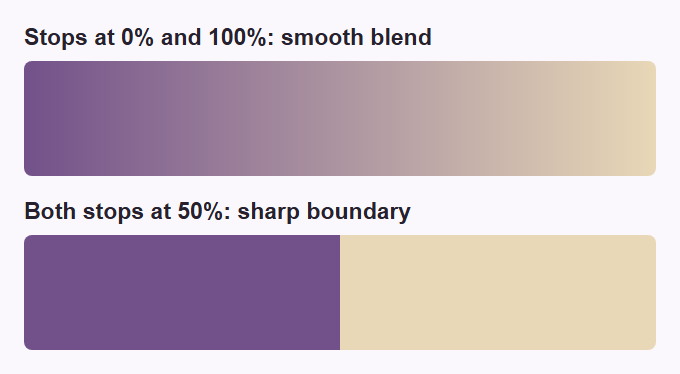
Two purple-to-cream strips: 0% and 100% stops blend smoothly; two stops at 50% make a sharp boundary.
Same colors and direction, different stop positions.

FluffyBench Color Converter can translate a stop color into another notation.

Need a color converter?

Turn sunset colors into a gradient

For this sunset, 5 sampled stops carry the sky's broad changes from blue to pink, red and near-black.
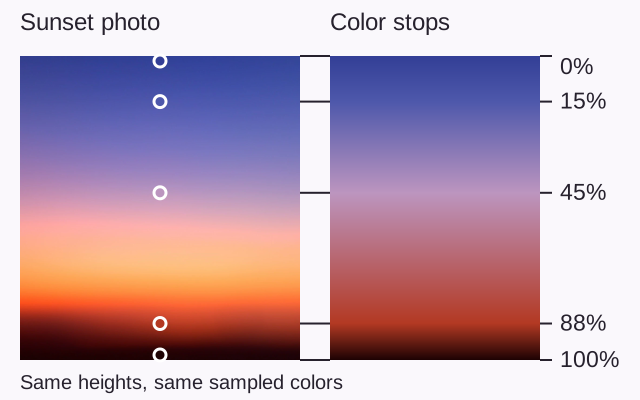
Sunset photo and vertical gradient at the same height, with aligned 0%, 15%, 45%, 88% and 100% stop markers.
The stops preserve the broad color bands; the blend fills the gaps between them. · Photo: YI LU, Unsplash License, via Unsplash.

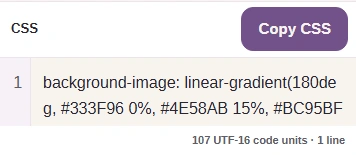
The sunset CSS is background-image: linear-gradient(180deg, #333F96 0%, #4E58AB 15%, #BC95BF 45%, #B33923 88%, #1E0203 100%);

Build the sunset gradient in FluffyBench

Here's the five-stop sunset in FluffyBench CSS Generator, from Type to Copy CSS. You can use 2 to 8 stops, positioned from 0% to 100%.


  1. The Type selector with Gradient selected.
    The Type selector with Gradient selected.
    Step 1. Choose Gradient under Type.
    1. Gradient makes a color blend.
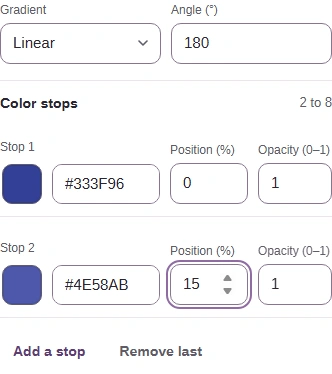
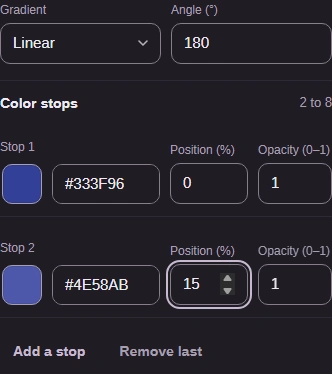
  2. Gradient controls: Linear, Angle 180, two stops and Add a stop.
    Gradient controls: Linear, Angle 180, two stops and Add a stop.
    Step 2. Choose Linear and Angle 180 degrees, then set the first two sunset colors at 0% and 15%.
    1. Gradient chooses the path; Angle turns a linear blend.
    2. Set Stop 1 to #333F96 at 0% and Stop 2 to #4E58AB at 15%.
    3. Press Add a stop three times for the remaining sunset colors.
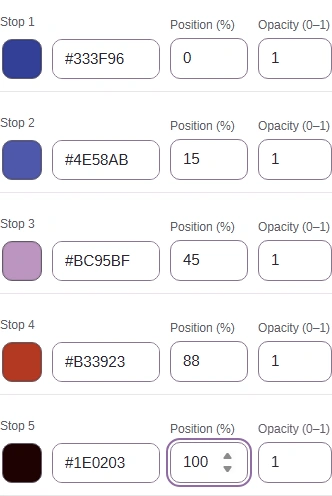
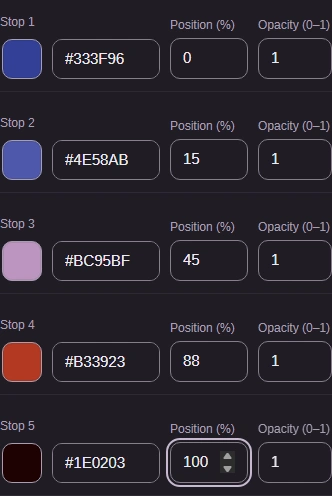
  3. All five sunset stop colors at 0, 15, 45, 88 and 100 percent.
    All five sunset stop colors at 0, 15, 45, 88 and 100 percent.
    Step 3. Fill Stops 3 to 5 with the remaining colors and positions, keeping the rows in ascending order.
    1. Set Stop 3 to #BC95BF at 45%.
    2. Set Stop 4 to #B33923 at 88%.
    3. Set Stop 5 to #1E0203 at 100%.
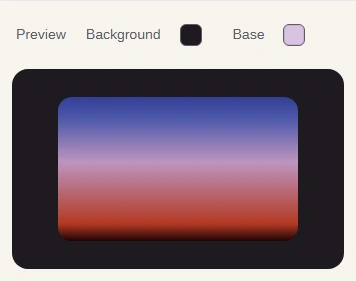
  4. Preview of the complete five-stop sunset gradient, including its red band.
    Preview of the complete five-stop sunset gradient, including its red band.
    Step 4. Preview updates with your controls; no Generate button is needed.
    1. Inspect the direction and the spacing between colors.
  5. Copy CSS beside the five-stop sunset background-image declaration.
    Copy CSS beside the five-stop sunset background-image declaration.
    Step 5. Copy CSS copies the complete sunset declaration.
    1. Copy CSS copies the complete declaration.
    2. CSS contains the property and value for your element's rule.

Choose direction, center and opacity

Linear sends colors along a straight line. Radial spreads them outward from a center, so it's useful when the first color should sit inside the second.
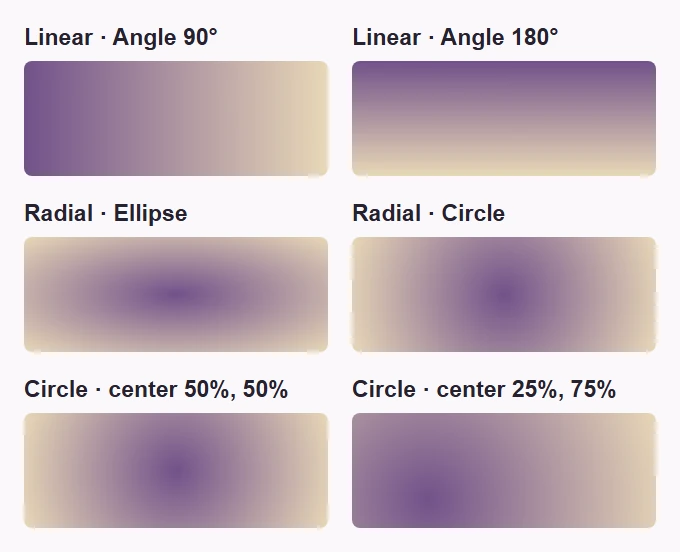
Matched rectangles compare linear 90 and 180 degrees, radial ellipse and circle, and centered and shifted radial circles.
Angle turns a linear blend; Shape and Center X/Y change a radial blend.

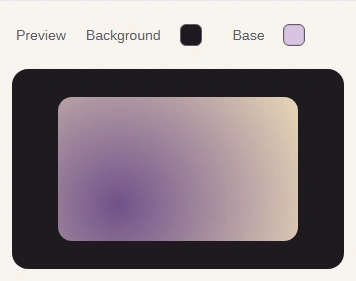
For an off-center glow, choose Radial and Circle; Center X and Center Y place its starting color.
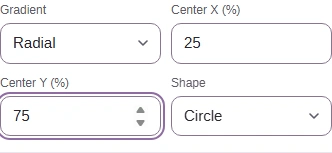
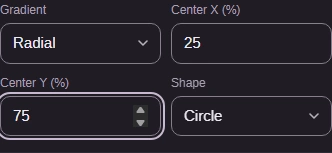
  1. Radial controls with Circle and a center at 25 percent X, 75 percent Y.
    Radial controls with Circle and a center at 25 percent X, 75 percent Y.
    Step 1. Choose Radial and Circle, with Center X 25% and Center Y 75%.
    1. Choose Radial, Shape Circle, Center X 25% and Center Y 75%.
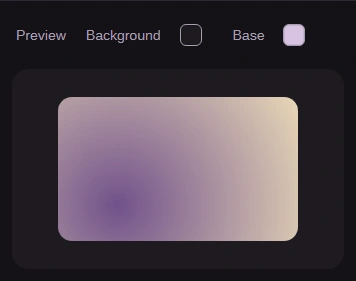
  2. A radial circle with its purple starting color at 25 percent across and 75 percent down.
    A radial circle with its purple starting color at 25 percent across and 75 percent down.
    Step 2. The starting color now sits toward the lower-left of the sample.
    1. Preview shows the shifted radial center.

Lower opacity lets the color underneath show through. Here both stops fade over the same lavender base.
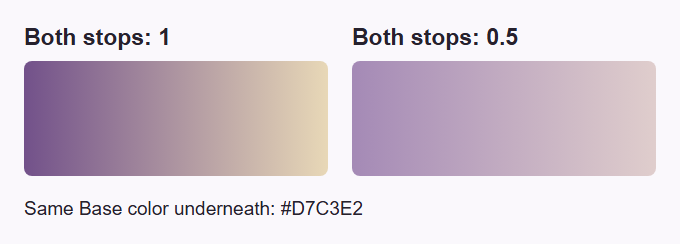
The same purple-to-cream gradient at stop opacity 1 and 0.5, both over the lavender base #D7C3E2.
Opacity 1 covers the base; 0.5 lets it mix with the gradient.

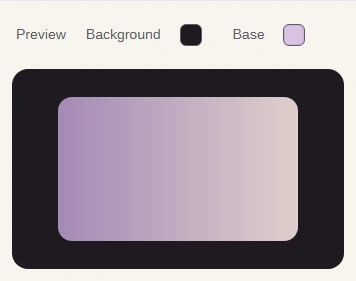
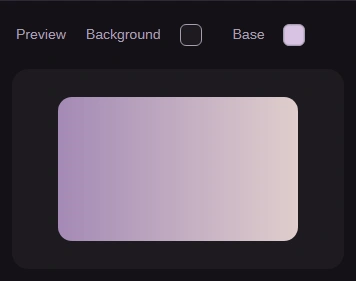
For a softer linear blend, lower both stops' Opacity. Base and Background let you try it against different preview colors.
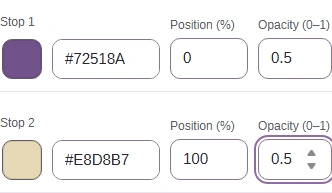
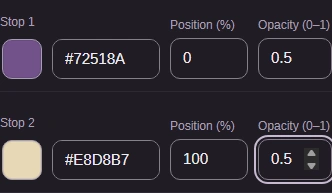
  1. Both gradient stops with Opacity set to 0.5.
    Both gradient stops with Opacity set to 0.5.
    Step 1. This separate linear example sets both stops to Opacity 0.5.
    1. Set Stop 1 Opacity to 0.5.
    2. Set Stop 2 Opacity to 0.5.
  2. Partly transparent gradient over the preview Base color.
    Partly transparent gradient over the preview Base color.
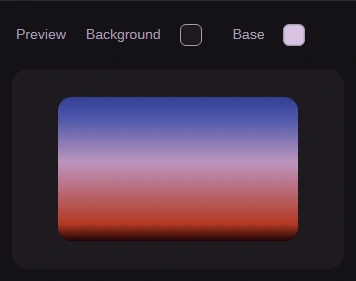
    Step 2. Base colors the sample underneath the gradient; Background colors the area around it.
    1. Base changes preview context, separately from copied CSS.
    2. Background changes the surrounding preview color.

Check the gradient on your element

The preview uses a sample box. Your element's proportions and surrounding colors affect how the blend looks, so judge the result where you'll use it.
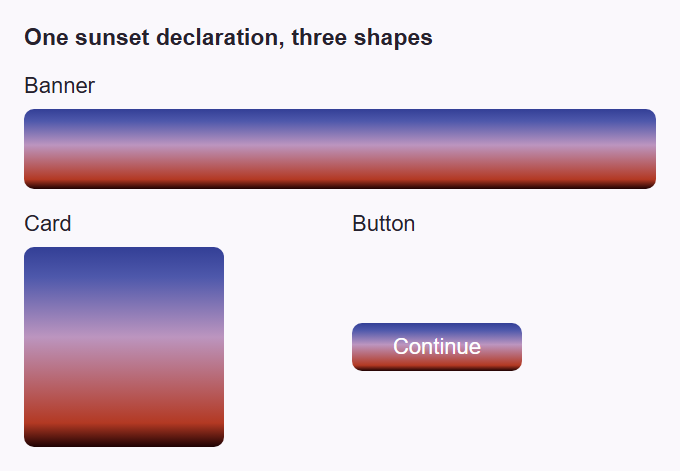
The same sunset CSS on a wide banner, a square card and a short button.
One declaration fills each element's own dimensions.

CSS is the output here: a background-image declaration, not a picture file. Your destination needs a place to apply CSS to an element.
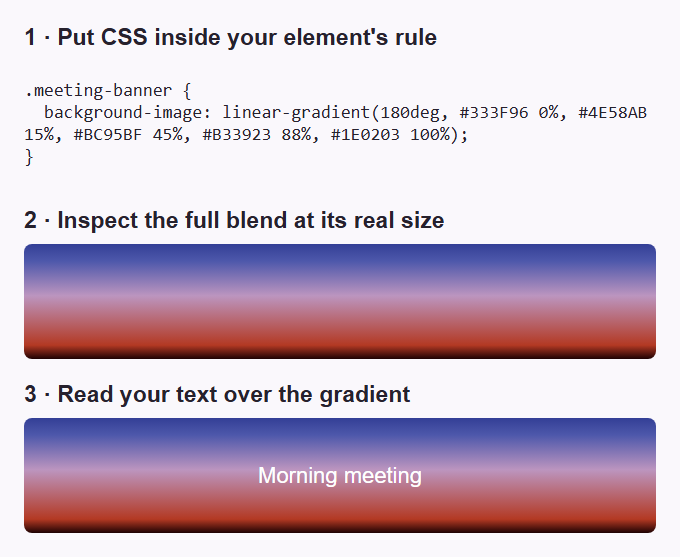
A visual check strip shows the declaration inside a banner rule, the full rendered blend, and white text over that banner.
Paste into the element's rule, inspect the full blend, and check the text over it.

If you're unsure where the copied line belongs, the guide to generated gradient CSS explains the property and value.

Other effects in FluffyBench CSS Generator

Each Type returns its own declaration in the same CSS pane. Copy CSS stays in the same place for all five effects.

Choose Box shadow under Type to add depth around a box. Offset X and Offset Y move its shadow sideways and down; Blur softens its edge, Spread grows it, and Inset puts it inside.
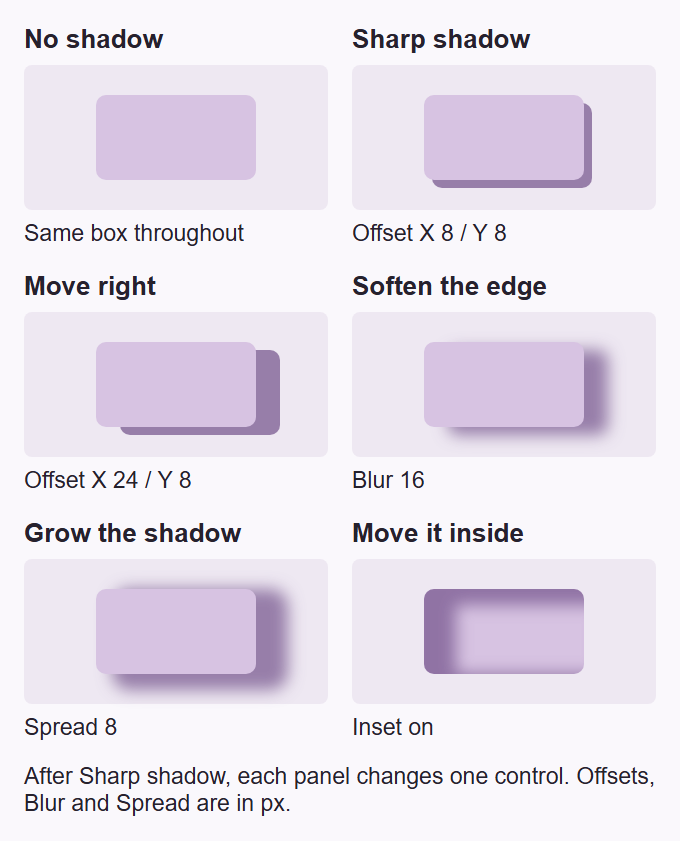
The same box without a shadow, with a sharp offset shadow, then with blur, spread and inset. Labels identify the one control changed between adjacent examples.
After the sharp shadow, each panel changes one control. Color and Opacity set the shadow's tint and strength.

Choose Text shadow under Type for a shadow that follows the letters. The same offset and blur controls act on the word's outline.
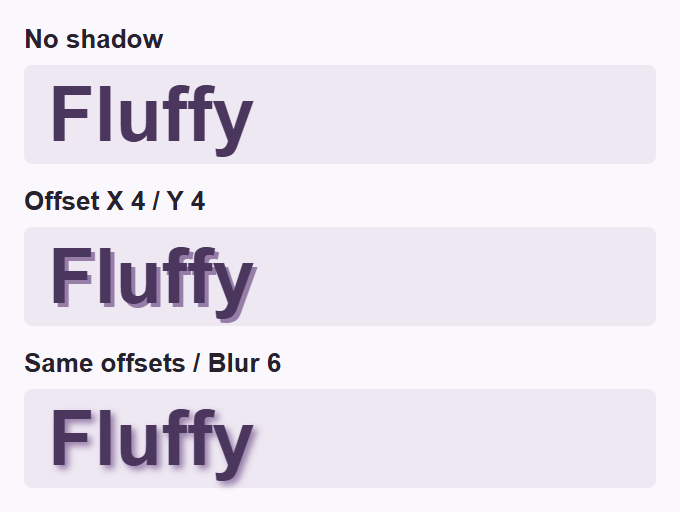
The word Fluffy without a shadow, with a sharp shadow offset four pixels right and down, then with Blur six pixels.
Text shadow follows the letter shapes; box shadow follows the box.

Choose Clip path under Type to trim an element's outline. Shape offers Inset, Circle, Ellipse and Polygon.
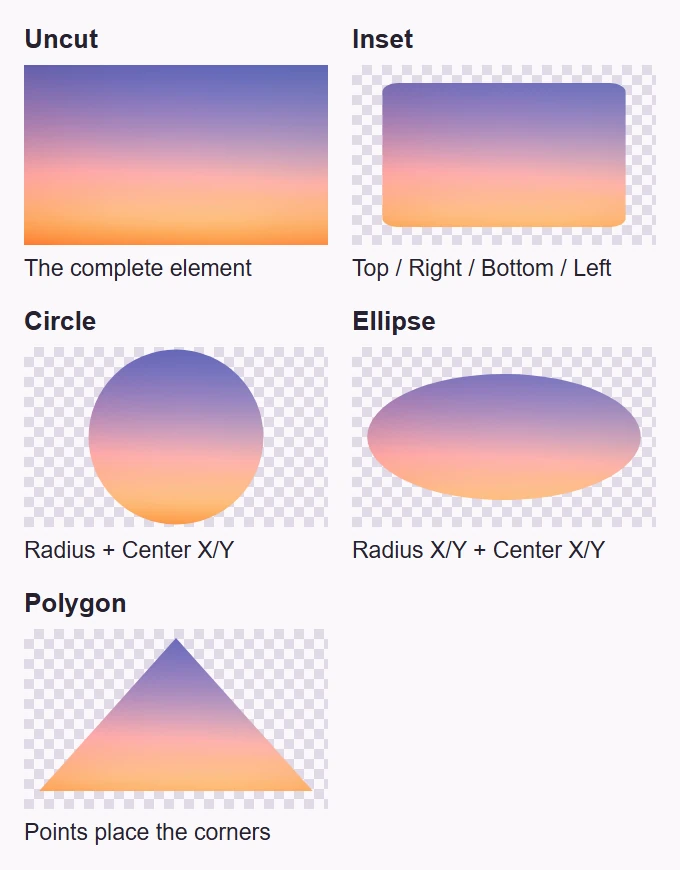
The same sunset image uncut and clipped into Inset, Circle, Ellipse and Polygon shapes, each labelled with its relevant controls.
Inset moves the four edges inward; radii size circles and ellipses; polygon points place each corner.

Choose Easing under Type to change an animation's pace. Here the dot covers more ground before the midpoint, then slows toward the end.
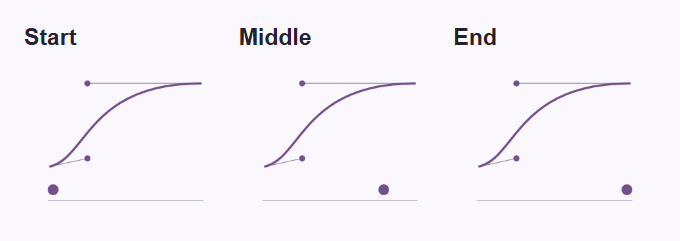
Start, middle and end frames from the real easing preview, with the dot moving along the track under the curve.
The timing declaration belongs on an animation you already have.

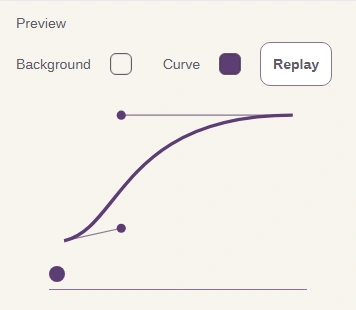
An easing curve maps elapsed time across to progress upward. X1/Y1 place the first handle and X2/Y2 place the second; the handles bend the path between start and finish.
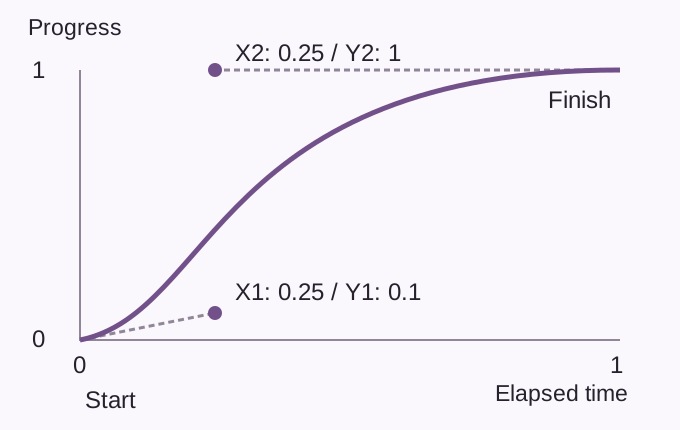
An easing graph with horizontal time and vertical progress axes, and handles labelled X1 0.25 Y1 0.1 and X2 0.25 Y2 1, connected to the start and end of the curve.
These are the same coordinates used by the motion strip and the controls below.

Use Replay in FluffyBench to judge the pace with your current curve.
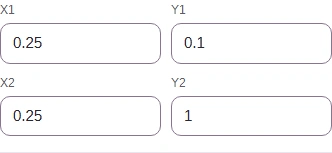
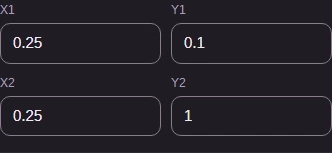
  1. Easing fields X1 0.25 Y1 0.1 X2 0.25 Y2 1, matching the labelled curve.
    Easing fields X1 0.25 Y1 0.1 X2 0.25 Y2 1, matching the labelled curve.
    Step 1. X is time; Y is progress. Each pair moves one curve handle.
    1. X1/Y1 set the first handle; X2/Y2 set the second.
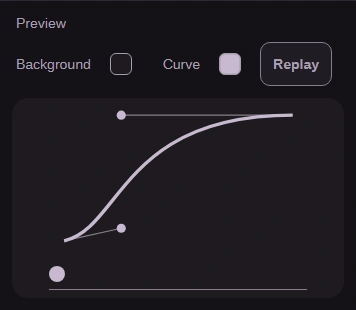
  2. Easing result in Preview.
    Easing result in Preview.
    Step 2. Replay runs the animation preview.
    1. Replay runs the timing curve on the dot.

Fix an empty result or a failed copy

A later stop can't have a lower position than the row before it. FluffyBench clears Preview and CSS while positions are out of order.
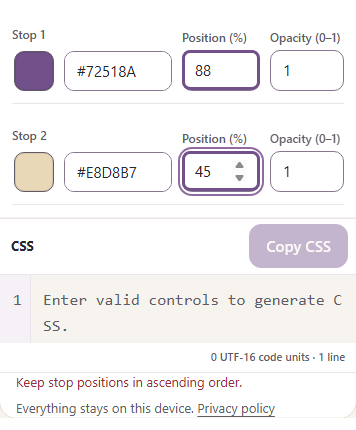
Stop positions 88 and 45, an empty CSS result, and the exact status Keep stop positions in ascending order.

Out of order: 88% followed by 45%
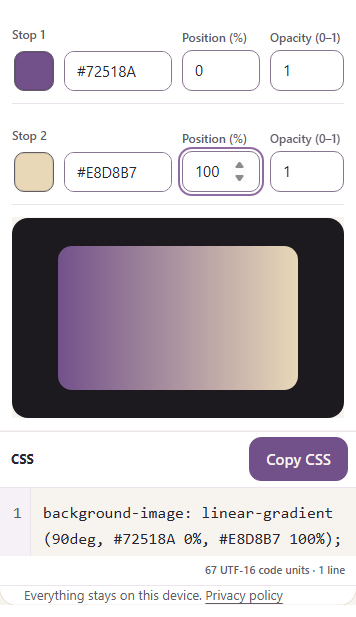
Stop positions corrected to 0 and 100, with Preview and CSS restored.

Corrected: 0% followed by 100%

Put the positions in ascending order to restore the result.

If clipboard access is refused, FluffyBench selects the CSS for manual copying and explains what happened in the status message.
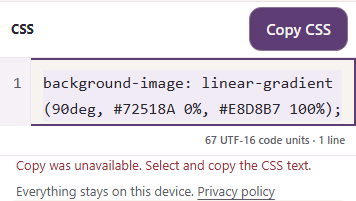
The CSS text is selected above the status Copy was unavailable. Select and copy the CSS text.
Use your device's copy command on the selected CSS.

A color that won't parse needs HEX, RGB or HSL notation, with opacity in its separate field. The color notation guide explains those forms.

FluffyBench Color Converter helps when a stop's notation is unfamiliar: it checks one color and returns its HEX, RGB and HSL spellings.

Search FluffyBench