
What do HEX, RGB, and HSL mean for a color?
Why can one color have three different codes? HEX and RGB describe its red, green, and blue amounts; HSL makes it easier to picture a softer or lighter shade.
One color, three ways to write it
HEX and RGB describe amounts of red, green, and blue. HSL describes a color's hue, saturation, and lightness. Think of them as different ways to give an address: a compact code, three coordinates, or a spot on a color wheel with two extra dials.
Here's a teal written in all three notations. The labels describe a color in sRGB, the color range these web color codes use.

A teal color with three labels
HEX and RGB: the same red, green, and blue amounts
HEX packs each channel into a pair of characters after the # sign. It uses base sixteen: the digits 0 through 9, then A through F. RGB writes the amounts as ordinary numbers, from 0 for none of a channel to 255 for its maximum. You don't need to do the arithmetic yourself.
Each HEX pair lines up with one RGB number, in red, green, blue order.

From HEX pairs to RGB amounts
Changing one RGB number changes the mix. Here, adding red while leaving green and blue alone turns the teal toward a paler color.

Change one RGB channel
HSL: change hue, saturation, or lightness
When you want a softer blue, adjusting three RGB amounts can feel like guessing. HSL gives you dials that are easier to picture: hue chooses a place around the color wheel, saturation moves from gray to vivid color, and lightness moves from black through the color to white.
You can change saturation or lightness while keeping the same blue hue. Each ladder changes one dial and holds the other two still.

A color wheel and two blue ladders
HSL lightness isn't a brightness reading. Yellow and blue can share the same lightness setting and still look very different, so don't use that number alone to judge how bright a palette looks.

Equal HSL lightness can look very different
Which color notation should you use?
The best notation is the one that makes your next job easier. If a field asks for a particular format, that decides it for you.

Match the notation to your job
Doing it in FluffyBench
FluffyBench's Color Converter gives you HEX, RGB, and HSL together, so you can copy the spelling your next field needs. It accepts short or full HEX, comma-separated rgb(r, g, b), and hsl(h, s%, l%). Space-separated RGB and values with transparency, such as rgba() or eight-digit HEX, aren't accepted; the tool page has the full input list.
Here's how to translate a color in FluffyBench. Results update as you type.
-
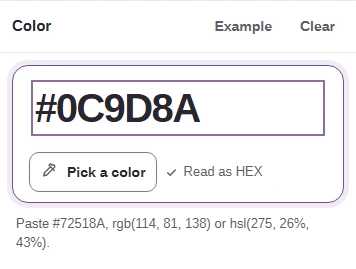
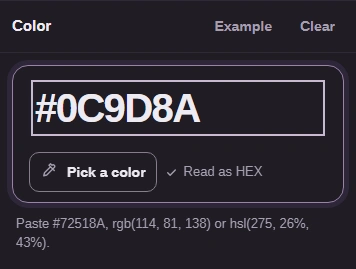
Step 1. Paste your color into the Color pane. Here we're using the teal from this guide. - Enter #0C9D8A in HEX, RGB, or HSL color.
- Read as HEX identifies the notation you've entered.
-
-


Step 2. Check the swatch in Same color: is this the color you meant? - The preview shows the color read from your input.
-
-
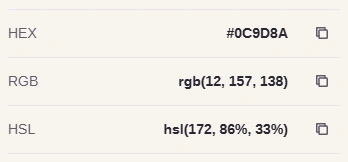
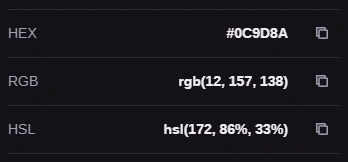
Step 3. Match your destination's format and copy that row. Each button copies its value as text. - Copy HEX copies the compact color code.
- Copy RGB copies the red, green, and blue amounts.
- Copy HSL copies hue, saturation, and lightness.
-
-


Step 4. Need all three spellings? Copy all is the alternative to copying one row. - Copy all copies the three values on separate lines.
-
Need to convert a color between HEX, RGB and HSL?
Why rounded HSL can change an exact match
FluffyBench writes HSL with whole numbers, like rounding a price to the nearest dollar and losing the cents. Converting that rounded text back to RGB can change a channel: in this teal, blue moves from 138 to 137. Keep your original HEX or RGB when an exact match matters.

One round trip through rounded HSL