
What does a CSS gradient generator copy, and what stays in the preview?
Copied a gradient, but it doesn't look like the preview? You've copied the color recipe; your page supplies the box and background.
What does a CSS gradient generator copy?
You get a CSS declaration: a property called background-image and a value that describes the gradient. Think of it as a paint recipe. It carries the shape, direction, colors, stop positions, and opacity; your page supplies the surface it's painted on.
FluffyBench's CSS Generator adds preview colors around and underneath the gradient. Those controls don't change the copied CSS.
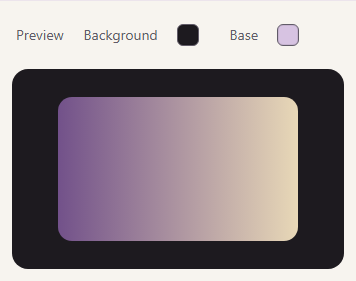
FluffyBench CSS Generator: preview context
- Background
Colors the area around the sample. It's preview context.
- Base
Colors the sample underneath the gradient. It can show through transparent stops, and it stays out of the copied CSS.
- Preview box
Its size and rounded corners belong to the preview. Your destination element supplies its own.
What do a CSS gradient's angle and stops mean?
A stop pairs a color with its position along the blend. In FluffyBench's default declaration, the angle comes before the two stops.
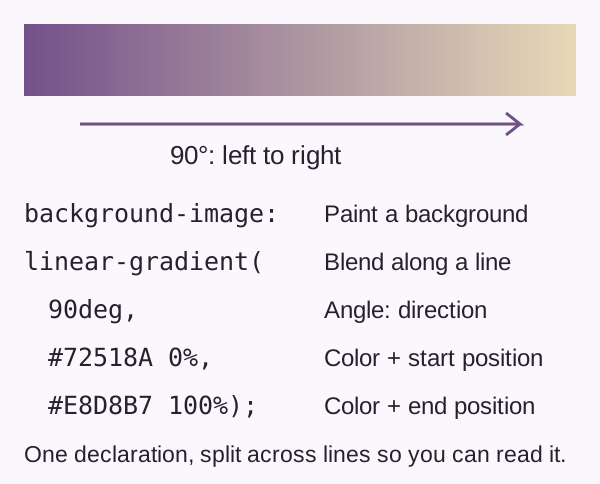
The default gradient recipe, decoded
background-image: linear-gradient(90deg, #72518A 0%, #E8D8B7 100%); Stop positions control how much room the colors have to blend. Give both stops the same position and they meet at a sharp edge.
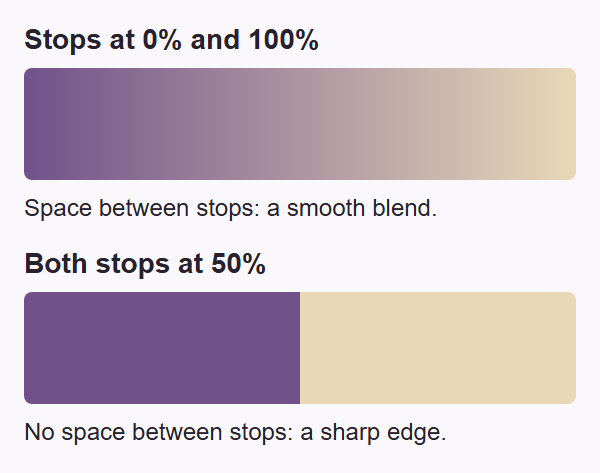
Same colors and box; different stop positions
Need the color notation decoded? HEX, RGB, and HSL describe the same colors in different ways. For a blend that spreads outward, FluffyBench's CSS Generator explains radial gradients.
Why can the same CSS gradient look different on your page?
A gradient's percentage positions follow the element it's painted on. The same recipe spreads across more space in a wider box.
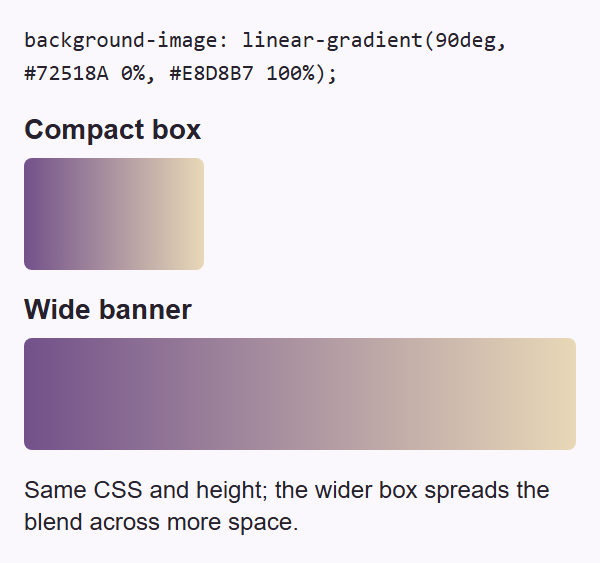
One default declaration, two box widths
Lowering a stop's Opacity writes its color as rgba(...), whose final alpha value lets the base show through. The same purple stop then looks light or dark as its base changes.
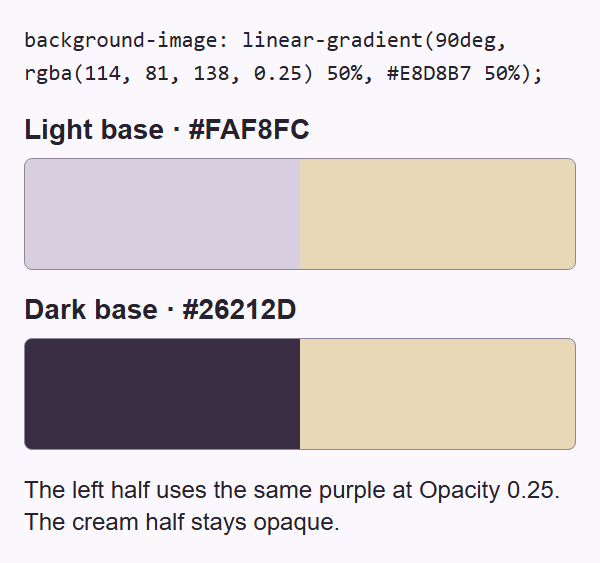
One partial-opacity declaration, two base colors
Doing it in FluffyBench
Use FluffyBench's CSS Generator to make the purple-to-cream blend. Here's the path from Gradient controls to Copy CSS.
-


Step 1. Choose Gradient in FluffyBench’s CSS Generator. - Gradient opens the color-blend workspace.
-
-
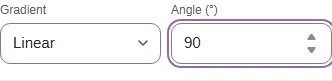
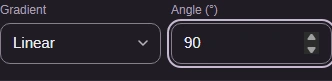
Step 2. Use Linear and Angle 90° for the purple-to-cream example. - Gradient chooses the shape; use Linear.
- Angle (°) sets the direction; enter 90.
-
-
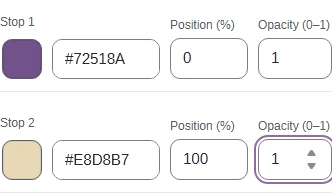
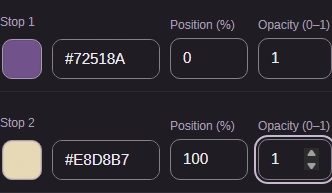
Step 3. Set the two colors and their positions. Opacity 1 keeps both stops opaque. - Stop 1: #72518A, Position 0%, Opacity 1.
- Stop 2: #E8D8B7, Position 100%, Opacity 1.
-
-
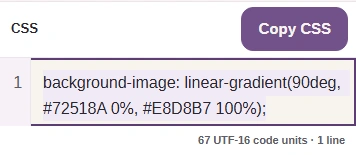
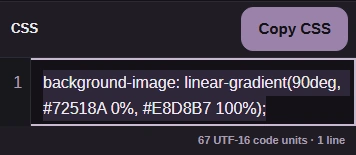
Step 4. The CSS result updates as you edit. Press Copy CSS to take the complete declaration. - CSS contains the property and gradient value.
- Copy CSS copies the complete declaration.
-
The copied declaration goes inside your destination element's CSS rule. Here's the final check on an example page, separate from FluffyBench's preview.
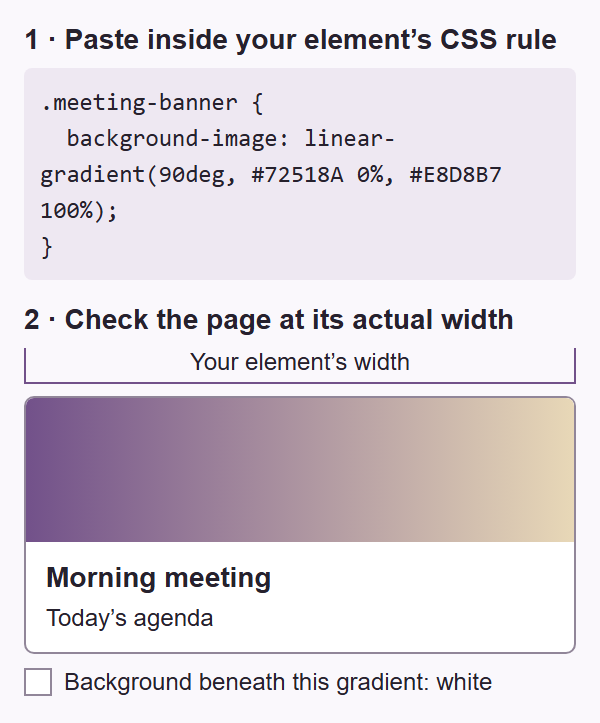
After copying: apply and check the destination
For the curious: why can the same gradient colors produce a different middle?
The interpolation space is the path a blend takes between its colors. In the measured browser rendering, changing that path took the middle from gray to soft blue, with the same blue and yellow endpoints.
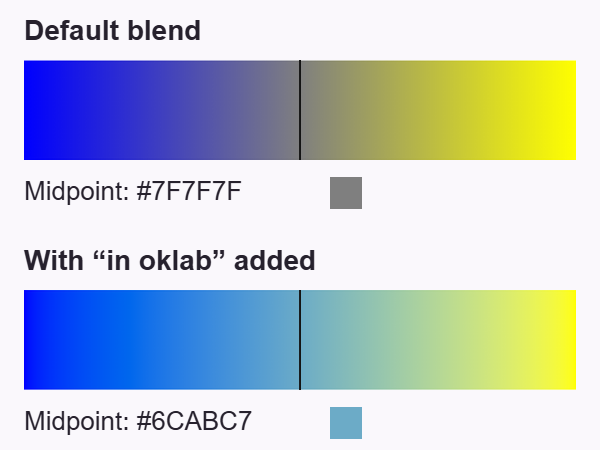
Same endpoints; default blend versus Oklab
#7F7F7F; Oklab #6CABC7. FluffyBench's output doesn't add an interpolation-space clause. Oklab is a color space designed around how people see color differences. Adding in oklab to the CSS chooses that path; it isn't a switch in FluffyBench's Gradient controls.