
How do I download a batch of photos as one ZIP?
Converting a batch of photos? FluffyBench can start one ZIP download while the rest are still processing, so finished copies don't pile up in your browser's storage.
Or it can wait and pack the whole batch at the end. Here's how to choose, what you'll find inside, and when it's safe to close the page.
Which ZIP download should I choose?
Think of a ZIP as a parcel: one file that holds many. FluffyBench can pack that parcel two ways. It can wait until every photo is finished and pack them all at once, or it can start the parcel right away and drop each photo in the moment it's ready.
Here's the same three-photo batch both ways.
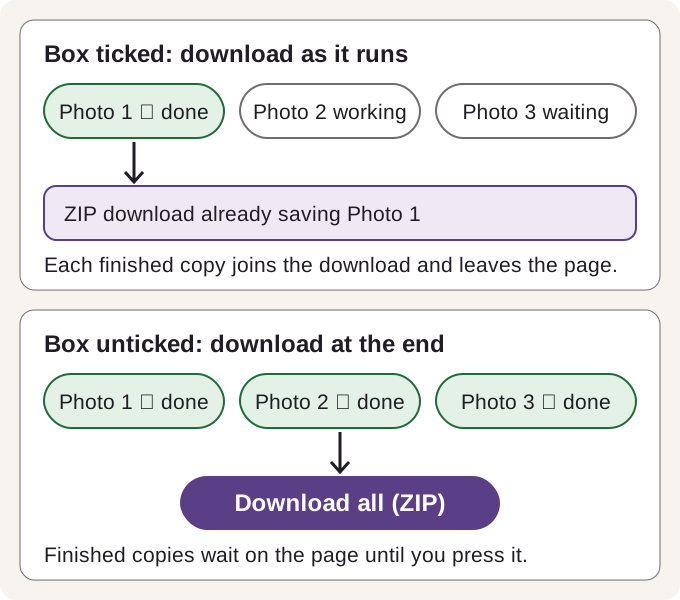
Download as it runs, or at the end
Here's a real live ZIP partway through a three-photo batch in FluffyBench Image Space Saver. One photo is already in the download while the other two are still being worked on.
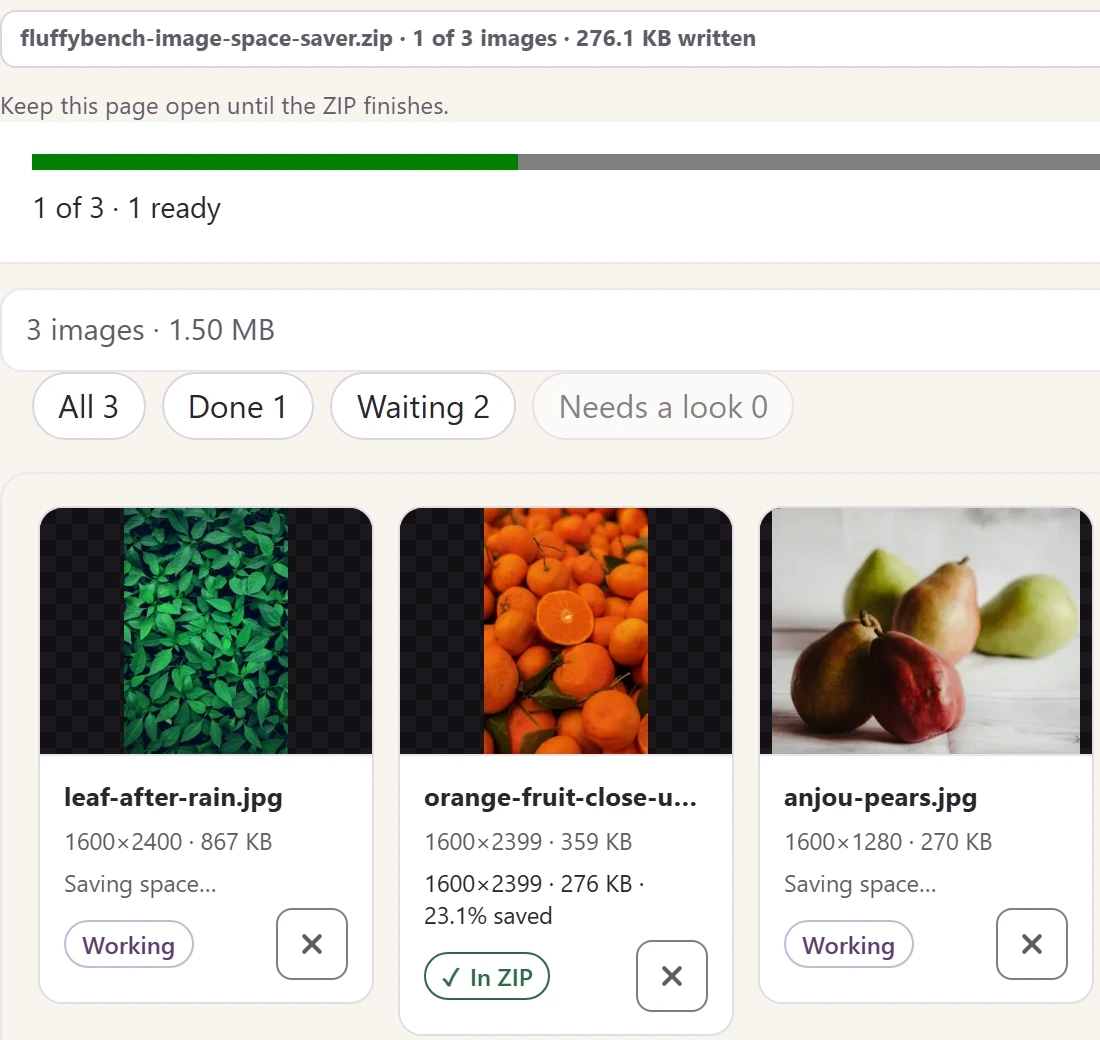
A live ZIP while the batch is still running
- ZIP already downloading
The ZIP's name and how much of it has been written so far.
- Batch progress
1 of 3 · 1 ready: one photo is finished, two are still going.
- In ZIP
The orange-fruit photo is in the download, so the page has let go of it.
For a handful of photos, waiting is simplest: you can look over the results and keep only the ones you like. For a big batch, download as it runs. Each finished copy leaves the page once it's in the ZIP, so hundreds of photos don't pile up in your browser's storage. If a batch looks big enough to fill that storage, FluffyBench suggests the live ZIP before it starts.
What will I find inside the ZIP?
Either way, your browser saves one file ending in .zip. A double-click on most computers, or a tap in most phone file apps, opens it.
Inside are your converted copies, named after your photos. The live ZIP keeps them in one folder; Download all (ZIP) puts them straight inside.
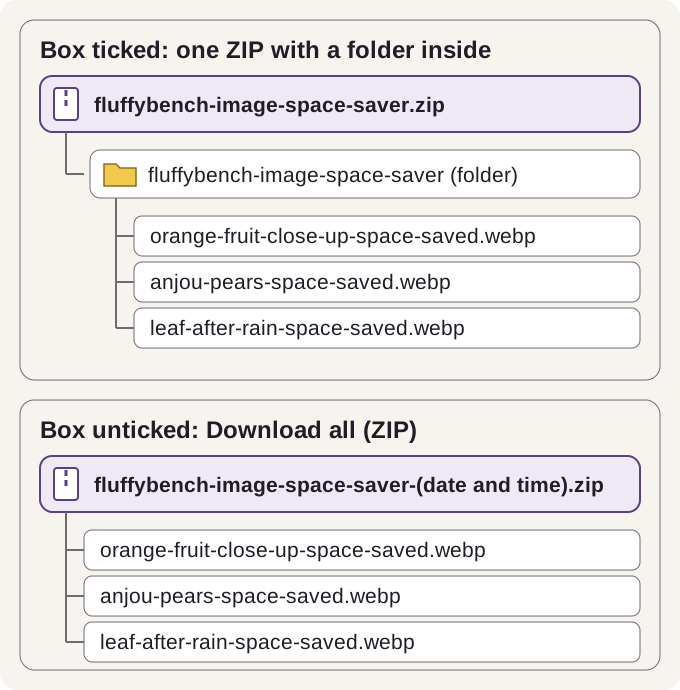
What each ZIP holds
A photo that fails to convert isn't added to the ZIP, and the status line counts it, so you'll know if one is missing.
Doing it in FluffyBench
FluffyBench Image Space Saver makes a batch of photos smaller and offers both ZIP choices. The box sits in Settings, and you set it before the run starts.
To download as it runs, tick the box before you press Process. Here's the whole job with three photos.
-
Step 1. Choose the photos for your batch. This example uses three. - Choose images opens your file picker.
-
-
Step 2. Open Settings: the gear button that shows your current choice (here Auto Balanced · Universal). The ZIP choice lives there with the output options. - The gear button opens the options; tap it again to close them.
-
-
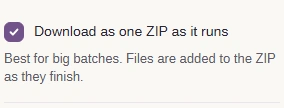
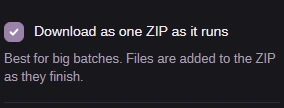
Step 3. Tick Download as one ZIP as it runs before you start. It can't be changed once the run begins. - Tick the box before the run starts.
-
-
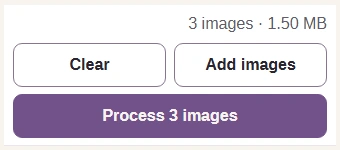
Step 4. Close Settings and press Process 3 images. The ZIP download starts right away and fills as photos finish. - Process 3 images starts the run and the download.
-
To look over the results first, leave the box unticked and download when the run ends.
-
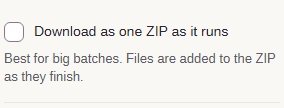
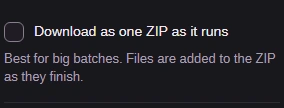
Step 1. In Settings, leave Download as one ZIP as it runs unticked. That's how the page opens. - Leave the box unticked.
-
-
Step 2. Close Settings and press Process 3 images. Finished copies stay on the page. - Process 3 images converts the batch.
-
-
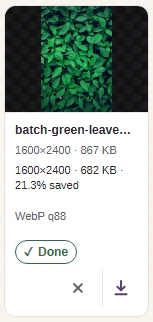
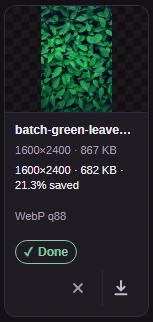
Step 3. Each finished result has its own Download button, the down arrow, handy when you need only one or two. - Check the new size.
- Download saves this one image.
-
-
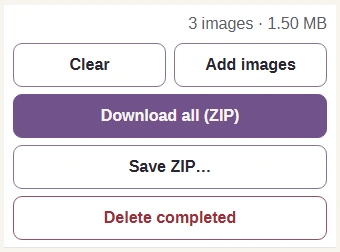
Step 4. Press Download all (ZIP) to hand the whole batch to your browser as one ZIP. - Download all (ZIP) saves every result in one ZIP.
-
Want to pick the folder yourself? In browsers that let a page write to a file you choose, Save ZIP… sits under Download all (ZIP).
-
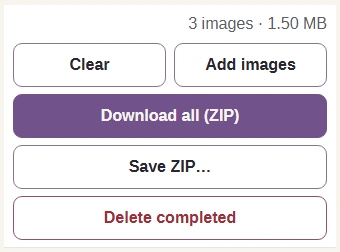
Step 1. After a run with the ZIP box unticked, press Save ZIP… instead of Download all (ZIP). A small FluffyBench window opens. - Save ZIP… opens a small save window.
-
-
Step 2. In the new window, press Choose where to save the ZIP, then pick a folder and name in your browser's save dialog. - This button opens your browser's save dialog.
-
-


Step 3. The small window closes by itself. ZIP saved. means every byte is written to the file you picked. - The ZIP is fully written to your file.
-
Converting to one format instead? FluffyBench's WebP converter and PNG converter have the same Download as one ZIP as it runs box and Download all (ZIP) button. In those converters, the box shows up once you've added at least two images.
Ready to make a ZIP of your own photos in FluffyBench?
When is it safe to close the page?
Not the moment the progress bar fills. It depends on who writes the file: your browser, or FluffyBench itself.
Each way of saving ends with its own message in FluffyBench Image Space Saver.
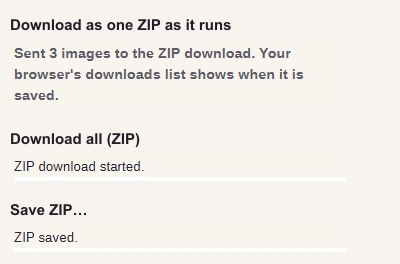
How each way of saving ends
- Live ZIP
Every image is in the download. Your browser finishes saving it.
- Download all (ZIP)
Your browser has the ZIP and is saving it.
- Save ZIP…
FluffyBench wrote every byte to the file you picked. You're done.
During a live run, FluffyBench asks you to keep the page open until the ZIP finishes, because closing it stops the download. If your browser cancels the ZIP, FluffyBench says so and keeps your images on the page, so you can run the batch again for a fresh ZIP. If a big download stalls on a phone or in a private window, here's why large downloads fail in incognito and Firefox Android.