
Why does resizing photos use so much memory?
A photo can be small enough to email and still need much more room while your browser resizes it. The browser has to unpack its pixels—and may need several working copies at once.
Why doesn't a photo's file size show its memory use?
Think of a JPEG as a folded paper map: it travels small, but you have to open it to work with it. Your browser unpacks the picture into a grid with a value for every pixel. Resizing works on that grid, so a small file doesn't mean a small memory bill.
Take a 24-megapixel JPEG: unpacking its pixels takes about 13 times the space of the file. For your own photo, width × height × 4 bytes gives the space for one grid like this.

JPEG file and pixel grid
Why can resizing need several working copies?
The browser may hold the full-size picture while it draws a smaller version on a canvas—a blank sheet it can paint on. Reading pixels back from that canvas can create another working copy before the output file is packed.

Possible working copies
That's why a smaller finished photo can still need plenty of room while it's being made. The output dimensions describe the result; the browser also has to handle the picture you started with.
How does FluffyBench help with resizing memory?
FluffyBench's Image Space Saver gives the browser a heads-up that it will read pixels back from the resizing canvas, so the browser can prepare for that work.
After the canvas change, average memory growth in Firefox's graphics process—the part that draws pictures—fell from about 104.1 to 1.3 MiB per photo in our recorded runs.
Doing it in FluffyBench: resizing a photo batch
The canvas hint is already automatic in FluffyBench's Image Space Saver. If your computer struggles with a batch, Batch speed: Light limits how many photos can be worked on at once. On phones, the tool already limits parallel work and hides that control.
Choose your photos, set their output bounds and choose Light if memory is tight. These screenshots leave the default Auto Balanced profile in place.
-


Step 1. Choose the photos you want to resize. - Choose images opens your file picker.
-
-
Step 2. Open Settings (the gear) to choose output dimensions. - Settings opens the image controls.
-
-
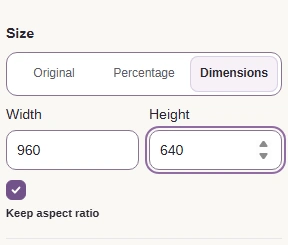
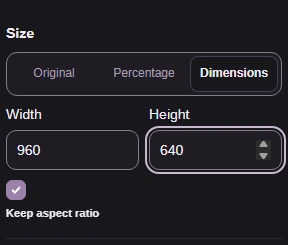
Step 3. Use your destination's pixel bounds; here they're 960 x 640. - Dimensions opens the pixel bounds.
- Width sets the horizontal bound.
- Height sets the vertical bound.
-
-
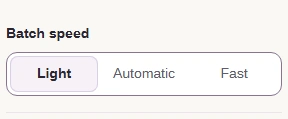
Step 4. On a computer short of memory, choose Batch speed: Light. - Light caps the number of photos worked on at once.
- Fast allows more parallel work and can use more memory.
-
-
Step 5. Close Settings after choosing the dimensions and batch speed. - Settings closes the controls in this narrow layout.
-
With the dimensions set, you're ready to make and save the smaller copies.
-
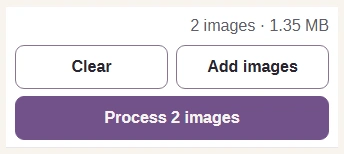
Step 1. Process the two photos with the chosen dimensions. - Process 2 images applies your settings.
-
-
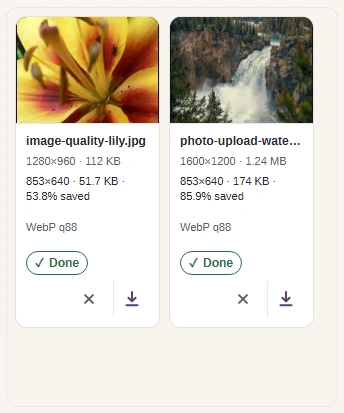
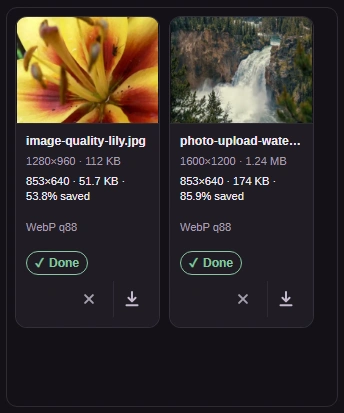
Step 2. Check the finished dimensions and file size, then Download a copy. - Compare the finished dimensions with your destination's limits.
- Download saves this finished image.
-
-


Step 3. For the whole batch, use Download all (ZIP). - Download all (ZIP) saves both finished images together.
-
If a large image still runs into a browser limit, our guide to very large images in a browser explains where time and memory go.