
Why did my ZIP fail after my photos converted?
Your photos can convert successfully while their ZIP download still fails. Here's where that handoff can break, and how FluffyBench helps keep it moving.
Why can a ZIP fail after the photos convert?
Big photo batches now download on Firefox for Android with FluffyBench Image Space Saver's Download as one ZIP as it runs option enabled and the page kept open until the ZIP finishes.
Making a photo and delivering it are separate jobs, like packing a parcel and carrying it away. In a private or Incognito window, reading a finished photo can fail; on Firefox for Android, the download can time out while it waits for the next photo.
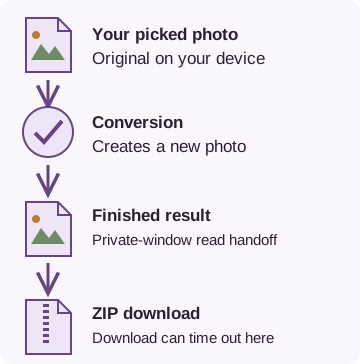
Two handoffs after conversion
Why can a private window fail to read a finished photo?
A private window has less room to hold the finished copies that the ZIP needs to read. It's like a hallway filling with packed parcels: FluffyBench clears photos into the ZIP as they're ready and limits how much waits.
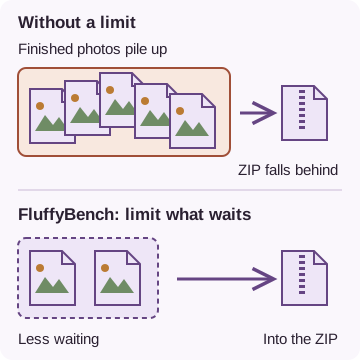
Keeping less finished work waiting
When space for finished copies runs out in a private window, conversion can finish yet the ZIP can't read the new copy. In a desktop check, a private window couldn't read a newly created file; a normal window could read one twice as large.
Why does Firefox on Android stop a ZIP during a big photo?
When we tested Firefox on an Android phone, the ZIP received no new bytes for 30 seconds while a 108-megapixel photo was still processing, and Firefox gave up. FluffyBench sends an empty ZIP block every 5 seconds during the wait, like a tap on a phone line to keep it active.
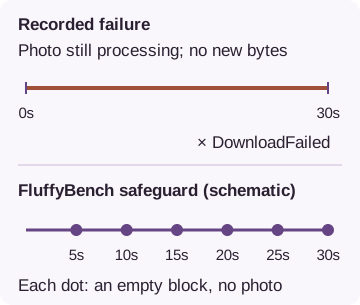
A stalled download and the safeguard
With the empty blocks, downloads kept going through 45- and 75-second pauses, and the ZIPs opened fine.
Do big ZIPs finish in private windows and on phones?
Yes. Large photo batches finished downloading as ZIPs in a desktop private window, Chrome Incognito on Android, and a Firefox private tab on Android.
Doing it in FluffyBench Image Space Saver
Use FluffyBench Image Space Saver to make smaller photo copies and feed them into one ZIP as they finish. The walkthroughs use a flower photo, a small transparent image and an unreadable JPEG to show how the checks work.
Here's download-as-you-go in FluffyBench's WebP converter: one photo is already in the ZIP while the next is still converting.
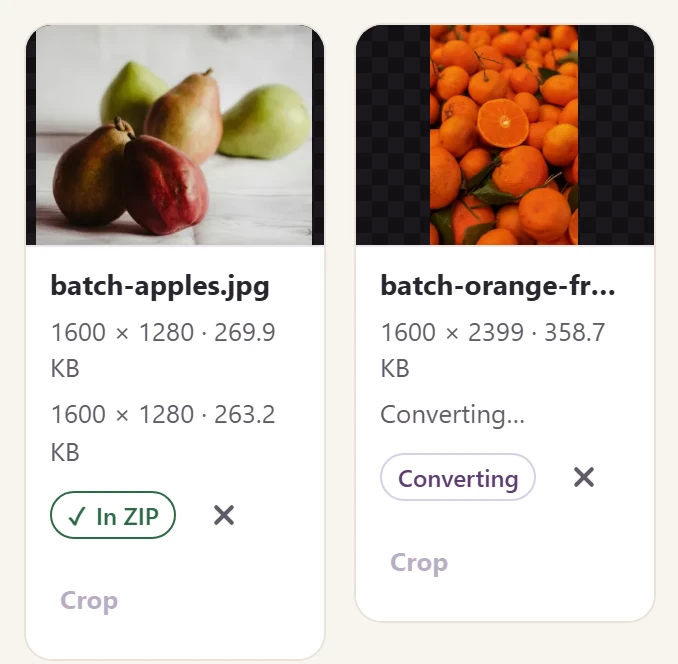
A ZIP growing while photos convert
- In ZIP
This photo is already in your download.
- Converting
This photo joins the ZIP when it finishes.
- Finished copy
The finished photo's dimensions and size are already shown.
Choose your photos and switch on the download-as-you-go option before processing starts.
-


Step 1. Choose your photos. Keep your originals until you've checked the saved copies. - Choose images opens your file picker.
-
-


Step 2. Open Settings. This example keeps the starting photo settings. - The gear button opens Settings.
-
-
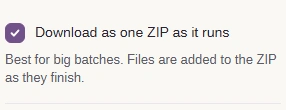

Step 3. Tick Download as one ZIP as it runs: finished photos enter the download as they're ready. - Tick the box before processing starts.
-
-


Step 4. Tap the Settings gear again to close the panel before processing. - The same gear button closes Settings.
-
Start processing, then check the photo results and that the ZIP finished saving.
-
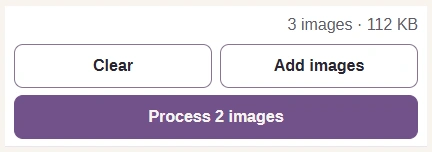
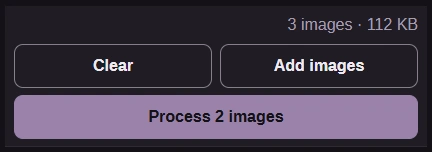
Step 1. Press Process 2 images. The count covers the two admitted images; the unreadable JPEG was rejected. - Process 2 images starts processing and the ZIP download.
-
-


Step 2. Check Done and Needs a look when processing ends. - Done counts images that finished processing.
- Needs a look includes warnings as well as failures.
-
-
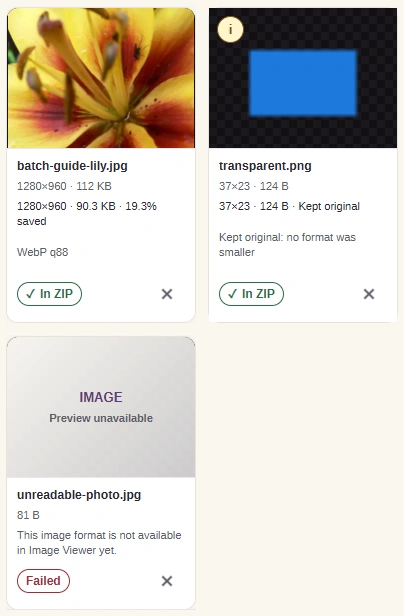
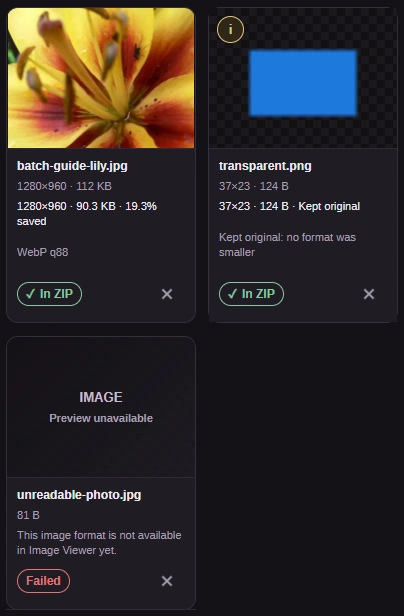
Step 3. In ZIP means a photo entered the download; Failed means a file was left out. - In ZIP means this photo entered the download.
- A warning can appear on a photo sent to the ZIP.
- Failed means this file did not enter the ZIP.
-
-
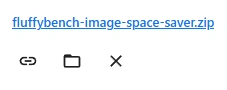
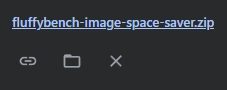
Step 4. Check that the ZIP finished in your browser's downloads list. Shown here: desktop Chromium, where Show in folder is available for the saved ZIP. Firefox on Android has a different Downloads screen. - The completed download lists the ZIP by name.
- Show in folder is available for the saved ZIP.
-
Converting to one format instead? FluffyBench's WebP converter has the same Download as one ZIP as it runs box once you've added at least two images, so finished WebP conversions can go straight into a ZIP.
Use FluffyBench Image Space Saver to make smaller copies and download them as one ZIP
How we reviewed: storage checks and completed ZIPs
We checked delivery of large archives by running photo batches in desktop and phone private windows. The table separates selected files from ZIP entries and records exclusions; the device and browser details are below.
| Run | ZIP and time | Inputs and checks |
|---|---|---|
| Desktop Chromium · private window | 19.1 GB · 2 h 3 min | 9,938 entries; 0 checksum errors; 62 files left out as image sequences. |
| Android Chrome · Incognito | 2.13 GiB (binary gigabytes) · 31 min | 1,200 files selected; 1,193 entries in the ZIP. Excluded selections were not converted. |
| Firefox Android · private tab | 380.2 MB · 4 min 36 s | 201 files picked; 10 HEIC files and a manifest left out. Archive integrity, headers, duplicate names, and file names checked out. |