WebP converter

Convert images to WebP; a lossless mode is available.

FluffyShield Protected workspace
From
To

Convert to

Common

Any image Mix formats in one batch
WebP Small files for the web
JPG Opens anywhere
PNG Lossless with transparency
AVIF Modern web images
JPEG XL JPEG XL images
GIF GIF images

Icons and print

ICO Windows icon
ICNS Mac icon
CUR Cursor image
TIFF Print and archival image
BMP Windows bitmap
APNG Animated PNG image

Game textures

DDS Game texture
KTX GPU texture
KTX2 GPU texture
VTF Valve texture

Your images stay when you change the format. Press Convert again to make the new files.

FluffyShield

Isolated workspace: other page scripts can't read your files. How FluffyShield works

Need a WebP copy of a picture?

A WebP copy isn't always smaller: a screenshot can shrink a lot, while a photo that's already a JPG may barely change. FluffyBench's WebP converter makes the copy right on your device, lets you choose Lossy or Lossless and the Quality, and shows the size before you save.

Can the place you're sending it open WebP?

WebP is a picture format made for websites. Many sites and apps open it, but some upload forms still accept only JPEG or PNG, so check before you convert a whole folder. For apps and browsers, our format compatibility guide shows how to check.

The upload form's list of accepted file types, or its help page, gives you the answer.

Two example upload forms: one accepts JPG, PNG and WebP, so you make the WebP in FluffyBench; the other accepts only JPG and PNG, so you make the format it asks for.
Example lists for illustration. How we reviewed

Lossy or lossless: which WebP do you need?

WebP gives you two ways to pack a picture. Think of packing a suitcase: Lossy leaves behind a few things you probably won't miss, while Lossless packs every item exactly. In FluffyBench's WebP converter, that's the Compression setting. As a rule of thumb, choose Lossy for photos, and Lossless for screenshots, text and logos.

Here's why, with a photo, a screenshot and a transparent graphic, each converted both ways at the starting settings.

Photo

Original JPG
215.3 KB
Lossy WebP
209.6 KB
Lossless WebP
715.0 KB

Screenshot

Original PNG
35.2 KB
Lossy WebP
31.5 KB
Lossless WebP
16.1 KB

Transparent graphic

Original PNG
2.9 MB
Lossy WebP
482.5 KB
Lossless WebP
2.0 MB
The photo barely shrank with Lossy, and Lossless made it more than three times bigger: a photo is full of fine, uneven detail, and an exact copy has to store all of it. The screenshot went the other way. Its flat colors and repeated shapes pack neatly, so the Lossless copy was less than half the size of the original PNG. The transparent graphic shrank the most with Lossy, to about a sixth of its size. Each group has its own scale, so compare each WebP with its own original.

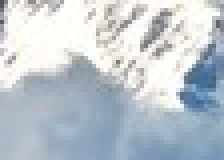
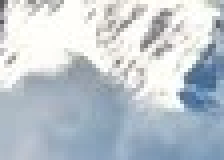
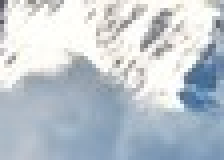
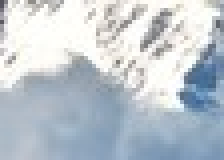
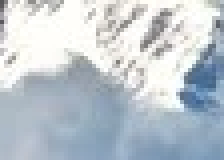
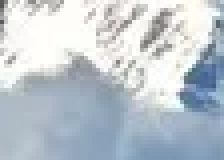
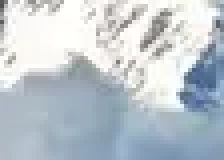
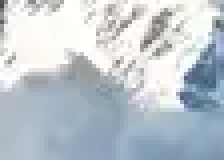
Does the Lossy copy look worse? Here's the same patch of the mountain photo in all three files.
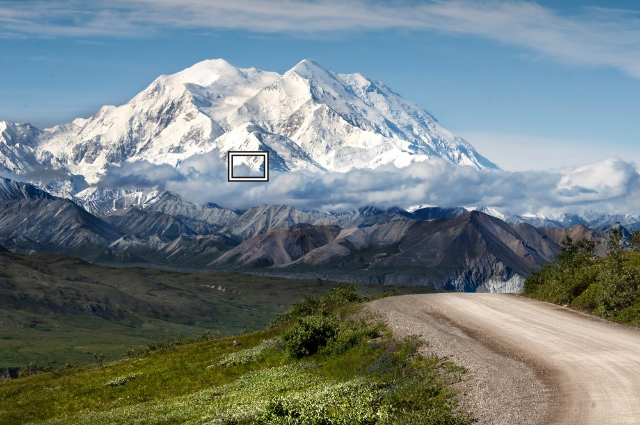
Whole Denali photograph with the compared mountain region marked.

Original JPG

Snowy mountain detail in the original JPG.

215.3 KB

Lossy WebP

The same mountain detail in the lossy WebP.

209.6 KB

Lossless WebP

The same mountain detail in the lossless WebP.

715.0 KB

The Lossy copy is hard to tell apart from the original. Enlarged matched crops; sizes are for the complete files. · Photo: NPS Photo / Tim Rains, Public domain, via National Park Service.

Small text is where Lossy shows. Here's the same word from the screenshot: Lossy dulls the colored fringes around the letters, while Lossless keeps them.
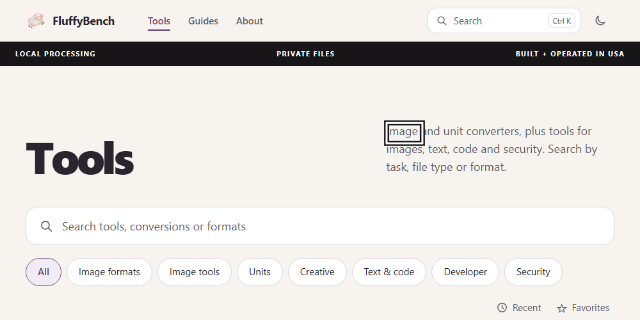

Whole FluffyBench screenshot with the compared lettering marked.

Original PNG

Interface lettering in the original PNG screenshot.

35.2 KB

Lossy WebP

The same lettering in the lossy WebP.

31.5 KB

Lossless WebP

The same lettering in the lossless WebP.

16.1 KB

Enlarged matched crops; sizes are for the complete files. Here Lossless was both exact and the smallest.

Will the WebP be smaller than your picture?

Not always. Two things decide the size: what's in the picture, and the Quality number that Lossy uses. Quality starts at 92, which keeps almost all the detail. A photo that's already a JPG has been compressed once, and at 92 the WebP keeps nearly everything that's left, so the file stays about the same size: the mountain photo above saved just 2.6%, and a batch of 1,000 files we converted at the starting settings came out about 12% bigger overall. A lower Quality is what makes a photo lighter.

Here's the same patch of the mountain photo at four Quality settings, starting from 92, with each whole file's size.
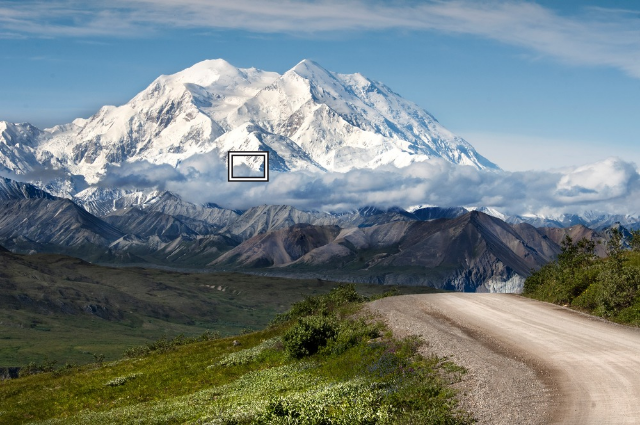
Whole Denali photograph with the compared mountain region marked.

Scroll to compare settings →

Original JPG

Snowy mountain detail in the original JPG.

215.3 KB

Quality 92

The same mountain detail in the Quality 92 WebP.

209.6 KB

Quality 80

The same mountain detail in the Quality 80 WebP.

123.4 KB

Quality 70

The same mountain detail in the Quality 70 WebP.

95.0 KB

Quality 50

The same mountain detail in the Quality 50 WebP.

75.0 KB

Rendered for illustration.

Stepping down from 92 to 80 cuts the file sharply with little visible change; by 50 the dark streaks in the rock look softer. Enlarged matched crops; sizes are for the complete files. · Photo: NPS Photo / Tim Rains, Public domain, via National Park Service.

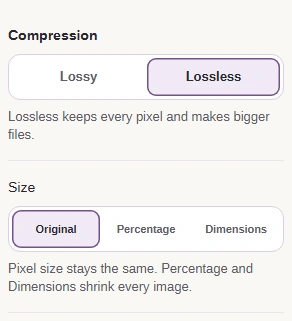
Here's where these controls are in Settings: Compression, then the two controls that only Lossy uses.
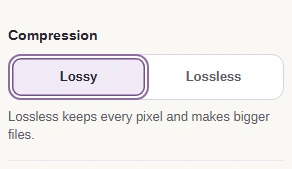
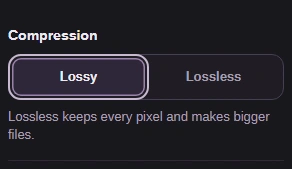
  1. Compression set to Lossy.
    Compression set to Lossy.
    Step 1. Lossy drops a little detail, and Quality decides how much.
    1. Lossy is the starting choice.
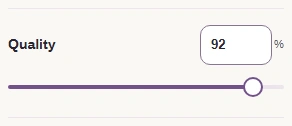
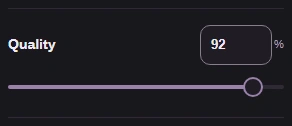
  2. Quality set to 92.
    Quality set to 92.
    Step 2. With Lossy, Quality trades detail for size. Lower numbers make smaller files.
    1. 92 is the starting value.
    2. Drag left for a smaller file.
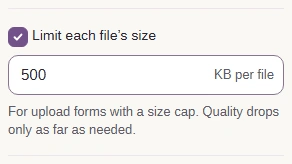
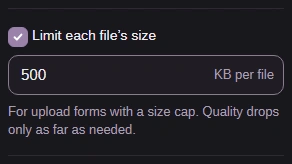
  3. Limit each file's size turned on, with 500 in KB per file.
    Limit each file's size turned on, with 500 in KB per file.
    Step 3. Optional, Lossy only: enter an upload's size cap and FluffyBench lowers Quality only as far as needed.
    1. Turn on Limit each file's size.
    2. Type the cap in KB per file.
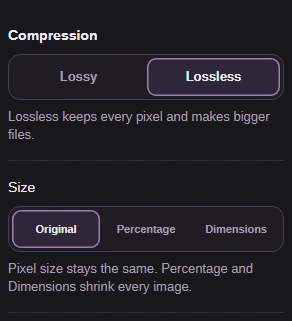
  4. Compression set to Lossless, with no Quality slider or size limit below it.
    Compression set to Lossless, with no Quality slider or size limit below it.
    Step 4. Lossless keeps every pixel. Quality and Limit each file's size disappear, because there's nothing to trade.
    1. Lossless keeps every pixel.
    2. Size comes next: Quality and the size limit are gone.

What about transparent or animated pictures?

Transparent backgrounds come through in both modes. Here's the edge of a transparent Earth graphic on a checkerboard: the checks show through beside the planet in each copy.
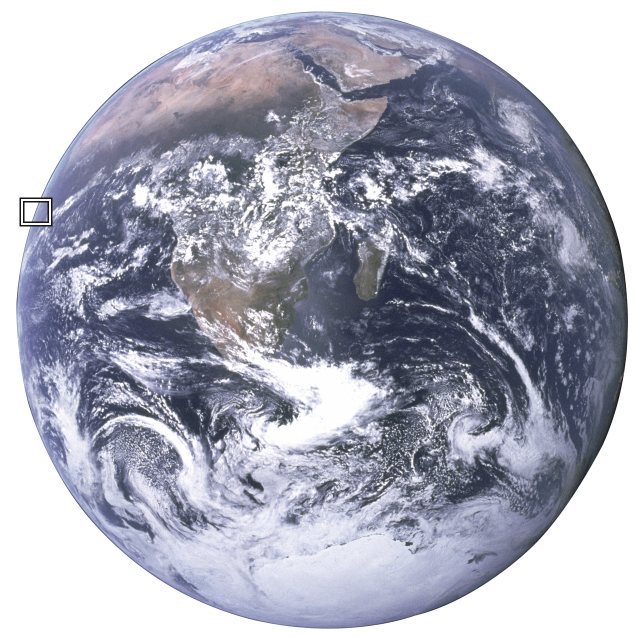

Whole transparent Earth graphic with the compared edge marked.

Original PNG

Earth's edge and the see-through space beside it in the original PNG.

2.9 MB

Lossy WebP

The same Earth edge in the lossy WebP; the space beside it stays see-through.

482.5 KB

Lossless WebP

The same Earth edge in the lossless WebP; the space beside it stays see-through.

2.0 MB

Enlarged matched crops on a checkerboard; sizes are for the complete files. · Photo: NASA, Public domain, NASA-created image, via Wikimedia Commons.

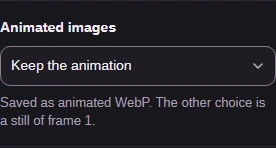
For a moving GIF or WebP, the Animated images setting decides what you get.
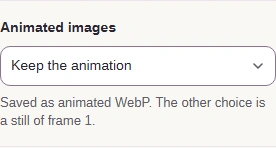
  1. Animated images set to Keep the animation.
    Animated images set to Keep the animation.
    Step 1. Animated images decides what happens to a moving GIF or WebP.
    1. Keep the animation, or pick Still of frame 1.

Keep the animation carries the frames into an animated WebP. Still of frame 1 saves just the first picture.

Three rows of mule poses: the animated GIF's frames, the same frames in an animated WebP, and frame 1 alone as a still WebP.
Frames from Muybridge's Kicking Mule, shown for illustration. · Photo: Eadweard Muybridge, Public domain in the United States, via Wikimedia Commons.

FluffyBench keeps animations of up to 500 frames and 64 million frame pixels in total, and Limit each file's size isn't available while an animation is kept. For more on moving pictures, see our animation guide.

Converting to WebP in FluffyBench

Here's the whole job in FluffyBench's WebP converter, from choosing a picture to saving the WebP. If the size readout shows little or no saving, lower Quality and convert again.
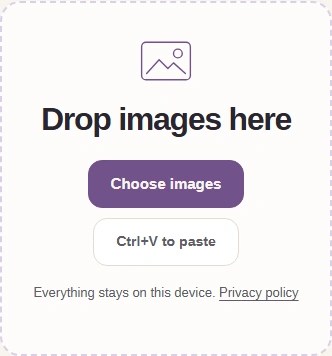
  1. The WebP converter's intake with the Choose images button.
    The WebP converter's intake with the Choose images button.
    Step 1. Choose your pictures. They stay on your device.
    1. Choose images opens your file picker.
  2. The Settings button above the converter.
    The Settings button above the converter.
    Step 2. Open Settings and pick Lossy or Lossless. On a phone, tap the gear button again to close it.
    1. The gear button (it shows WebP · 92%) opens Settings.
  3. The Convert 1 to WebP button.
    The Convert 1 to WebP button.
    Step 3. Press Convert to make the WebP.
    1. Convert 1 to WebP makes the copy.
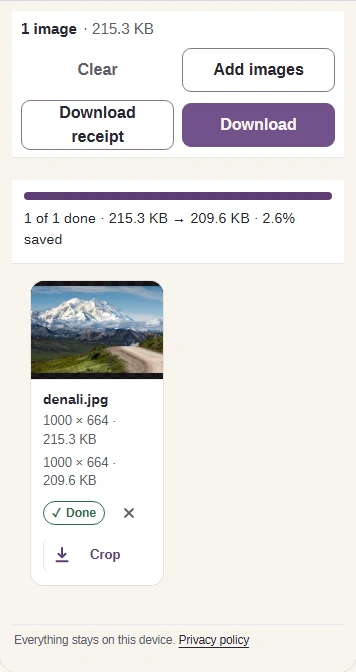
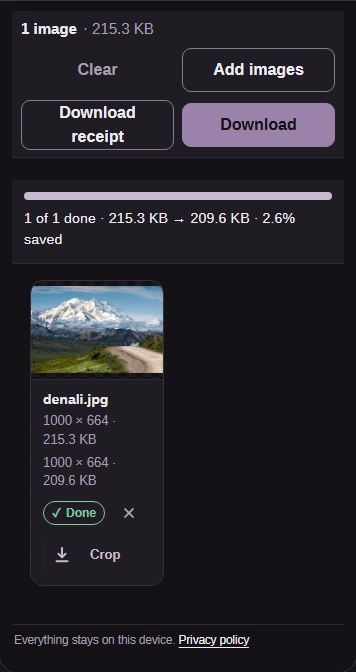
  4. Finished conversion: the size readout shows 215.3 KB before and 209.6 KB after, with the Download button.
    Finished conversion: the size readout shows 215.3 KB before and 209.6 KB after, with the Download button.
    Step 4. Check the size readout, then press Download to save the WebP. Keep your original.
    1. Size before and after converting.
    2. Download saves the WebP.
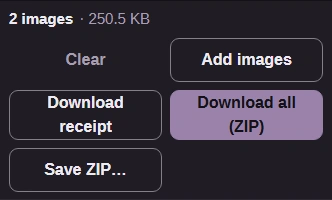
  5. Download all (ZIP) after converting two pictures.
    Download all (ZIP) after converting two pictures.
    Step 5. With several pictures, Download all (ZIP) saves them together.
    1. Download all (ZIP) saves every WebP in one file.

Check your WebP before you use it

Before you upload or send it, open the saved WebP once. FluffyBench's Image Viewer shows the picture on a checkerboard and lists its format and size in pixels.
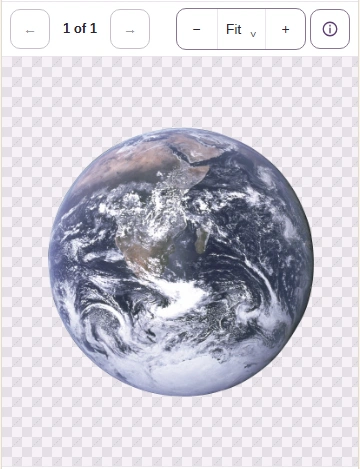
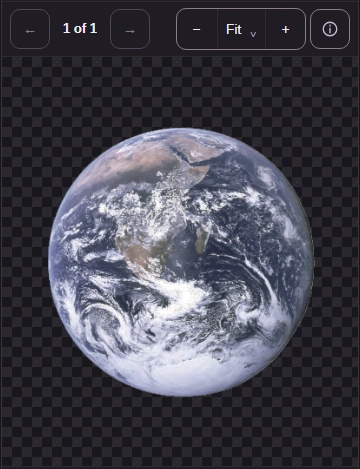
  1. The saved Earth WebP open in Image Viewer on a checkerboard.
    The saved Earth WebP open in Image Viewer on a checkerboard.
    Step 1. Open the saved WebP. The checkerboard shows through see-through areas.
    1. Check the picture and its edges.
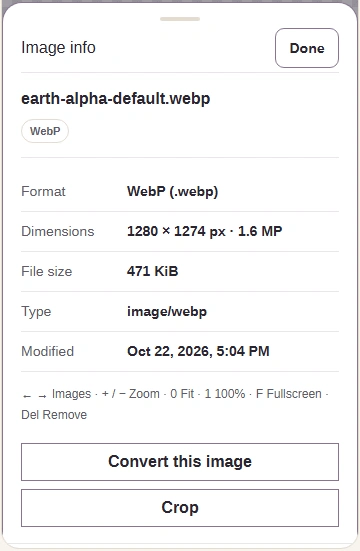
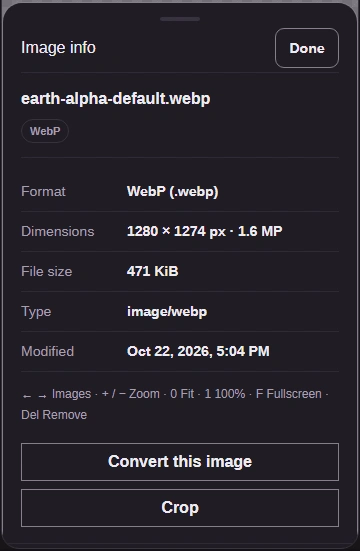
    2. Image info opens the file details.
  2. Image info lists the format as WebP and the dimensions.
    Image info lists the format as WebP and the dimensions.
    Step 2. Image info confirms the format and pixel dimensions.
    1. Format should say WebP.
    2. Dimensions match the original unless you changed Size.
    3. Done returns to the picture.

Then try it in the place it's going.

When WebP isn't the right result

The destination asks for JPEG

FluffyBench's JPG converter

Makes the photo format it requests; JPG fills see-through areas with a color.

You need PNG or an exact working copy

FluffyBench's PNG converter

Keeps every pixel and transparency for editors and forms that ask for PNG.

You need the smallest file, and the format doesn't matter

FluffyBench's Image Space Saver

Finds a resize and quality that fit the file size you set, in the format you pick.

The destination takes AVIF

FluffyBench's AVIF converter

Makes an AVIF copy when the destination asks for that newer format.

An app won't play animated WebP

FluffyBench's GIF converter

Makes an animated GIF for apps that only play GIF animations.

Lossless also has a size limit: about 128 million pixels on a computer and 96 million on a phone. Above it, the converter refuses the picture, so make it smaller with Size in Settings or choose another format.
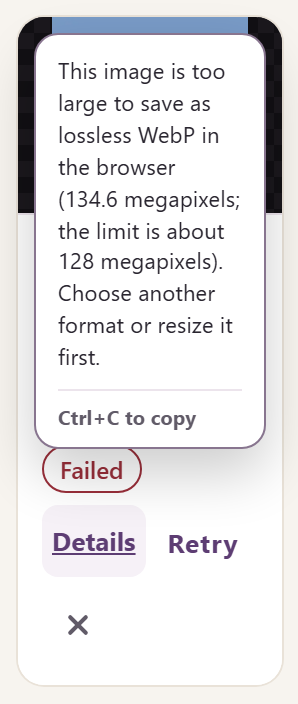
A failed WebP tile with Details open: the image is too large to save as lossless WebP (134.6 megapixels; the limit is about 128 megapixels). Choose another format or resize it first.
Press Details on a failed tile to read the whole message: the picture's size, the limit, and what to do.
Search FluffyBench