
What happens when a browser converts a camera RAW file?
Your browser develops the camera’s sensor readings into a finished picture you can share. That copy is ready to use; the RAW remains your starting point for a different edit later.
What does a camera RAW file hold?
A camera RAW file starts with sensor readings. In a mosaic sensor, each spot records red, green or blue, like a tile in a single-color mosaic; developing the photo fills in the missing colors so every spot can show a full-color picture.

A generated DNG, before and after development
That’s the difference between RAW and a ready-to-view photo. With a camera JPG, the camera has already done the developing. RAW leaves that decision to software, so you can return to the readings and develop the picture differently later.
How does FluffyBench develop a RAW photo?
FluffyBench’s Camera RAW converter makes a finished picture with fixed development choices: the camera’s white balance, automatic brightness and 8-bit sRGB color. JPG or PNG encoding comes after that development.

From sensor readings to a shareable file
The development produces solid pixels with no see-through areas. The extra tonal precision in the RAW isn’t carried into those 8-bit pixels. Choosing a higher PNG sample depth later can’t bring the original sensor readings back.
With the default PNG settings and Size on Original, PNG keeps the developed pixels; JPG adds compression that changes them a little. Neither is a smaller RAW file: each is a newly encoded picture, and its size depends on the format and settings. There’s more on why an image file can grow when you convert it.
You don’t get RAW color-development controls in FluffyBench’s Settings. Those controls change the output after development. For the difference between sRGB and other screen colors, see our color-profile guide.
Why can a RAW preview differ from the saved picture?
FluffyBench normally previews the developed picture. When a full image would exceed the preview cache, it tries a JPEG thumbnail stored inside the RAW; that’s an already finished picture, so its appearance can differ from a fresh development.

Two possible preview paths, one full-conversion path
Doing it in FluffyBench
Use FluffyBench’s Camera RAW converter when you need a JPG or PNG you can open and share. Development and encoding happen in your browser; your photo stays on your device. Here’s a PNG conversion with the picture’s original dimensions.
Follow the controls from choosing a RAW photo to downloading the finished PNG.
-
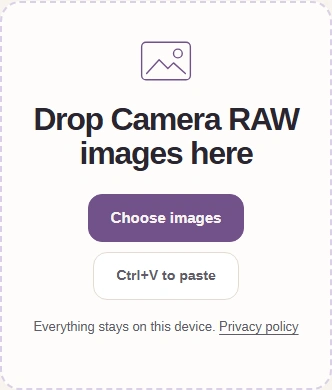
Step 1. Choose a RAW photo from your device. The walkthrough uses a photo-derived DNG rendered for illustration. - Choose images opens your file picker.
-
-
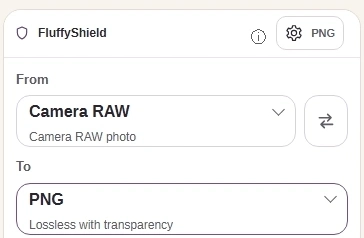
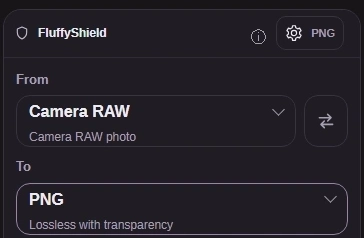
Step 2. Use TO to choose PNG for a copy of the developed pixels, then open Settings. - Choose PNG in the TO format picker.
- The gear opens Settings.
-
-
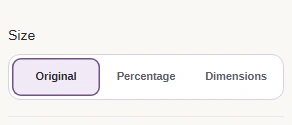
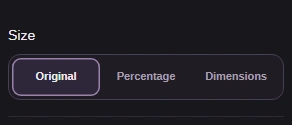
Step 3. Leave Size on Original to keep the developed picture’s pixel dimensions. Leave the other output settings at their defaults for this conversion. - Original keeps the pixel dimensions.
-
-
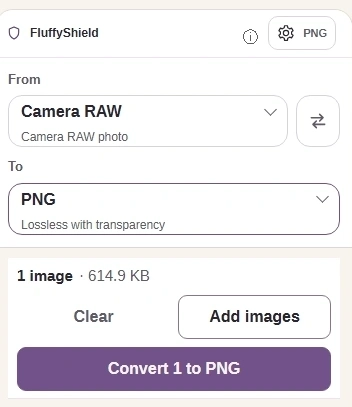
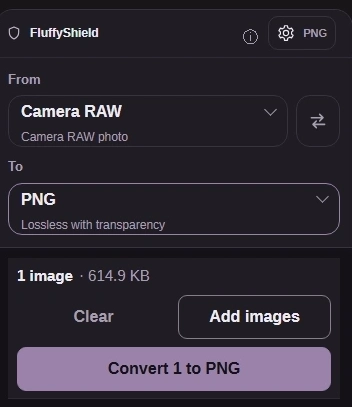
Step 4. Close Settings with the same gear, then choose Convert 1 to PNG. - Use the gear again to close Settings.
- Convert 1 to PNG creates your finished copy.
-
-
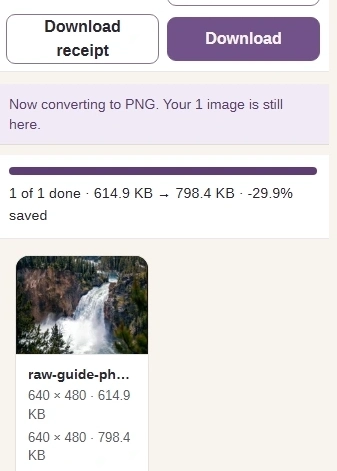
Step 5. Check the saved format, size and picture, then choose Download. Open the copy where you’ll use it; keep your original RAW for a different development later. - Check the output dimensions and file size.
- Check the developed PNG picture.
- Download saves the PNG to your device.
-