
Why can FluffyBench preview an image my browser can't?
Because choosing a file and drawing it are two different jobs. FluffyBench's Image Viewer can read some extra formats on your device and hand the browser a picture it can draw, even when the browser's own preview can't read the original format.
What happens when you choose an image?
Choosing a file only hands it to a tool. Nothing has tried to draw it yet, and an ending like photo.qoi or scan.tiff is just a label for the file's format.
Drawing it takes a reader, also called a decoder: a translator that turns the file's format into colored dots called pixels. The browser can draw any pixels it's handed; it just needs some reader to translate the file first.

Two ways from a file to a picture
How does FluffyBench preview formats the browser can't read?
When the browser has no reader for a format, FluffyBench's Image Viewer brings its own. It reads the file on your device, so nothing is uploaded, and hands the browser pixels it already knows how to draw.
Here's a poppy photo saved as QOI, a simple image format, open in FluffyBench's Image Viewer on a computer.
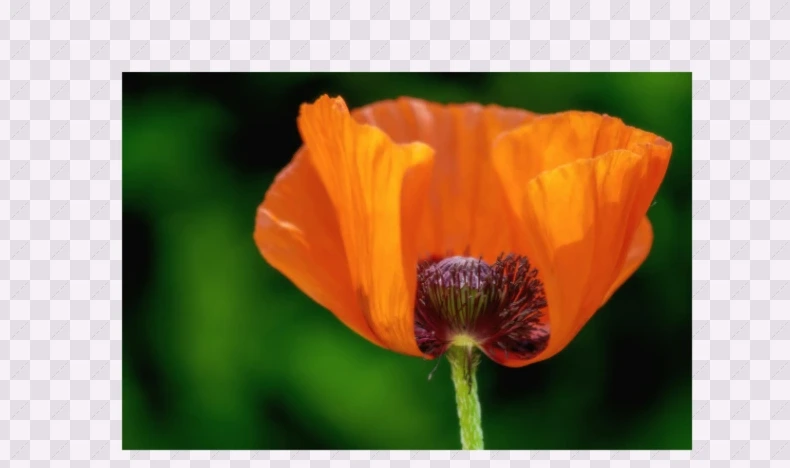
The picture in the viewer
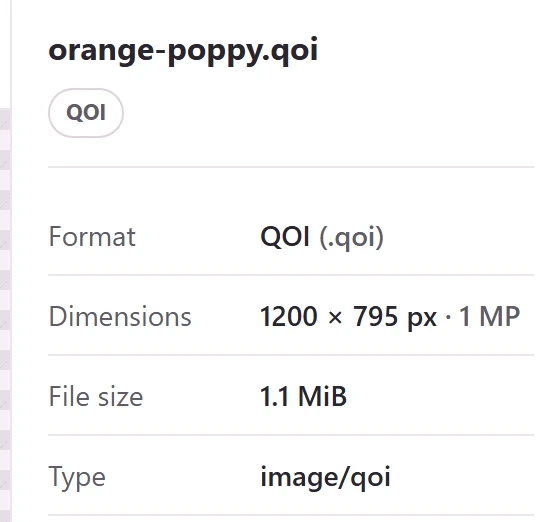
The file details beside it
- The picture
Pixels the Image Viewer read from the QOI file, drawn by the browser.
- The file you chose
orange-poppy.qoi, opened from this device.
- Format
QOI (.qoi): the original format, left unchanged.
That reader belongs to the Image Viewer. It doesn't teach the browser a new format, so other websites and apps on the same device still depend on what their own readers know.
Why do browser previews differ?
Browsers don't all ship the same readers, so a format one browser shows can stay blank in another. Here's what MDN, Mozilla's widely used web reference, publishes for three browsers, next to the reader the Image Viewer uses.
| Format | Chrome | Firefox | Safari | Image Viewer reader |
|---|---|---|---|---|
| JPEG | Yes | Yes | Yes | Browser's own reader |
| PNG | Yes | Yes | Yes | Browser's own reader |
| WebP | Yes | Yes | Yes | Browser's own reader |
| AVIF | Yes | Yes | Yes; partial in earlier releases | Browser's own reader |
| TIFF | No | No | Yes | Local TIFF reader |
| QOI | Not listed | Not listed | Not listed | Local QOI reader |
Each browser cell links to MDN. Not listed means MDN has no entry for that format; it doesn't mean a browser was tested and failed.
What can a preview leave out?
Seeing a picture doesn't always mean you've seen the whole file. Some formats hold several pages, pictures or layers, and a preview shows one at a time.
This TIFF holds two photos. The Image Viewer opens the first and tells you there's another one.
-
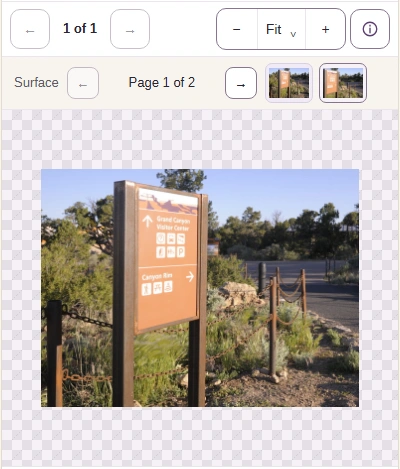
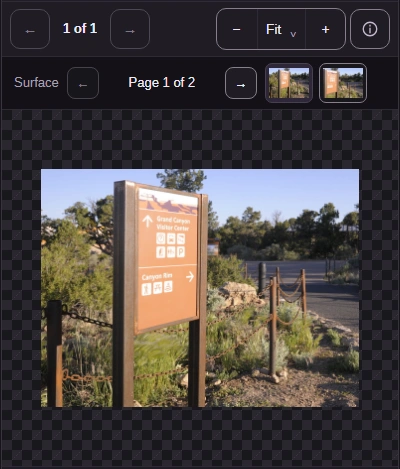
Step 1. The TIFF opens at its first page. The page count and thumbnails show there's more in the file. - Page 1 of 2: you're seeing one of two pages.
- The second thumbnail opens page 2.
-
-
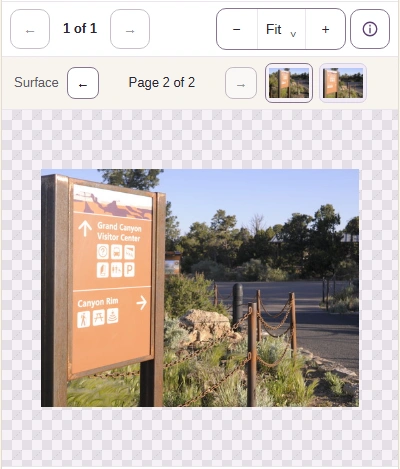
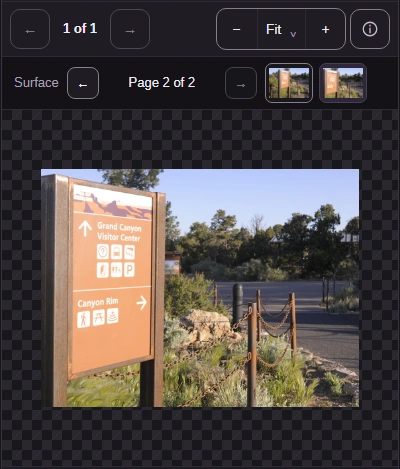
Step 2. Page 2 is a different picture stored in the same file. - Page 2 of 2 confirms the page changed.
- The first thumbnail returns to page 1.
-
A screen can also show less color detail than a file holds, and a picture on screen doesn't show tucked-away extras like the camera's notes. If those parts matter, keep the original. The guide to pages, layers and image surfaces explains what each of them is.
Doing it in FluffyBench: check a file, then share a copy that opens
Got a file you're not sure about? FluffyBench's Image Viewer shows you the picture and tells you what the file really is.
Here's how to look inside a file on a phone. On a computer, the same details sit beside the picture.
-
Step 1. Open the Image Viewer and choose the file you're unsure about. It stays on your device. - Choose images opens your file picker.
-
-
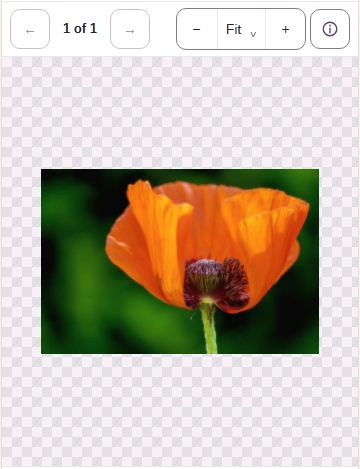
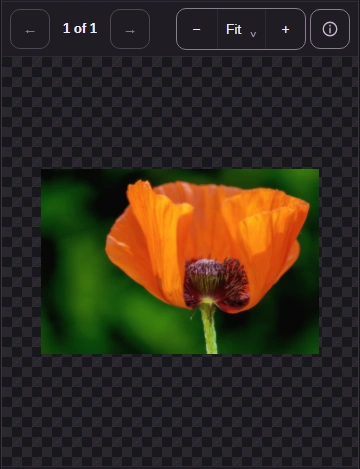
Step 2. The picture appears once the Image Viewer has read the file. Look it over, then open the details. - Check that the picture looks the way you expect.
- Image info opens the file details.
-
-
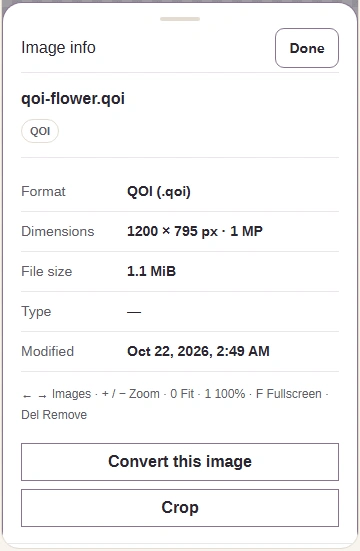
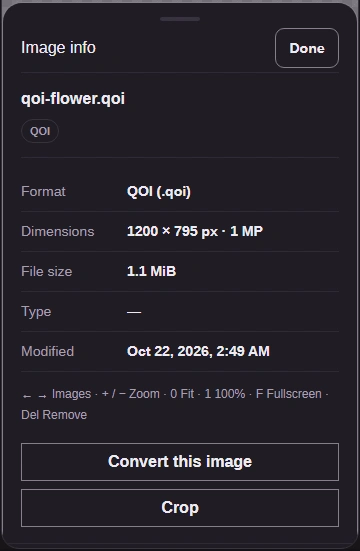
Step 3. Image info names the file's real format and its size, the details to compare with what a receiving app accepts. - Format names what the file really is: QOI here.
- Dimensions give the picture's width and height in pixels.
- Done closes the details and returns to the picture.
-
A clear preview tells you the file is readable on your device. Whether it opens somewhere else depends on that app's own readers, so check the place it's going before you send it.

Three checks before you share an image
For step 2, FluffyBench's PNG converter and WebP converter both make copies in formats MDN lists for Chrome, Firefox and Safari. Not sure which one the destination wants? The image format guide compares the common choices.