
Which image format should you choose?
A photo, a screenshot and a see-through logo don't need the same kind of file. Here's how to pick a format that keeps what matters and opens where you'll use it.
Which common format fits your image?
Each format keeps some things and lets others go. PNG keeps every pixel exactly, JPG makes photos small, and only some formats keep a see-through background. So the right pick depends on what the picture is and where it's going.
Find the row that sounds like your image, then follow it to the format to try.

Which common format fits your image?
One exception: an animated GIF, a multi-page TIFF or a layered file holds more than one picture, and a still format keeps only one of them. Check what's inside a file like that before you convert it.
What do lossless and lossy saves keep?
Formats save a picture in one of two ways. A lossless format, like PNG, is a photocopy: every pixel comes back exactly as it was saved. A lossy format, like JPG, is more like a good summary: it keeps what your eye notices and drops fine detail to make the file smaller. WebP can work either way.
Here's what a lossy save does to sharp edges. A patch of an app screenshot was saved as JPG at quality 60, and that JPG was then saved back as PNG.

Original PNG: 62.0 KB

JPG: 37.4 KB

JPG saved as PNG: 151.8 KB
- Clean edges
The space around the original digits is clear.
- JPG speckles
Look just outside the dark strokes: the JPG added speckles.
- Same marks
Saving as PNG kept the JPG's marks exactly.
What happens to see-through backgrounds and scalable drawings?
Two more things can get lost in a save. The first is a see-through background. PNG, WebP and AVIF can keep one, but JPG can't, so FluffyBench's JPG converter fills those areas with a solid color.
Here's the same sign cutout saved as PNG and as JPG, both shown on a dark background so you can see which parts are see-through.
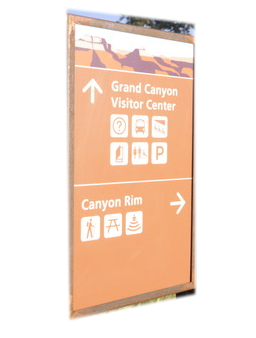
PNG: background stays see-through
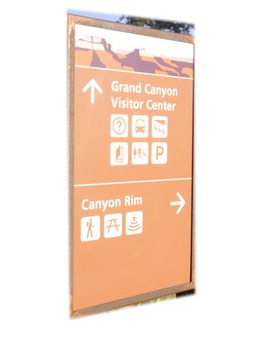
JPG: background filled with white
The second is size on screen. An SVG stores shapes, like a circle of a certain size, so it can be drawn sharp at any size. PNG, JPG, WebP and AVIF store a fixed grid of pixels, and enlarging the grid just makes each pixel bigger.
Here's the same corner of a circle, blown up to the same size from an SVG and from a PNG made from that SVG.

SVG: drawn again, still sharp

PNG: the same pixels, made bigger
So if a logo or icon has to stay sharp at every size, keep the SVG as your master copy, and make a PNG only for places that can't open SVG.
How much space does each format take?
A smaller format matters most when you're sending lots of images or putting them on a website.
We saved one photo and one app screenshot in each format. JPG, WebP and AVIF were each set to the lowest quality that still scored the same for closeness to the original; PNG kept every pixel.
Photos gain the most from a lossy format. PNG records every tiny change in color and light exactly, and a photo is full of them. A screenshot is mostly flat color, which PNG already stores cheaply.
Doing it in FluffyBench: check the file, then make a copy
Not sure what a file is, or whether its background is see-through? FluffyBench's Image Viewer shows the picture and its details on your device, without uploading it.
Here's how to check a cutout's background on a computer, where the Image Viewer's toolbar has a backdrop menu: open the image, then switch the checkerboard for a dark backdrop.
-


Step 1. Open FluffyBench's Image Viewer and choose the image. It stays on your device. - Choose images opens your file picker.
-
-
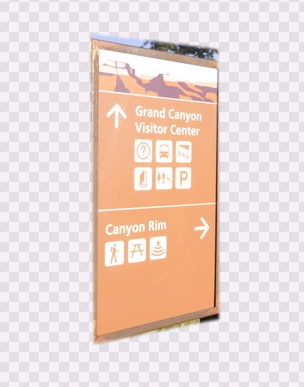
Step 2. The picture appears on a checkerboard. Where the checkerboard shows through, the image is see-through. - Checkerboard around the sign means a see-through background.
-
-


Step 3. To check the edges against a solid color, open the Checker button (Preview background) in the toolbar. - The Checker button opens the backdrop choices.
-
-
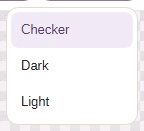
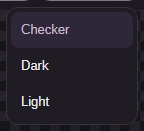
Step 4. Pick a backdrop that contrasts with the image's edges. - Choose Dark.
-
-
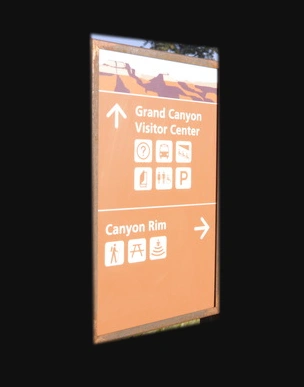
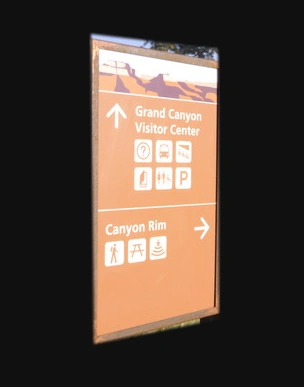
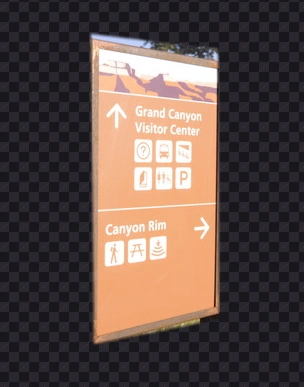
Step 5. On Dark, the soft edge fades into the backdrop, so the background really is see-through. A white box here would mean it isn't. - Check the edges against the dark backdrop.
-
With the image still open, the panel beside it tells you what the file is and hands it on to a converter.
-
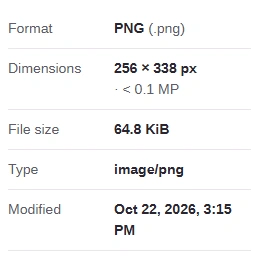
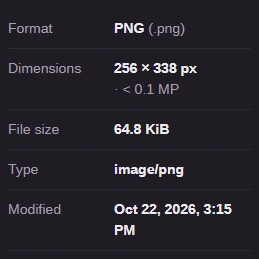
Step 1. Beside the picture, Image info shows what the file is now. - Format names what the file really is: PNG here.
- File size is the number a smaller format would lower.
-
-
Step 2. When you've decided, Convert this image takes the file straight to a FluffyBench converter. - Convert this image opens it in a FluffyBench converter.
-
Here's the copy-making part in FluffyBench's JPG converter, using the same sign cutout so you can see what happens to its background.
-
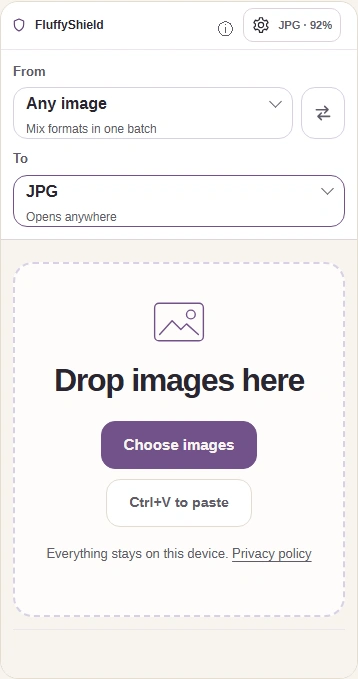
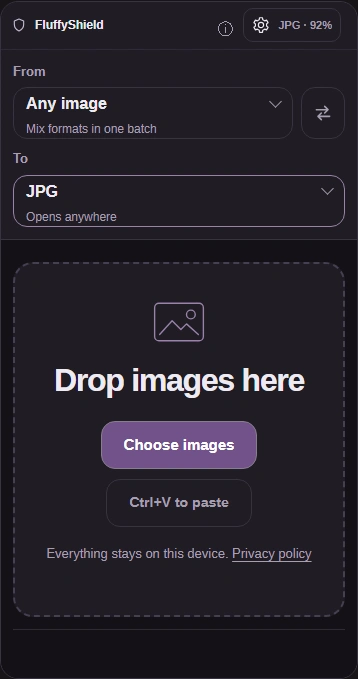
Step 1. In FluffyBench's JPG converter, choose one image, leave To set to JPG, and open Settings. - Choose images.
- Leave To set to JPG.
- Open Settings.
-
-
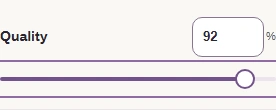
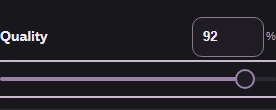
Step 2. Quality changes how much detail the JPG keeps. Leave 92 for this copy. - Leave Quality at 92.
-
-
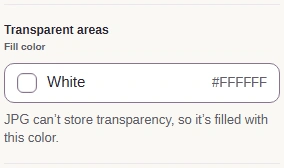
Step 3. Transparent areas sets the solid fill for a see-through background. Leave white for this copy. - White replaces the see-through areas.
-
-
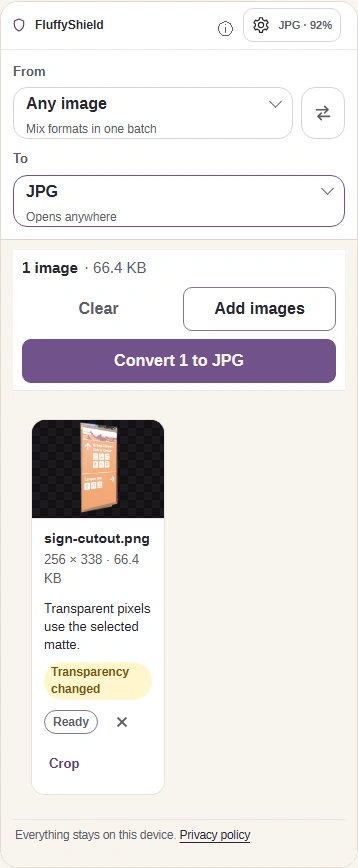
Step 4. Close Settings with the gear, then press Convert 1 to JPG to make a copy. Keep the original for later edits. - Press the gear again to close Settings.
- Convert 1 to JPG creates the copy.
-
-
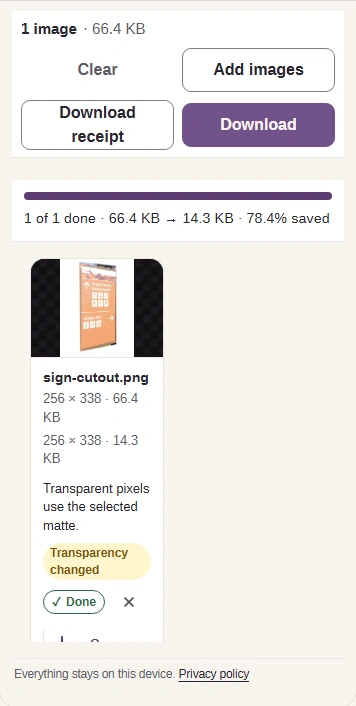
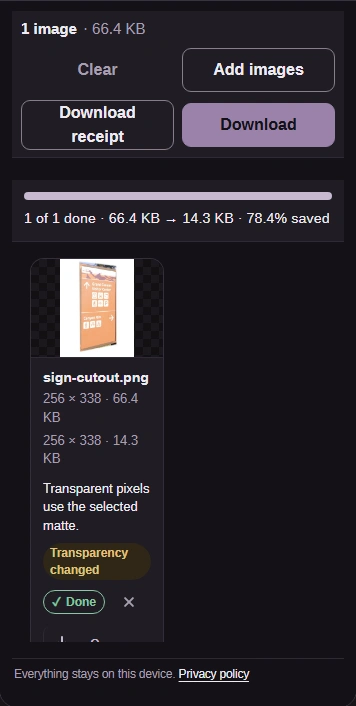
Step 5. Read the JPG's size, then use Download to save it. Open the copy where you'll use it and check its edges and background. - Read the output dimensions and size.
- Download the JPG.
-
For another output, choose FluffyBench's PNG converter, WebP converter or AVIF converter. Each one saves a new file in your browser.