
Why does extracting every page from a TIFF take so long?
Because a TIFF can hold a whole stack of pictures, and every page you pull out has to be unpacked and saved as its own PNG.
Here's where the wait goes, and how to skip most of it when page 1 is all you need.
What happens to each page when you extract a TIFF?
Think of a multi-page TIFF as a binder with a separate picture on each sheet. Opening the binder is quick. Making a copy of every sheet is the slow part, and you do it once per sheet.
Extracting works the same way. Each page has to be unpacked into a full picture and then saved as its own PNG file, one page after another.
FluffyBench reads the TIFF once, then runs the same two jobs for every page you ask for.
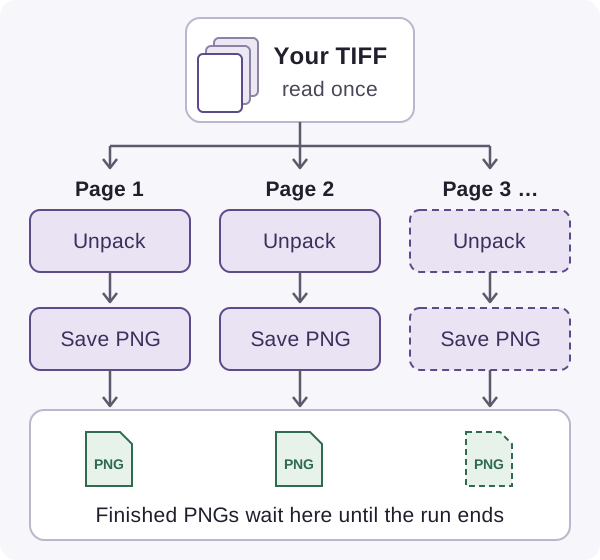
One read, then unpack and save for every page
- Read once
Opening and reading the file happens once per run.
- Repeats for every page
Unpacking a page and saving it as a PNG is the part that repeats.
- Held until the end
The finished PNGs stay in the browser's memory until the whole run is done.
Those waiting PNGs take up memory too, so a very long stack holds a lot at once. For a look at how picture memory can pile up in a browser, see how memory grew during a Firefox photo batch.
What changes when you extract the first page instead of every page?
Here's a real example: a 100-page test TIFF of text pages, built to look like a scanned report. Pulling out page 1 took about a quarter of a second. Pulling out all 100 took about 14 seconds, because the unpack-and-save round ran 100 times.
Here's that same 100-page TIFF, extracted two ways.
Where did the 14 seconds go? Most of it went on unpacking the pages.
Why do TIFF files and devices change the wait?
FluffyBench's extractor used to reread the whole TIFF for every page. It now reads it once, and how much that saved depends on what's inside the file.
Here's that change on two very different TIFFs on a computer, and on a phone.
A big uncompressed TIFF spent most of its time being read, so reading it once cut the wait from about 14 seconds to under 3. A compressed text TIFF spends its time unpacking pages, so the same change saved about a quarter. On a phone, a similar 100-page job still took the better part of a minute after the change.
Extracting TIFF pages in FluffyBench's Image Extractor
If page 1 is all you need, choose One image per file: for a TIFF, that's page 1 only, the quick run from the example above. For any other page, choose Everything inside and save just the tile you want.
Here's the whole job in FluffyBench's Image Extractor, from picking the TIFF to saving its pages.
-


Step 1. Drop the TIFF on the box, or pick it from your device. - Choose files opens your file picker.
-
-


Step 2. Under Take, decide how much of the TIFF you want. - Everything inside makes a PNG of every page.
- One image per file makes a PNG of page 1 only.
-
-
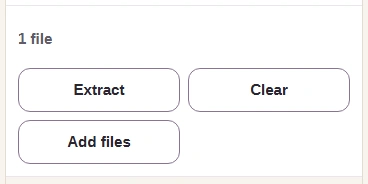

Step 3. Press Extract and let the run finish. - Extract starts the run.
-
-
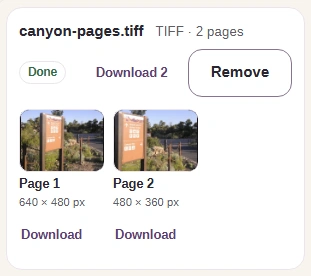
Step 4. Each page comes back as its own tile. Save one page or the whole set. - The card shows how many pages the TIFF holds.
- Page 2, its size, and a Download for just that page.
- Download 2 saves every page together as one ZIP.
-
Keep the original TIFF if its exact colors or metadata matter to you. Each PNG holds 8 bits per color channel, the everyday level for photos on the web. If a page stores richer color than that, its tile shows a warning. Which bytes an extractor copies and which it rebuilds is covered in its own guide.