Extract pages, images and layers

Extract images from TIFF, ICO, ICNS, CUR, DDS, KTX, KTX2, MPO, DCX, PCX and ORA files locally.

FluffyShield Protected workspace
FluffyShield

Isolated workspace: other page scripts can't read your files. How FluffyShield works

Save a picture stored inside an image file

Need one page from a TIFF or one size from an icon? FluffyBench Image Extractor separates the pictures inside a file so you can download the ones you need.

Extract and download in FluffyBench Image Extractor

Think of a TIFF as a folder with pictures tucked inside. FluffyBench Image Extractor gives each page its own image file.
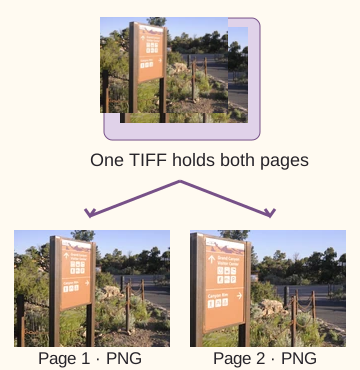
One TIFF containing two views of a canyon sign branches into Page 1 PNG and Page 2 PNG.

One TIFF becomes separate page images

The two pictures stay separate; extracting pages doesn't join them into one long image. How we measured · Photo: NPS Photo, Public domain, via National Park Service.

Here's the job in FluffyBench Image Extractor, from choosing a TIFF to saving a page or a ZIP. Processing stays on your device.


  1. Image Extractor Choose files button.
    Image Extractor Choose files button.
    Step 1. Choose a file from your device.
    1. Choose files opens the file picker.
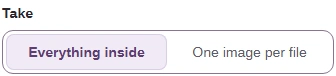
  2. Take control with Everything inside selected.
    Take control with Everything inside selected.
    Step 2. Choose how much to extract.
    1. Everything inside returns all readable images.
    2. One image per file returns a default image.
  3. Extract button ready for the selected TIFF.
    Extract button ready for the selected TIFF.
    Step 3. Press Extract to create separate images.
    1. Extract starts processing on your device.
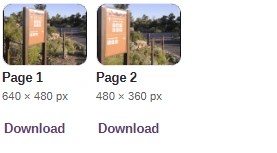
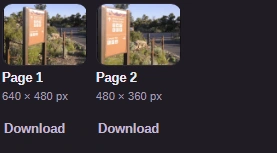
  4. Two extracted TIFF pages, with Page 2 dimensions and Download.
    Two extracted TIFF pages, with Page 2 dimensions and Download.
    Step 4. Check the page label, pixel size and preview before saving a page.
    1. Check Page 2 and its pixel size, then use its Download.
  5. Download all ZIP button above the completed TIFF results.
    Download all ZIP button above the completed TIFF results.
    Step 5. Use Download all (ZIP) when you want every result together.
    1. Download all (ZIP) bundles the extracted images.

Keep your source for later editing.

Choose all stored images or one default

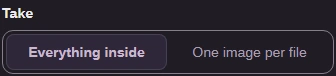
Everything inside gives you every readable image; One image per file picks a default. Here's the same TIFF with each Take choice.
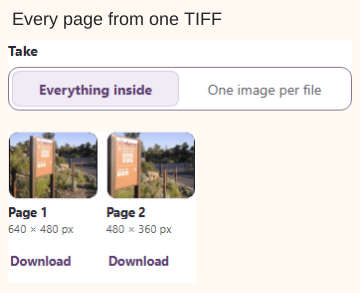
Everything inside selected, with Page 1 at 640 × 480 px and Page 2 at 480 × 360 px.

Everything inside: both pages

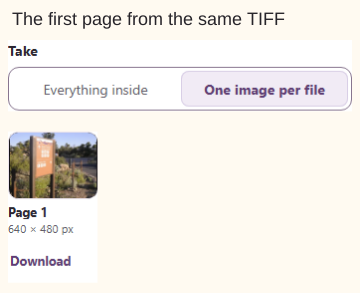
One image per file selected, with Page 1 and its Download link; Page 2 isn't returned.

One image per file: first page

For TIFF and DCX, the default is the first page. For ICO, CUR and ICNS, it's the largest stored icon; if that image can't be decoded, extraction fails. For textures, it's the base surface; for OpenRaster, the merged picture; for MPO, the first picture. A PCX has one picture either way. · Photo: NPS Photo, Public domain, via National Park Service.

Recognize icon sizes, texture levels and layers

Icon thumbnails can look alike even when their sizes differ. The pixel labels tell you which size you're downloading.
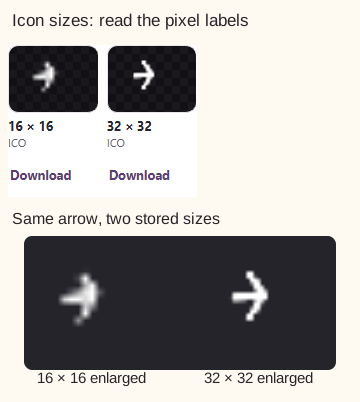
Real ICO result labels above enlarged views of the same arrow at 16 by 16 and 32 by 32 pixels.

Two stored icon sizes

The arrow ICO contains 16 × 16 px and 32 × 32 px images. The enlarged views make the pixel grids visible. A CUR download contains the artwork; its hotspot (the cursor's click point) stays in the CUR. · Photo: NPS Photo, Public domain, via National Park Service.

A texture can store smaller copies of a picture for use at a distance. Full size is the base picture; Level 1 is the next smaller copy.
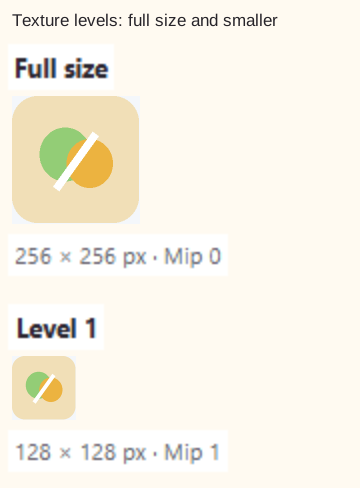
Real DDS result crops show Full size with Mip 0 and Level 1 with Mip 1, each beside its pixel dimensions.

Read texture levels

Both pictures use the same display scale, so Level 1 appears smaller. Mip is the stored level number. Texture files with cube faces or array layers also name the face or Layer in the detail line. These UI crops use a fruit texture rendered for illustration.

In OpenRaster (.ora), Merged image is the combined picture. Everything inside also returns the separate PNG layers.
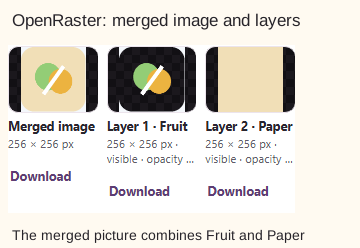
OpenRaster results show a combined fruit drawing, Layer 1 Fruit on transparency and Layer 2 Paper as a plain background.

Merged picture and separate layers

One image per file returns the merged picture. The layer PNGs aren't an editable OpenRaster project. This two-layer drawing was rendered for illustration.

For details on layer placement and editing, read what an OpenRaster export leaves in the project.

Files FluffyBench Image Extractor can open

FluffyBench Image Extractor saves images as PNG. MPO is the exception: its pictures are copied out as JPG, unchanged.
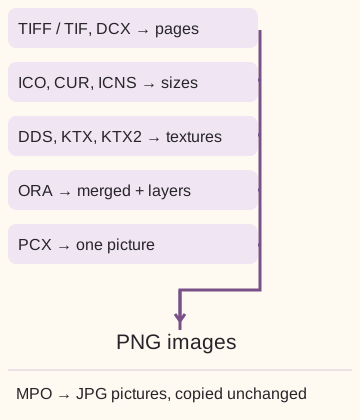
TIFF, TIF and DCX pages; ICO, CUR and ICNS sizes; DDS, KTX and KTX2 textures; ORA layers and merged picture; and PCX pictures lead to PNG. MPO pictures lead to unchanged JPG.

Files you can open and the images you get

Choose a destination that accepts PNG, or JPG for an MPO picture. Extraction doesn't offer an output-format picker.

A ‘Not opened’ row means that file didn't produce an image. GIF isn't an input here, and BigTIFF pages aren't decoded. A recognized format can still contain data the extractor can't read; the row gives the reason.

TIFF exports use 8-bit PNG, so deep, float or signed pixel values lose precision. For codec details and file limits, read what extraction changes in your saved images.

Choose another FluffyBench tool when the job changes

You don't need to extract a file just to look inside it. These FluffyBench tools cover viewing and changes to the picture itself.

You want to inspect an image or play a GIF

Open FluffyBench Image Viewer

It previews local images, animations and container surfaces without creating a new file.

You need a different format, fewer pixels or a smaller file

Use FluffyBench Image Space Saver

It resizes, recompresses or converts an image you've extracted.

Search FluffyBench