
Do extracted images keep their original bytes?
Pull pictures out of an icon, a layered drawing or a multi-page image, and some come out as exact copies while others are saved as new PNGs. What's stored inside decides which you get.
Copied or saved again: what's the difference?
An image container is like an envelope holding several prints: one file can carry several pictures. Taking a print out keeps it as it was; making a fresh print gives you a new copy of the picture.
FluffyBench Image Extractor copies a PNG already inside an icon byte for byte. For a TIFF page, it reads the picture into pixels and saves a new PNG.

Which files come out as exact copies?
In FluffyBench Image Extractor, the picture's stored format decides the path. An icon can contain both PNG pictures and older picture types, so different sizes from the same icon can take different paths.

A layered drawing, pulled apart
A two-layer OpenRaster drawing holds a combined preview and separate layer pictures. Here are its stored PNGs beside the separate files returned by FluffyBench Image Extractor, with the same bytes preserved.

Doing it in FluffyBench Image Extractor
FluffyBench Image Extractor's Take setting chooses how many pictures you get: One image per file takes a drawing's preview, an icon's largest size or a TIFF's first page; Everything inside adds the other readable pictures.

Here's the job in FluffyBench Image Extractor, from choosing a fruit drawing to downloading its preview and layers.
-
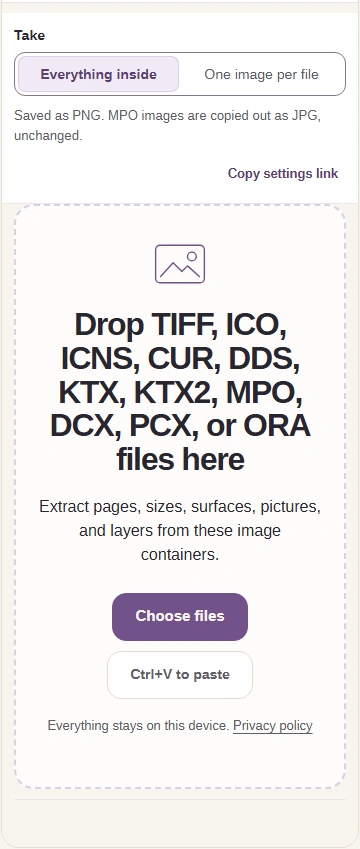
Step 1. Choose your container file. Keep the original if you need its layers, pages or exact container bytes. - Choose files opens the file picker.
- The hint identifies the output file types.
-
-
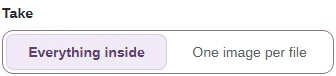
Step 2. Choose how much to extract. - Everything inside takes all readable pictures.
- One image per file takes one picture; see the mode comparison above.
-
-
Step 3. Press Extract to create separate images. - Extract starts processing on your device.
-
-
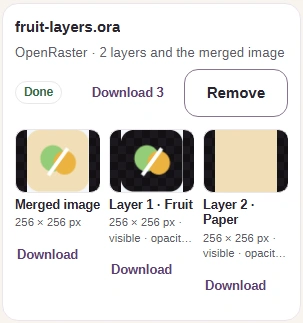
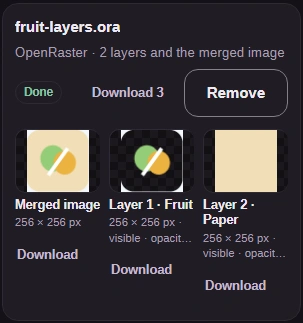
Step 4. The result tiles are the pictures you can save; the source group is the container they came from. - This heading identifies the source drawing.
- Check this layer's pixel dimensions.
- Download saves this picture.
-
-
Step 5. Use Download all (ZIP) when you want every result together. - Download all (ZIP) bundles the extracted images.
-
FluffyBench Image Extractor saves the pictures stored in your icon or layered drawing.
What about an ordinary ZIP?
An ordinary ZIP of pictures needs to be unzipped outside FluffyBench Image Extractor. Here's the refusal you'll see when you choose a ZIP instead of a recognized image container such as OpenRaster.
-
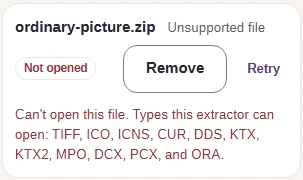
Step 1. An ordinary ZIP is an archive to unzip first, outside FluffyBench Image Extractor. - The message lists the image containers FluffyBench Image Extractor can open.
-