Aspect ratio calculator

Reduce a width-to-height ratio, find a missing dimension or calculate percentage scaling.

FluffyShield Protected workspace
FluffyShield

Isolated workspace: other page scripts can't read your files. How FluffyShield works

How it works
  1. Choose From and To
  2. Enter the dimensions you know
  3. Read the automatic result
  4. Copy All saves the labeled numbers

Find a side

Width + ratio → Height; Height + ratio → Width.

Find the shape

Width + height → Aspect ratio.

Change the size

Width + height → Scaled size.

Limits The calculator works with dimensions only; it doesn't load, crop, or resize an image. The calculations stay on your device.

Need an image's missing width, height, or aspect ratio?

FluffyBench's Aspect ratio calculator finds a missing side, simplifies a ratio, or scales both dimensions together. You can plan the size you need without doing the math yourself.

What does an image's aspect ratio tell you?

An aspect ratio is the shape of a picture frame: width compared with height. These outlines let you compare a wide frame, a taller frame, and a square on the same photo.
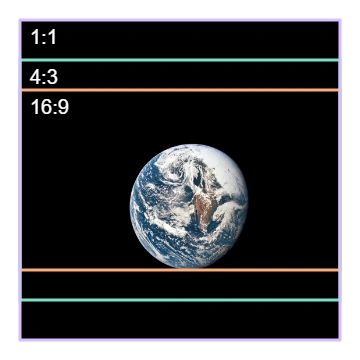
Centered outlines on one 4,095 px square Apollo 10 photograph: 16:9 is 4,095 px × 2,303 px, 4:3 is 4,095 px × 3,071 px, and 1:1 keeps the full 4,095 px × 4,095 px canvas. The 16:9 height is rounded from 2,303.4375 pixels.

One Apollo 10 photograph with centered 16:9, 4:3, and 1:1 outlines

  1. 16:9 frame · 4,095 px × 2,303 px

    The wide outline keeps less height than the square source.

  2. 4:3 frame · 4,095 px × 3,071 px

    This outline is taller than the wide frame.

  3. 1:1 frame · 4,095 px × 4,095 px

    The square outline matches the full source canvas.

Target frame outlines on the full square photo. How we reviewed · Photo: NASA, Public domain, U.S. federal work, via Wikimedia Commons.

The first ratio number is the width; the second is the height. Keeping that comparison as you change size keeps the picture's overall shape. That's useful when a website or slide needs a particular frame, even before you've chosen its pixel dimensions.

Picture a canvas divided into equal squares. Counting across and down gives you its shape.
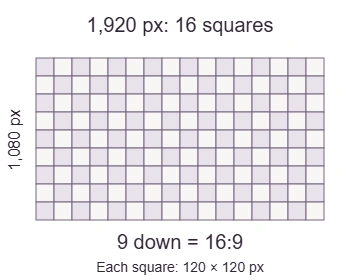
A 16:9 grid; each square represents 120 pixels on each side.

Width and height counted in equal squares

  1. Width

    16 equal squares across.

  2. Height

    9 equal squares down.

  3. Shape

    The shared square size drops out, leaving 16:9.

1,920 px by 1,080 px fits 16 squares across and 9 down: 16:9.

Doing it in FluffyBench: find an image's aspect ratio

Know both sides? FluffyBench's Aspect ratio calculator reduces them to a simpler width-to-height comparison. The result updates as you type; there's no Calculate button to press.
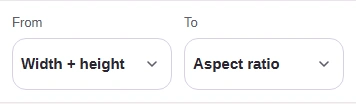
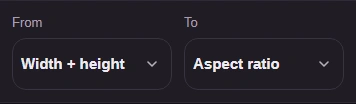
  1. From dimensions and To ratio choices in FluffyBench.
    From dimensions and To ratio choices in FluffyBench.
    Step 1. Choose Width + height → Aspect ratio.
    1. Choose Width + height.
    2. Choose Aspect ratio.
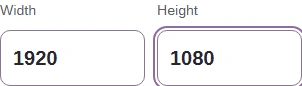
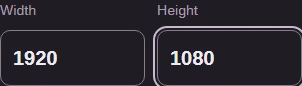
  2. Inputs for the ratio calculation: width 1920, height 1080.
    Inputs for the ratio calculation: width 1920, height 1080.
    Step 2. Enter the dimensions you know.
    1. Set Width to 1920.
    2. Set Height to 1080.
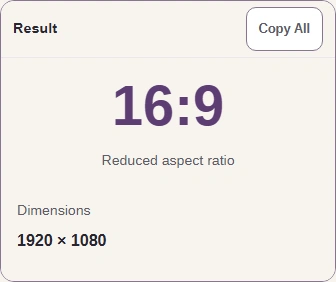
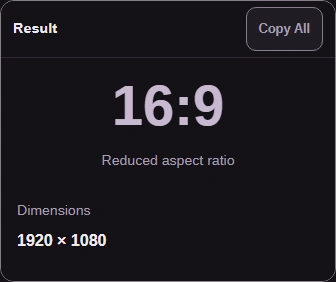
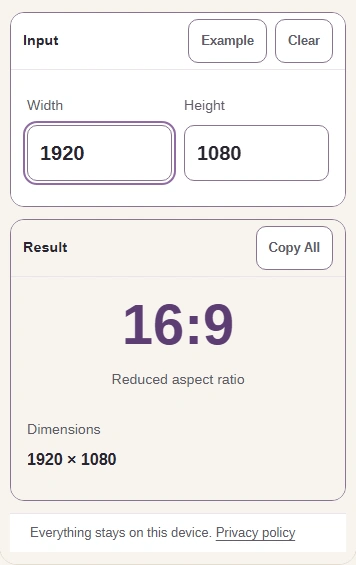
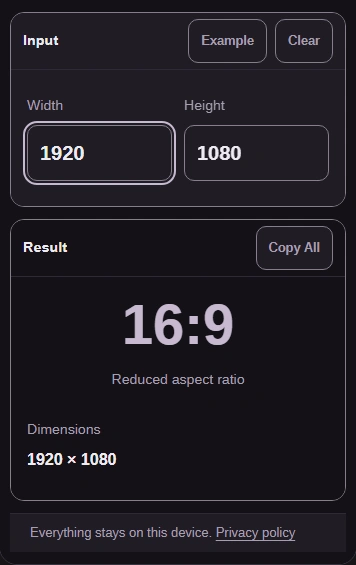
  3. The reduced ratio is 16:9. Copy All copies the labeled result and dimensions.
    The reduced ratio is 16:9. Copy All copies the labeled result and dimensions.
    Step 3. The reduced ratio is 16:9. Copy All copies the labeled result and dimensions.
    1. Read the reduced aspect ratio.
    2. Copy All copies every labeled result row.

How do you find an image's missing height?

A known width and a target shape are enough to find the height. Here's the Apollo photo's 4,095 px width with a 16:9 target in FluffyBench's Aspect ratio calculator.
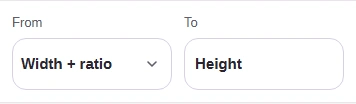
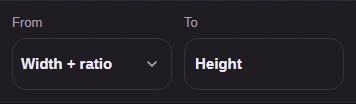
  1. From width-ratio and To height choices in FluffyBench.
    From width-ratio and To height choices in FluffyBench.
    Step 1. Choose Width + ratio → Height.
    1. Choose Width + ratio.
    2. To becomes Height automatically.
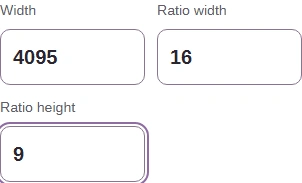
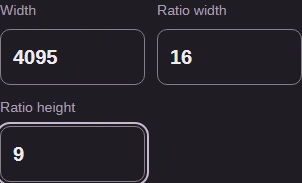
  2. Inputs for the height calculation: width 4095, ratioWidth 16, ratioHeight 9.
    Inputs for the height calculation: width 4095, ratioWidth 16, ratioHeight 9.
    Step 2. Enter the known side and the target shape.
    1. Set Width to 4095.
    2. Set Ratio width to 16.
    3. Set Ratio height to 9.
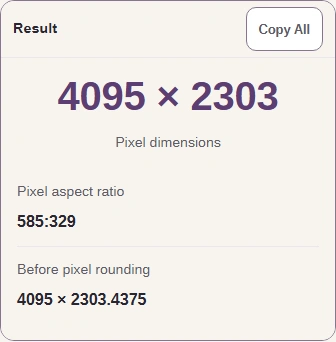
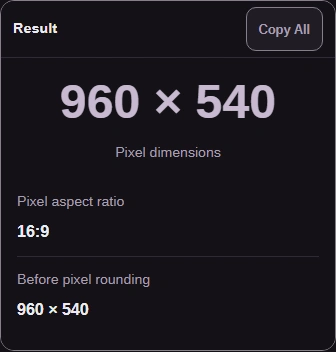
  3. Use Pixel dimensions for whole pixels. Before pixel rounding keeps the decimal size; Pixel aspect ratio describes the rounded size.
    Use Pixel dimensions for whole pixels. Before pixel rounding keeps the decimal size; Pixel aspect ratio describes the rounded size.
    Step 3. Read the whole-pixel size, with the decimal calculation below.
    1. Read the whole-pixel dimensions.
    2. Compare Pixel aspect ratio with Before pixel rounding.

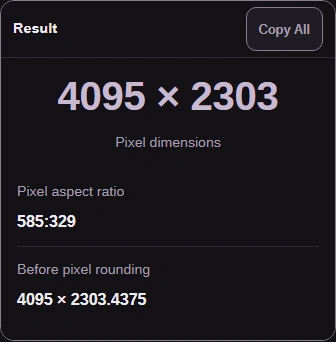
The height is 2,303.4375 px before rounding and 2,303 px in whole pixels. That's why Pixel aspect ratio says 585:329: it describes the rounded size, while the requested shape was 16:9. Use Pixel dimensions when your image editor needs whole pixels.

How do you find an image's missing width?

Know the height instead? The reverse calculation has its own From choice; the ratio still goes in width-first order.
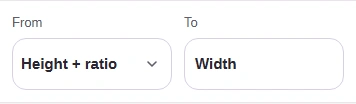
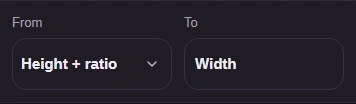
  1. From height-ratio and To width choices in FluffyBench.
    From height-ratio and To width choices in FluffyBench.
    Step 1. For a known height, choose Height + ratio → Width.
    1. Choose Height + ratio.
    2. To becomes Width automatically.
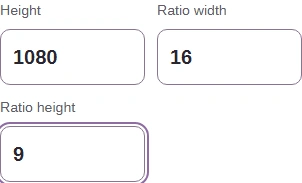
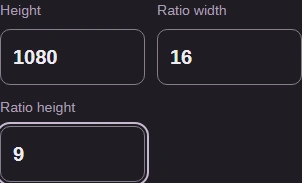
  2. Inputs for the width calculation: height 1080, ratioWidth 16, ratioHeight 9.
    Inputs for the width calculation: height 1080, ratioWidth 16, ratioHeight 9.
    Step 2. Enter the known side and the target shape.
    1. Set Height to 1080.
    2. Set Ratio width to 16.
    3. Set Ratio height to 9.
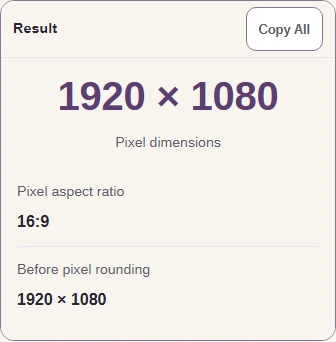
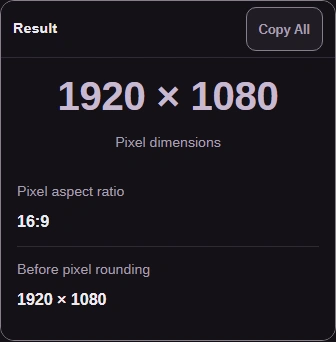
  3. The missing width appears automatically. Copy All copies all the labeled result rows.
    The missing width appears automatically. Copy All copies all the labeled result rows.
    Step 3. Read the calculated width alongside the height you entered.
    1. The calculated width comes first.

How do you scale both image dimensions together?

Scaling changes both sides together, like making a smaller copy of the same picture frame.
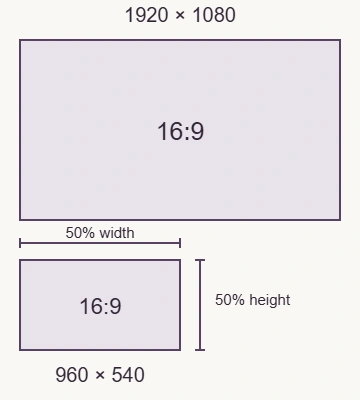
A full-size 16:9 rectangle and a rectangle with half its width and half its height.

The same shape at two sizes

  1. Starting size

    1,920 px by 1,080 px.

  2. Scale %

    50% halves width and height; a percentage above 100 enlarges both.

  3. Scaled size

    960 px by 540 px keeps the 16:9 shape.

Both rectangles are drawn at the same scale; changing the percentage doesn't choose a new crop.

FluffyBench's Scaled size calculation uses the percentage for both sides.
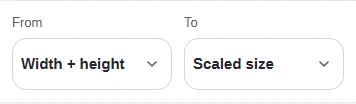
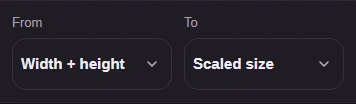
  1. From dimensions and To scale choices in FluffyBench.
    From dimensions and To scale choices in FluffyBench.
    Step 1. Choose Width + height → Scaled size.
    1. Choose Width + height.
    2. Choose Scaled size.
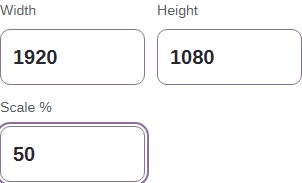
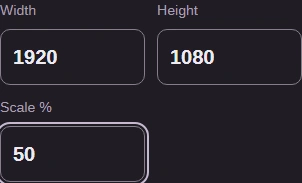
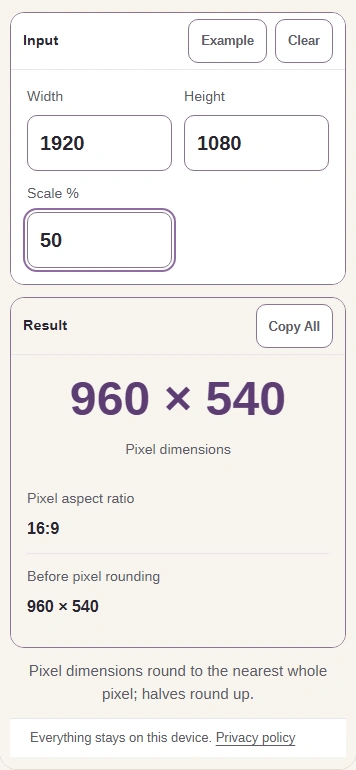
  2. Inputs for the scale calculation: width 1920, height 1080, percent 50.
    Inputs for the scale calculation: width 1920, height 1080, percent 50.
    Step 2. Enter the dimensions you know.
    1. Set Width to 1920.
    2. Set Height to 1080.
    3. Set Scale % to 50.
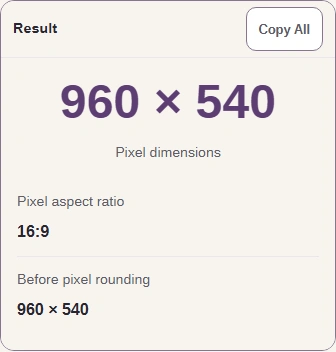
  3. At 50%, both sides halve: 960 ? 540. Copy All copies the labeled result rows.
    At 50%, both sides halve: 960 ? 540. Copy All copies the labeled result rows.
    Step 3. Both sides halve and the shape stays 16:9.
    1. Both sides are now half their starting size.

Where do you use the calculated image dimensions?

Before you use calculated dimensions, check the destination's requested shape, the whole-pixel size, and what fits inside the frame.
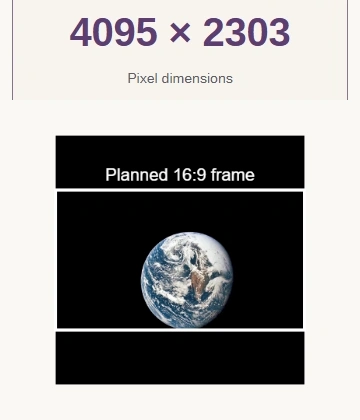
FluffyBench's real Pixel dimensions readout above the full Apollo photo with a 16:9 target frame drawn on it.

Check the requested frame, the calculated size, and the subject

  1. Match the destination

    Match the ratio or pixel dimensions your website, slide, or editor asks for.

  2. Check the size

    Use the Pixel dimensions readout when the destination asks for whole pixels.

  3. Check the framing

    Preview the picture in your editor. Check that the subject stays inside your chosen frame.

The size readout is real; the frame drawn on the photo is an illustration. · Photo: NASA, Public domain, U.S. federal work, via Wikimedia Commons.

A ratio names a shape, not a pixel size. If a destination asks for 16:9 without a width or height, you'll still need one dimension to calculate a size. The ratio alone can't choose it.

For a smaller or larger copy of the whole picture, use FluffyBench Image Space Saver. For a different frame that removes edges, use FluffyBench Image Crop. Keep the original while you make that editing copy.

Why is the aspect ratio result missing or unexpected?

A positive-number message points to an input that needs correcting. A rounded-pixel warning means the calculated size falls outside the usable range; these two error-and-correction pairs show the difference.
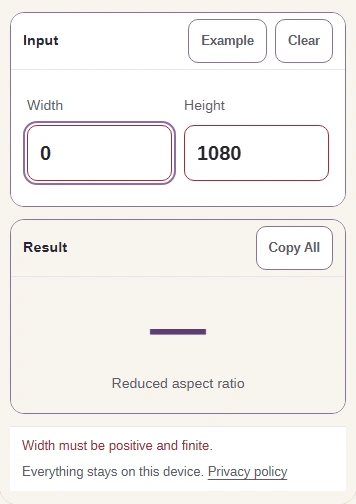
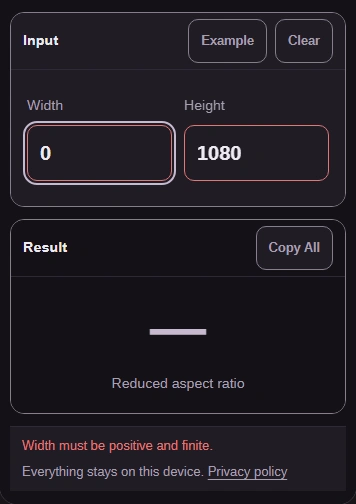
  1. A zero Width is refused: dimensions must be positive.
    A zero Width is refused: dimensions must be positive.
    Step 1. A zero Width is refused: dimensions must be positive.
    1. Width 0 causes the error.
    2. Read the positive-number message.
  2. Replace Width 0 with 1920; the ratio returns automatically.
    Replace Width 0 with 1920; the ratio returns automatically.
    Step 2. Replace Width 0 with 1920; the ratio returns automatically.
    1. Enter a positive Width.
    2. The corrected input gives 16:9.
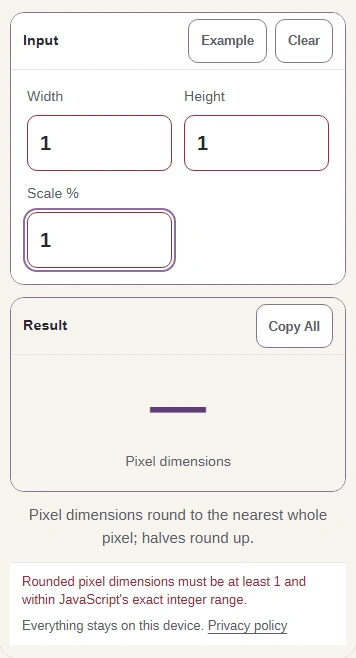
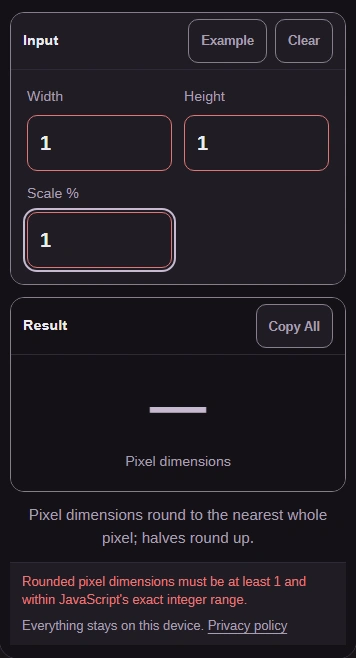
  3. Illustrative refusal: scaling a 1-by-1 size to 1% rounds below one pixel.
    Illustrative refusal: scaling a 1-by-1 size to 1% rounds below one pixel.
    Step 3. Illustrative refusal: scaling a 1-by-1 size to 1% rounds below one pixel.
    1. Scale % is 1 for this tiny input.
    2. Read the rounded-pixel warning.
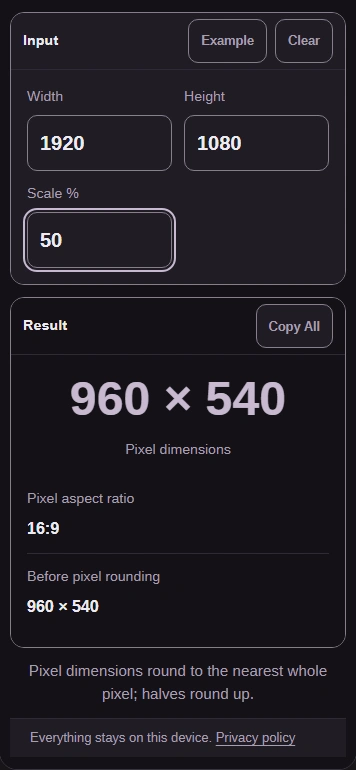
  4. A usable input returns a result: 1920 by 1080 at 50% gives 960 by 540.
    A usable input returns a result: 1920 by 1080 at 50% gives 960 by 540.
    Step 4. A usable input returns a result: 1920 by 1080 at 50% gives 960 by 540.
    1. Use dimensions and a percentage that produce whole pixels.
    2. The usable size appears automatically.

Seeing a ratio when you wanted dimensions? To: Aspect ratio reduces two sides; To: Scaled size changes both. The missing-side walkthroughs above show the matching From choices.

Search FluffyBench