
Will WebP, AVIF, or JPEG XL make your photo smaller?
Often, yes. You don’t have to shrink a photo’s dimensions to shrink its file. Here’s how to find a smaller copy that still looks right and opens where you need it.
Can changing a photo’s format save space?
Yes. Think of each format as a different way of packing the same suitcase: how tightly it packs depends on what’s inside. Changing the format gives your photo a different packing method; the finished file tells you how much room it takes.
We saved a mountain photo as WebP, AVIF, and JPEG XL in FluffyBench Image Space Saver. All three copies were smaller than the original JPG, and JPEG XL saved the most space.
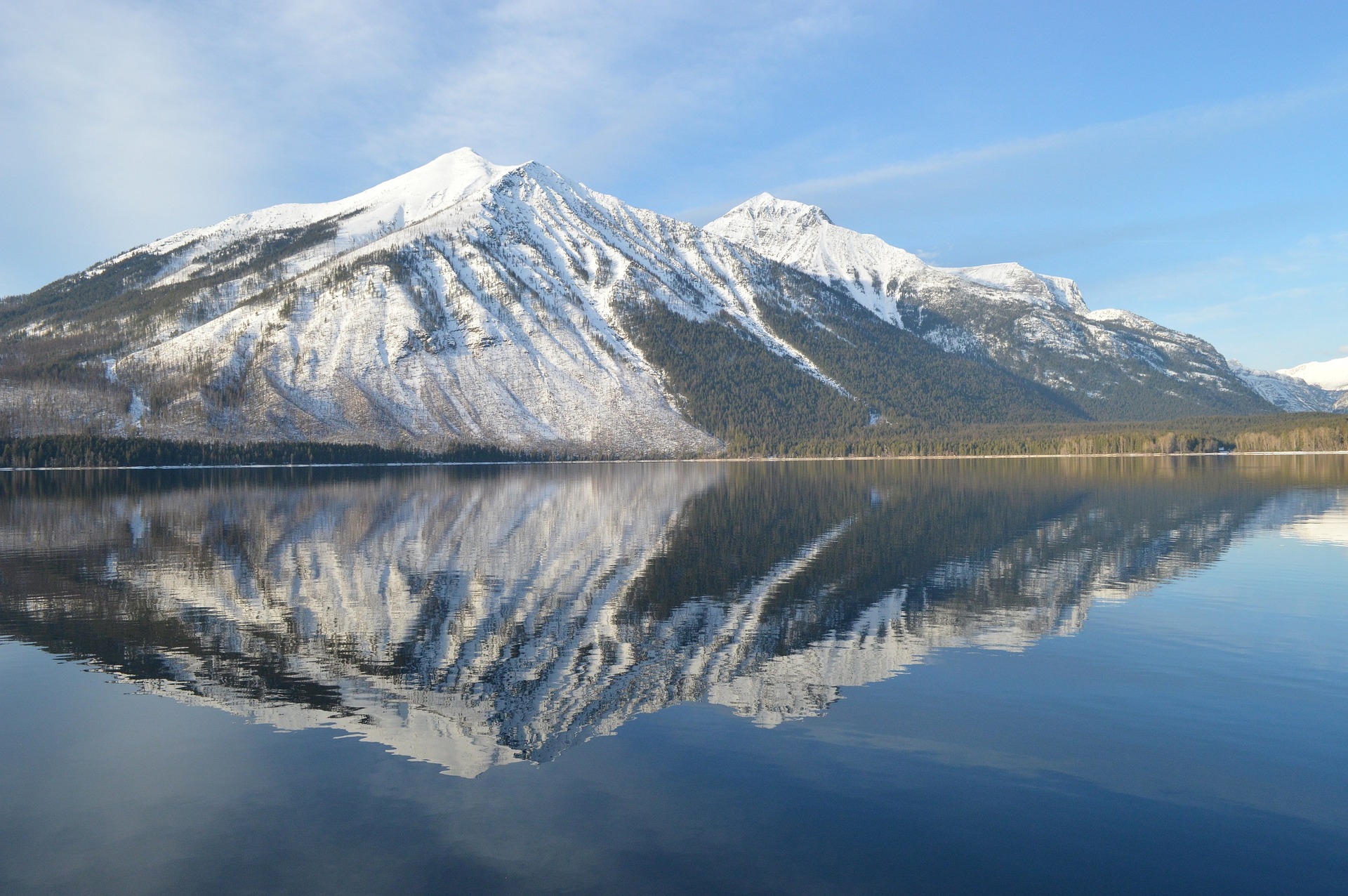

A useful format choice gives you a smaller copy that looks right and opens in your receiving app. A format change can also make other pictures larger— here’s why image files can get larger.
Doing it in FluffyBench Image Space Saver
Start with your original photo in FluffyBench Image Space Saver.
-
Step 1. Choose your original photo. Keep it for later edits. - Choose images opens your file picker.
-
-

Step 2. Open Settings to choose how the copy is saved. - Settings opens the controls.
-
-
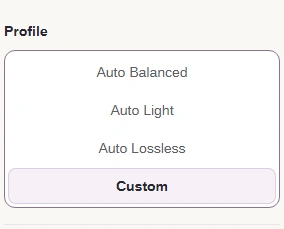
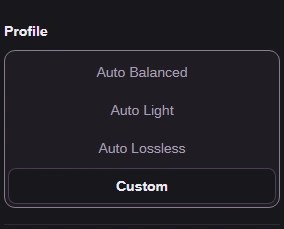
Step 3. Choose Custom under Profile to reveal the format and quality controls. - Custom lets you choose the settings yourself.
-
Choose a format your receiving app or upload form accepts. These settings let you compare formats without resizing the picture or searching for a size target.
-
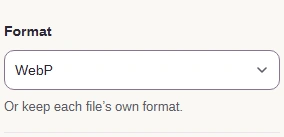
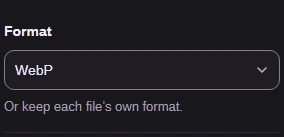
Step 1. Choose WebP, AVIF, or JPEG XL in Format; it sets the saved file type. - WebP is the choice shown here.
-
-
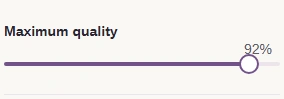
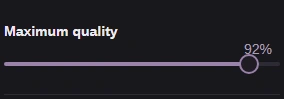
Step 2. Maximum quality balances fine detail against file size. Use 92 for this example. - Set Maximum quality to 92.
-
-
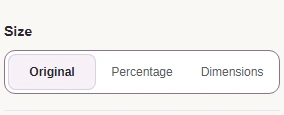
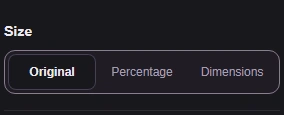
Step 3. Leave Size at Original to keep the same pixel dimensions. - Original leaves the picture at its current dimensions.
-
-
Step 4. Leave Limit each file’s size unchecked for a format comparison; enabling it adds a size target. - Unchecked means there’s no per-file size target.
-
Each photo gets a tile that shows its size before and after processing.
-
Step 1. Tap Settings again to close the controls. - Settings closes the panel.
-
-
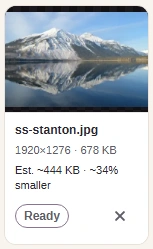
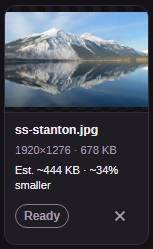
Step 2. Before processing, Est. ~ is an estimate of the copy’s size. - Est. ~ appears before a finished file exists.
-
-
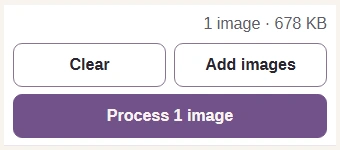
Step 3. Press Process 1 image to make the copy with your chosen settings. - Process 1 image starts the conversion.
-
-
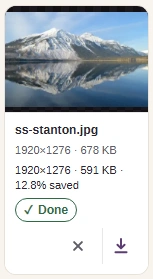
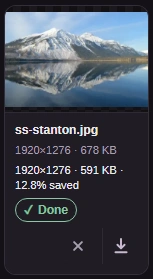
Step 4. After processing, compare the finished size with the original, then save the copy. - The original’s size is shown here.
- This is the finished file’s size.
- Download saves this image to your device.
-
Why can the size shown before you press Process be off? FluffyBench Image Space Saver can estimate from small squares spread across your picture, and those squares can compress differently from the whole photo.
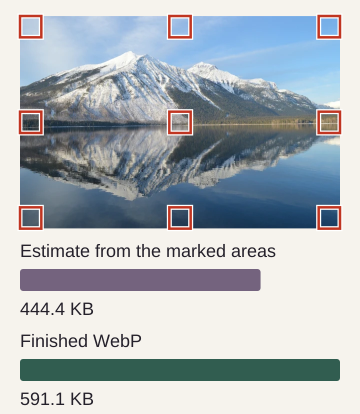
Sampled areas → estimated bytes → finished bytes
Does the smaller copy still look right?
Check fine detail in the downloaded picture at the size you’ll use it. Here’s the same patch of mountain and trees in the original JPG and copies saved as WebP, AVIF, and JPEG XL through the current interface.
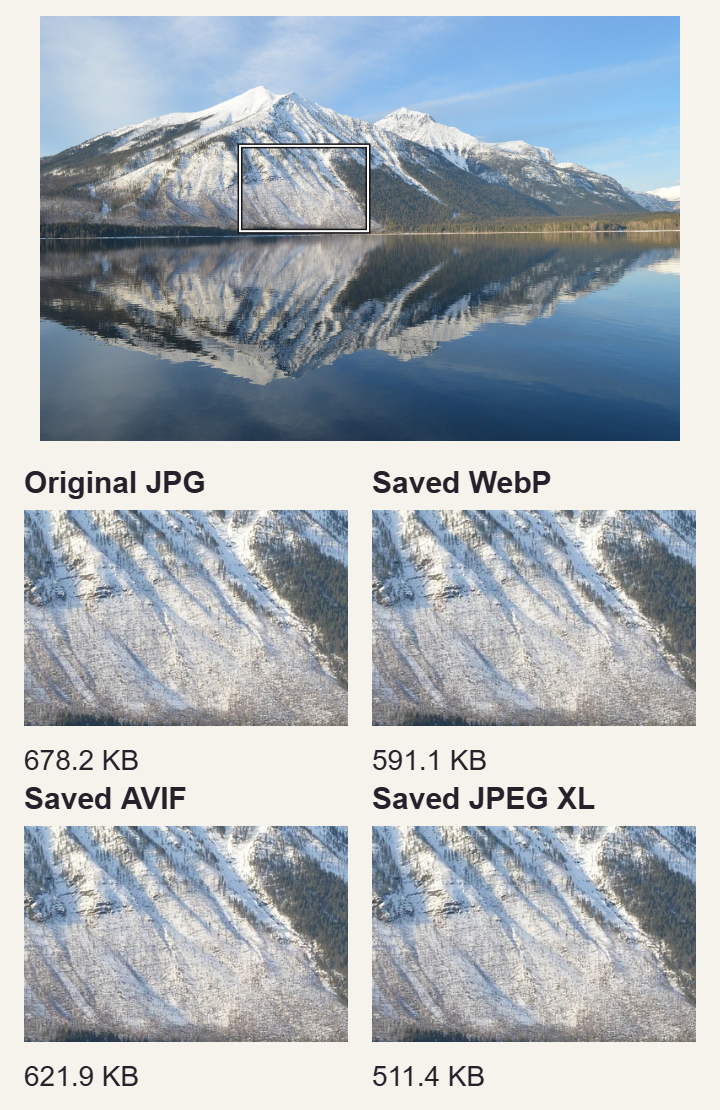
Compare the marked detail in all four files
Unsure which format to send? Choosing between AVIF, WebP, and JPEG XL helps you decide.