
Should you save an image as lossy or lossless WebP?
For a screenshot or flat graphic, lossless WebP can be the smaller choice. Here's how to choose a mode without giving up detail you care about.
What do lossy and lossless WebP keep?
WebP is an image format with two ways to save your picture. Lossless is like writing a shopping list in shorthand: 'four apples' takes less writing than listing each apple, and you can still unpack the exact list. It looks for patterns it can describe compactly. Lossy can change small details to make the description shorter.
Imagine a row of colors with one small detail. Lossless shorthand restores that detail; a lossy description can simplify it.
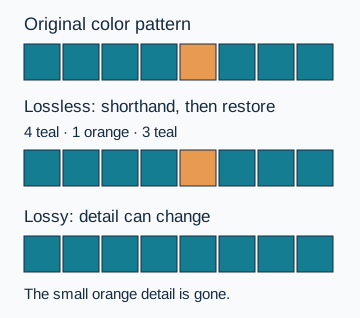
So lossless describes what the image keeps. It doesn't promise a bigger file, and lossy doesn't promise a smaller one. The picture's patterns help decide which mode packs it better.
Why can lossless WebP make flat graphics smaller?
These three generated pictures put fine grain, repeated colors and see-through shapes side by side.
Grainy photo

Interface screenshot

Transparent graphic
- Fine grain
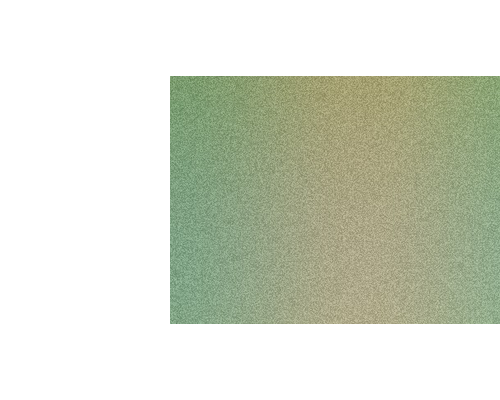
Independent specks cover the photo, so there are few repeated patches to pack.
- Broad color blocks
Large areas reuse the same colors, giving lossless a pattern it can describe compactly.
- See-through edges
The checkerboard shows where the artwork lets the background show through.
In our recorded conversions, lossless made the flat screenshot and transparent graphic smaller than lossy did. For the grainy JPG, both WebP copies were bigger than the original.
The picture matters more than a rule like 'photos use lossy, graphics use lossless.'
What should you look for in a WebP copy?
At this screenshot corner, the three copies look alike, and lossless takes about a tenth of the lossy file's space. Crisp boundaries can cost less to keep than to simplify.
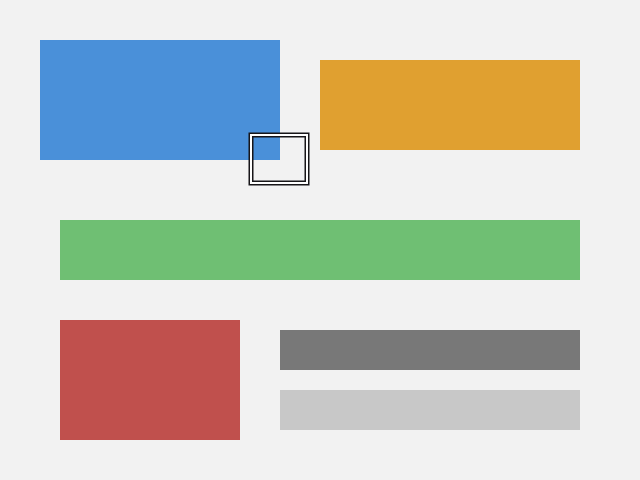
Original PNG

2.7 KB
Lossy · Quality 92

2.0 KB
Lossless

188 B
Rendered for illustration.
Lossy makes this grain-photo preview smaller than lossless does. Compare the specks to decide whether its detail is right for your use.
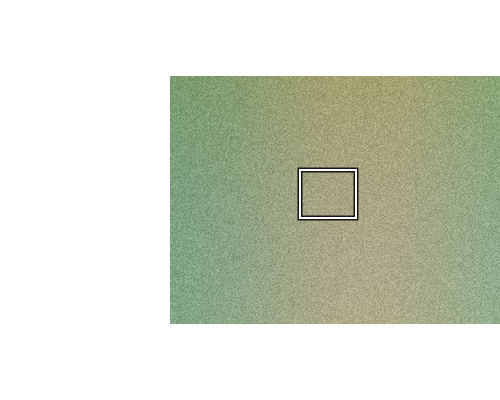
Original preview PNG
172.7 KB
Lossy · Quality 92
30.3 KB
Lossless
79.8 KB
Rendered for illustration.
How to choose between lossy and lossless WebP
Start with what your picture needs to keep. For flat artwork, lossless is worth including even when a small delivery file is your goal.
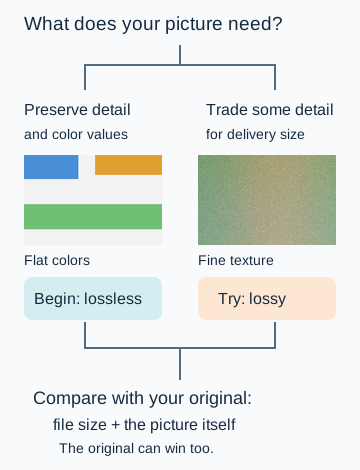
If neither WebP improves the tradeoff you need, the original can be the right file to use. Your destination also needs to accept WebP.
Doing it in FluffyBench: make both WebP copies
Use FluffyBench's WebP converter to compare the modes on your own image. The walkthrough uses the same generated screenshot as the crop comparison.
Set up the first copy with Lossy compression and unchanged dimensions.
-
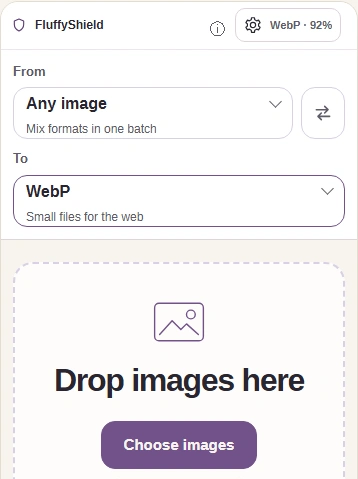
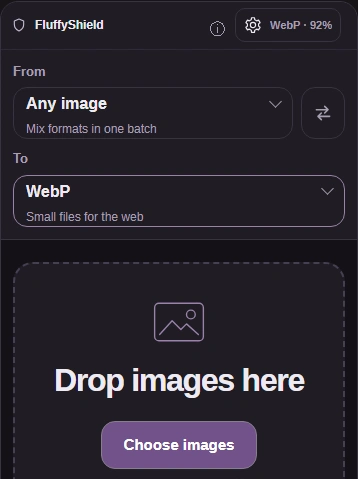
Step 1. Keep your original. Choose images, then open Settings. - Choose images opens your file picker.
- After choosing your image, open Settings.
-
-
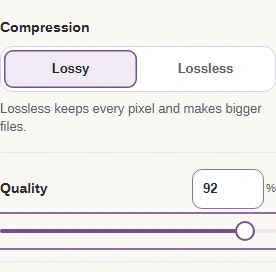
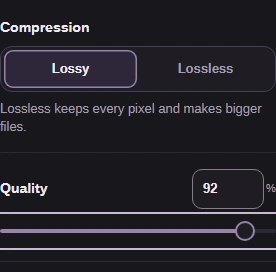
Step 2. Lossy can change detail. Quality sets how much detail it tries to keep; use 92 for this comparison. - Choose Lossy under Compression.
- Set Quality to 92.
-
-
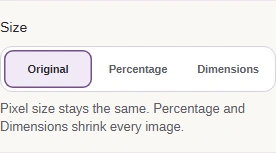
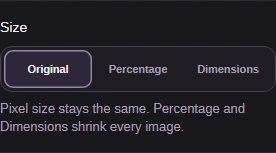
Step 3. Original keeps the pixel dimensions unchanged. - Leave Size on Original.
-
-


Step 4. Close Settings before converting. - Press Settings again to close the panel.
-
-
Step 5. Create the lossy WebP. - Press Convert 1 to WebP.
-
Save the first result before changing Compression. Both conversions start from your uploaded original.
-
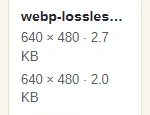
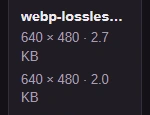
Step 1. Check the saved WebP size against the original. - The first line is the original size.
- The second line is the saved WebP size.
-
-
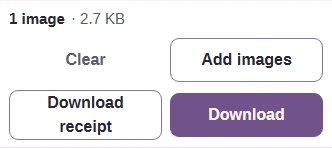
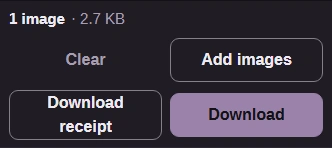
Step 2. Save the lossy copy before changing modes. Give it a name you can recognize in your downloads. - Download saves the completed WebP.
-
-
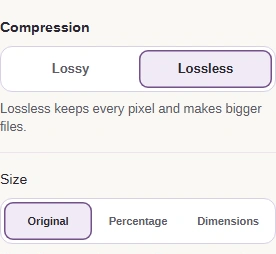
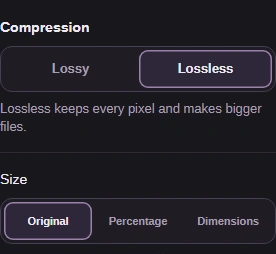
Step 3. Reopen Settings and choose Lossless. Quality disappears; the file-size search is unavailable. The bigger-files hint is not a rule: the flat screenshot got smaller. - Choose Lossless under Compression.
- Original is still selected.
-
-


Step 4. Close Settings to return to the conversion button. - Press Settings to close the panel.
-
-
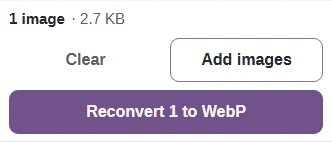
Step 5. Make the lossless copy from the same original. - Press Reconvert 1 to WebP.
-
Want to compare WebP modes on another image?
Can see-through areas change slightly in lossless WebP?
In our transparent graphic, colors across the partly see-through shapes shifted by up to 2 levels after opening, saving and reopening as lossless WebP. Solid and fully clear pixels matched.

Difference map: highlighted positions
- See-through circle
Magenta covers the circle's interior as well as its edge.
- See-through bar
The bar's partly transparent area changed too; the map highlights positions, not the size of each change.
- Solid disc
The solid disc matched and has no magenta highlight.
The actual enlarged patch looks much the same on both sides. If exact partly transparent color values matter to your job, appearance alone isn't enough to check them.

Original PNG (left), reopened WebP (right)
Our guide to image transparency explains how partly see-through colors mix with a background.