Crop and adjust images: rotate and flip

Crop, rotate and flip images, turn them black and white, or change brightness, contrast and saturation for a whole batch of photos at once.

FluffyShield Protected workspace
FluffyShield

Isolated workspace: other page scripts can't read your files. How FluffyShield works

How do you crop a photo without cutting off what matters?

A tighter frame can bring your subject forward—or cut away something important. FluffyBench lets you choose what stays and preview the crop before downloading.

At a glance
  1. Choose images
  2. Open Crop
  3. Choose a frame
  4. Apply crop and download

Crop

Keep the part of the photo you need.

Rotate and flip

Change the original photo’s orientation in Adjust.

Adjust tone

Preview changes to color and light.

Limits FluffyBench processes your images in your browser, without uploading them.

Crop or resize your photo?

A crop is like a window over a photo: what’s inside stays, and the rest is trimmed away. Resize when you need a smaller width or height and want the whole scene to stay.

The whole Earth photo, a tighter crop and a smaller version retaining every edge.
The crop brings Earth closer by removing edges; the resize keeps the entire photo at smaller dimensions. Rendered for illustration; file sizes aren’t compared. How we reviewed · Photo: NASA; illustrations by FluffyBench, Public domain, U.S. federal work, via Wikimedia Commons.

Your destination needs the whole picture at smaller dimensions

Resize with FluffyBench’s Image Space Saver

Its resize controls change dimensions while keeping the scene.

Choose a crop shape

The frame’s shape decides which edges disappear. Here’s the same Earth photo in square, portrait and wide frames.

Three source-and-result pairs show square, portrait and wide crops of Earth; shaded edges mark what each crop removes.
The shaded edges are removed. Square keeps this square photo whole; 4:5 trims the sides, and 16:9 trims the top and bottom. Rendered for illustration. · Photo: NASA; illustrations by FluffyBench, Public domain, U.S. federal work, via Wikimedia Commons.

Start with the shape your destination asks for. A preset holds that shape as you resize the box; Free lets you draw any rectangle. The photo doesn’t stretch to fill the frame.

Cropping a photo in FluffyBench

Choose your photos and a crop shape in FluffyBench. Each photo can have its own crop.
  1. Choose images adds photos from your device.
    Choose images adds photos from your device.
    Step 1. Choose images adds photos from your device.
    1. Choose images opens your file picker.
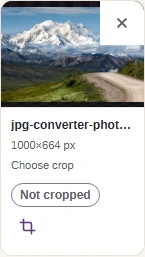
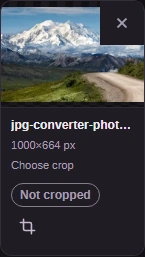
  2. Open Crop on the photo you want to frame.
    Open Crop on the photo you want to frame.
    Step 2. Open Crop on the photo you want to frame.
    1. Crop opens this photo’s editor.
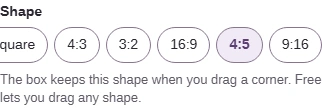
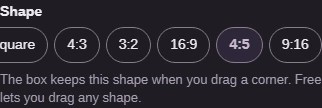
  3. Choose the shape your destination asks for; here, 4:5.
    Choose the shape your destination asks for; here, 4:5.
    Step 3. Choose the shape your destination asks for; here, 4:5.
    1. Choose 4:5 for a portrait frame.

Frame your subject, apply the crop and download the result.
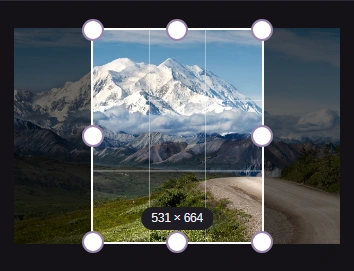
  1. Move the selection to keep your subject; drag a corner to change how much stays.
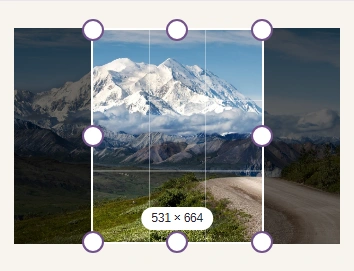
    Move the selection to keep your subject; drag a corner to change how much stays.
    Step 1. Move the selection to keep your subject; drag a corner to change how much stays.
    1. Drag inside the box to move the frame.
    2. Drag a corner to resize the 4:5 frame.
  2. Apply crop creates this result. With several photos, Apply and next saves the crop and opens the next unfinished image.
    Apply crop creates this result. With several photos, Apply and next saves the crop and opens the next unfinished image.
    Step 2. Apply crop creates this result. With several photos, Apply and next saves the crop and opens the next unfinished image.
    1. Apply crop saves the frame and closes the editor.
    2. Apply and next moves on after saving.
  3. Check the cropped preview, dimensions and file size before downloading. Keep your original until you’ve checked the saved copy.
    Check the cropped preview, dimensions and file size before downloading. Keep your original until you’ve checked the saved copy.
    Step 3. Match the crop’s shape, file type and size to your destination’s requirements. Check the preview, then download; keep your original until you’ve checked the saved copy.
    1. Read the cropped dimensions.
    2. Check the actual file type and size.
    3. Download saves this crop to your device.

Set an exact crop size and position

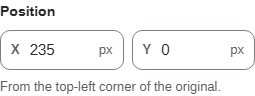
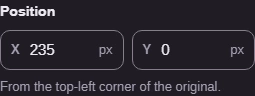
X and Y locate the crop’s top-left corner. W and H set the size of the saved image.
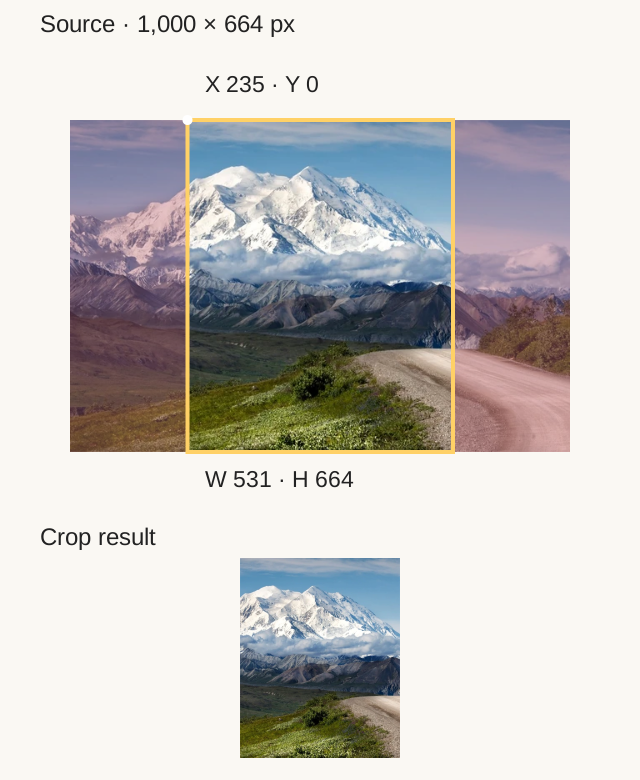
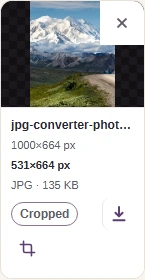
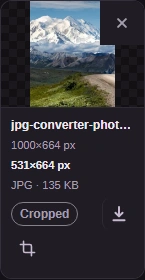
The mountain photo's selected rectangle begins at X 235, Y 0 and measures W 531 by H 664 pixels, matching the crop result below.

The selected rectangle and its output

  1. Start point

    X and Y mark the frame's upper-left corner from the source image's top-left.

  2. Frame size

    Width and Height set how far the rectangle reaches.

  3. Output

    The output tile matches the selected rectangle's width and height.

The marked corner is the starting point. The rectangle and field captures use the same mountain photo. Rendered for illustration. · Photo: NPS Photo / Tim Rains, Public domain, via National Park Service.

If you need exact dimensions, the Size and Position fields let you place the frame without guessing.
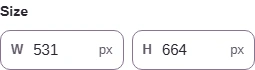
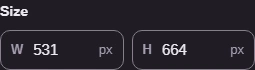
  1. Size sets the saved crop’s pixel dimensions.
    Size sets the saved crop’s pixel dimensions.
    Step 1. Size sets the saved crop’s pixel dimensions.
    1. W sets the width.
    2. H sets the height.
  2. Position locates the frame inside the original photo.
    Position locates the frame inside the original photo.
    Step 2. Position locates the frame inside the original photo.
    1. X counts pixels from the left edge.
    2. Y counts pixels from the top edge.
  3. Want to start over? Reset to the whole image restores every edge.
    Want to start over? Reset to the whole image restores every edge.
    Step 3. Want to start over? Reset to the whole image restores every edge.
    1. Reset restores the full frame.

Rotate and flip originals in FluffyBench

Crop and Adjust start from the same original photos and keep separate edits. Switching to Adjust doesn’t apply adjustments to your crop outputs.
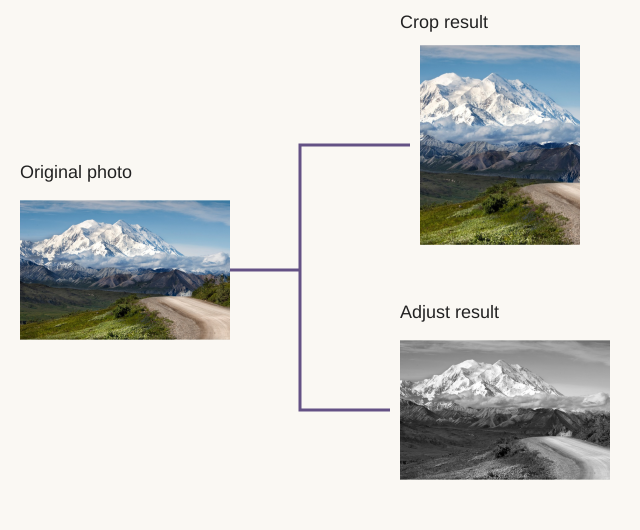
A mountain photo branches independently into a portrait crop and a black-and-white adjustment, with no arrow from the crop to Adjust.
The original branches into two separate results; neither mode starts from the other’s result. Rendered for illustration. · Photo: NPS Photo / Tim Rains, Public domain, via National Park Service.

Rotate turns the whole photo; Flip reflects it. The road and mountain make Right, Mirror and Upside down easy to compare with the unchanged photo.

An asymmetric mountain-and-road photo beside a right rotation, horizontal mirror and vertical flip.
Right turns clockwise; Mirror swaps left and right; Upside down swaps top and bottom. Rotation uses quarter turns, so it won’t straighten a slightly tilted horizon. Rendered for illustration. · Photo: NPS Photo / Tim Rains, Public domain, via National Park Service.

Open Adjust and Settings to find the orientation controls.

  1. Choose Adjust to work on the original photo.
    Choose Adjust to work on the original photo.
    Step 1. Choose Adjust to work on the original photo.
    1. Adjust opens separate edits of your originals.
  2. Open Settings to choose an adjustment.
    Open Settings to choose an adjustment.
    Step 2. Open Settings to choose an adjustment.
    1. Settings opens the adjustment controls.
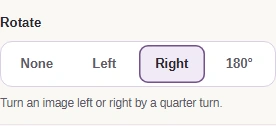
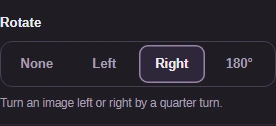
  3. Choose a quarter turn with Rotate.
    Choose a quarter turn with Rotate.
    Step 3. Choose a quarter turn with Rotate.
    1. Right turns clockwise.
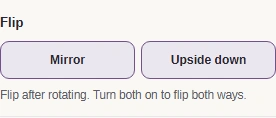
  4. Flip reflects the photo after rotation.
    Flip reflects the photo after rotation.
    Step 4. Flip reflects the photo after rotation.
    1. Mirror swaps left and right.
    2. Upside down swaps top and bottom.

Adjust light and color in FluffyBench

Black and white removes color. Brightness lightens or darkens, Contrast changes the separation between light and dark, and Saturation changes how strong the colors look.

Matched Earth details compare the unchanged photo with Black and white, Brightness 125%, Contrast 150% and Saturation 150%.
Each pair changes one setting; the rest stay at their starting values. The sliders run from 0 to 200%, with 100% unchanged. Rendered for illustration. · Photo: NASA; illustrations by FluffyBench, Public domain, U.S. federal work, via Wikimedia Commons.

In Adjust’s Settings, each light and color control has its own preview. These captures show the values illustrated above.
  1. Black and white removes color.
    Black and white removes color.
    Step 1. Black and white removes color.
    1. Turn on Black and white.
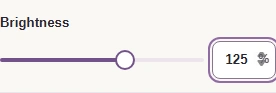
  2. Set brightness with its slider or number field.
    Set brightness with its slider or number field.
    Step 2. Set brightness with its slider or number field.
    1. Choose 125%, as in the comparison.
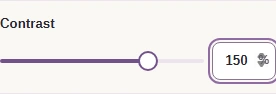
  3. Set contrast with its slider or number field.
    Set contrast with its slider or number field.
    Step 3. Set contrast with its slider or number field.
    1. Choose 150%, as in the comparison.
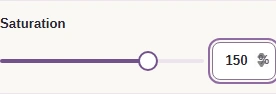
  4. Set saturation with its slider or number field.
    Set saturation with its slider or number field.
    Step 4. Set saturation with its slider or number field.
    1. Choose 150%, as in the comparison.

Here’s the path from Settings to a downloaded Adjust result, with Black and white chosen.

  1. Close Settings to return to the preview.
    Close Settings to return to the preview.
    Step 1. Close Settings to return to the preview.
    1. Press Settings again to close the controls.
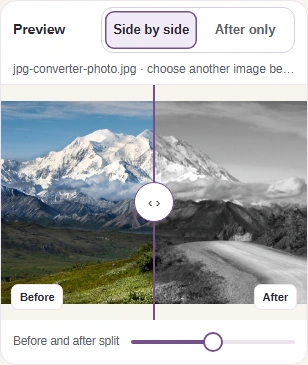
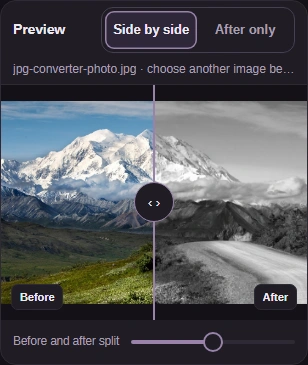
  2. Compare the original and adjusted preview with Side by side.
    Compare the original and adjusted preview with Side by side.
    Step 2. Compare the original and adjusted preview with Side by side.
    1. Side by side compares the original and adjusted preview.
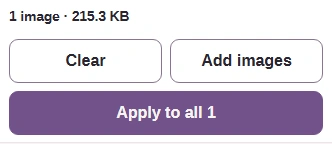
  3. Apply to all creates the adjusted images.
    Apply to all creates the adjusted images.
    Step 3. Apply to all creates the adjusted images.
    1. Apply to all creates PNG results with these settings.
  4. The completed result shows PNG, its dimensions and file size, with Download.
    The completed result shows PNG, its dimensions and file size, with Download.
    Step 4. Check the PNG result and download it.
    1. Check the PNG type, dimensions and size.
    2. Download saves this adjusted PNG.

Check the format and download your result

Crop chooses a file type from the original; Adjust always creates PNG. The completed result’s file-type readout tells you what was actually saved.
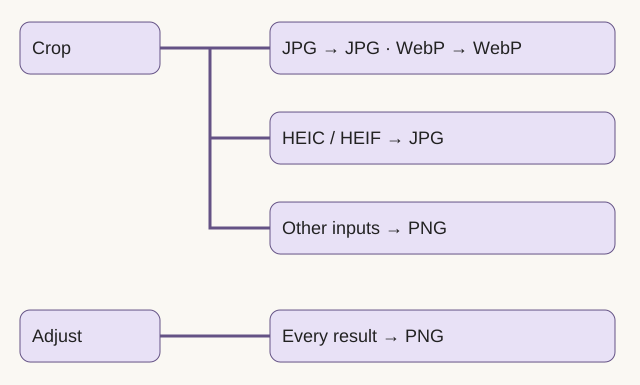
A flow map routes Crop JPG and WebP to their own format, HEIC and HEIF to JPG, other inputs to PNG, and all Adjust results to PNG.
For Crop, JPG and WebP stay in their format when encoding works; HEIC and HEIF become JPG when JPEG encoding works. If that encoding isn’t available, FluffyBench saves PNG.

A correctly framed JPG can still change slightly when it’s saved again; our image quality guide explains re-encoding. Adjust’s PNG can be larger than a JPG original, and camera details, location and color profiles aren’t carried over.

FluffyBench keeps the first frame of animated input in both modes. Files containing layers, several pages or multiple pictures are refused with a message explaining the problem. Read more about animation conversion.

Your destination needs JPG instead of an adjusted PNG

Convert with FluffyBench’s JPG converter

It creates a JPG version of your adjusted PNG.

FluffyBench’s Image Viewer opens your saved image for a larger look at small details.

Need to inspect an image in the browser?

Search FluffyBench