GIF and APNG converter

Convert images to GIF; animation is preserved.

FluffyShield Protected workspace
From
To

GIF output uses at most 256 colors and 1-bit transparency.

Convert to

Common

Any image Mix formats in one batch
WebP Small files for the web
JPG Opens anywhere
PNG Lossless with transparency
AVIF Modern web images
JPEG XL JPEG XL images
GIF GIF images

Icons and print

ICO Windows icon
ICNS Mac icon
CUR Cursor image
TIFF Print and archival image
BMP Windows bitmap
APNG Animated PNG image

Game textures

DDS Game texture
KTX GPU texture
KTX2 GPU texture
VTF Valve texture

Your images stay when you change the format. Press Convert again to make the new files.

FluffyShield

Isolated workspace: other page scripts can't read your files. How FluffyShield works

How it works
  1. Choose your animation
  2. Choose GIF or APNG
  3. Convert on your device
  4. Download the finished file

GIF or APNG

Choose the format your site or chat accepts.

Color and size

Set the GIF palette and each frame's dimensions.

On your device

Your animation is converted in your browser.

Limits For a refusal, see Fix a refused animation conversion.

Convert an animation to GIF or APNG in FluffyBench

Need a GIF for a site or chat? FluffyBench saves your animation as GIF or APNG, with choices for its colors, edges, and size.

Choose GIF or APNG for your destination

An animated GIF is a digital flipbook: it shows still pictures, called frames, one after another, each held briefly before the next appears. Converting a still picture doesn't create new motion.

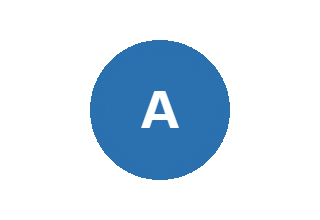
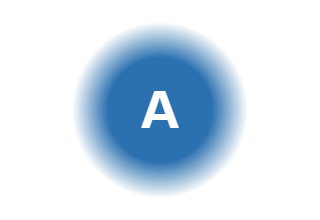
Use GIF when a site or chat asks for it; each GIF pixel is fully clear or fully solid. APNG is animated PNG: it keeps partly see-through pixels, so the soft blue rim around this badge can blend into a background when your destination accepts APNG.
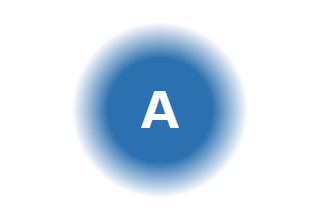
A blue letter badge with a partly transparent edge over a checkerboard.

Source WebP · soft edge

The same badge converted to GIF, with the partly transparent outer rim removed.

GIF · hard edge

The same badge converted to APNG, keeping its partly transparent rim over the same checkerboard.

APNG · soft edge

Rendered with FluffyBench's encoders for illustration: GIF cuts off the soft rim; APNG keeps it. All three use the same checkerboard. How we reviewed

Doing it in FluffyBench: make a GIF with the defaults

For a GIF input, Keep the animation saves the frames in order, with their timing and loop setting. In Animated images, choose Still of frame 1 when your destination needs a single picture: the horse stays in one pose.
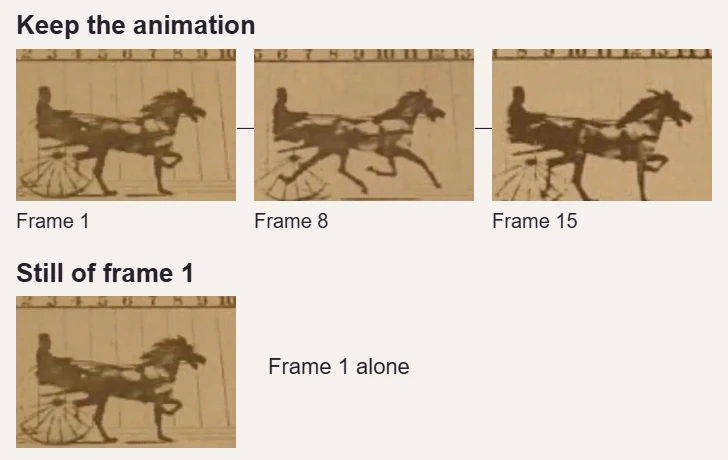
Keep the animation retains the sequence: source frames 1, 8 and 15 show changing leg positions. Still of frame 1 retains frame 1 alone.

Moving sequence or first frame

The moving sequence changes pose; the first frame alone doesn't. · Photo: Eadweard Muybridge, Public domain; Public Domain Mark 1.0, via Wikimedia Commons.

FluffyBench's GIF and APNG converter works on your device. This quick workflow uses the default color and size settings; optional changes to make before Convert are shown under Choose GIF colors and pixel size.
  1. GIF converter with Choose images ready.
    GIF converter with Choose images ready.
    Step 1. Choose the animation from your device. Keep the original for comparison. Animated VTF input uses frame 1.
    1. Choose images opens your files.
  2. The GIF settings button in the FluffyShield header.
    The GIF settings button in the FluffyShield header.
    Step 2. The gear labeled GIF opens Settings; the same button closes it.
    1. Open Settings here.
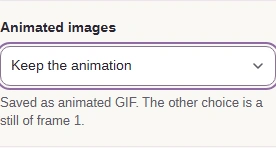
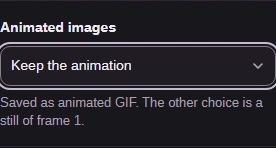
  3. Animated images set to Keep the animation.
    Animated images set to Keep the animation.
    Step 3. Keep the animation is selected for this GIF input.
    1. Leave Keep the animation selected.
  4. The GIF gear closes Settings.
    The GIF gear closes Settings.
    Step 4. Close Settings with the same GIF gear.
    1. Close Settings here.
  5. The GIF Convert action above the selected animation.
    The GIF Convert action above the selected animation.
    Step 5. Convert 1 to GIF starts the conversion.
    1. Convert creates the GIF.

Need to convert an animated image to WebP?

Doing it in FluffyBench: convert GIF to APNG

For GIF-to-APNG, change the two format pickers in the shared workflow: APNG becomes available when From is GIF. To decides the saved format; changing a filename's ending doesn't convert it.
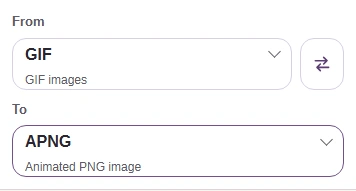
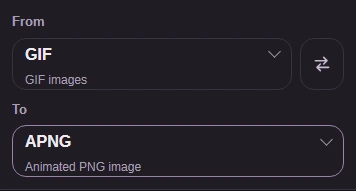
  1. From set to GIF and To set to APNG.
    From set to GIF and To set to APNG.
    Step 1. Change From and To here; use the same intake and animation setting as in the GIF workflow.
    1. Choose GIF under From.
    2. Choose APNG under To.
  2. Convert button set to make APNG.
    Convert button set to make APNG.
    Step 2. Convert 1 to APNG starts the conversion.
    1. Convert the GIF to APNG.

Choose GIF colors and pixel size

A GIF palette is a small box of crayons: every part of the picture has to use one of its shades, so a smooth sky can turn into bands when the box doesn't have enough blues. Dithering trades those broad bands for tiny dots of nearby colors, like the dots in a newspaper photo.

Smooth shades of blue in the original sky.

Source sky

The same sky saved as GIF without dithering, showing broad blue bands.

None · 16 colors

The same sky saved as GIF with dithering, showing tiny dots that soften the bands.

Floyd-Steinberg · 16 colors

  1. Smooth source

    Gradual shade changes.

  2. Color bands

    The short color list leaves bands.

  3. Color dots

    Dots soften the bands.

The same sky, with bands or dots depending on the dithering choice. · Photo: NPS Photo / Tim Rains, Public domain, via National Park Service.

Before Convert, GIF palette chooses how many colors are available; a larger palette gives the picture more shades to work with. GIF dithering chooses how they're mixed, using None or Floyd-Steinberg.
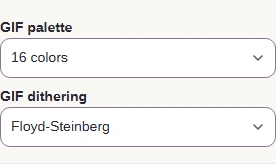
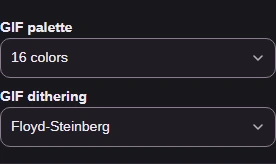
  1. GIF palette set to 16 colors and GIF dithering set to Floyd-Steinberg.
    GIF palette set to 16 colors and GIF dithering set to Floyd-Steinberg.
    Step 1. Choose the palette and dithering for your GIF.
    1. Choose 16 colors.
    2. Choose Floyd-Steinberg.

Size means pixel width and height, not how much storage a file takes. Resizing changes every page of the flipbook together; Original leaves the canvas alone, Percentage scales both sides, and Dimensions sets a width or height.
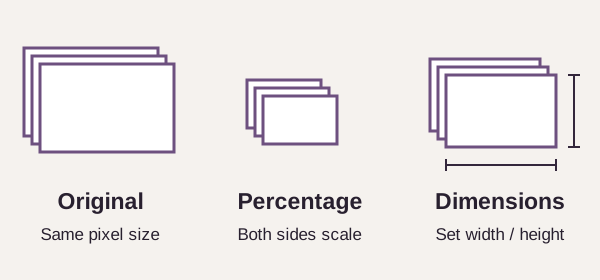
Three miniature stacks of frames: Original stays the same size, Percentage shrinks both sides, and Dimensions chooses width and height.

How Size changes the frame canvas

An illustration of the three Size choices; each applies across the animation.

Optional: choose Percentage when you want the same proportions at a smaller scale. The Scale value below is an illustration, not a required setting.
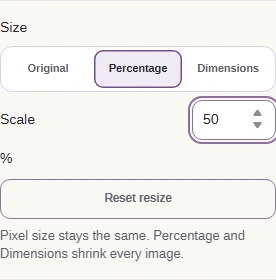
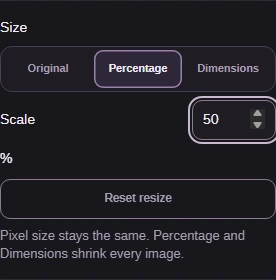
  1. Size set to Percentage with Scale 50 percent.
    Size set to Percentage with Scale 50 percent.
    Step 1. Optional: scale both sides by the same percentage.
    1. Choose Percentage.
    2. Enter 50.

Dimensions is the alternative to Percentage when your destination asks for a particular width or height. Keep aspect ratio lets Auto follow the other side, so the picture doesn't stretch.
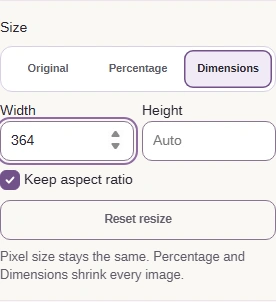
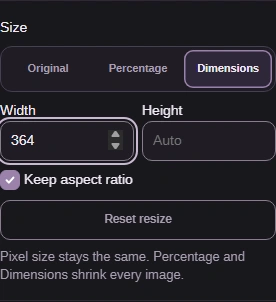
  1. Size set to Dimensions, with Width 364, Height Auto and Keep aspect ratio.
    Size set to Dimensions, with Width 364, Height Auto and Keep aspect ratio.
    Step 1. Alternative: set a width and let Auto choose the height.
    1. Choose Dimensions.
    2. Enter the width you need.
    3. Keep aspect ratio avoids stretching.

Check size, picture, and playback before sharing

GIF and APNG use the same result controls. A finished conversion still needs to fit your destination's file-size and pixel-dimension limits; the output dimensions sit beside the storage size, below the source row.
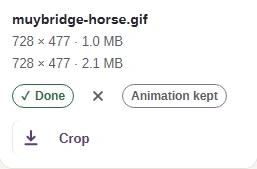
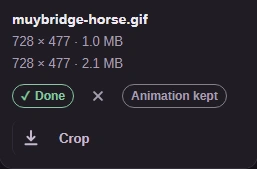
  1. Completed GIF output row below the source, with dimensions and file size.
    Completed GIF output row below the source, with dimensions and file size.
    Step 1. Check the result's size and dimensions against your destination's limits.
    1. Check the output dimensions and file size against your destination's limits.
  2. Completed GIF with its Download icon and Animation kept label.
    Completed GIF with its Download icon and Animation kept label.
    Step 2. Download saves the finished result; GIF and APNG use this same control.
    1. Save this result to your device.

The saved animation needs to play at the right pace and look right against your destination's background. Here's the downloaded GIF playing in a local browser preview, with the horse's edge enlarged.

Saved horse GIF playing through its complete sequence in a local browser preview, with a moving enlarged detail of the horse's edge against the same background.

3. Play the saved animation · inspect the edge

Play a full loop in your destination to check the pace, picture detail, and edges. · Photo: Eadweard Muybridge, Public domain; Public Domain Mark 1.0, via Wikimedia Commons.

Re-saving this horse animation, already a 1.0 MB GIF, at 16 colors made it about 2× as big, with the same dimensions.
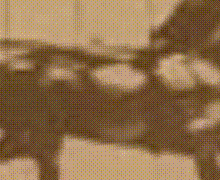
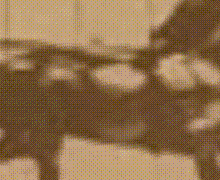
Same horse animation, different GIF settings

Source GIF
1.0 MB
16 colors · None
2.1 MB
16 colors · Floyd-Steinberg
2.2 MB
Matching horse detail from the measured source GIF.

Source GIF · detail

The same horse detail from the measured 16-color Floyd-Steinberg GIF output.

16 colors · Floyd-Steinberg · detail

Both re-saved GIFs grew, with a small extra cost for dithering: fewer colors don't guarantee fewer bytes. Compare the paired source and Floyd-Steinberg crops for changes to the horse's shape and the background texture. · Photo: Eadweard Muybridge, Public domain; Public Domain Mark 1.0, via Wikimedia Commons.

Fix a refused animation conversion

FluffyBench refuses moving output beyond 500 frames or 64,000,000 pixels added up across all frames. The second limit counts width times height for each frame, so even a modest picture can reach it in a long animation; these are the actual messages.
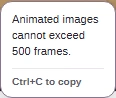
Actual GIF refusal: Animated images cannot exceed 500 frames.

Too many frames · use a shorter source
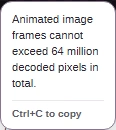
Actual refusal for more than 64 million decoded pixels across all animation frames.

Too much frame area · use a smaller source

Choose a shorter or smaller source animation for these refusals.
Search FluffyBench