
Why can converting a very large image take so long in a browser?
A photo can be small enough to download quickly and still give your browser a lot of work. It expands into millions of pixels—and saving those pixels in a new format can take most of the time.
Why can a small image file need so much memory?
A JPEG is like a packed suitcase: it takes less room closed than it does with everything spread out. To show or change your photo, the browser unpacks it into a grid of colored pixels. Width times height tells you how many positions that grid has.
Our photo occupied about 19 MB on disk and expanded into 108 million pixel positions. One four-byte-per-pixel grid for that photo is a calculated 432 MB.

So a quick download doesn't mean a quick conversion. The browser still has to work through the unpacked picture, and then write a new file.
Why can saving a converted photo take longer than opening it?
Opening a JPEG unpacks its pixels; converting it also draws those pixels on a canvas, the browser's drawing surface, and encodes them into a new file.

In FluffyBench's WebP converter, encoding accounted for most of the wait: about 29–36 seconds. These results come from one photo on our desktop.
That's why seeing the photo appear isn't the end of the job. A preview can be ready while the browser still has the new file to write.
Can megapixels predict conversion time?
A megapixel is a million pixels, so it tells you the amount of picture, not a finish time. We compared centered 24 MP and 48 MP crops from the same photo.

The larger crop had about twice the pixels and took more than 6 times as long to encode in both browsers. Pixel count isn't a stopwatch.
Can changing the output format shorten the wait?
Yes: on the same full photo, JPEG at quality 92 encoded in under a second, while both WebP settings took tens of seconds. These separate browser API comparisons show how much the chosen format can matter for this picture.
A faster file still needs to suit its destination. Quality numbers also aren't a common measure across formats: JPG 92 and WebP 92 don't promise the same look. For help choosing a quality setting, see what re-saving does to an image.
Doing it in FluffyBench: resize as much as you need
FluffyBench's Image Space Saver can make a smaller whole-frame copy, leaving fewer pixels to draw and encode. If you need all the detail, it can keep the original dimensions. Resize, compress or convert? explains which change fits your job.
Start with one of the photos you plan to use. This walkthrough chooses JPG and smaller dimensions; use the bounds your destination asks for.
-
Step 1. Choose one photo to try before adding a batch. - Choose images opens your file picker.
-
-

Step 2. Open Settings to choose the output. - Settings opens the image controls.
-
-
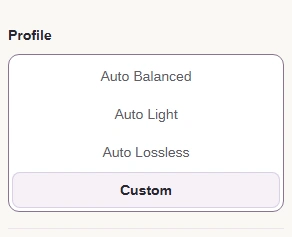
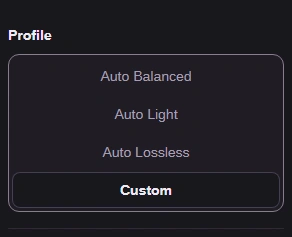
Step 3. Choose Profile → Custom to reveal the format choice. - Custom lets you choose the output format.
-
-
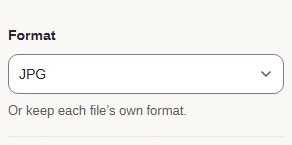
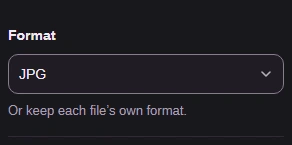
Step 4. Choose JPG here if your destination accepts it. - Format chooses the kind of file to save.
-
-
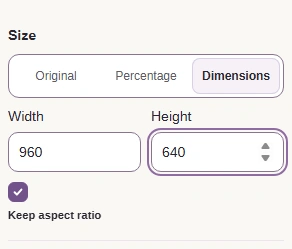
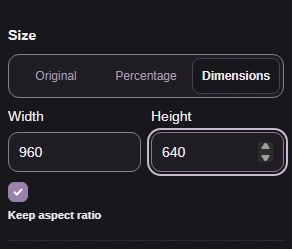
Step 5. Use Original when you need all the pixels. For a smaller whole-frame copy, choose Dimensions; these example bounds are 960 × 640. - Original keeps dimensions; Dimensions fits the image inside pixel bounds.
- Width and Height set pixel bounds; Keep aspect ratio avoids stretching.
-
With the settings ready, make and inspect one copy before you add more images.
-
Step 1. Close Settings when your choices are ready. - Settings closes the controls on a phone.
-
-
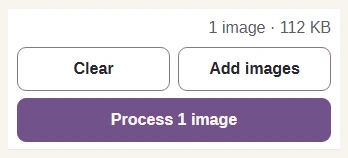
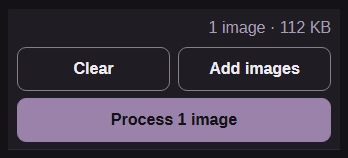
Step 2. Press Process 1 image to make the copy. - Process 1 image applies your settings.
-
-
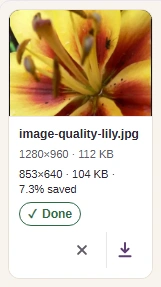
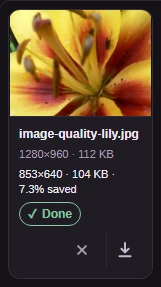
Step 3. Check the finished dimensions, size and preview before adding more files. Download saves the copy; keep your original for later edits. - Check the result’s size and dimensions.
- Download saves this finished image.
-
If the photo finishes converting and then won't download on a phone, our large-download guide covers that separate problem. A download error doesn't establish an image conversion limit.