
Can you open iPhone HEIC photos on Android or outside Safari?
Yes, often. HEIC photos can work on Android and in browsers other than Safari, as long as the browser itself can open the picture inside.
Here's why choosing a photo isn't the same as opening it, and how to check your own photo and get a JPG that opens anywhere.
Why doesn't choosing a HEIC photo mean it has opened?
HEIC is the format iPhones use for photos by default. It squeezes the picture with the same kind of compression used for video, which keeps the file small but means a browser needs its own HEIC reader to open it. That's why picking a HEIC in a file picker isn't proof that the browser can open it.
Think of the file as a sealed package: choosing it brings the package to the door, and opening it is a separate job for the browser. From your photo to a JPG takes three steps, and the middle one is where browsers differ.

From a chosen HEIC to a JPG
What happened when Chrome and Firefox tried HEIC on the same Android phone?
We tried HEIC photos on one Android phone in two browsers. Chrome took all 4 of them through every step. Firefox's file picker refused HEIC photos, so the other two steps never started.

Two browsers, one Android phone
So a browser's name is a clue, and the answer that counts comes from the browser you'll actually use. Checking it takes one photo.
Doing it in FluffyBench: check one HEIC photo
The quickest test is to convert one photo in FluffyBench's HEIC converter. It works in your browser, so your photo isn't uploaded, and a finished JPG proves this browser can open your HEIC files.
Here's the whole check with one photo, from choosing it to saving the JPG.
-
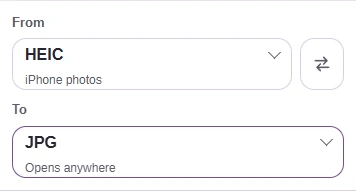
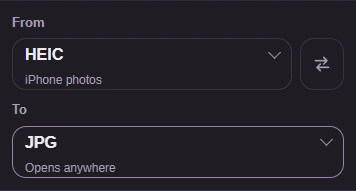
Step 1. Open FluffyBench's HEIC converter and check that To says JPG, the format almost every app and website can open. - From: HEIC, your iPhone photo.
- To: JPG. Tap it to pick JPG if it shows something else.
-
-
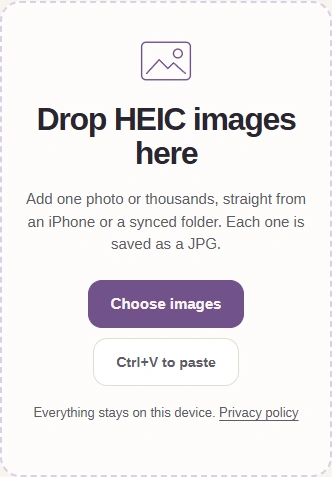
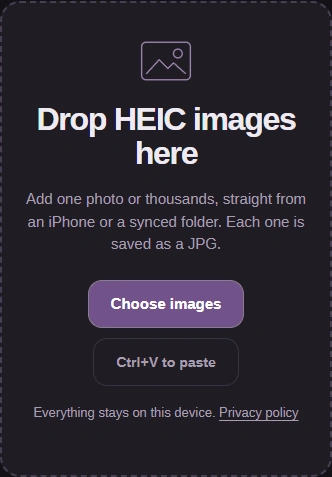
Step 2. Pick one HEIC photo from the phone or camera you'll be using. It stays on your device. - Choose images opens your file picker.
-
-
Step 3. Choosing the photo only hands it over. Nothing is opened until you press Convert. - Press Convert 1 to JPG to start.
-
-
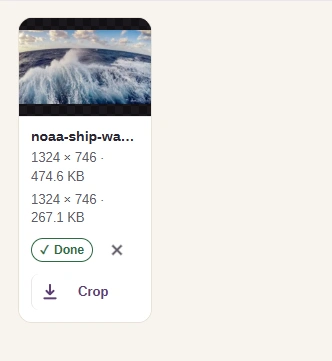
Step 4. A preview and a Done mark mean this browser opened your HEIC and made the JPG. - The preview shows the picture, so it opened.
- The second size line is the new JPG.
- Done: the JPG is ready.
-
-

Step 5. Save the JPG, then open it wherever it's going before you convert the rest. - Download saves the JPG to your device.
-
If that worked, add the rest of your photos the same way. A big photo can take a while to open on a phone; here's why a small HEIC can still be slow. Keep your original HEIC files: the JPG is a new copy, and it can't bring back anything the conversion left out, such as transparent edges.
Just want to look at a HEIC photo without converting it?
What if FluffyBench warns that this browser can't convert HEIC?
Sometimes FluffyBench can tell before you pick a photo that this browser has no way to open HEIC. Then a warning sits over the picker in place of Choose images, and it names a browser that fits your device.
-
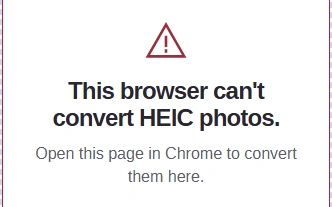
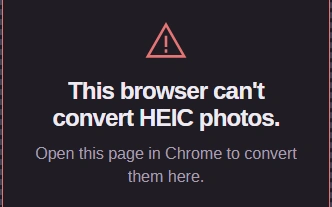
Step 1. On Android, the warning names Chrome. It shows before you pick a photo, and the picker stays locked while it does. - The warning: this browser can't convert HEIC photos.
- On Android: open the page in Chrome.
-
-
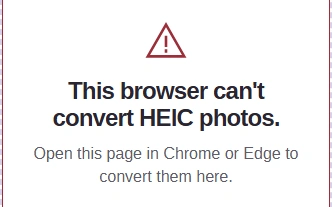
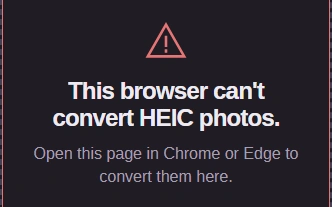
Step 2. On Windows, the same warning suggests Chrome or Edge. - On Windows: Chrome or Edge.
-
-
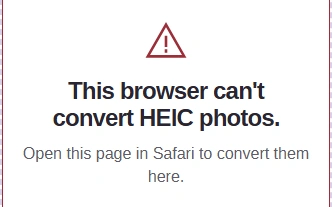
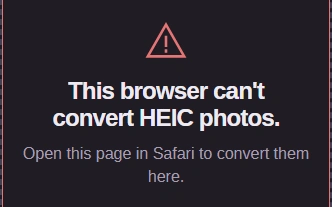
Step 3. On a Mac, iPhone or iPad, it suggests Safari. - On Apple devices: Safari.
-
Open the page in the browser the warning names and try the same photo again. No warning means FluffyBench hasn't ruled your browser out. If the picker opens but a photo still doesn't convert, its tile in the list says why.