
Can a browser convert a 10,000-file photo batch?
Yes—a browser can work through thousands of photo files by handling a few at a time. Here’s how that queue works and what to check before trying your own collection.
How can a browser handle thousands of photos?
Think of a checkout line: a few photos are being served while the rest wait their turn. With a live ZIP download, finished copies leave the work area as new photos move in.
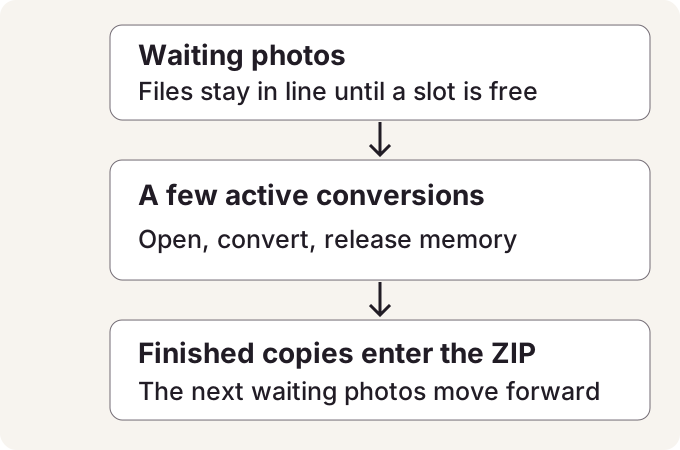
A long queue, a small work area
- Waiting
Selecting a file doesn't mean keeping its full picture open in memory.
- Working
Batch speed sets the limit on simultaneous conversions. FluffyBench Image Space Saver can lower that limit for pictures that need more memory.
- Finished
The ZIP receives each completed copy as the queue moves along.
What happened when FluffyBench processed 10,000 files?
On 2026-10-11, FluffyBench Image Space Saver reported 10,000 completed files and 0 failures: about 20 minutes converting to WebP, or 22 minutes including file checks. Resizing was off, so the job kept the original pixel dimensions.
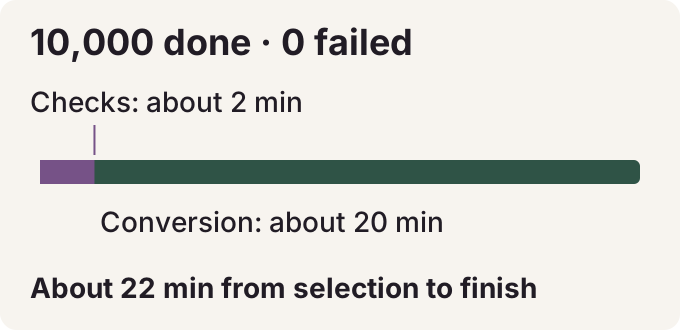
The completed run, from its report
Memory in use peaked at 3.1 GiB across the browser's processes. That's the useful result for a big collection: the queue kept moving without holding every full-size picture open together.
Need to convert a photo collection in the browser?
Doing it in FluffyBench
FluffyBench Image Space Saver handles the queue and can download finished copies into one ZIP as it runs. Your images stay on your device. Here's a first batch you can inspect before committing a whole collection to the same settings.
These current-workspace screenshots use two JPG copies of a flower photo. Start with file selection and the output settings.
-
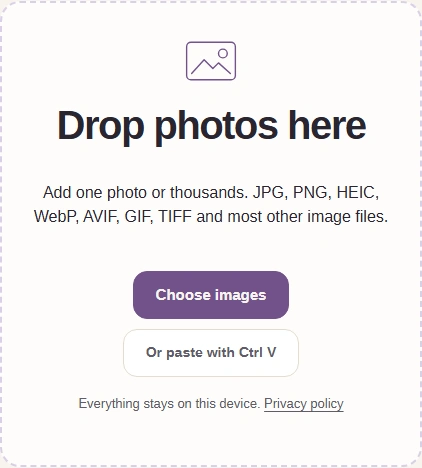
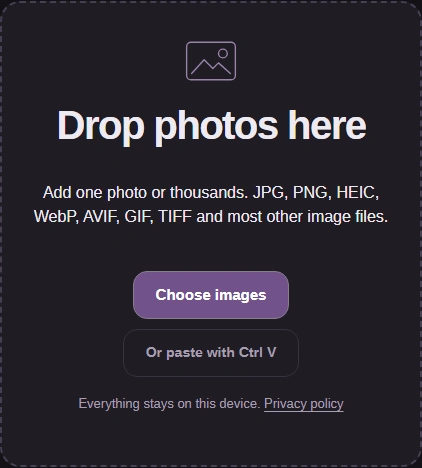
Step 1. Choose files that include your collection's formats. Keep the originals. - Choose images opens your file picker.
-
-


Step 2. Open Settings with the gear above the workspace. - The gear opens Settings; the text beside it names the current profile.
-
-
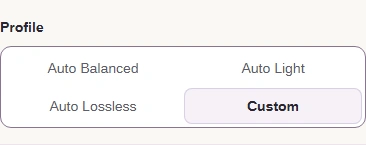
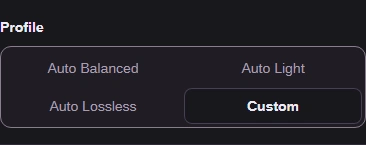
Step 3. Choose Profile: Custom. - Custom exposes Format and Maximum quality.
-
-
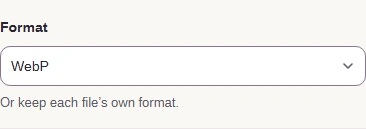
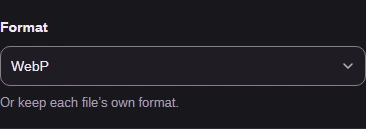
Step 4. Set Format to WebP. - WebP is the format used in the historical run.
-
-
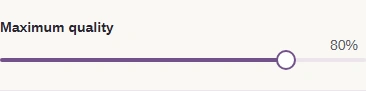
Step 5. Set Maximum quality to 80. - 80 is the quality this guide's run used.
-
Size, Batch speed and the ZIP option finish the setup. The historical run used Fast; this first batch uses Automatic.
-
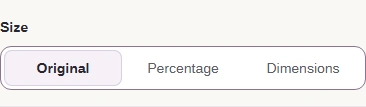

Step 1. Keep Size at Original. - Original keeps the pixel dimensions.
-
-
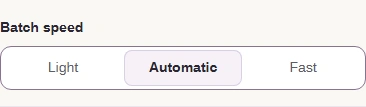
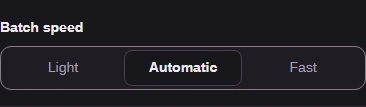
Step 2. Leave Batch speed at Automatic for your first batch. - Fast can start more work at once and uses more memory.
-
-


Step 3. Turn on Download as one ZIP as it runs. - Finished copies enter the ZIP as they finish.
-
-
Step 4. Press the Settings gear again to close the panel, then Process 2 images. Keep the page open until the ZIP finishes. - The Process button includes your selected file count.
-
What should you check in the finished ZIP?
Here's the completed demonstration batch, its downloaded ZIP contents and a WebP opened from that ZIP. The archive listing comes from the actual download; this is a separate illustration from the historical run.
-
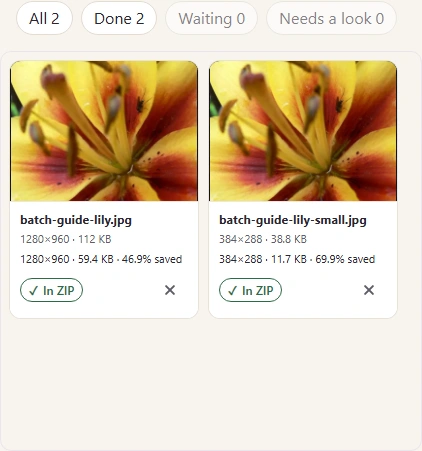
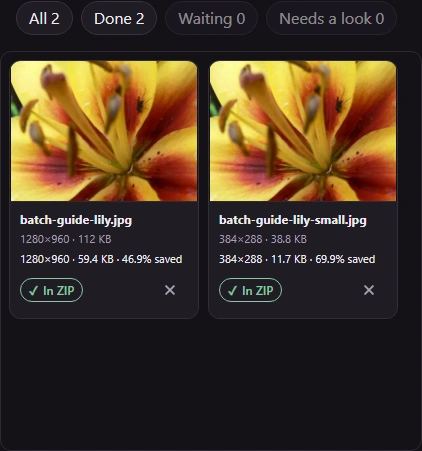
Step 1. Match Done to your selected count. Review Needs a look when it has files; In ZIP marks copies passed to the download. - Both converted copies reached the ZIP.
-
-
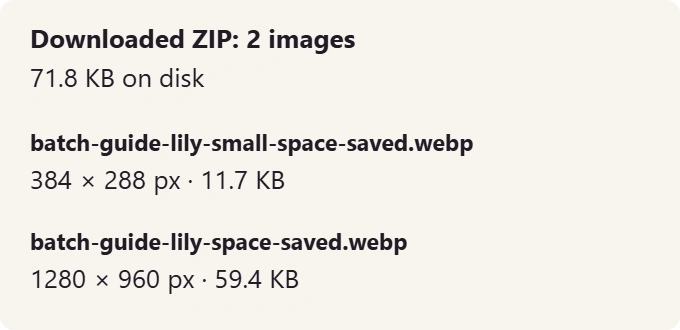
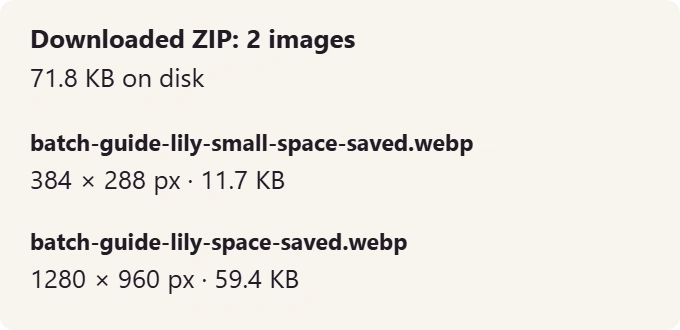
Step 2. Wait for your browser's download to finish, then open the saved ZIP. This listing was read from the downloaded example. - Check the ZIP contains your converted files.
-
-


Step 3. Open a converted photo where you'll use it. Check its dimensions and appearance before converting the rest of your collection. - Inspect the opened copy, including fine detail.
-
For a detail check, compare the same patch of your original and converted photo. Here are the flower's petal markings in a separate illustrative WebP conversion at quality 80, with its pixel dimensions unchanged.
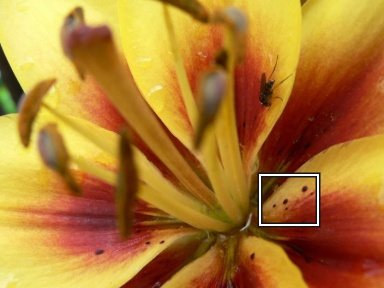
Original JPG

38.8 KB
WebP, quality 80

11.7 KB
Rendered for illustration.

An Image Space Saver result marked Kept original still has its original format. Its card explains why.
What can interrupt a large photo batch?
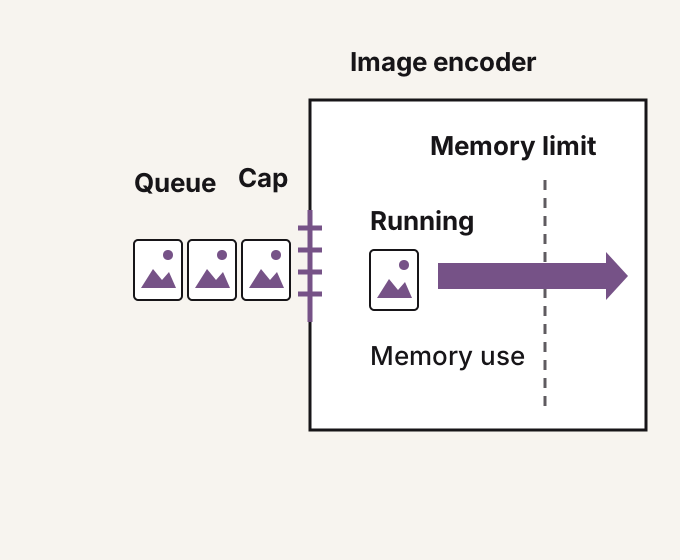
Fast can start more conversions at once, so more work competes for memory. A queue limits new work; it can't immediately stop a conversion the browser has already begun.
A limit on starting work
- Waiting
FluffyBench Image Space Saver decides which waiting photo starts next.
- Already running
The image encoder is the browser code writing a new file. That work can keep using memory after the queue stops new starts.
- Not enough room
A tab that closes during processing loses the run, including a ZIP download in progress.
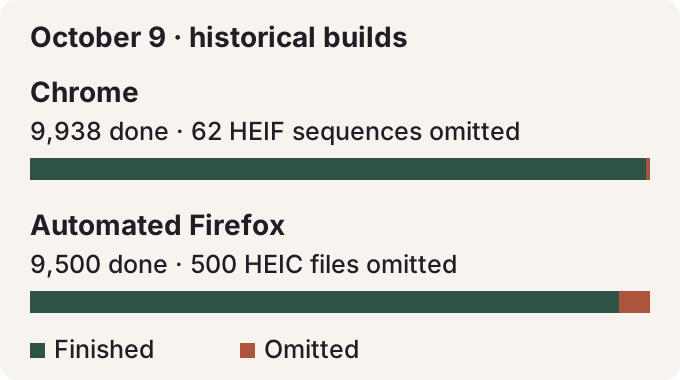
Photo formats can leave gaps too. In the October 9 observations, Chrome left out HEIF sequence files (several pictures packed into one file), while an automated Firefox build left out HEIC photos, a common iPhone format.
Which formats were left out?