
Why can a large PNG take far more memory than its file size?
A PNG can look small in your file manager and still strain your browser. Its compressed size hides the full grid of pixels—and the extra copies a converter may need.
Why can a small PNG file need so much memory?
Think of a PNG like a folded map: it packs away neatly, then needs room to open. Decoding unpacks the compressed file into a grid of pixels; an encoder receives those pixels and writes a compressed PNG.
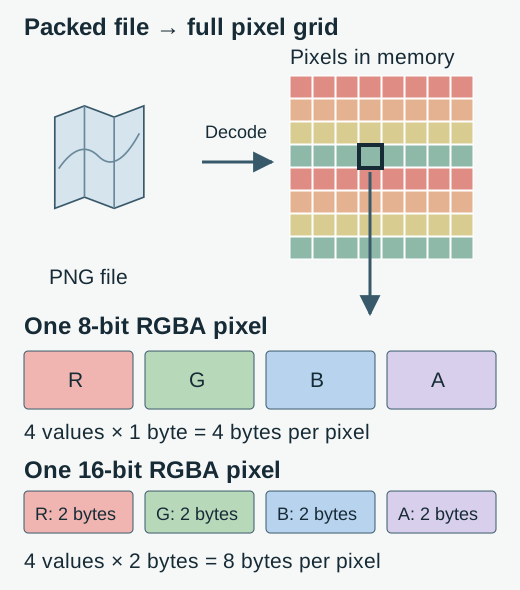
The grid's width and height determine how many pixels need room. The pixel layout determines what each pixel stores. A large, simple picture can compress into a small file while still needing a full-sized grid when it's opened.
How big is a 3.7 MB PNG once it's opened?
One generated 6000 × 4000 PNG takes about 3.7 MB on disk. Its 8-bit RGBA pixels need 96 MB, before any extra copies an encoder might make.
At the same dimensions, storing more values or more bytes per value makes a bigger pixel grid. Compressing the PNG more tightly doesn't change that arithmetic.
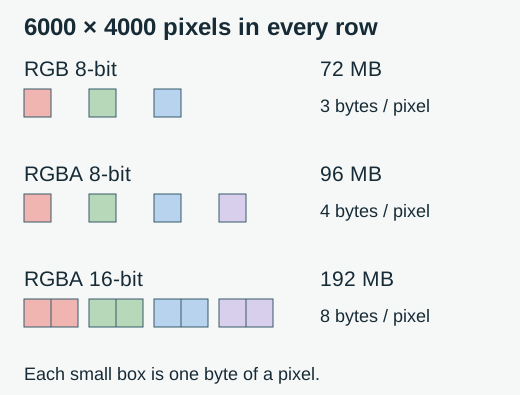
Decoding and drawing need room too; the guide to very large images in a browser follows that wider memory use.
Doing it in FluffyBench: check image dimensions before converting
FluffyBench's PNG Converter lets you check an image's dimensions before conversion. Here's a large flower PNG being saved as a smaller picture on your device.
-
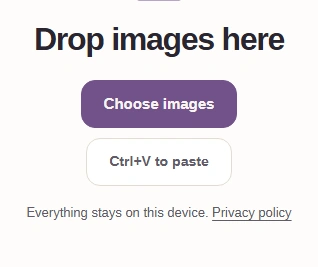
Step 1. Choose a PNG from your device. - Choose images opens your file picker.
-
-
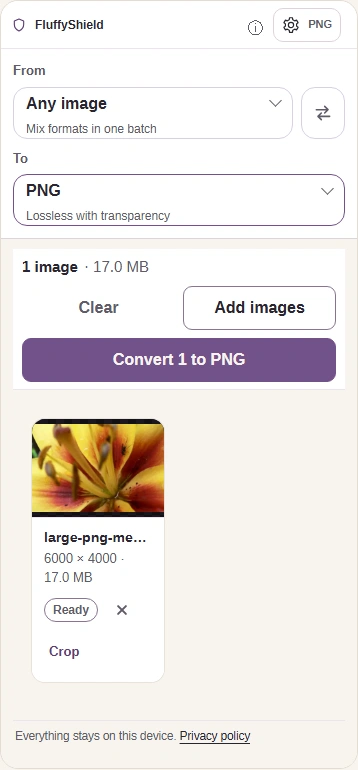
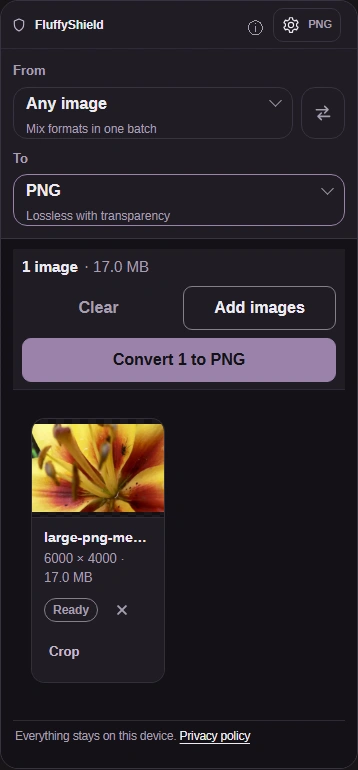
Step 2. Read the loaded PNG's width and height, then open PNG settings. - Read the source dimensions here.
- PNG opens the output settings.
-
-
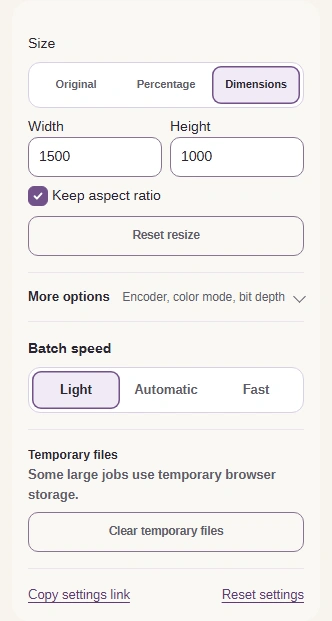
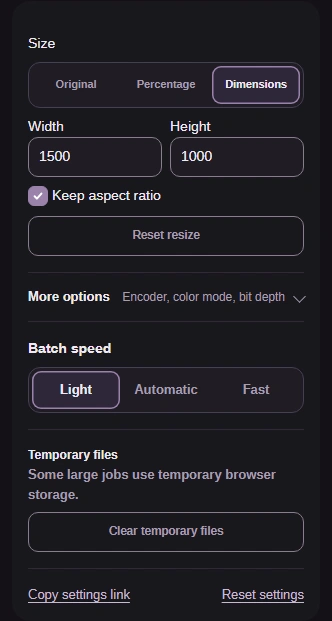
Step 3. Size changes the output grid; the source still needs to be decoded. On a computer, Batch speed limits how many jobs run together; Fast uses more memory. Phones manage batch speed automatically. - Dimensions lets you set the output width and height.
- Use 1500 by 1000 for this illustration; keep the aspect ratio.
- Choose Light to limit simultaneous jobs in a batch.
-
-
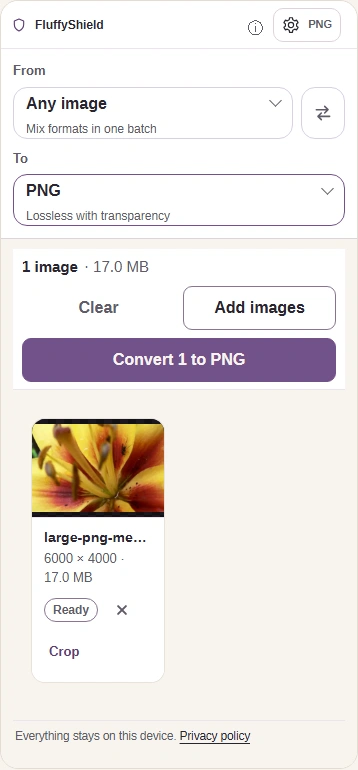
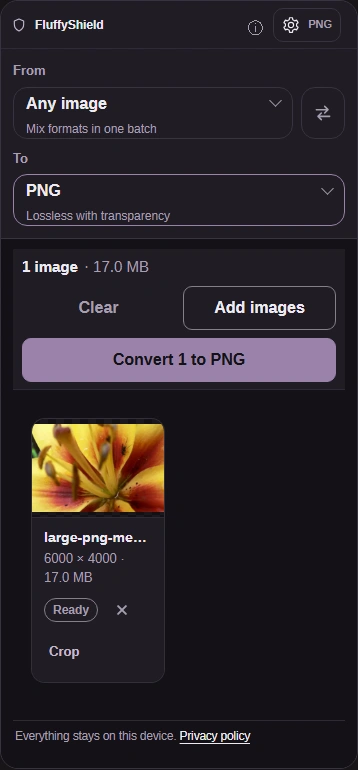
Step 4. Close settings with the PNG button, then convert. - PNG also closes the settings.
- Convert writes the smaller PNG.
-
-
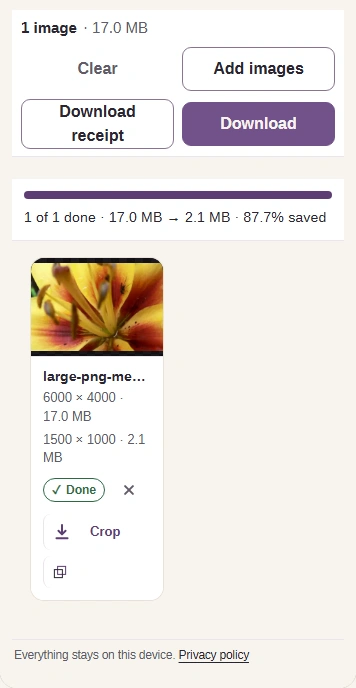
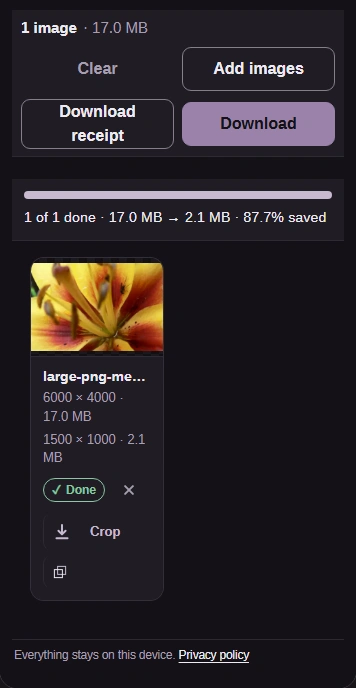
Step 5. Check the output dimensions and file size on the completed tile, then save the PNG. - Read the output dimensions and PNG file size here.
- Download saves the PNG to your device.
-
How FluffyBench's PNG encoder now avoids extra pixel copies
FluffyBench's PNG encoder now skips a temporary grid that widened every 8-bit input value to two bytes; writing 8-bit RGBA also reuses the input pixels, removing a second copy. These are calculated buffer sizes for the RGBA case; compression and output need their own memory.
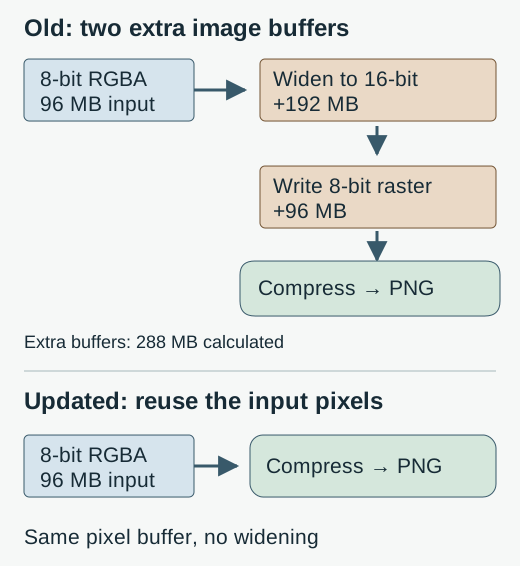
In the measured noisy RGBA image, the update almost halved peak image-buffer memory. The RGB image used less memory too, even though writing RGB still needs a separate output grid.