Why can identical-looking text fail a comparison?
A name can look exactly right and still fail a search or duplicate check. The hidden difference may be how its letters are stored—and normalization can make equivalent spellings match.
What does an exact text comparison read?
It reads the stored values behind the letters, so matching shapes don't guarantee matching text.
Think of a letter's shape as the printed letter, its Unicode code point as a catalog number, and its bytes as the package used to store it.
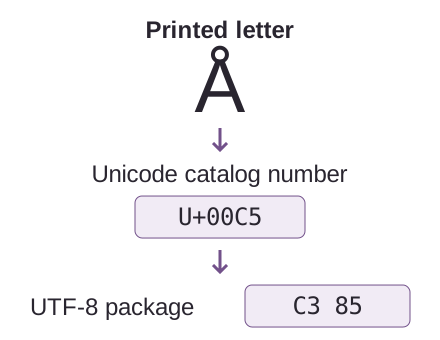
Unicode assigns numbered values called code points to text. A font draws their shapes; an encoding, such as UTF-8 or UTF-16, writes them as bytes. When a search misses a name that looks right, the code points are a useful place to look.
How does normalization make equivalent spellings match?
Normalization gives equivalent spellings a shared form, so they can pass an exact comparison.
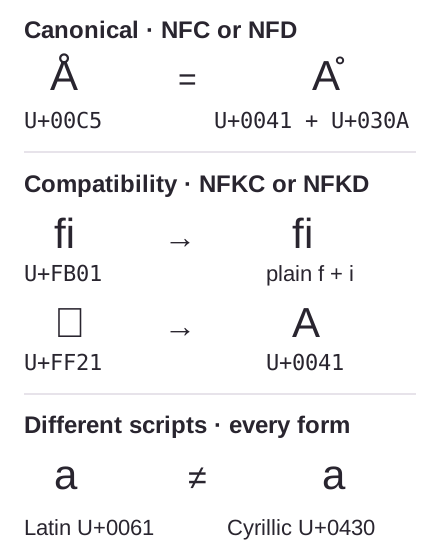
Å can be stored as a precomposed letter, an Angstrom sign, or A followed by a combining ring. These are canonically equivalent spellings: NFC joins them into the same precomposed letter; NFD separates them into the same letter-and-ring sequence.
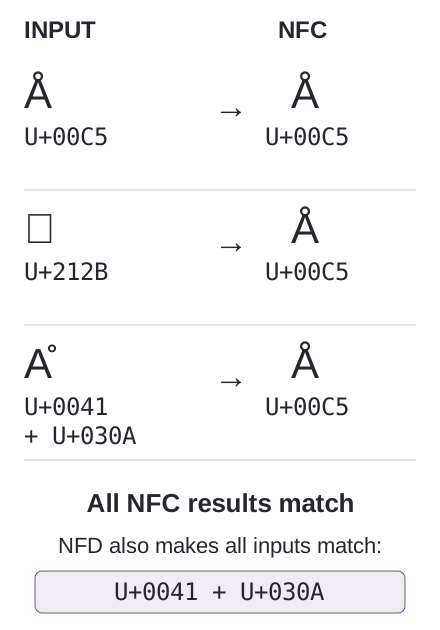
NFC and NFD are standard forms, and either settles this difference. The important part is using the same form on both sides. You're changing how equivalent text is written down, much like putting the same address into a consistent layout before checking for duplicates.
Doing it in FluffyBench's Unicode Inspector
FluffyBench's Unicode Inspector reveals the code points in your text and makes a normalized copy.
Inspect one spelling at a time. These captures use the same Å spellings as the comparison above; short text updates automatically.
-
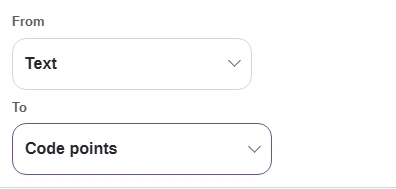
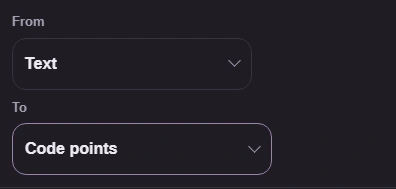
Step 1. From stays on Text. Under To, choose Code points. - From: Text is the input.
- To: choose Code points.
-
-
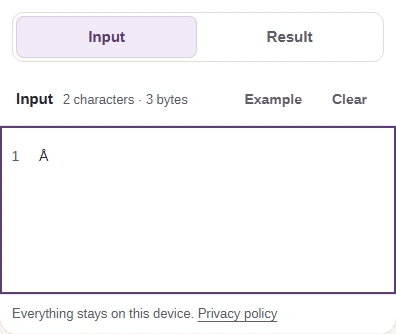
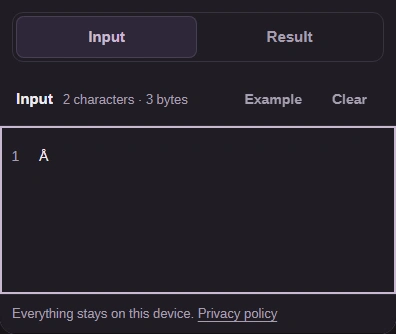
Step 2. Paste A plus a combining ring into Input. On a phone, open Result to read its values. - Paste A plus the ring.
- Input is for pasting; Result is for reading.
-
-
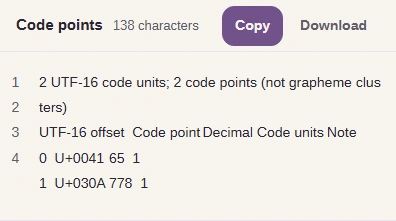
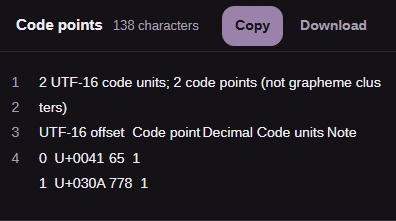
Step 3. A plus the ring has separate rows: U+0041 and U+030A. - Read the letter and ring as separate values.
-
-
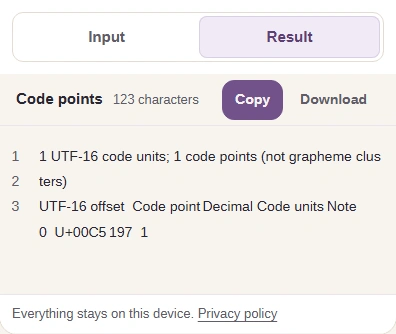
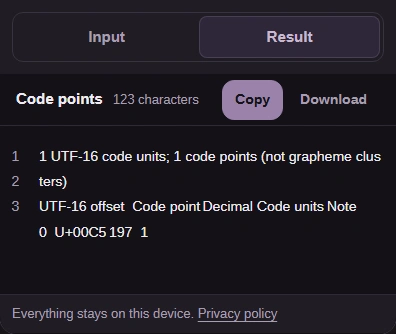
Step 4. Back on Input, replace the text with precomposed Å, then open Result: its row is U+00C5. - Input takes the precomposed Å; Result shows its values.
- Read U+00C5 for the precomposed Å.
-
-
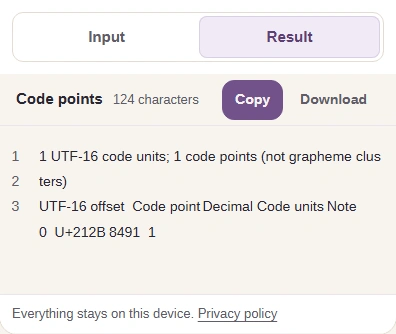
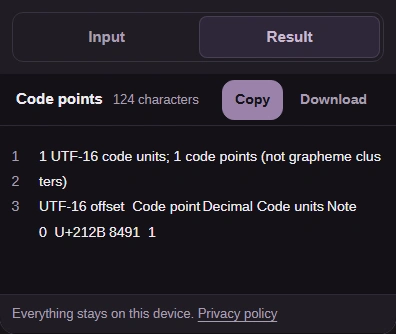
Step 5. Repeat with the Angstrom sign Å: its row is U+212B. Similar shapes can hide different values. - Input takes the Angstrom sign Å; Result shows its values.
- Read U+212B for the Angstrom sign Å.
-
Keep the original text and use a normalized copy for the comparison. Here, NFC turns A plus a ring into Å and leaves the precomposed Å unchanged.
-
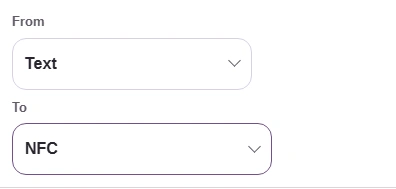
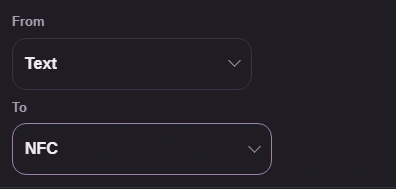
Step 1. Under To, choose NFC to give equivalent spellings the same composed form. - From: Text is the input.
- To: choose NFC.
-
-
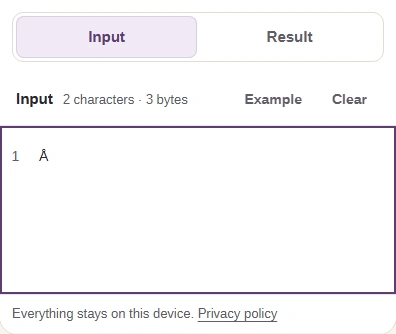
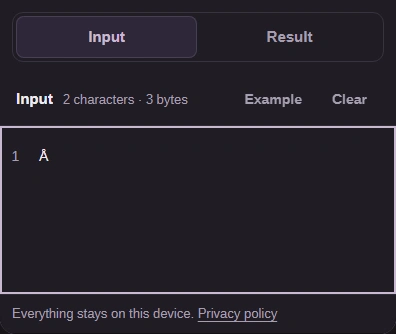
Step 2. Paste A plus the ring. Input stays as pasted; the NFC result updates automatically. - Input still has the letter plus its ring.
- Open Result for the NFC copy.
-
-
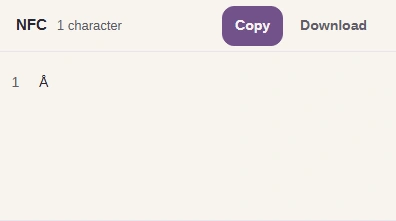
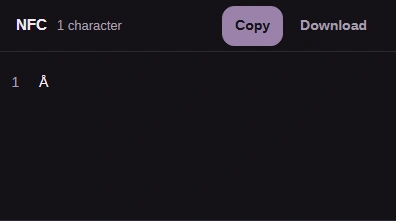
Step 3. The NFC result is precomposed Å. Its readout is 1 character. - NFC has joined this letter and ring.
- The NFC copy has 1 character.
-
-
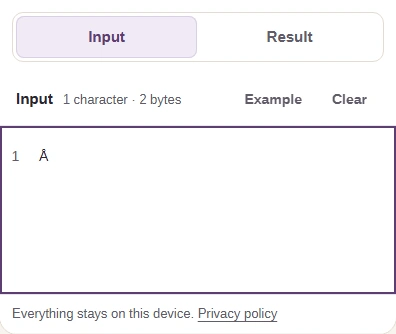
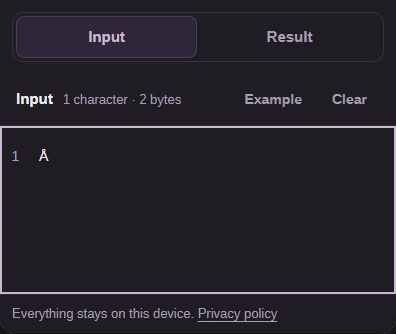
Step 4. Back on Input, replace the text with precomposed Å. It already has 1 character; open Result for its NFC copy. - Paste the precomposed Å.
- This input already has 1 character.
- Open Result for this spelling.
-
-
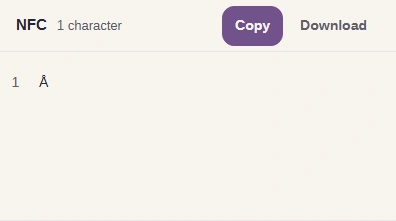
Step 5. The second NFC result is also Å, unchanged. Copy takes the result to your clipboard; Download saves it as a UTF-8 text file. - The second NFC copy is also Å, unchanged.
- Copy copies the NFC text; Download saves a UTF-8 text file.
-
Need to inspect the code points in your text?
When won't normalization make text match?
Normalization follows defined equivalences; it doesn't treat every pair of similar-looking letters as the same letter.
NFKC and NFKD also apply compatibility mappings, which can replace ligatures and fullwidth letters with plain ones. Choose them when you want those distinctions removed; Latin and Cyrillic lookalikes remain different under every normalization form.
Why can saved text have different bytes?
UTF-8 and UTF-16 package the same code points differently, so matching text can still produce different files.
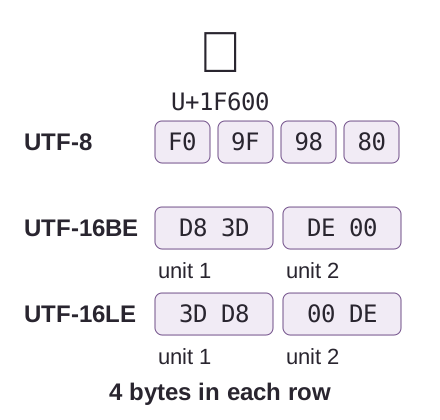
The grinning face 😀 is one code point. It takes 4 bytes in each encoding below; UTF-16 groups those bytes into 2 code units, with BE and LE choosing the byte order within each unit.
For hexadecimal byte views and conversions, use FluffyBench's Base encoder. Unicode Inspector handles code points and normalization. Base encoder handles the UTF-8 and UTF-16 byte representations, including conversion back to text.
What does a byte order mark add to a file?
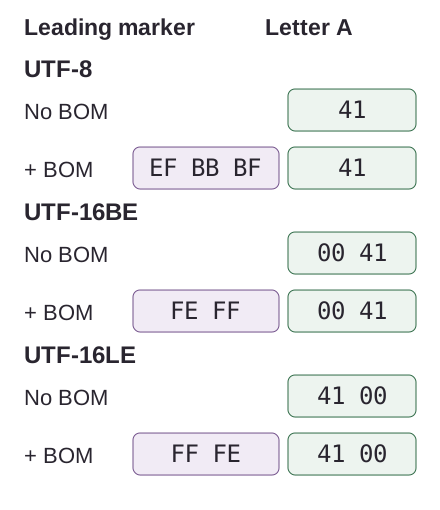
A byte order mark, or BOM, is a leading marker separate from the first letter.
A BOM uses the code point U+FEFF. In UTF-16 it marks the byte order; in UTF-8, which has no byte-order choice, it marks the encoding.
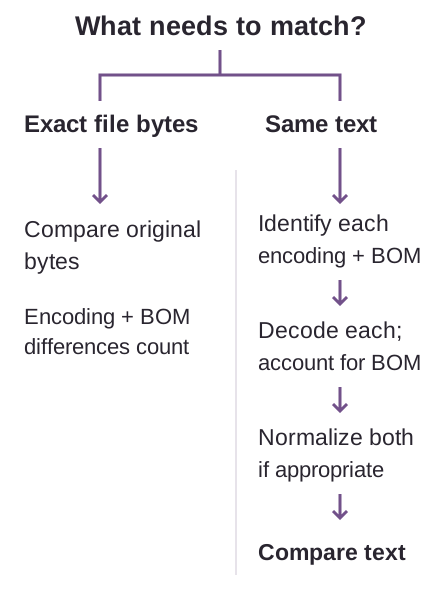
For saved files, the useful comparison depends on your question: do you need the same text, or the exact same file bytes?