
Can JPEG XL keep a JPEG unchanged?
Yes. JPEG XL can tuck a JPEG inside itself and give you the exact same file back later. A fresh conversion in FluffyBench can look the same and still take more space.
Can JPEG XL preserve the original JPEG file?
Yes, through a feature called reversible JPEG transcoding. JPEG XL is a picture format with the extension .jxl, and it can carry a JPEG's compressed data so compatible software can rebuild the original JPEG file. Think of putting a sealed letter inside another envelope: unwrap it and you've still got the same letter.
FluffyBench's JPEG XL converter takes a different route: it opens the JPG as picture pixels and encodes a new JXL. Even if every pixel matches, the original JPEG file isn't inside it.

What happens when FluffyBench converts a real JPG?
A fresh encode starts from the expanded picture, so it doesn't inherit the JPG's compact storage. We took a National Park Service bison photo that was already a JPG and made two new JXL files from it.
Both new files were larger than the JPG. The Quality 100 JXL was about 5.4 times its size, so neither conversion saved storage for this photo.
What happened to the picture? Start with the pale rim of the bison's horn, marked here.
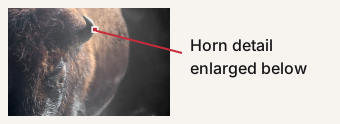
At Quality 92, some pixel values changed. At Quality 100, every decoded pixel matched the JPG's decoded picture, yet the much larger JXL still wasn't the original JPEG file.
Original JPG

Look at the pale horn edge against the soft coat.
60 × 45 px; 8× magnification.
Picture decoded from the original JPG.
1.1 MB
Quality 92 JXL

The same patch, enlarged by the same amount.
60 × 45 px; 8× magnification.
Changed pixel values in the decoded picture.
1.2 MB
Quality 100 JXL
60 × 45 px; 8× magnification.
Every decoded pixel matched the JPG's decoded picture.
6.1 MB
Where Quality 92 changed pixels

60 × 45 px; 8× magnification.
Red marks changed color values; dark marks matching positions.
Should you convert your JPG to JPEG XL?
Convert when you need a JXL, or when the new file is smaller and looks right. For a recoverable original JPEG, you need software with reversible JPEG transcoding.
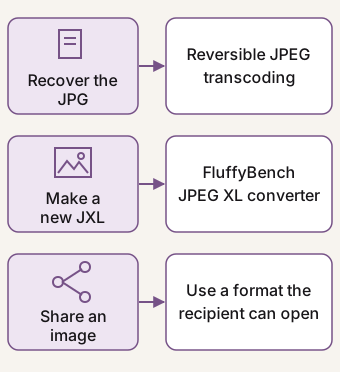
For sharing, the deciding check is the recipient's actual app. If you don't know what it can open, JPG is another option. Our browser and app image-format guide helps you check compatibility without assuming every app handles JXL alike.
If you need information stored alongside the picture, such as camera tags, FluffyBench's fresh JXL doesn't carry over the source container's metadata. See what happens to image metadata during conversion before choosing a new file as your archive copy.
Doing it in FluffyBench
FluffyBench's JPEG XL converter makes a new JXL from your JPG. This walkthrough uses a different photo from the bison JPG above: its JXL comes out smaller, so judge storage savings from your own result's size readout.
-
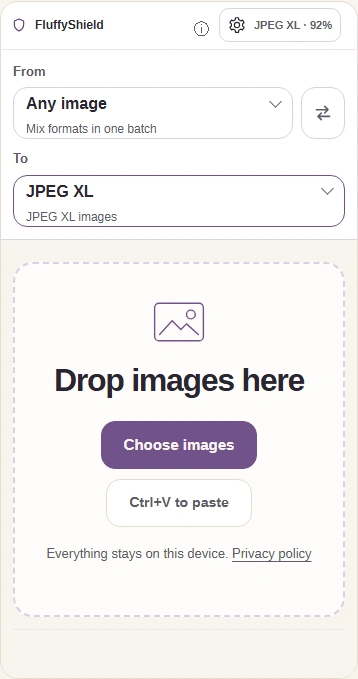
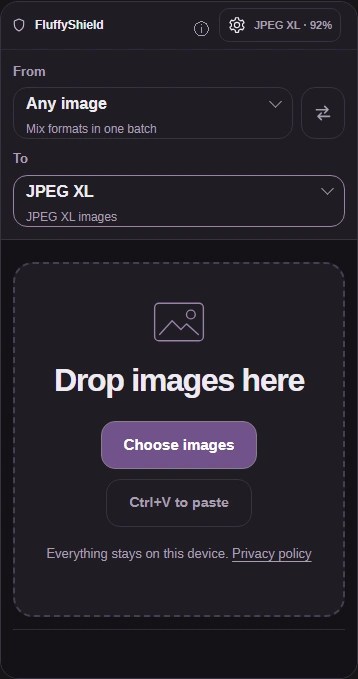
Step 1. Choose a JPG. On FluffyBench's JPEG XL converter, To is already set to JPEG XL. Keep your original JPG. - Choose images opens your device’s file picker.
- To is set to JPEG XL.
- The gear button (JPEG XL · 92%) opens Settings.
-
-
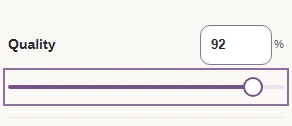
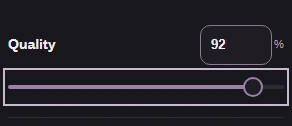
Step 2. Quality changes how much picture detail the JXL keeps. It starts at 92; leave it there for this job. - Leave Quality at 92.
-
-


Step 3. Tap Settings again to close the output controls. - Settings closes the panel you’ve just used.
-
-
Step 4. Press Convert to make a new JXL. - Convert creates the new JXL.
-
-
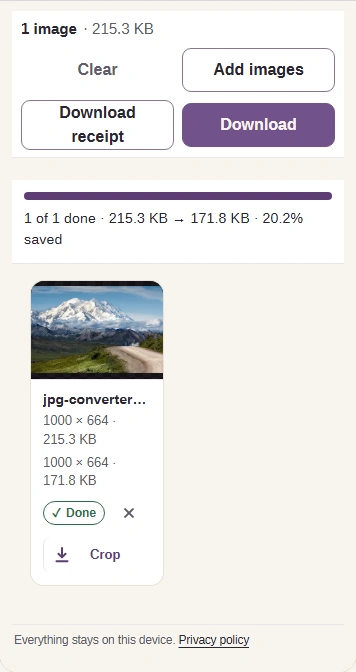
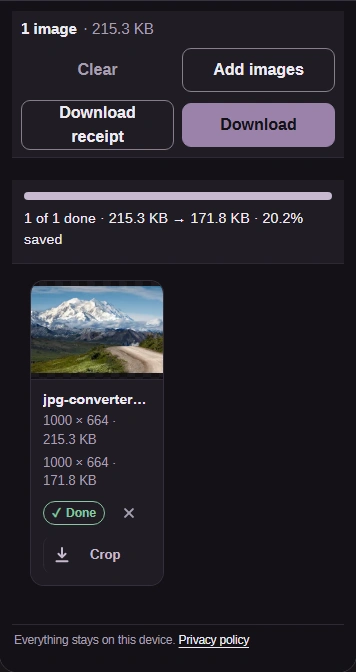
Step 5. Compare the original and JXL sizes before saving. Download saves the new JXL to your device. - Compare with the original; use the JXL for storage savings if it's smaller.
- Download saves your JXL.
-
FluffyBench Image Viewer lets you inspect a JXL without re-encoding it. To send an existing JXL to an app that needs PNG, use FluffyBench's PNG converter.