
Why can a large photo hit the JPEG XL limit?
FluffyBench can refuse a photo because it has too many pixels, even when its saved file is small. Reducing the image dimensions can clear that limit; compressing the file isn’t the same thing.
Why can a small photo file exceed the pixel limit?
Think of your photo as a mosaic: width counts the squares across, and height counts the rows. Compressing the saved file can pack that mosaic into fewer bytes without removing any squares.
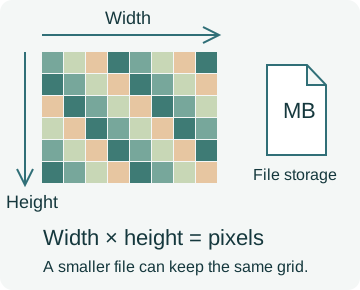
FluffyBench’s JPEG XL converter checks the pixel count of the image it’s about to encode. If you need to bring that count down, resize the image. Lowering the saved file’s megabytes won’t necessarily change its width or height.
What are FluffyBench’s JPEG XL pixel limits?
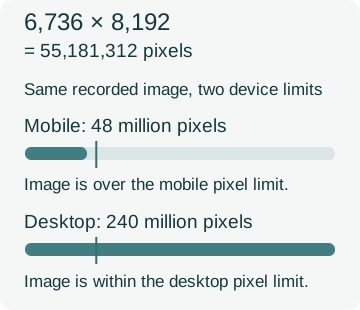
The current limits are 48 million pixels on mobile and 240 million pixels on desktop. A recorded image measuring 6,736 × 8,192 has 55,181,312 pixels: it’s over the mobile limit and within the desktop limit.
These are FluffyBench’s browser encoding limits, not limits of the JPEG XL format or rules for opening an existing JPEG XL file. Passing this check lets encoding proceed; available memory and the image’s content still affect whether it finishes.
Can lowering JPEG XL quality clear the pixel limit?
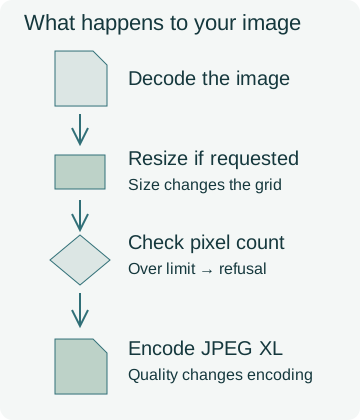
No. Quality changes how FluffyBench encodes the picture; Size changes the picture’s dimensions. In an ordinary conversion, FluffyBench decodes the source and applies your resize before the JPEG XL encoder checks the resulting pixel count.
Doing it in FluffyBench: resize a refused photo
You don’t need to make a separate resized input: FluffyBench’s JPEG XL converter can resize the photo during your retry. Keep your original; the walkthrough uses an enlarged leaf photo rendered for illustration, so you can see a real refusal and the controls that resolve it.
-
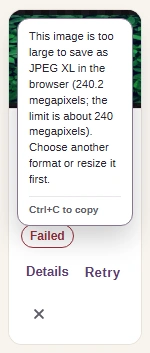
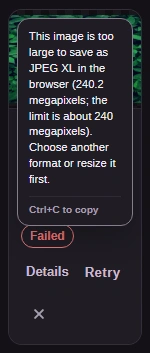
Step 1. Read the pixel count and limit in Details. - Open Details for the refused image.
- Compare the image’s megapixels with the stated limit.
-
-
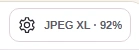
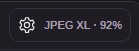
Step 2. Open Settings to reduce the output dimensions. - Open Settings.
-
-
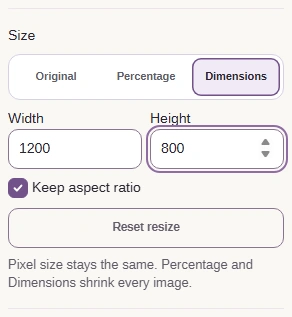
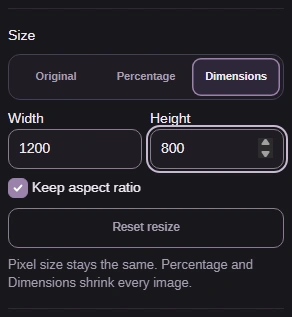
Step 3. Choose a smaller pixel box that fits under your device’s limit. - Choose Size → Dimensions.
- Width and Height set the pixel box; Keep aspect ratio avoids stretching.
-
-
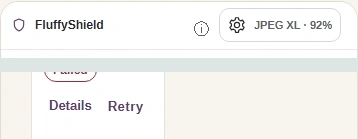
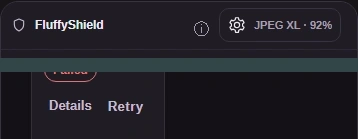
Step 4. Tap Settings again to close it, then Retry the refused image (toolbar and file-control crops). - Tap Settings again to return to the image.
- Retry uses your current resize settings.
-
-
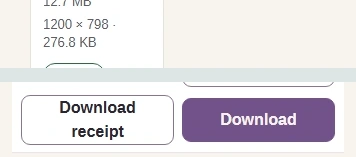
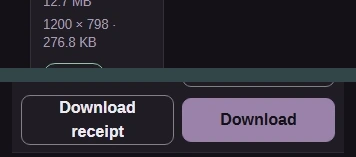
Step 5. Check the output dimensions and file size, then Download (result and button crops). - Read the output dimensions and file size.
- Download saves the JPEG XL to your device.
-
If you need the original dimensions, resizing won’t meet that goal. FluffyBench’s JPG converter is another route for a photo when your destination accepts JPG; compare AVIF, WebP, and JPEG XL if you’re choosing a different format. For a conversion that fails after passing the pixel check, our guide to very large images in browsers explains the wider memory question.