
Why do old image formats still matter?
An old image that won't open may still hold a picture worth keeping. The trick is finding an app that understands how it was packed.
Why won't an app open an old image?
An image format is a set of rules for storing a picture. Opening it is like unpacking a box: you need to understand the labels and dividers. An app that doesn't know those rules may refuse the file even though the picture is still there.
For formats FluffyBench can read, its local reader unpacks the old file into a picture you can view or save in another format.

That's why an image can work in FluffyBench even when your browser's own preview can't open it. Our browser format guide explains that difference.
How stored instructions become a picture
XPM makes the unpacking easy to see: its text contains a color key and rows of letters that spell out the picture. Here's a real key and row from our small XPM sample.

Once the letters become colored pixels, PNG can store that picture without needing XPM's text recipe.
What can change when you convert an image?
A usable picture doesn't always carry everything the source held. In this flower example, creating the black-and-white MacPaint file removes the photograph's color; converting that MacPaint file to PNG can't bring it back.

Some specialist formats store finer shade values, or brighter light values, than a screen preview can show. A preview tells you what the picture looks like; the output format and export settings determine which numeric detail the saved copy keeps.

Which format should you choose for an old image?
Choose the copy for the job you're doing next, and a format your destination app accepts.

Keep the original if its extra precision or file structure may matter later. An everyday copy may leave those details behind.
For the tradeoffs between PNG, JPG and WebP, see our guide to common image formats.
If your old file contains pages, layers or separate image surfaces, our guide to image-file parts explains what those parts mean before you choose a copy.
Doing it in FluffyBench
Use FluffyBench PNG Converter when you need a new file for another app. Here's an XPM flower becoming a PNG, from choosing the image to saving the copy.
-
Step 1. Choose the old image you want to use. This walkthrough uses a flower saved as XPM. - Choose images opens your file picker.
-
-
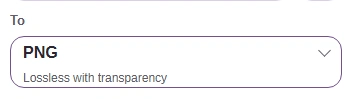

Step 2. Check that To says PNG. The default settings suit this graphic. - To names the format of your new copy.
-
-
Step 3. Convert makes the PNG copy. - Press Convert 1 to PNG.
-
-
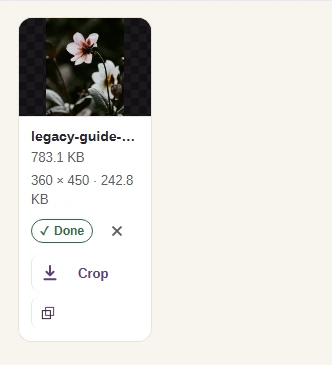
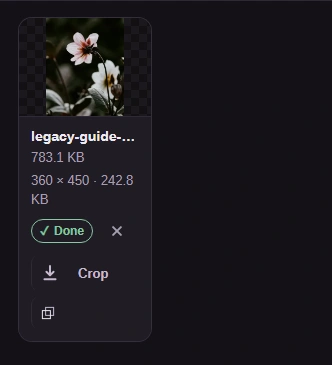
Step 4. Check the picture and the PNG size beneath its original size. - Check the flower in the PNG preview.
- This is the PNG's dimensions and file size.
-
-


Step 5. Download saves your PNG for the app where you'll use it. - Download saves the PNG copy to your device.
-