JPG converter

Convert images to JPG; choose the transparency matte color.

FluffyShield Protected workspace
From
To

Convert to

Common

Any image Mix formats in one batch
WebP Small files for the web
JPG Opens anywhere
PNG Lossless with transparency
AVIF Modern web images
JPEG XL JPEG XL images
GIF GIF images

Icons and print

ICO Windows icon
ICNS Mac icon
CUR Cursor image
TIFF Print and archival image
BMP Windows bitmap
APNG Animated PNG image

Game textures

DDS Game texture
KTX GPU texture
KTX2 GPU texture
VTF Valve texture

Your images stay when you change the format. Press Convert again to make the new files.

FluffyShield

Isolated workspace: other page scripts can't read your files. How FluffyShield works

Need a JPG for an upload or a recipient?

Make a JPG the receiving app can use. Choose its detail and background in FluffyBench, then check the copy before you send it.

Converting to JPG in FluffyBench

JPG and JPEG are two names for the same still-image format. Think of a JPG as a shipping copy: it makes a picture easier to hand over by rounding away some fine detail. It's a useful choice when an upload site or a recipient asks for JPEG.

Start with the picture you need to send. Your pictures stay on your device in FluffyBench's JPG converter.
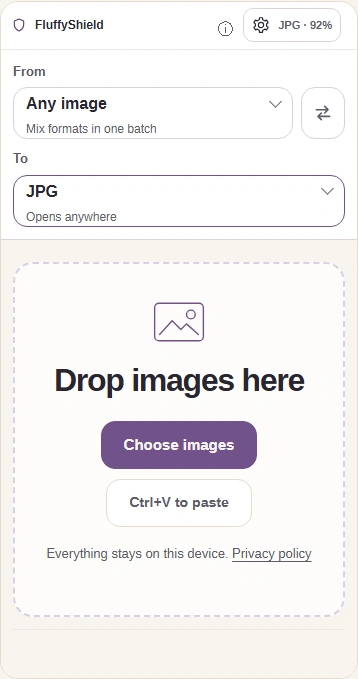
  1. JPG workspace with Choose images, To JPG, and the Settings button.
    JPG workspace with Choose images, To JPG, and the Settings button.
    Step 1. Choose images adds pictures from your device. To JPG selects the output; the gear opens Settings.
    1. Choose images.
    2. Leave To set to JPG.
    3. Open Settings.

Choose JPG detail or an upload size limit

Quality trades detail for file size; its number isn't a percentage of the original you keep. Small lettering makes that trade easier to see when a PNG screenshot becomes JPG.
Whole source image with the interface lettering crop marked.

Scroll to compare settings →

Original PNG

Interface lettering in the source image.

35.2 KB

JPG · Quality 92

Interface lettering saved as JPG at quality 92.

54.5 KB

JPG · Quality 100

Interface lettering saved as JPG at quality 100.

158.4 KB

Compare letter edges and the flat background; sizes describe the complete files. How we reviewed

Use Quality when you want to choose the detail yourself. If an upload site gives you a maximum file size, FluffyBench's JPG converter can search for a quality that fits it.
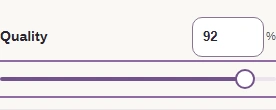
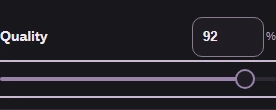
  1. The JPG Quality control at 92.
    The JPG Quality control at 92.
    Step 1. Choose Quality yourself when there's no upload cap to meet.
    1. Set the detail you need.
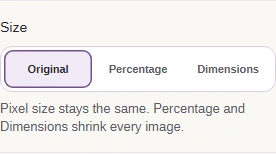
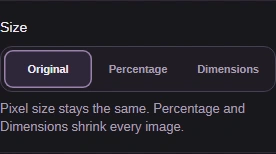
  2. Size choices Original, Percentage, and Dimensions.
    Size choices Original, Percentage, and Dimensions.
    Step 2. Original keeps the pixel dimensions. Percentage and Dimensions change how large the picture is, separately from Quality.
    1. Keep Original unless you need a resize.
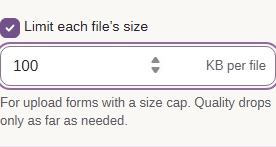
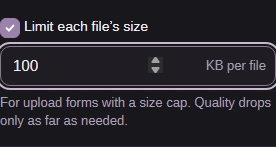
  3. Enabled Limit each file’s size with 100 KB per file.
    Enabled Limit each file’s size with 100 KB per file.
    Step 3. For an upload cap, enable Limit each file’s size and enter the allowed KB per file. FluffyBench searches for a quality that fits each picture.
    1. Enable a size limit.
    2. Enter your destination's limit.

If the size search can't reach your limit, FluffyBench stops that image and reports the smallest file it reached. A larger limit or smaller pixel dimensions gives the picture more room to fit.

A new encoding can use more bytes than the source, as the lettering copies did. Why image files get larger explains that trade. For a closer look at photo texture, see what happens to image quality during conversion.

Choose a fill color for transparent areas

JPG fills see-through space with a solid color. A white fill blends into a white page; on a dark page, it leaves a visible rectangle.
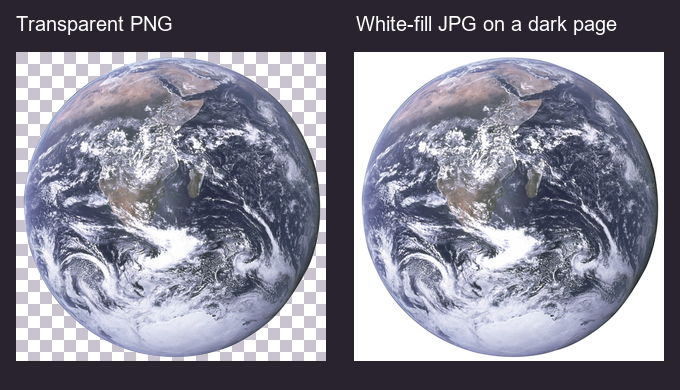
The transparent Earth source over a checkerboard, beside the whole white-fill JPG placed on an illustrated dark page.

Transparent source and white-fill JPG

  1. Transparent source

    Checkerboard marks the PNG's see-through space.

  2. White JPG fill

    The complete JPG has a white background.

  3. Destination color

    This illustrated dark page makes the white rectangle visible.

Placement rendered for illustration; the JPG is the existing measured white-fill output. · Photo: NASA, Public domain, NASA-created image, via Wikimedia Commons.

Choose the background with Fill color before you convert. Preset swatches and typed Hex colors take different paths through the picker.
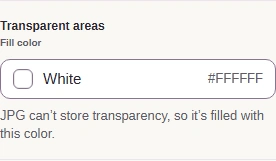
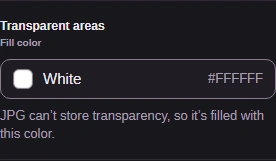
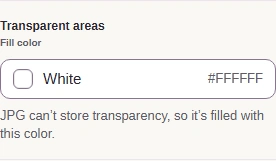
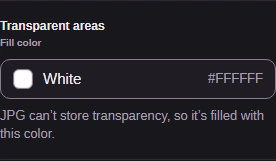
  1. Transparent areas, Fill color, and the White color button.
    Transparent areas, Fill color, and the White color button.
    Step 1. Open Fill color to choose the background for see-through areas.
    1. Open the fill-color picker.
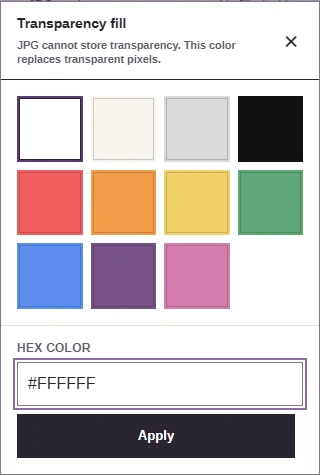
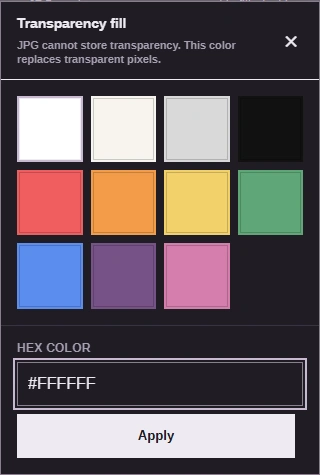
  2. Transparency fill dialog with presets, Hex color #FFFFFF, and Apply.
    Transparency fill dialog with presets, Hex color #FFFFFF, and Apply.
    Step 2. A swatch saves its color and closes the picker immediately. For a typed Hex color, Apply saves it and closes the picker.
    1. Choose a swatch to save it.
    2. Or type a Hex color.
    3. Apply saves the typed color.
  3. White fill color after applying Hex color #FFFFFF.
    White fill color after applying Hex color #FFFFFF.
    Step 3. White is applied here, matching the measured Earth JPG.
    1. Confirm the applied fill color.

What a JPG copy leaves behind

A JPG copy is a still picture without the source's camera details.

An animated three-frame sequence points to its first still frame; a camera metadata tag loses its capture time, camera settings, and GPS fields.

What travels with the copy

  1. Animated source

    An animated GIF or HEIC has a sequence of frames.

  2. Still JPG

    FluffyBench keeps the first frame and warns you about the change.

  3. Camera details

    These fields aren't carried into the new JPG.

Animation and camera details are separate from the visible fill color.

Convert, download, and check your JPG

With your settings chosen, make the JPG copy in FluffyBench. Check its size, save it, and inspect the saved picture before sending it.


  1. The gear button that closes Settings.
    The gear button that closes Settings.
    Step 1. Close Settings with the gear when your choices are ready.
    1. Close Settings.
  2. Convert ready for the selected photo.
    Convert ready for the selected photo.
    Step 2. Convert creates the JPG copy. Keep the original for later edits, transparency, or camera details.
    1. Convert your picture.
  3. The completed JPG's output dimensions and file size.
    The completed JPG's output dimensions and file size.
    Step 3. Compare the JPG's size and dimensions with your upload site's limits.
    1. Check the JPG dimensions and size.
  4. Download for the completed JPG.
    Download for the completed JPG.
    Step 4. Download saves the JPG copy to your device.
    1. Download the JPG.
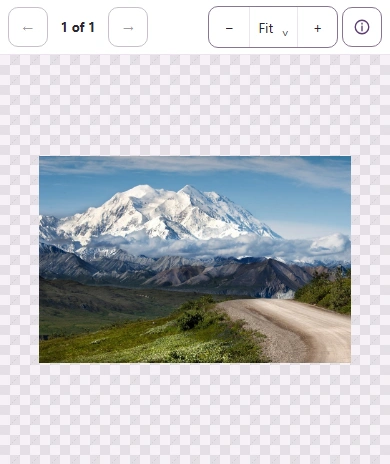
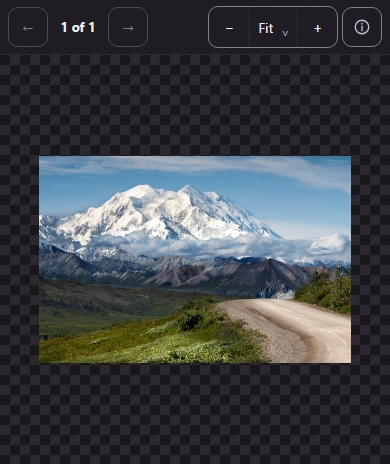
  5. The downloaded mountain JPG open in FluffyBench's Image viewer, with Fit and zoom controls above the picture.
    The downloaded mountain JPG open in FluffyBench's Image viewer, with Fit and zoom controls above the picture.
    Step 5. The saved copy is open in FluffyBench's Image viewer here. Your receiving app or upload site makes the final acceptance check.
    1. Inspect the saved JPG in FluffyBench's Image viewer.

Save several JPGs together

FluffyBench's JPG converter can save completed copies together when you add several pictures.
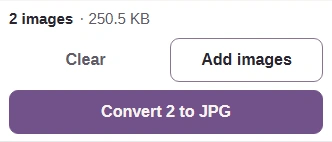
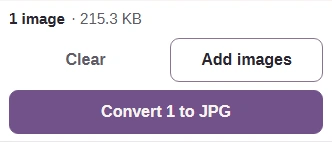
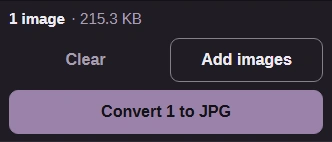
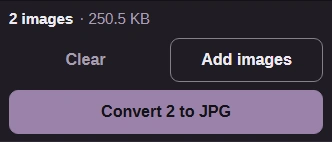
  1. Two selected pictures and the Convert button.
    Two selected pictures and the Convert button.
    Step 1. Both pictures are selected. Convert makes JPG copies with the current settings.
    1. Convert the selected pictures.
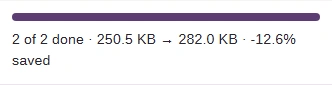
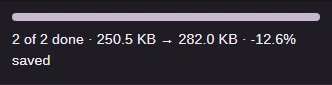
  2. Completed batch with the original and JPG totals.
    Completed batch with the original and JPG totals.
    Step 2. The completed batch shows the total size before and after conversion.
    1. Read the completed total.
  3. Download all (ZIP) for the completed JPG batch.
    Download all (ZIP) for the completed JPG batch.
    Step 3. Download all (ZIP) saves the completed JPGs together in an archive.
    1. Save the batch as a ZIP.

A cutout that needs see-through space calls for a format that can keep it.

Need transparent space or an exact working copy?

FluffyBench's PNG converter

PNG keeps transparency and avoids JPG's detail tradeoff.

Does your destination accept WebP?

FluffyBench's WebP converter

Make a WebP when the destination accepts it and your picture needs transparency.

Need JPG or PNG copies of HEIC photos?

FluffyBench's HEIC converter

Choose JPG or PNG output on a workspace focused on HEIC input.

Search FluffyBench